Version history
See the earlier versions of a block, prompt or document, and restore one.
PromptMason keeps a version of a block, prompt or document each time you save a change to it. You can look back through the versions and restore any of them.
Version history is a feature you can show or hide. If you don’t see History, click Settings in the sidebar, then Features, and turn on Version history. Versions are kept while it’s off; turning it on shows them again.
When a version is saved
A first version is saved when you create an item. After that, a new version is saved each time you save a change to:
- A block: its name, Type, text or tags.
- A static prompt or a document: its name, Type, text or tags.
- A dynamic prompt: its name, Type, tags, or its blocks: which blocks it uses, their order, and their Include Name and Include Type choices.
These don’t make a version: the description, the character limit, moving the item to another folder, favorites and ratings. Saving without changing anything doesn’t make a version either. Moving an item to another library does.
There’s no limit on how many versions are kept.
On your other PCs
If your personal library syncs to your other PCs, each item’s history is the same on all of them, including the versions you saved before you started syncing. A PC you add gets the whole history when it joins (more).
In a team library, history starts when the library starts. Everyone in it sees each change made in the library since then, with who made it. Versions from before you moved an item into a team library stay on your own PCs.
Embedded blocks
An embedded block belongs to one prompt (see Library blocks and embedded blocks). It has no history of its own. When you change an embedded block and save the prompt, the prompt gets a new version, and that version keeps the embedded block’s text as it was.
Open the history
Any of these opens Version history for an item:
-
On the Blocks or Prompts screen, click the item, then click the clock icon (History) at the top of the right-hand pane.


-
On the Blocks, Prompts or Explorer screen, right-click the item and click History.
-
On the Explorer screen, click the item’s Version history button.
The Build screen has no History button. To see a prompt’s history while you work on it, go to the Prompts screen.
The Versions column on the Prompts, Blocks and Explorer screens shows how many versions each item has.
What each version shows
Versions are listed newest first. Each one shows:
- The date and time it was saved. The newest is marked Current.
- The name and Type, and for a prompt whether it’s Static, Dynamic or Markdown.
- The first lines of its text. For a dynamic prompt, the number of blocks and their names; a block that was later archived shows “(archived)”, and one that was deleted shows [Block removed].
- Its tags, while the Tags feature is on.
- An AI assist tag if that save included a suggestion from AI assist that you accepted. Point at the tag to see which AI provider and model made the suggestion. See Improve text with AI assist.
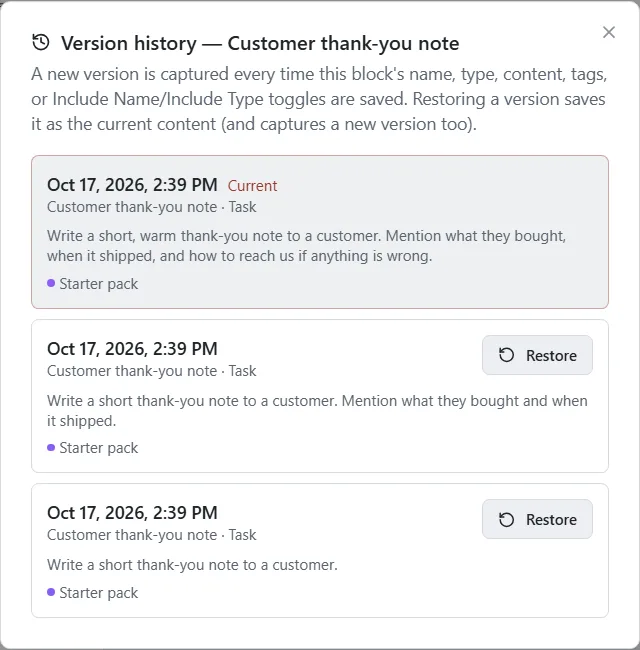
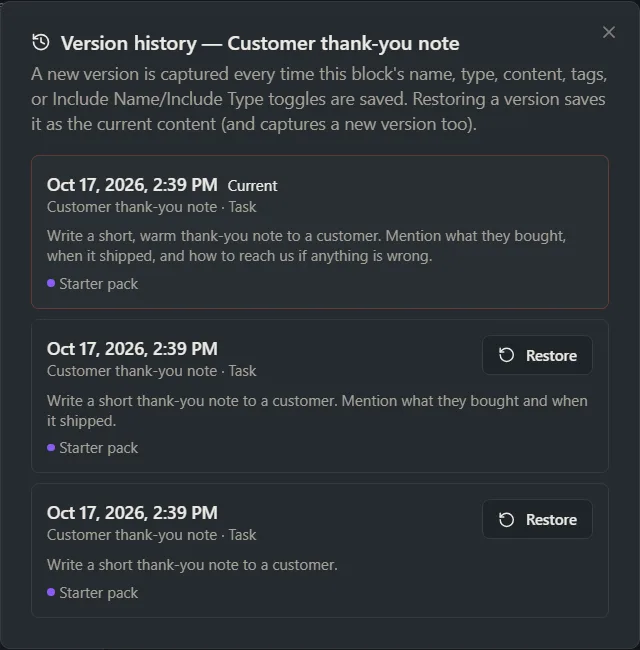
History doesn’t compare two versions for you. To see what changed, read the text shown for each version.
Restore a version
- Open Version history for the item.
- Find the version you want.
- Click Restore next to it. It shows Restoring… while it works.
The newest version, marked Current, has no Restore button: it’s what you have now.
There’s no confirmation step. The version you restored becomes the current one, and the list shows it at the top as a new version marked Current. Nothing is lost: the version you replaced stays in the list, so you can restore it in the same way if you change your mind.
What’s restored:
- A block: its name, Type, text and tags.
- A static prompt or a document: its name, Type, text and tags.
- A dynamic prompt: its name, Type, tags and its list of blocks, in order. Embedded blocks get back their name, type, text and tags from that version.
What isn’t restored: the description, character limit, folder, favorite and rating. A static prompt stays static, a dynamic prompt stays dynamic, and a document stays a document.
Restoring a dynamic prompt and its library blocks
A dynamic prompt’s version records which library blocks it used, not their text. Restoring it brings back that list of blocks, and each block shows its text as it is now. To bring back a block’s earlier text, restore the block itself from its own history on the Blocks screen. That changes the block in every prompt that uses it.
If an embedded block from that version has since been turned into a library block, or now belongs to another prompt, PromptMason leaves that block as it is, restores the rest, and says how many blocks it didn’t change. An embedded block that was deleted is brought back.
Who made a version
A version saved by a connected AI app, such as Claude Desktop or Chat, says via AI app. See Connect an AI agent through MCP.
In a team library, each version also says who made it and on which PC, for example “Edited by Sam Rivera on Sam’s PC”. See Personal and team libraries.
Deleted and copied items
- A deleted item keeps its versions while it’s in Recently deleted. If you restore it within 30 days, its history is still there. After that, the item and its versions are gone for good. See Archive, delete and restore.
- A copy made with Copy in a list starts its own history, with one version.
Messages
| Message | What to do |
|---|---|
| Could not load version history. | Close the window and open it again. If it keeps happening, close and reopen PromptMason. |
| Restore failed — try again. | Click Restore again. |
| No versions captured yet. | Nothing has been saved to this item yet. Save a change and open History again. |
| Restored. followed by “… aren’t part of this prompt anymore, so they weren’t changed.” | The restore worked. A few embedded blocks from that version were left as they are (see Restoring a dynamic prompt and its library blocks). |
| You can view this library but not change it. Ask a library owner for edit access. | You’re a reader in this team library, so you can’t restore versions. Ask a library owner to make you an editor. |
| Your library is paused | You can look through versions but not restore them while your library is paused. See When your library is paused. |
Want a hand?
Copy this prompt into Claude, ChatGPT or another AI assistant, and it walks you through it step by step.
I changed a prompt in PromptMason and want the old wording back. Walk me through finding the earlier version in “Version history” and restoring it.
Copy adds a short note about PromptMason and this guide's steps, so the assistant has what it needs.
I changed a prompt in PromptMason and want the old wording back. Walk me through finding the earlier version in “Version history” and restoring it. About PromptMason: a Windows desktop app for building AI prompts from reusable blocks. A person writes blocks (reusable pieces of prompt text), builds prompts from them on the Build screen (or keeps a Markdown document, such as a Skill), and copies a prompt into an AI tool, runs it in PromptMason’s own Chat, or lets a connected AI agent use it through PromptMason’s built-in MCP server (the Chrome extension copies prompts on any website). AI assist, Evaluate and Chat use a local model that runs on the person’s PC, or their own AI provider. The guides are also on PromptMason’s Help screen, and Chat can answer “how do I” questions from them. Libraries hold the blocks and prompts; a person can sync their personal library to their other PCs and share team libraries, both through a folder in cloud storage they already have (OneDrive, Google Drive or Dropbox). Everything synced is encrypted and every edit is signed and checked. A recovery kit (a file plus a code) is the spare copy of the person’s keys, for when every PC is lost. The official guide for this is "Version history": https://promptmason.ai/docs/version-history Its full text follows, between the lines. Use it as the source of truth, and if anything I see differs from it, tell me rather than guessing. --- PromptMason keeps a version of a block, prompt or document each time you save a change to it. You can look back through the versions and restore any of them. Version history is a feature you can show or hide. If you don't see **History**, click **Settings** in the sidebar, then **Features**, and turn on **Version history**. Versions are kept while it's off; turning it on shows them again. ## When a version is saved A first version is saved when you create an item. After that, a new version is saved each time you save a change to: - **A block:** its name, Type, text or tags. - **A static prompt or a document:** its name, Type, text or tags. - **A dynamic prompt:** its name, Type, tags, or its blocks: which blocks it uses, their order, and their **Include Name** and **Include Type** choices. These don't make a version: the description, the character limit, moving the item to another folder, favorites and ratings. Saving without changing anything doesn't make a version either. Moving an item to another library does. There's no limit on how many versions are kept. ## On your other PCs If your personal library syncs to your other PCs, each item's history is the same on all of them, including the versions you saved before you started syncing. A PC you add gets the whole history when it joins ([more](https://promptmason.ai/docs/second-pc#what-your-other-pcs-get)). In a team library, history starts when the library starts. Everyone in it sees each change made in the library since then, with who made it. Versions from before you moved an item into a team library stay on your own PCs. ### Embedded blocks An embedded block belongs to one prompt (see [Library blocks and embedded blocks](https://promptmason.ai/docs/embedded-blocks)). It has no history of its own. When you change an embedded block and save the prompt, the prompt gets a new version, and that version keeps the embedded block's text as it was. ## Open the history Any of these opens **Version history** for an item: - On the **Blocks** or **Prompts** screen, click the item, then click the clock icon (**History**) at the top of the right-hand pane. - On the **Blocks**, **Prompts** or **Explorer** screen, right-click the item and click **History**. - On the **Explorer** screen, click the item's **Version history** button. The Build screen has no History button. To see a prompt's history while you work on it, go to the **Prompts** screen. The **Versions** column on the **Prompts**, **Blocks** and **Explorer** screens shows how many versions each item has. ## What each version shows Versions are listed newest first. Each one shows: - The date and time it was saved. The newest is marked **Current**. - The name and Type, and for a prompt whether it's **Static**, **Dynamic** or **Markdown**. - The first lines of its text. For a dynamic prompt, the number of blocks and their names; a block that was later archived shows "(archived)", and one that was deleted shows **[Block removed]**. - Its tags, while the Tags feature is on. - An **AI assist** tag if that save included a suggestion from AI assist that you accepted. Point at the tag to see which AI provider and model made the suggestion. See [Improve text with AI assist](https://promptmason.ai/docs/ai-assist). History doesn't compare two versions for you. To see what changed, read the text shown for each version. ## Restore a version 1. Open **Version history** for the item. 2. Find the version you want. 3. Click **Restore** next to it. It shows **Restoring…** while it works. The newest version, marked **Current**, has no **Restore** button: it's what you have now. There's no confirmation step. The version you restored becomes the current one, and the list shows it at the top as a new version marked **Current**. Nothing is lost: the version you replaced stays in the list, so you can restore it in the same way if you change your mind. What's restored: - **A block:** its name, Type, text and tags. - **A static prompt or a document:** its name, Type, text and tags. - **A dynamic prompt:** its name, Type, tags and its list of blocks, in order. Embedded blocks get back their name, type, text and tags from that version. What isn't restored: the description, character limit, folder, favorite and rating. A static prompt stays static, a dynamic prompt stays dynamic, and a document stays a document. ### Restoring a dynamic prompt and its library blocks A dynamic prompt's version records which library blocks it used, not their text. Restoring it brings back that list of blocks, and each block shows its text as it is now. To bring back a block's earlier text, restore the block itself from its own history on the **Blocks** screen. That changes the block in every prompt that uses it. If an embedded block from that version has since been turned into a library block, or now belongs to another prompt, PromptMason leaves that block as it is, restores the rest, and says how many blocks it didn't change. An embedded block that was deleted is brought back. ## Who made a version A version saved by a connected AI app, such as Claude Desktop or Chat, says **via AI app**. See [Connect an AI agent through MCP](https://promptmason.ai/docs/connect-ai-agent). In a team library, each version also says who made it and on which PC, for example "Edited by Sam Rivera on Sam's PC". See [Personal and team libraries](https://promptmason.ai/docs/libraries). ## Deleted and copied items - A deleted item keeps its versions while it's in **Recently deleted**. If you restore it within 30 days, its history is still there. After that, the item and its versions are gone for good. See [Archive, delete and restore](https://promptmason.ai/docs/archive-and-delete). - A copy made with **Copy** in a list starts its own history, with one version. ## Messages | Message | What to do | |---|---| | **Could not load version history.** | Close the window and open it again. If it keeps happening, close and reopen PromptMason. | | **Restore failed — try again.** | Click **Restore** again. | | **No versions captured yet.** | Nothing has been saved to this item yet. Save a change and open **History** again. | | **Restored.** followed by "… aren't part of this prompt anymore, so they weren't changed." | The restore worked. A few embedded blocks from that version were left as they are (see [Restoring a dynamic prompt and its library blocks](#restoring-a-dynamic-prompt-and-its-library-blocks)). | | **You can view this library but not change it. Ask a library owner for edit access.** | You're a reader in this team library, so you can't restore versions. Ask a library owner to make you an editor. | | **Your library is paused** | You can look through versions but not restore them while your library is paused. See [When your library is paused](https://promptmason.ai/docs/paused-library). | --- How to help me: - Go one step at a time. After each step, ask what I see on screen before giving the next one. - Use the exact words on PromptMason’s buttons and screens, as the guide does. - Never ask me for my recovery code, my recovery kit file, a password or my invite line, and never ask me to paste them here. - Start by asking which step I’m on, or what I see now.