Set up AI: the local model or your own key
Choose what AI assist, Evaluate and Chat use, add an API key or your own server, and pick the default.
AI assist, Evaluate and Chat need an AI model to work with. You can use the local model, PromptMason’s own AI model that runs on your computer and is free on every plan, or connect an AI provider with your own API key. You can set up more than one and choose between them each time. PromptMason works without any of this; set it up only if you want the AI features.
Choose an option
| Option | What you need | Where your text goes | Cost |
|---|---|---|---|
| Local model | A one-time download of about 1.3 GB, and a PC with at least 4 processor cores and 8 GB of memory | Nowhere. Your text stays on this computer. | Free on every plan |
| OpenAI, Anthropic, Google Gemini or xAI (Grok) | An API key from that provider | To that provider, each time you run an AI feature | The provider bills you for what you use |
| Your own AI server (under Advanced) | The address of a server that accepts the same kind of requests as OpenAI’s (an “OpenAI-compatible server”), such as one running on this computer | To that server | Set by whoever runs the server |
An API key is a code that lets an app such as PromptMason use your account with an AI provider.
- Choose the local model to start with no account, no API key and no cost, or whenever you want your text to stay on your computer. It’s a small model: a cloud provider’s larger models can handle longer text.
- Choose a provider if you already have an account with one, or your PC is below the local model’s minimum.
For help deciding which to use with private text, see Choosing what to share with AI.
Set up the local model
- Click Settings in the sidebar, then AI & connected apps.
- The first card is Local model (private). Click Download.
- Read the license note and click Accept and download.
- When the card shows Ready, click Use as default.
Free, private AI on your PC covers the download, what the card shows, and what to do about each message.
Get an API key
You create an API key in your account on the provider’s website. Sign in there, find the page for API keys, create a key and copy it. Many providers show the whole key only once, so paste it into PromptMason (see the next section) before you close the page. The provider bills you for what you use, separately from PromptMason.
Add an API key
-
Click Settings in the sidebar, then AI & connected apps.
-
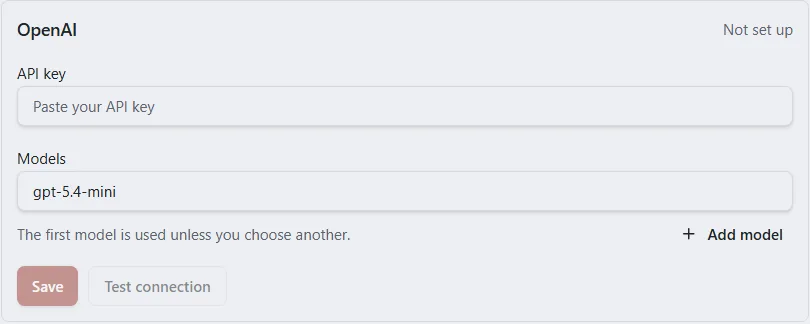
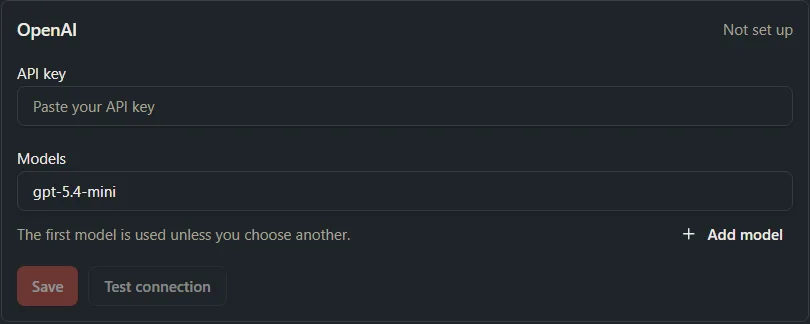
Scroll to the AI assist card and find AI providers. Each provider has its own box: OpenAI, Anthropic, Google Gemini and xAI (Grok). The top right of each box says Set up or Not set up.
-
In the box for your provider, click in API key and paste your key.
-
Under Models, check the model name. The first row already has a model filled in. To use a different model your provider offers, type its name exactly as the provider writes it.
-
Click Save.
You see Saved. and the box changes to Set up. The key field then reads Saved key ending in followed by the key’s last four characters. PromptMason never shows the whole key again.
If your default AI provider wasn’t set up yet, the provider you save becomes the default.
Add more models
Each provider can have several models, for example a fast one for short rewrites and a stronger one for chat.
- In the provider’s box, click Add model.
- Type the model’s name in the new row.
- Click Save.
The first model is used unless you choose another. The Model list in AI assist, Evaluate and Chat shows each provider with its models. To remove a model, click the X beside its row (Remove this model), then Save.
Test the connection
- In the provider’s box, click Test connection. It’s available once the box says Set up. If you have several models, first click in the row of the one you want to test. That row is highlighted, and the test uses its model.
- The button reads Testing… while it runs.
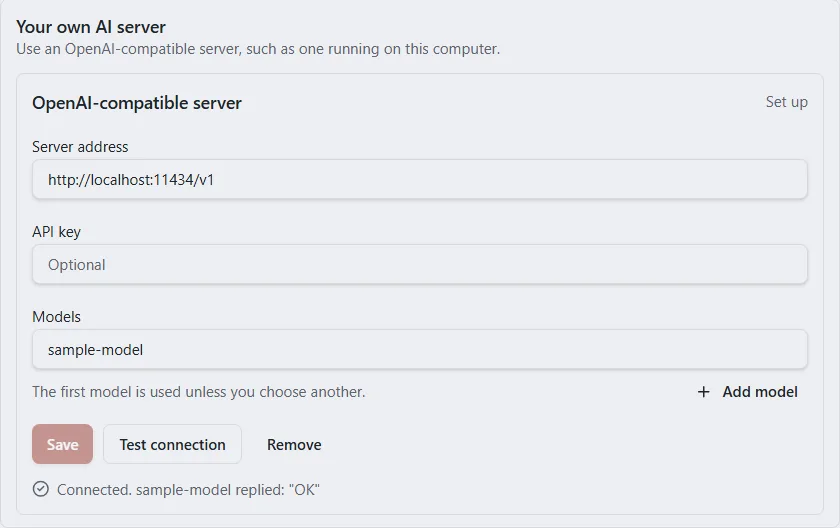
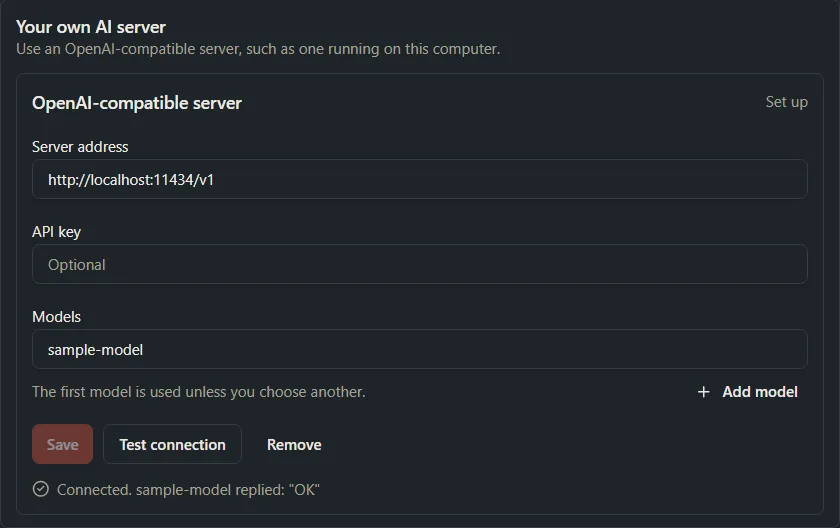
When it works, you see Connected. followed by the model’s name and its short reply. The test sends one short request with none of your text.
If it fails, you see “Testing [model] failed.” followed by the provider’s own message. That message usually says what’s wrong. Check that you pasted the whole key, that the model name is spelled the way the provider writes it, and that your account with the provider can use that model. Then save and test again.
Choose the default AI provider
The default is the provider and model AI assist, Evaluate and new chats start with. You can choose another each time you run one.
-
Click Settings in the sidebar, then AI & connected apps.
-
In the AI assist card, click the picker beside Default AI provider. It shows the current provider and model.
-
Point to a provider and click one of its models.
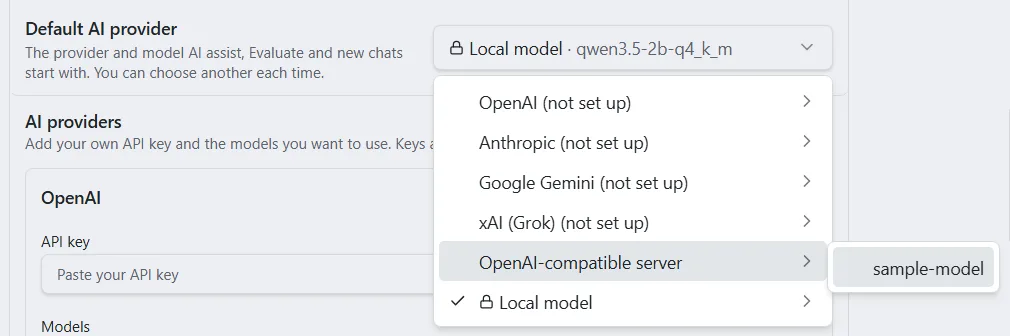
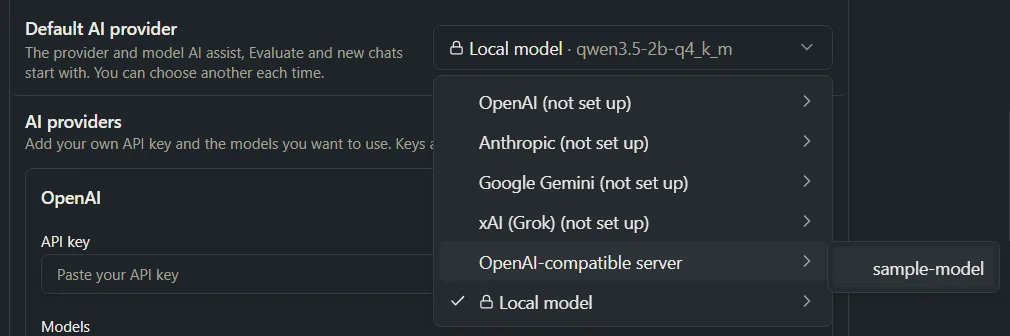
A provider without a key is marked (not set up). The local model is listed once it’s downloaded. If it’s your default but not downloaded (for example, after you remove it), it shows (not downloaded): download it again, or choose another provider. Choosing a model here also makes it that provider’s first model.
Use your own AI server
If you run an AI model on a server that accepts the same requests as OpenAI’s, you can use it the same way as a provider.
- Click Settings in the sidebar, then AI & connected apps.
- Below the AI assist card, click Advanced.
- Under Your own AI server, in Server address, type the server’s full address, starting with http:// or https://, for example http://localhost:11434/v1.
- If your server needs a key, paste it in API key. If not, leave it blank.
- Under Models, type the name of a model on your server. There’s no model filled in here.
- Click Save, then Test connection.
In model lists it’s called OpenAI-compatible server. If the address box is empty, you see Enter the server address, for example http://localhost:11434/v1. If the address isn’t accepted, you see The server address must be a full web address starting with http:// or https://. Correct it and click Save again.
Change or remove a key
- Replace a key: paste the new key in API key and click Save. Leaving the field empty keeps the saved key.
- Remove a key: click Remove in the provider’s box. The key is deleted from this computer straight away, without asking first, and you see Removed. If it was the default and another provider with a key or server address is set up, the default moves to it. Otherwise the removed provider stays the default, marked (not set up): choose another under Default AI provider, for example the local model.
Removing a key from PromptMason doesn’t cancel it with the provider. To stop the key working anywhere, delete it in your account on the provider’s website.
Where your keys are kept
- Keys are stored encrypted on this computer, for your Windows account only.
- They’re never shown again after you save them, and never included when you export your library. Replacing your library from a file doesn’t touch them.
- On another PC, add your key in that PC’s Settings.
Turn the AI features on
The AI assist and Evaluate buttons appear only when both of these are true:
- The AI assist switch is on in Settings → Features.
- At least one provider is set up, or the local model is downloaded.
If the switch is on but nothing is set up yet, Settings → Features shows a Set up AI assist link that opens this pane. Use as default on the local model’s card turns the switch on for you.
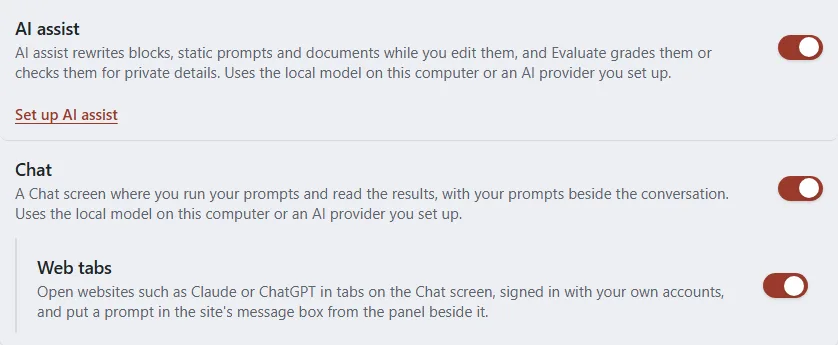
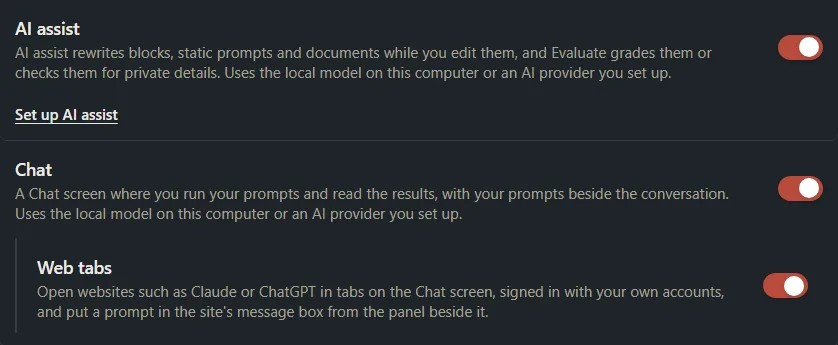
Chat has its own switch, Chat, in Settings → Features. It adds Chat & Browse to the sidebar. With no provider set up, the Chat screen shows Set up AI to start chatting and a Download the free local model button, which opens this pane at the local model. See Show or hide features.
Next steps
- Improve text with AI assist
- Evaluate a block, prompt or document
- Run prompts in Chat
- What AI features send, and where
Want a hand?
Copy this prompt into Claude, ChatGPT or another AI assistant, and it walks you through it step by step.
I want to use the AI features in PromptMason. Help me decide between the local model and my own API key, then walk me through setting up the one I choose and testing it.
Copy adds a short note about PromptMason and this guide's steps, so the assistant has what it needs.
I want to use the AI features in PromptMason. Help me decide between the local model and my own API key, then walk me through setting up the one I choose and testing it. About PromptMason: a Windows desktop app for building AI prompts from reusable blocks. A person writes blocks (reusable pieces of prompt text), builds prompts from them on the Build screen (or keeps a Markdown document, such as a Skill), and copies a prompt into an AI tool, runs it in PromptMason’s own Chat, or lets a connected AI agent use it through PromptMason’s built-in MCP server (the Chrome extension copies prompts on any website). AI assist, Evaluate and Chat use a local model that runs on the person’s PC, or their own AI provider. The guides are also on PromptMason’s Help screen, and Chat can answer “how do I” questions from them. Libraries hold the blocks and prompts; a person can sync their personal library to their other PCs and share team libraries, both through a folder in cloud storage they already have (OneDrive, Google Drive or Dropbox). Everything synced is encrypted and every edit is signed and checked. A recovery kit (a file plus a code) is the spare copy of the person’s keys, for when every PC is lost. The official guide for this is "Set up AI: the local model or your own key": https://promptmason.ai/docs/ai-setup Its full text follows, between the lines. Use it as the source of truth, and if anything I see differs from it, tell me rather than guessing. --- AI assist, Evaluate and Chat need an AI model to work with. You can use the local model, PromptMason's own AI model that runs on your computer and is free on every plan, or connect an AI provider with your own API key. You can set up more than one and choose between them each time. PromptMason works without any of this; set it up only if you want the AI features. ## Choose an option | Option | What you need | Where your text goes | Cost | |---|---|---|---| | **Local model** | A one-time download of about 1.3 GB, and a PC with at least 4 processor cores and 8 GB of memory | Nowhere. Your text stays on this computer. | Free on every plan | | **OpenAI**, **Anthropic**, **Google Gemini** or **xAI (Grok)** | An API key from that provider | To that provider, each time you run an AI feature | The provider bills you for what you use | | **Your own AI server** (under **Advanced**) | The address of a server that accepts the same kind of requests as OpenAI's (an "OpenAI-compatible server"), such as one running on this computer | To that server | Set by whoever runs the server | An API key is a code that lets an app such as PromptMason use your account with an AI provider. - Choose the **local model** to start with no account, no API key and no cost, or whenever you want your text to stay on your computer. It's a small model: a cloud provider's larger models can handle longer text. - Choose a **provider** if you already have an account with one, or your PC is below the local model's minimum. For help deciding which to use with private text, see [Choosing what to share with AI](https://promptmason.ai/docs/privacy-overview#choosing-what-to-share-with-ai). ## Set up the local model 1. Click **Settings** in the sidebar, then **AI & connected apps**. 2. The first card is **Local model (private)**. Click **Download**. 3. Read the license note and click **Accept and download**. 4. When the card shows **Ready**, click **Use as default**. [Free, private AI on your PC](https://promptmason.ai/docs/local-model) covers the download, what the card shows, and what to do about each message. ## Get an API key You create an API key in your account on the provider's website. Sign in there, find the page for API keys, create a key and copy it. Many providers show the whole key only once, so paste it into PromptMason (see the next section) before you close the page. The provider bills you for what you use, separately from PromptMason. ## Add an API key 1. Click **Settings** in the sidebar, then **AI & connected apps**. 2. Scroll to the **AI assist** card and find **AI providers**. Each provider has its own box: **OpenAI**, **Anthropic**, **Google Gemini** and **xAI (Grok)**. The top right of each box says **Set up** or **Not set up**. 3. In the box for your provider, click in **API key** and paste your key. 4. Under **Models**, check the model name. The first row already has a model filled in. To use a different model your provider offers, type its name exactly as the provider writes it. 5. Click **Save**. You see **Saved.** and the box changes to **Set up**. The key field then reads **Saved key ending in** followed by the key's last four characters. PromptMason never shows the whole key again. If your default AI provider wasn't set up yet, the provider you save becomes the default. ## Add more models Each provider can have several models, for example a fast one for short rewrites and a stronger one for chat. 1. In the provider's box, click **Add model**. 2. Type the model's name in the new row. 3. Click **Save**. The first model is used unless you choose another. The **Model** list in AI assist, Evaluate and Chat shows each provider with its models. To remove a model, click the X beside its row (**Remove this model**), then **Save**. ## Test the connection 1. In the provider's box, click **Test connection**. It's available once the box says **Set up**. If you have several models, first click in the row of the one you want to test. That row is highlighted, and the test uses its model. 2. The button reads **Testing…** while it runs. When it works, you see **Connected.** followed by the model's name and its short reply. The test sends one short request with none of your text. If it fails, you see "Testing [model] failed." followed by the provider's own message. That message usually says what's wrong. Check that you pasted the whole key, that the model name is spelled the way the provider writes it, and that your account with the provider can use that model. Then save and test again. ## Choose the default AI provider The default is the provider and model AI assist, Evaluate and new chats start with. You can choose another each time you run one. 1. Click **Settings** in the sidebar, then **AI & connected apps**. 2. In the **AI assist** card, click the picker beside **Default AI provider**. It shows the current provider and model. 3. Point to a provider and click one of its models. A provider without a key is marked **(not set up)**. The local model is listed once it's downloaded. If it's your default but not downloaded (for example, after you remove it), it shows **(not downloaded)**: download it again, or choose another provider. Choosing a model here also makes it that provider's first model. ## Use your own AI server If you run an AI model on a server that accepts the same requests as OpenAI's, you can use it the same way as a provider. 1. Click **Settings** in the sidebar, then **AI & connected apps**. 2. Below the **AI assist** card, click **Advanced**. 3. Under **Your own AI server**, in **Server address**, type the server's full address, starting with http:// or https://, for example http://localhost:11434/v1. 4. If your server needs a key, paste it in **API key**. If not, leave it blank. 5. Under **Models**, type the name of a model on your server. There's no model filled in here. 6. Click **Save**, then **Test connection**. In model lists it's called **OpenAI-compatible server**. If the address box is empty, you see **Enter the server address, for example http://localhost:11434/v1.** If the address isn't accepted, you see **The server address must be a full web address starting with http:// or https://.** Correct it and click **Save** again. ## Change or remove a key - **Replace a key:** paste the new key in **API key** and click **Save**. Leaving the field empty keeps the saved key. - **Remove a key:** click **Remove** in the provider's box. The key is deleted from this computer straight away, without asking first, and you see **Removed.** If it was the default and another provider with a key or server address is set up, the default moves to it. Otherwise the removed provider stays the default, marked **(not set up)**: choose another under **Default AI provider**, for example the local model. Removing a key from PromptMason doesn't cancel it with the provider. To stop the key working anywhere, delete it in your account on the provider's website. ## Where your keys are kept - Keys are stored encrypted on this computer, for your Windows account only. - They're never shown again after you save them, and never included when you export your library. Replacing your library from a file doesn't touch them. - On another PC, add your key in that PC's Settings. ## Turn the AI features on The **AI assist** and **Evaluate** buttons appear only when both of these are true: - The **AI assist** switch is on in **Settings → Features**. - At least one provider is set up, or the local model is downloaded. If the switch is on but nothing is set up yet, **Settings → Features** shows a **Set up AI assist** link that opens this pane. **Use as default** on the local model's card turns the switch on for you. Chat has its own switch, **Chat**, in **Settings → Features**. It adds **Chat & Browse** to the sidebar. With no provider set up, the Chat screen shows **Set up AI to start chatting** and a **Download the free local model** button, which opens this pane at the local model. See [Show or hide features](https://promptmason.ai/docs/features). ## Next steps - [Improve text with AI assist](https://promptmason.ai/docs/ai-assist) - [Evaluate a block, prompt or document](https://promptmason.ai/docs/evaluate) - [Run prompts in Chat](https://promptmason.ai/docs/chat-basics) - [What AI features send, and where](https://promptmason.ai/docs/ai-privacy) --- How to help me: - Go one step at a time. After each step, ask what I see on screen before giving the next one. - Use the exact words on PromptMason’s buttons and screens, as the guide does. - Never ask me for my recovery code, my recovery kit file, a password or my invite line, and never ask me to paste them here. - Start by asking which step I’m on, or what I see now.