PromptMason's built-in MCP server
What the MCP server inside PromptMason does, which AI apps can use it, what they can do in your library, and how you stay in control.
PromptMason comes with an MCP server built in. MCP (Model Context Protocol) is an open standard that lets AI apps, such as Claude Desktop, Cursor and Claude Code, use tools that other programs provide. With PromptMason’s MCP server, your AI app can search your library, read your blocks and prompts, fill in a prompt’s variables, and, if you allow it, save new blocks and prompts for you, all from inside the conversation you’re already having.
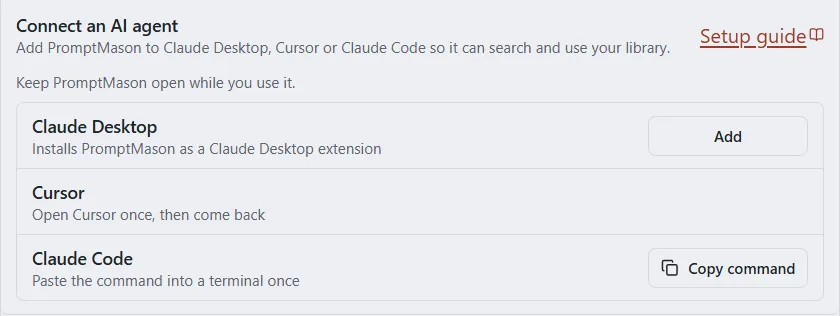
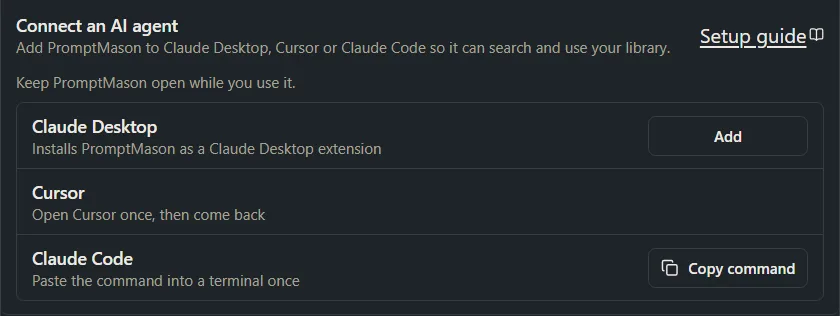
There’s nothing extra to download or run. The server is part of PromptMason, and you add it to your AI app from Settings → AI & connected apps → Connect an AI agent.
What you can do with it
Ask your AI app in plain words. For example:
- “Find my PromptMason prompts about meeting notes.”
- “Fill in my Reply to a message prompt for this email and use it.”
- “Save this as a new block called Polite decline, type Task.”
- “Build a prompt from my Research analyst and Summary then key points blocks.”
- “Show me the earlier versions of my Summarize a document prompt.”
The AI app picks the right tool, PromptMason does the work, and the result comes back into your conversation. When a prompt has a variable that asks for its value each time, PromptMason tells the AI app which values it needs. The app can then ask you for them, or you can include them in your request.
The server provides 45 tools, 15 of which work in Read-only. For what each one does, see MCP tools: what an AI agent can do.
Which AI apps can connect
| App | How you add PromptMason |
|---|---|
| Claude Desktop | Click Add. PromptMason installs as a Claude Desktop extension. |
| Cursor | Click Add. Cursor asks you to confirm. |
| Claude Code | Click Copy command and paste it into a terminal once. PromptMason is then available in every project. |
| Other apps that support MCP | Set it up in that app’s own settings. See Other AI agents for what to enter. |
For the steps for each app, see Connect an AI agent through MCP.
How it works
-
Your AI app starts the server when it needs it, on your PC. The server talks only to PromptMason on the same PC. It never connects to the internet and isn’t reachable from other computers.
-
PromptMason must be open while the AI app uses it. If it isn’t, the AI app gets a message asking you to open PromptMason.
-
Access is checked on every request. The AI app proves it’s allowed in with a private token that PromptMason creates on your PC. Apps you add from Connect an AI agent pick it up by themselves.
-
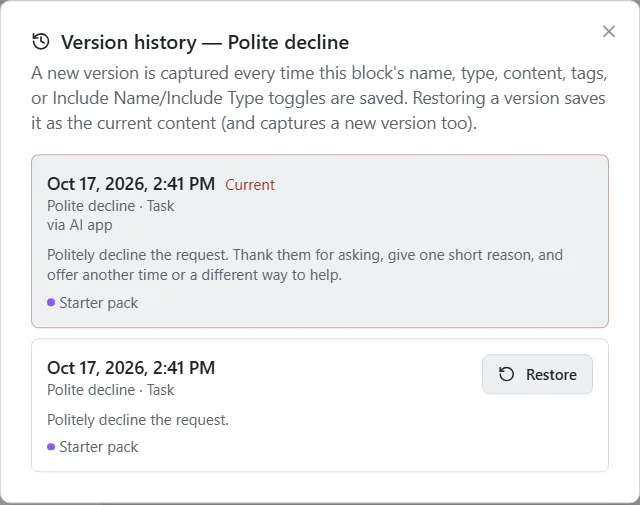
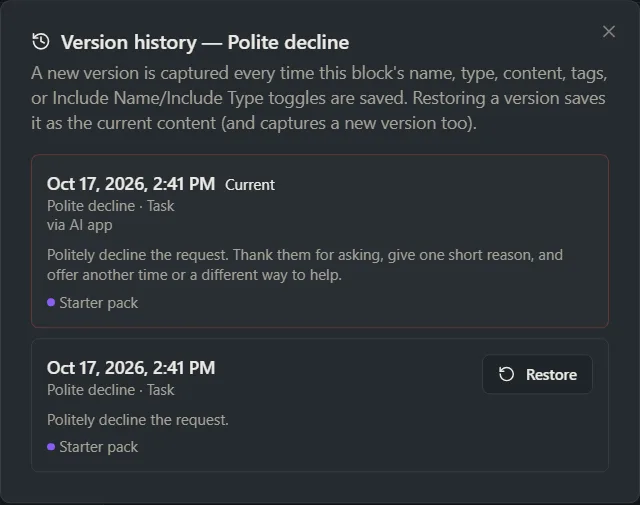
Changes are marked. A change an AI app makes shows via AI app in the item’s version history.
You decide what it can do
- What connected apps can do in Settings → AI & connected apps sets the level for every AI app: Full access (search, read, create, edit and delete), Read-only (search and read only), or Off. Full access is the setting at first. After you change it, restart the AI app so its list of tools updates. See Control what connected apps can do.
- Each team library has its own setting, chosen by its primary owner: read only (the setting at first), read and change, or nothing, plus a limit on how many changes an AI app can make per hour. When both settings apply, the stricter one wins.
- Some things are never available to an AI app, including removing items from Recently deleted for good, restoring from it, changing your settings, managing libraries and their members, and anything to do with recovery kits, backups or keys. A block or prompt an AI app deletes goes to Recently deleted, where you can restore it for 30 days. Folders, variables, comments and expected output entries it deletes are removed straight away. See Archive, delete and restore.
- Free plan limits apply to what an AI app creates, the same as when you create items yourself. If your library is paused (over the Free limits, for example after your 14 days of Pro end), AI apps can’t read or change anything until you’re back within them or on Pro. See Plans and limits and When your library is paused.
Privacy
The MCP server keeps everything on your PC: it hands your library only to the AI app on the same computer, and only at the level you allow. What the AI app does next is up to that app. When it reads a block or prompt, that text becomes part of your conversation, so it goes to the AI service behind the app, under that service’s terms, like anything else you share in the conversation.
If some content is sensitive, set What connected apps can do to Read-only or Off, or set that team library to Nothing: AI apps can’t see it. For everything else that can leave your PC, see Privacy in PromptMason.
Next steps
- Connect an AI agent through MCP: add PromptMason to Claude Desktop, Cursor, Claude Code or another app.
- MCP tools: what an AI agent can do: every tool, in plain words.
- Control what connected apps can do: access levels, tokens and team library settings.
- Troubleshooting MCP connections: if the AI app can’t reach PromptMason.
Want a hand?
Copy this prompt into Claude, ChatGPT or another AI assistant, and it walks you through it step by step.
I want my AI assistant to use my PromptMason library directly. Explain what PromptMason's MCP server is, which apps can connect to it, what the assistant will be able to do, and how to set it up safely.
Copy adds a short note about PromptMason and this guide's steps, so the assistant has what it needs.
I want my AI assistant to use my PromptMason library directly. Explain what PromptMason's MCP server is, which apps can connect to it, what the assistant will be able to do, and how to set it up safely. About PromptMason: a Windows desktop app for building AI prompts from reusable blocks. A person writes blocks (reusable pieces of prompt text), builds prompts from them on the Build screen (or keeps a Markdown document, such as a Skill), and copies a prompt into an AI tool, runs it in PromptMason’s own Chat, or lets a connected AI agent use it through PromptMason’s built-in MCP server (the Chrome extension copies prompts on any website). AI assist, Evaluate and Chat use a local model that runs on the person’s PC, or their own AI provider. The guides are also on PromptMason’s Help screen, and Chat can answer “how do I” questions from them. Libraries hold the blocks and prompts; a person can sync their personal library to their other PCs and share team libraries, both through a folder in cloud storage they already have (OneDrive, Google Drive or Dropbox). Everything synced is encrypted and every edit is signed and checked. A recovery kit (a file plus a code) is the spare copy of the person’s keys, for when every PC is lost. The official guide for this is "PromptMason's built-in MCP server": https://promptmason.ai/docs/mcp-server Its full text follows, between the lines. Use it as the source of truth, and if anything I see differs from it, tell me rather than guessing. --- PromptMason comes with an MCP server built in. MCP (Model Context Protocol) is an open standard that lets AI apps, such as Claude Desktop, Cursor and Claude Code, use tools that other programs provide. With PromptMason's MCP server, your AI app can search your library, read your blocks and prompts, fill in a prompt's variables, and, if you allow it, save new blocks and prompts for you, all from inside the conversation you're already having. There's nothing extra to download or run. The server is part of PromptMason, and you add it to your AI app from **Settings → AI & connected apps → Connect an AI agent**. ## What you can do with it Ask your AI app in plain words. For example: - "Find my PromptMason prompts about meeting notes." - "Fill in my Reply to a message prompt for this email and use it." - "Save this as a new block called Polite decline, type Task." - "Build a prompt from my Research analyst and Summary then key points blocks." - "Show me the earlier versions of my Summarize a document prompt." The AI app picks the right tool, PromptMason does the work, and the result comes back into your conversation. When a prompt has a variable that asks for its value each time, PromptMason tells the AI app which values it needs. The app can then ask you for them, or you can include them in your request. The server provides 45 tools, 15 of which work in Read-only. For what each one does, see [MCP tools: what an AI agent can do](https://promptmason.ai/docs/agent-tools). ## Which AI apps can connect | App | How you add PromptMason | |---|---| | **Claude Desktop** | Click **Add**. PromptMason installs as a Claude Desktop extension. | | **Cursor** | Click **Add**. Cursor asks you to confirm. | | **Claude Code** | Click **Copy command** and paste it into a terminal once. PromptMason is then available in every project. | | **Other apps that support MCP** | Set it up in that app's own settings. See [Other AI agents](https://promptmason.ai/docs/connect-ai-agent#other-ai-agents) for what to enter. | For the steps for each app, see [Connect an AI agent through MCP](https://promptmason.ai/docs/connect-ai-agent). ## How it works - **Your AI app starts the server** when it needs it, on your PC. The server talks only to PromptMason on the same PC. It never connects to the internet and isn't reachable from other computers. - **PromptMason must be open** while the AI app uses it. If it isn't, the AI app gets a message asking you to open PromptMason. - **Access is checked on every request.** The AI app proves it's allowed in with a private token that PromptMason creates on your PC. Apps you add from **Connect an AI agent** pick it up by themselves. - **Changes are marked.** A change an AI app makes shows **via AI app** in the item's version history. ## You decide what it can do - **What connected apps can do** in **Settings → AI & connected apps** sets the level for every AI app: **Full access** (search, read, create, edit and delete), **Read-only** (search and read only), or **Off**. Full access is the setting at first. After you change it, restart the AI app so its list of tools updates. See [Control what connected apps can do](https://promptmason.ai/docs/agent-access). - **Each team library has its own setting**, chosen by its primary owner: read only (the setting at first), read and change, or nothing, plus a limit on how many changes an AI app can make per hour. When both settings apply, the stricter one wins. - **Some things are never available to an AI app**, including removing items from **Recently deleted** for good, restoring from it, changing your settings, managing libraries and their members, and anything to do with recovery kits, backups or keys. A block or prompt an AI app deletes goes to **Recently deleted**, where you can restore it for 30 days. Folders, variables, comments and expected output entries it deletes are removed straight away. See [Archive, delete and restore](https://promptmason.ai/docs/archive-and-delete). - **Free plan limits apply** to what an AI app creates, the same as when you create items yourself. If your library is paused (over the Free limits, for example after your 14 days of Pro end), AI apps can't read or change anything until you're back within them or on Pro. See [Plans and limits](https://promptmason.ai/docs/plans) and [When your library is paused](https://promptmason.ai/docs/paused-library). ## Privacy The MCP server keeps everything on your PC: it hands your library only to the AI app on the same computer, and only at the level you allow. What the AI app does next is up to that app. When it reads a block or prompt, that text becomes part of your conversation, so it goes to the AI service behind the app, under that service's terms, like anything else you share in the conversation. If some content is sensitive, set **What connected apps can do** to **Read-only** or **Off**, or set that team library to **Nothing: AI apps can’t see it**. For everything else that can leave your PC, see [Privacy in PromptMason](https://promptmason.ai/docs/privacy-overview). ## Next steps - [Connect an AI agent through MCP](https://promptmason.ai/docs/connect-ai-agent): add PromptMason to Claude Desktop, Cursor, Claude Code or another app. - [MCP tools: what an AI agent can do](https://promptmason.ai/docs/agent-tools): every tool, in plain words. - [Control what connected apps can do](https://promptmason.ai/docs/agent-access): access levels, tokens and team library settings. - [Troubleshooting MCP connections](https://promptmason.ai/docs/mcp-troubleshooting): if the AI app can't reach PromptMason. --- How to help me: - Go one step at a time. After each step, ask what I see on screen before giving the next one. - Use the exact words on PromptMason’s buttons and screens, as the guide does. - Never ask me for my recovery code, my recovery kit file, a password or my invite line, and never ask me to paste them here. - Start by asking which step I’m on, or what I see now.