Personal and team libraries
Switch between your libraries, move items from one library to another, and read who made each change and how each library is syncing.
A library is a set of blocks, prompts, folders and variables. Everyone has a personal library, named Personal, which is yours alone. A team library is shared with other people. Each library can sync to your other PCs or to your team through a folder in cloud storage you already use.
Your personal library is the same on every PC you sync it to, down to your favorites and each item’s version history (what your other PCs get). In a team library, everyone sees the same items; your favorites and your own stars stay yours.
If you only use your personal library on one PC, you don’t need anything on this page. To start sharing, see Team libraries or Use your library on a second PC.
Your libraries in Settings
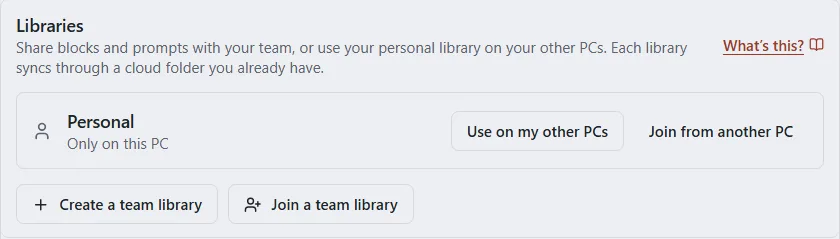
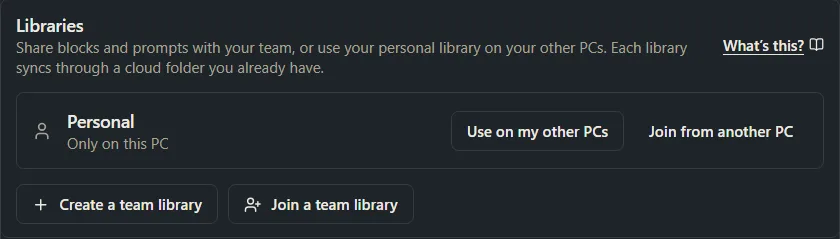
Click Settings in the sidebar, then Libraries & sharing. Under Libraries, each library has a row:
| Row | What it means |
|---|---|
| Personal, “Only on this PC” | Your personal library is on this PC only. Use on my other PCs starts syncing it; Join from another PC adds this PC to a personal library you already sync. |
| Personal, “Syncs to your other PCs · …” | Your personal library syncs to your other PCs, followed by its status, for example Up to date. Click Manage to see its folder and your PCs. |
| Personal, “Syncs to your other PCs · Waiting for approval” | This PC asked to join your personal library and your other PC hasn’t confirmed it yet. See Use your library on a second PC. |
| A team library, “Waiting for approval · this PC is …, approval code …” | You asked to join and the primary owner (the one owner who approves PCs) hasn’t approved this PC yet. The code stays here until they do. |
| A team library, with its status and primary owner | For example “Up to date · primary owner: Alex Morgan”, or “Up to date · you’re the primary owner” for a library you run. Click Manage for its folder, members and settings. |
Below the list are Create a team library and Join a team library.


Switch between libraries in the sidebar
Once this PC is in at least one team library, the top of the sidebar’s folder list is called Libraries, with a row for each library: Personal first (a one-person icon), then each team library (a two-person icon). With only your personal library, it’s called Folders instead.
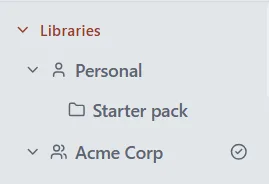
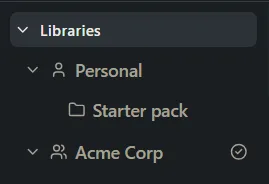
- See one library. Click its row. Blocks, Prompts and Explorer show only what’s in that library.
- See everything. Click Libraries.
- Make something new in a library. Select the library first. New blocks, prompts and folders you make while it’s selected go into it.
- Make a folder in a library. Right-click the library’s row and click New folder.
- Fold a library away. Click the arrow next to its name.
Folders can be dragged onto other folders in the same library, but never into another library. To put items in another library, move them (below).
Move items to another library
You can move blocks and prompts from one library to another, for example a prompt you wrote for yourself that your team should have. You need to be able to make changes in both libraries: a reader can’t move items out of a team library.
-
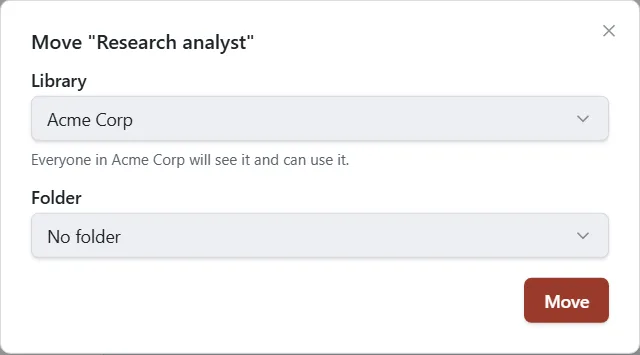
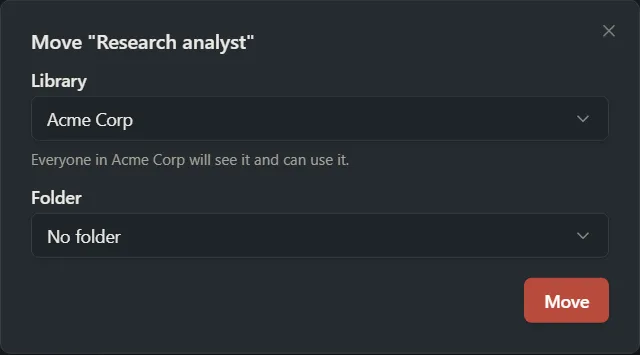
On the Blocks, Prompts or Explorer screen, right-click the item and click Move. (To move several, select them, then click Move.)
-
Under Library, pick where it should go. In a team library, the window says “Everyone in [library] will see it and can use it.”
-
Under Folder, pick a folder in that library, or No folder (My Files (no folder) in your personal library).
-
Click Move.
The Library choice only appears when there is somewhere else to move to. When you move several items at once, they must all be in the same library for the Library choice to show. Team libraries where you’re a reader, and libraries this PC is still waiting to join, aren’t offered.
What moves with the item: its version history, comments, expected outputs and their attached files, and any blocks embedded in a prompt. Team ratings move too. Your favorite (the heart) doesn’t move: a move clears favorites, as a copy does. The move is saved as a new version.
Move its blocks too?
A prompt in a team library can only use blocks from that same library. If you move a prompt into a team library and it uses blocks from somewhere else, PromptMason asks first:
- The window Move its blocks too? lists the blocks that would go with it.
- Click Move [n] items to move the prompt and those blocks together. The blocks go into the library with no folder. Other prompts of yours that use them keep working.
- Click Back to choose something else.
If one of those blocks is also used by a prompt in a team library that isn’t moving, PromptMason refuses and names that prompt: “… Take it out of that prompt first.”
Prompts in your personal library can use blocks from any library, so moving into Personal never asks this.
If you move a single block that a prompt in a team library uses, and the prompt stays behind, PromptMason refuses and names the prompt: “… Take it out of that prompt first, or move that prompt too.” A block embedded in a prompt can’t move on its own: “This block is part of a prompt. Move the prompt and the block goes with it.”
Copy instead
Copy makes a duplicate in the same library, in the folder you choose. A copy can’t go to another library; copy it, then move the copy. On the Free plan, a copy counts toward your limits (Plans and limits).
Your name and This PC’s name
At the top of Settings → Libraries & sharing, the Profile card has two boxes. Each saves when you click away from it.
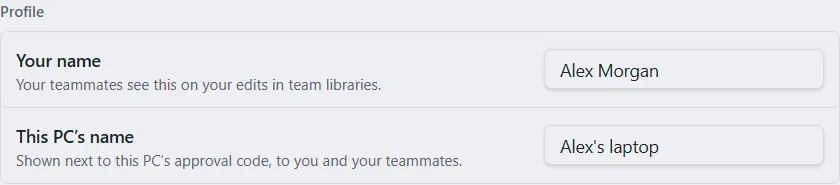
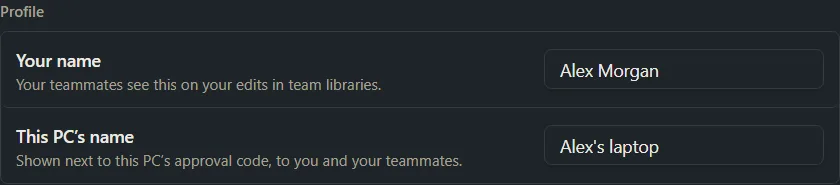
- Your name. “Your teammates see this on your edits in team libraries.” Set it before you create a team library: it’s the name your team sees for you there. When you join someone else’s team library, the primary owner checks or types your name as they approve you.
- This PC’s name. “Shown next to this PC’s approval code, to you and your teammates.” Name each PC so you can tell them apart, for example “Office desktop” or “Travel laptop”.
While a box is empty, the line under it says what’s shown meanwhile.
PCs are shown as the first four characters of their approval code and the PC’s name, for example “38C5 - Alex’s laptop”.
Who made what in a team library
In a team library, an item’s details show who made it and who changed it last, for example “Created by Alex Morgan ✓ · Last edited by Sam Rivera ✓ via AI app”.


- The name comes from the library’s own member list, never from the change itself.
- ✓ means the change came from a PC proven to be that person’s.
- via AI app means a connected AI app made the change through PromptMason.
History shows the same for each version, with the PC it was made on. If the primary owner put someone back after they lost every PC, their later versions say “Identity reset on [date]”. See Version history.
Team ratings
In a team library, an item’s details show the team’s average next to your own stars, for example “Team: 4.0 (3)”, or “Team: not rated yet”. Point at it to see who rated it (“Rated by Sam Rivera and you”). Everyone’s own stars stay private; only the average and the names show. Readers can rate too. Someone who has left the library shows as “A former member”.
Archive and delete in a team library
Archiving and deleting in a team library affect everyone in it:
- Archive keeps the item out of the way for everyone. Anyone who can make changes in the library can bring it back from Archive.
- Delete removes it for everyone. A library owner can restore it from Recently deleted in Archive for 30 days.
- Only an owner can remove a team item for good with Delete forever or Empty Recently deleted. That clears it from their own PC; other members’ PCs keep their copy in Recently deleted until its 30 days are up.
See Archive, delete and restore.
Attachments in a team library
Files attached to an expected output in a team library can be up to 25 MB. A bigger file is refused with “Attachments in team libraries can be up to 25 MB.” The same limit applies when you move an item into a team library, or import a bundle into one.
Sync status
Each team library in the sidebar has a small icon after its name. Point at it to read its status. Settings → Libraries & sharing and the library’s Manage window show the same words.
| Icon | Status | What it means |
|---|---|---|
| Check mark in a circle | Up to date | Everything has synced. |
| Spinning | Syncing | Changes are going out or coming in. |
| Spinning | Waiting for approval | You asked to join and the primary owner hasn’t approved this PC yet. |
| Hard drive | Only on this PC | The library isn’t shared through a folder yet. |
| Cloud with a line through it | Can’t reach the library folder | PromptMason can’t get to the library’s folder. See Sync problems. |
| Red exclamation mark in a circle | Needs your attention | Something is waiting for you in Notifications. |
When sync runs
PromptMason syncs while it’s open:
- right after you save,
- when the library’s folder changes,
- when you come back to the PromptMason window,
- and as a check every 30 seconds while you’re using PromptMason, or every 5 minutes while it’s in the background.
Closing the PromptMason window quits the app, so nothing syncs while it’s closed. Your changes stay on this PC and go out the next time you open it. To sync straight away, open the library’s Manage window and click Sync now.
How fast changes reach other people also depends on their cloud storage app, which has to bring the files down to their PC.
Want a hand?
Copy this prompt into Claude, ChatGPT or another AI assistant, and it walks you through it step by step.
I'm in a team library in PromptMason as well as my personal library. Explain how to switch between them in the sidebar, how to move a prompt and its blocks into the team library, and what the sync icons mean.
Copy adds a short note about PromptMason and this guide's steps, so the assistant has what it needs.
I'm in a team library in PromptMason as well as my personal library. Explain how to switch between them in the sidebar, how to move a prompt and its blocks into the team library, and what the sync icons mean. About PromptMason: a Windows desktop app for building AI prompts from reusable blocks. A person writes blocks (reusable pieces of prompt text), builds prompts from them on the Build screen (or keeps a Markdown document, such as a Skill), and copies a prompt into an AI tool, runs it in PromptMason’s own Chat, or lets a connected AI agent use it through PromptMason’s built-in MCP server (the Chrome extension copies prompts on any website). AI assist, Evaluate and Chat use a local model that runs on the person’s PC, or their own AI provider. The guides are also on PromptMason’s Help screen, and Chat can answer “how do I” questions from them. Libraries hold the blocks and prompts; a person can sync their personal library to their other PCs and share team libraries, both through a folder in cloud storage they already have (OneDrive, Google Drive or Dropbox). Everything synced is encrypted and every edit is signed and checked. A recovery kit (a file plus a code) is the spare copy of the person’s keys, for when every PC is lost. The official guide for this is "Personal and team libraries": https://promptmason.ai/docs/libraries Its full text follows, between the lines. Use it as the source of truth, and if anything I see differs from it, tell me rather than guessing. --- A library is a set of blocks, prompts, folders and variables. Everyone has a **personal library**, named **Personal**, which is yours alone. A **team library** is shared with other people. Each library can sync to your other PCs or to your team through a folder in cloud storage you already use. Your personal library is the same on every PC you sync it to, down to your favorites and each item's version history ([what your other PCs get](https://promptmason.ai/docs/second-pc#what-your-other-pcs-get)). In a team library, everyone sees the same items; your favorites and your own stars stay yours. If you only use your personal library on one PC, you don't need anything on this page. To start sharing, see [Team libraries](https://promptmason.ai/docs/team-libraries) or [Use your library on a second PC](https://promptmason.ai/docs/second-pc). ## Your libraries in Settings Click **Settings** in the sidebar, then **Libraries & sharing**. Under **Libraries**, each library has a row: | Row | What it means | |---|---| | **Personal**, "Only on this PC" | Your personal library is on this PC only. **Use on my other PCs** starts syncing it; **Join from another PC** adds this PC to a personal library you already sync. | | **Personal**, "Syncs to your other PCs · …" | Your personal library syncs to your other PCs, followed by its status, for example **Up to date**. Click **Manage** to see its folder and your PCs. | | **Personal**, "Syncs to your other PCs · Waiting for approval" | This PC asked to join your personal library and your other PC hasn't confirmed it yet. See [Use your library on a second PC](https://promptmason.ai/docs/second-pc#on-the-new-pc). | | A team library, "Waiting for approval · this PC is …, approval code …" | You asked to join and the [primary owner](https://promptmason.ai/docs/primary-owner) (the one owner who approves PCs) hasn't approved this PC yet. The code stays here until they do. | | A team library, with its status and primary owner | For example "Up to date · primary owner: Alex Morgan", or "Up to date · you’re the primary owner" for a library you run. Click **Manage** for its folder, members and settings. | Below the list are **Create a team library** and **Join a team library**. ## Switch between libraries in the sidebar Once this PC is in at least one team library, the top of the sidebar's folder list is called **Libraries**, with a row for each library: **Personal** first (a one-person icon), then each team library (a two-person icon). With only your personal library, it's called **Folders** instead. - **See one library.** Click its row. Blocks, Prompts and Explorer show only what's in that library. - **See everything.** Click **Libraries**. - **Make something new in a library.** Select the library first. New blocks, prompts and folders you make while it's selected go into it. - **Make a folder in a library.** Right-click the library's row and click **New folder**. - **Fold a library away.** Click the arrow next to its name. Folders can be dragged onto other folders in the same library, but never into another library. To put items in another library, move them (below). ## Move items to another library You can move blocks and prompts from one library to another, for example a prompt you wrote for yourself that your team should have. You need to be able to make changes in both libraries: a reader can't move items out of a team library. 1. On the **Blocks**, **Prompts** or **Explorer** screen, right-click the item and click **Move**. (To move several, select them, then click **Move**.) 2. Under **Library**, pick where it should go. In a team library, the window says "Everyone in [library] will see it and can use it." 3. Under **Folder**, pick a folder in that library, or **No folder** (**My Files (no folder)** in your personal library). 4. Click **Move**. The **Library** choice only appears when there is somewhere else to move to. When you move several items at once, they must all be in the same library for the **Library** choice to show. Team libraries where you're a reader, and libraries this PC is still waiting to join, aren't offered. What moves with the item: its version history, comments, expected outputs and their attached files, and any blocks embedded in a prompt. Team ratings move too. Your favorite (the heart) doesn't move: a move clears favorites, as a copy does. The move is saved as a new version. ### Move its blocks too? A prompt in a team library can only use blocks from that same library. If you move a prompt into a team library and it uses blocks from somewhere else, PromptMason asks first: - The window **Move its blocks too?** lists the blocks that would go with it. - Click **Move [n] items** to move the prompt and those blocks together. The blocks go into the library with no folder. Other prompts of yours that use them keep working. - Click **Back** to choose something else. If one of those blocks is also used by a prompt in a team library that isn't moving, PromptMason refuses and names that prompt: "… Take it out of that prompt first." Prompts in your personal library can use blocks from any library, so moving into **Personal** never asks this. If you move a single block that a prompt in a team library uses, and the prompt stays behind, PromptMason refuses and names the prompt: "… Take it out of that prompt first, or move that prompt too." A block embedded in a prompt can't move on its own: "This block is part of a prompt. Move the prompt and the block goes with it." ### Copy instead **Copy** makes a duplicate in the same library, in the folder you choose. A copy can't go to another library; copy it, then move the copy. On the Free plan, a copy counts toward your limits ([Plans and limits](https://promptmason.ai/docs/plans)). ## Your name and This PC’s name At the top of **Settings → Libraries & sharing**, the **Profile** card has two boxes. Each saves when you click away from it. - **Your name.** "Your teammates see this on your edits in team libraries." Set it before you create a team library: it's the name your team sees for you there. When you join someone else's team library, the primary owner checks or types your name as they approve you. - **This PC’s name.** "Shown next to this PC’s approval code, to you and your teammates." Name each PC so you can tell them apart, for example "Office desktop" or "Travel laptop". While a box is empty, the line under it says what's shown meanwhile. PCs are shown as the first four characters of their approval code and the PC's name, for example "38C5 - Alex's laptop". ## Who made what in a team library In a team library, an item's details show who made it and who changed it last, for example "Created by Alex Morgan ✓ · Last edited by Sam Rivera ✓ via AI app". - The name comes from the library's own member list, never from the change itself. - **✓** means the change came from a PC proven to be that person's. - **via AI app** means a connected AI app made the change through PromptMason. **History** shows the same for each version, with the PC it was made on. If the primary owner put someone back after they lost every PC, their later versions say "Identity reset on [date]". See [Version history](https://promptmason.ai/docs/version-history). ## Team ratings In a team library, an item's details show the team's average next to your own stars, for example "Team: 4.0 (3)", or "Team: not rated yet". Point at it to see who rated it ("Rated by Sam Rivera and you"). Everyone's own stars stay private; only the average and the names show. Readers can rate too. Someone who has left the library shows as "A former member". ## Archive and delete in a team library Archiving and deleting in a team library affect everyone in it: - **Archive** keeps the item out of the way for everyone. Anyone who can make changes in the library can bring it back from **Archive**. - **Delete** removes it for everyone. A library owner can restore it from **Recently deleted** in **Archive** for 30 days. - Only an owner can remove a team item for good with **Delete forever** or **Empty Recently deleted**. That clears it from their own PC; other members' PCs keep their copy in Recently deleted until its 30 days are up. See [Archive, delete and restore](https://promptmason.ai/docs/archive-and-delete). ## Attachments in a team library Files attached to an expected output in a team library can be up to 25 MB. A bigger file is refused with "Attachments in team libraries can be up to 25 MB." The same limit applies when you move an item into a team library, or import a bundle into one. ## Sync status Each team library in the sidebar has a small icon after its name. Point at it to read its status. **Settings → Libraries & sharing** and the library's **Manage** window show the same words. | Icon | Status | What it means | |---|---|---| | Check mark in a circle | **Up to date** | Everything has synced. | | Spinning | **Syncing** | Changes are going out or coming in. | | Spinning | **Waiting for approval** | You asked to join and the primary owner hasn't approved this PC yet. | | Hard drive | **Only on this PC** | The library isn't shared through a folder yet. | | Cloud with a line through it | **Can’t reach the library folder** | PromptMason can't get to the library's folder. See [Sync problems](https://promptmason.ai/docs/sync-problems#cant-reach-the-library-folder). | | Red exclamation mark in a circle | **Needs your attention** | Something is waiting for you in [Notifications](https://promptmason.ai/docs/notifications). | ## When sync runs PromptMason syncs while it's open: - right after you save, - when the library's folder changes, - when you come back to the PromptMason window, - and as a check every 30 seconds while you're using PromptMason, or every 5 minutes while it's in the background. Closing the PromptMason window quits the app, so nothing syncs while it's closed. Your changes stay on this PC and go out the next time you open it. To sync straight away, open the library's **Manage** window and click **Sync now**. How fast changes reach other people also depends on their cloud storage app, which has to bring the files down to their PC. --- How to help me: - Go one step at a time. After each step, ask what I see on screen before giving the next one. - Use the exact words on PromptMason’s buttons and screens, as the guide does. - Never ask me for my recovery code, my recovery kit file, a password or my invite line, and never ask me to paste them here. - Start by asking which step I’m on, or what I see now.