Run prompts in Chat
Chat with the local model or your own AI provider, run your saved prompts in the conversation, and keep, rename or delete your chats.
The Chat screen runs your prompts with an AI model and shows the replies, with your prompts in a panel beside the conversation. It works with the local model on your computer, or with an AI provider you set up with your own API key or your own server. This page shows how to use it; Chat and context explains what each message sends, how long chats are handled, and where chats are kept.
Chats are on every plan and don’t count toward the Free limits.
Before you start
- Chat must be switched on. If Chat & Browse isn’t in the sidebar, click Settings, then Features, and turn on Chat. See Show or hide features.
- You need an AI provider. Download the local model, or add an API key (Set up AI). Until one is set up, the Chat tab shows Set up AI to start chatting. Click Download the free local model to open Settings → AI & connected apps at the local model, where you download it. You can add an API key in the same place.
The Chat screen
Click Chat & Browse in the sidebar, or press Ctrl+9. The screen has three areas:
- Chats on the left: your saved chats, newest first.
- The conversation in the middle, on the Chat tab. With web tabs on, websites open in more tabs beside it.
- Prompts on the right: your prompts and blocks, to run in the chat.
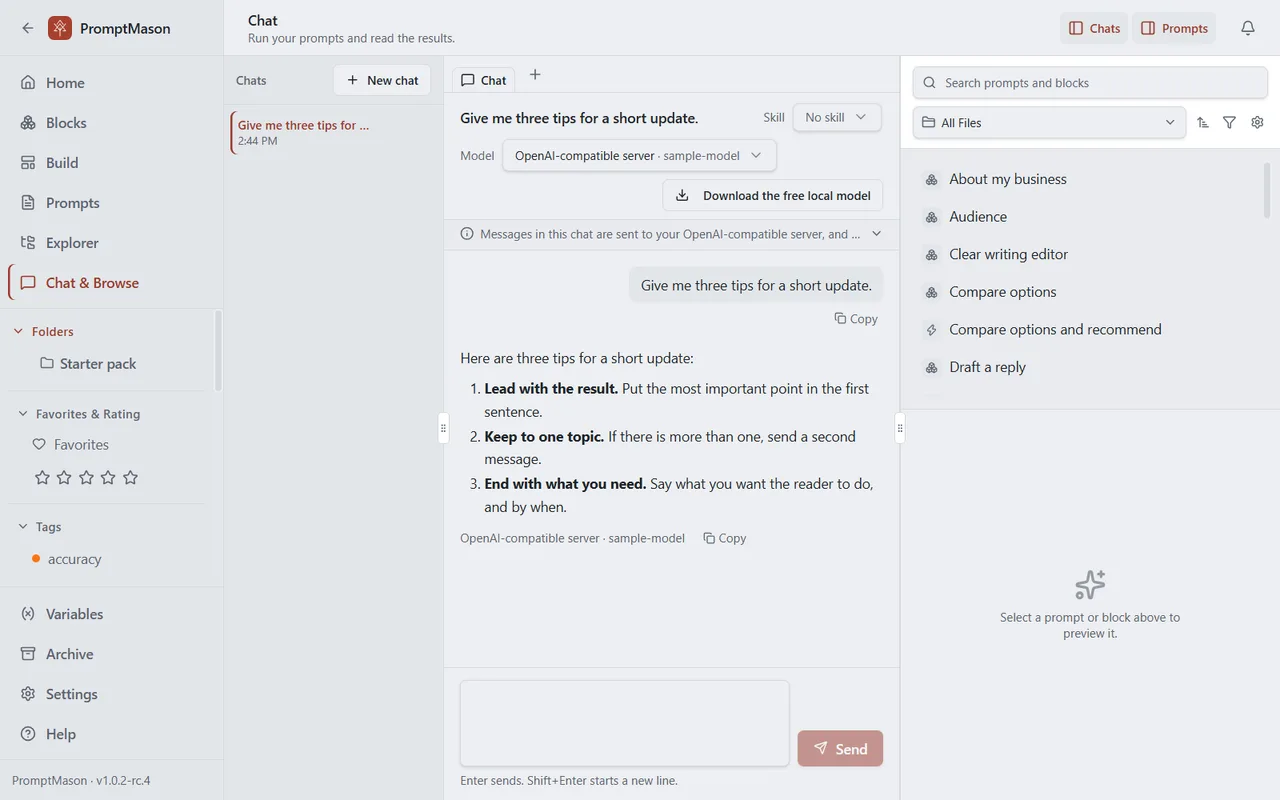
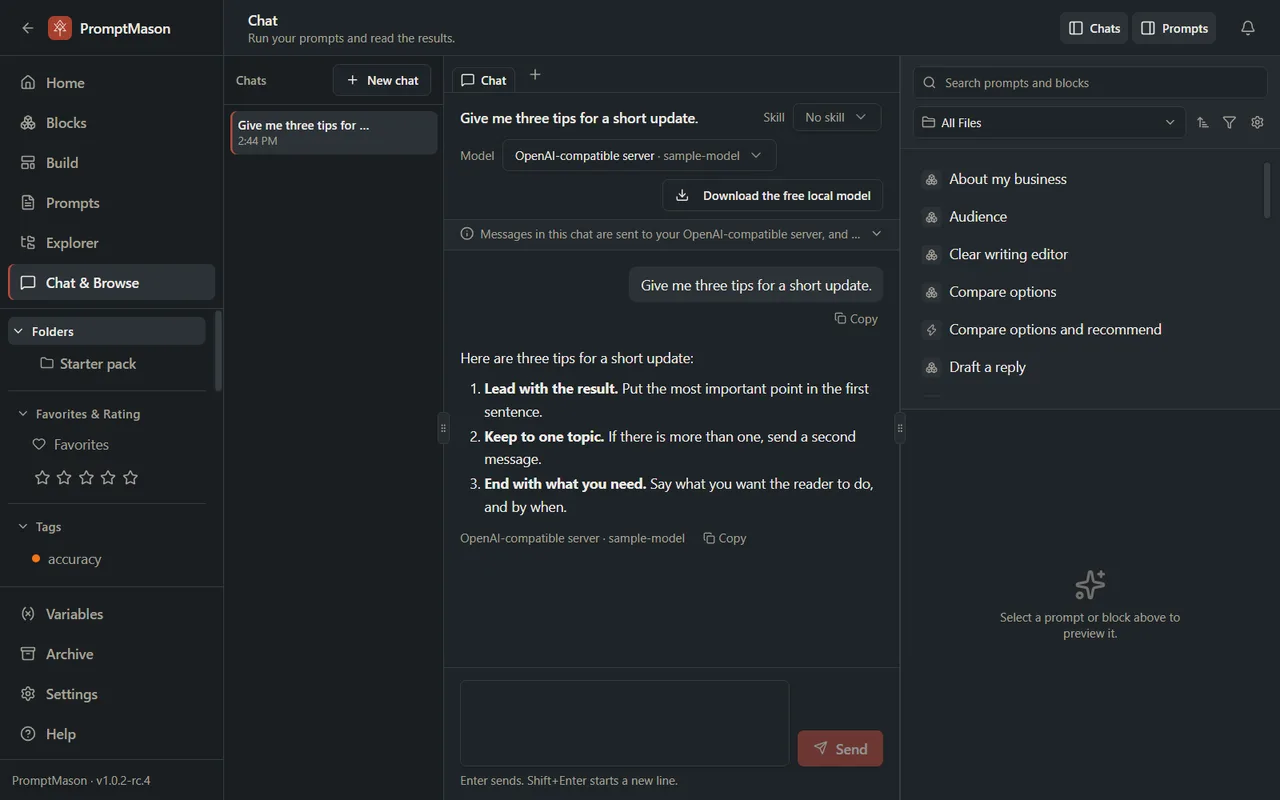
The Chats and Prompts buttons at the top right show or hide the side areas. Drag the line between two areas to resize them. In a narrow window, if both side areas don’t fit, the one you opened last stays open.
The screen stays loaded while you use other screens, so a reply keeps arriving while you’re away.
Start a chat
- Click Chat & Browse in the sidebar.
- Click New chat at the top of the chats list, or press Ctrl+N when you’re not typing in the message box.
- Optional: under Model, choose the provider and model for this chat (see Choose the model).
- Type your message in the box at the bottom. Enter sends it; Shift+Enter starts a new line.
- Click Send.
The reply appears under your message as it’s written, with “Writing…” until the first words arrive. The provider and model are shown under the reply.
A new chat is saved when you send its first message. Its name is taken from that message until you rename it.
While a reply is being written, Send becomes Stop. Click Stop to end the reply early; what arrived so far is kept, marked “Stopped.” You can type your next message while a reply is being written, and send it once the reply is done.
The lines under the chat’s header
Under the Model picker, a grey notice starts with a short line that says where this chat’s messages go:
| Line | Means |
|---|---|
| “Private: this chat stays on this computer.” | The local model. None of the chat leaves the computer. |
| “Messages in this chat are sent to [Provider] and charged to your [Provider] account.” | A cloud provider you use with an API key. |
| “Messages in this chat are sent to your OpenAI-compatible server, and any charges go to your account there.” | Your own server, set up under Your own AI server in Settings (Set up AI). |
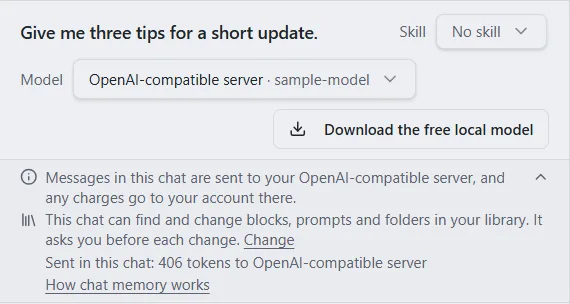
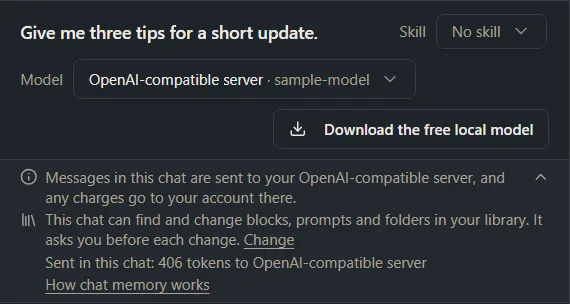
The notice shows only that first line at first, with a small arrow at its right. Click the line to open the rest of the notice, and click it again to close it. PromptMason remembers whether you left it open.
In the open notice, with a cloud provider, the last line shows how many tokens the chat has sent so far, beside How chat memory works, for example “Sent in this chat: 18,000 tokens to OpenAI”. A token is about three quarters of a word. The count covers everything each message sends, including the earlier part of the chat that goes with it (more).
If the chat can use your library, a line in the open notice says so (see Let the chat work in your library).
How chat memory works opens a short explanation of what each message sends, with a link to Chat and context.
Choose the model
A new chat starts with your default provider and its first model, set under Default AI provider in Settings → AI & connected apps.
To use a different model for this chat, click the Model picker and choose a provider, then a model. The picker lists only the providers you’ve set up, with the local model first. The choice applies to this chat only. You can’t change it while a reply is being written.
If the chat already has messages and you choose a different cloud provider, PromptMason asks first, because your next message sends the recent conversation to that provider. This happens when you move from the local model to a cloud provider, and from one cloud provider to another. In the Switch this chat to [Provider]? dialog:
- Switch moves this chat to the new provider. Nothing is sent until your next message.
- New chat starts a new, empty chat on the new provider. This chat is kept as it was.
- Cancel keeps the current provider.
Moving a chat to the local model never asks, because none of the chat leaves the computer. Choosing another model of the same provider doesn’t ask either.
While the local model isn’t downloaded, the Model row also has a Download the free local model button. It opens Settings → AI & connected apps at the local model, where you download it. Once it’s downloaded, the button isn’t shown.
If you remove a provider in Settings, a chat that used it shows “[Provider] (not set up)”. Choose another provider to carry on.
Run a prompt from the Prompts panel
-
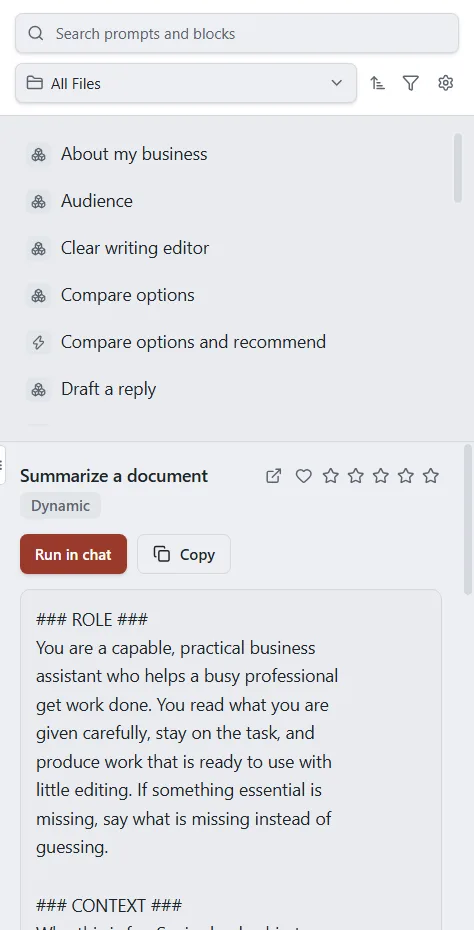
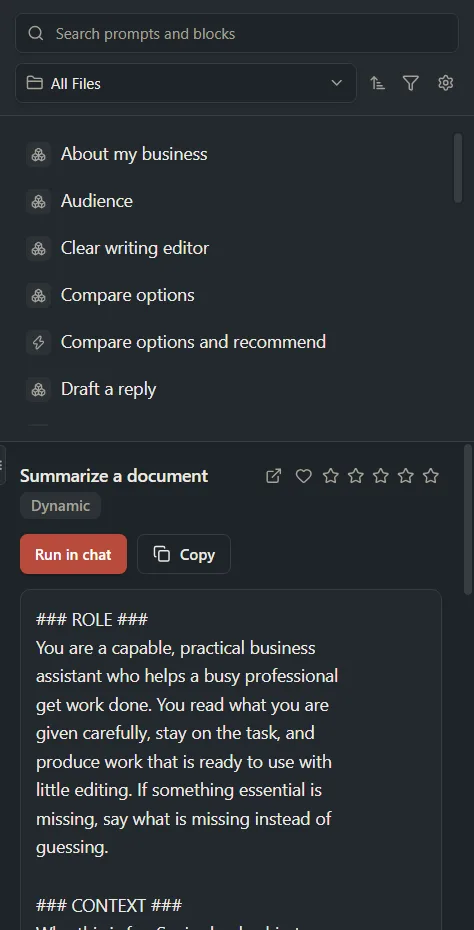
In the Prompts area on the right, find a prompt, block or document. Type in Search prompts and blocks to narrow the list.
-
Click it. A preview shows the text that will be sent.
-
Click one of these:
- Run in chat sends it to the chat now. If no chat is open, a new one starts.
- Copy copies it to the clipboard. To put a prompt in the message box so you can change it first, copy it and paste it there. For a Markdown document, Download .md saves it as a file.
-
If the prompt has variables that need a value, Fill in your values opens first. Type a value in each box, then click the form’s Run in chat button.
A line above your message reads “Ran” followed by the prompt’s name. With no AI provider set up, the panel offers only Copy.
When a web tab is showing instead of the Chat tab, the panel offers Run in this tab. See Web tabs.
Work with replies
- Replies are formatted: headings, lists, tables and code. Links open in your web browser, except links to PromptMason’s guides, which open in Help.
- Copy under any message copies its text.
- Try again appears under the last reply when it failed or was stopped. It asks for the reply again.
- The view follows a reply as it grows. Scroll up to read something earlier and it stops following.
Use a skill
A skill gives the chat instructions to follow from its next message on, such as how to build a prompt with you. The skill is sent with every message in the chat.
- In the chat’s header, click the Skill picker (it shows No skill at first).
- Choose one:
- Ask about PromptMason, built in: “Ask how to do something in PromptMason. The answers come from its user guides.” See Ask how to use PromptMason.
- Build a prompt, built in: “Write a prompt with the AI, block by block, and save it to your library.”
- Any of Your skills: your Markdown documents whose Type is Skill. See Markdown documents and Skills.
- No skill to stop using one.
When a skill saves something to your library, Chat asks first, like any other change (Approve or refuse a change).
In a new, empty chat, the Start with a skill buttons do the same. Choosing a skill sends nothing by itself.
A skill must be under 20,000 characters. If a skill’s document is deleted, or its Type is no longer Skill, the picker shows Skill not found. Choose another skill, or No skill.
To read or change the built-in skills’ wording, edit the Skill: Ask about PromptMason and Skill: Build a prompt entries in the AI instructions.
Ask how to use PromptMason
Chat can answer questions about PromptMason itself, such as “How do I turn on backups?” or “Where do I change the theme?”, from these guides. They’re the same guides as in Help, as they were when your version of PromptMason was made.
- In any chat: ask your question. With a cloud provider, the chat can look in the guides for any message. With the local model, it looks in the guides only when your message asks how, where, what or why about something in PromptMason.
- In a chat just for questions: click Ask about PromptMason at the top of the Help screen, or choose Ask about PromptMason under Start with a skill in a new chat. A new chat starts with that skill, and every message in it can look in the guides.
While the chat looks something up, a line in the reply says “Searched the guides for” followed by your question. The reply gives the guide’s steps, with the names of buttons and settings in bold as the guide writes them, and ends with a link to the guide. Click the link to open that part of the guide in Help. If the guides don’t cover your question, the reply says so.
What goes where:
- With the local model, your question and the parts of the guides it looks up stay on your computer.
- With a cloud provider, your question and the parts of the guides the chat finds are sent to that provider, with the rest of the chat. Nothing from your library goes with them.
Looking things up in the guides reads nothing in your library, so it works whatever What connected apps can do is set to, Off included.
Let the chat work in your library
A chat can find, create and change blocks, prompts and folders in your library when you ask it to, for example “Make a Constraints block that says to keep answers under 200 words.” Chat asks you before it changes anything (see Approve or refuse a change). It uses the same setting as AI agents and the Chrome extension: What connected apps can do in Settings → AI & connected apps. With a cloud provider, whatever the chat reads from your library is sent to that provider, and with Full access (the default) a cloud chat can also change your library, after you approve each change. See Privacy in PromptMason.
| Setting | What the chat can do |
|---|---|
| Full access | Find blocks, prompts and folders, and change them after you approve. The line under the header says “This chat can find and change blocks, prompts and folders in your library. It asks you before each change.” |
| Read-only | Read your library but not change it. The line says “This chat can read your library but not change it.” |
| Off | Nothing in your library. No line shows. |
Click Change on that line to open the setting. (The line is in the header’s notice, which you open by clicking its first line.) Changing it also changes what AI agents and the Chrome extension can do. See Control what connected apps can do.
While the chat works, a line in the reply shows “Working…”, then what it did, with Open to go to a block or prompt it made or changed. If something couldn’t be done, the line starts with “Couldn’t” and says why; the reply carries on. Anything a chat deletes goes to Recently deleted, where you can restore it (Archive, delete and restore).
Approve or refuse a change
Reading and searching your library never ask. Before Chat changes anything, it stops and shows a card in the reply that asks Allow this change to your library? The card says what it wants to do, for example Create prompt “Cold email” or Delete block “Tone”, with a short look at what will be saved. Nothing changes until you answer.
| Button | What it does |
|---|---|
| Allow | Makes this change. The next change asks again. |
| Allow for this chat | Makes this change, and lets this conversation make other changes without asking. |
| Don’t allow | Doesn’t make the change. Chat is told you said no, and the reply carries on without it. The reply shows Not allowed: and the action. |
To answer from the keyboard, press Shift+Tab in the message box to reach the card, then press Enter on a button. While the card waits, the line under the message box says the reply is waiting for your answer. There is no time limit on your answer.
Things to know:
- Allow for this chat lasts only for that conversation, and only until you close PromptMason. A new chat asks again.
- Clicking Stop while a card waits counts as Don’t allow. So does switching to another chat, or deleting the chat.
- This applies to Chat only. AI agents such as Claude Desktop, and the Chrome extension, don’t show these cards: what they can do is set by What connected apps can do alone.
With the local model
The local model is smaller, so it gets only the kinds of tools switched on for it, and only when your message asks it to do something in your library. A question gets an answer, not a search of your library; a question about using PromptMason gets the guides (Ask how to use PromptMason). To choose the kinds of tools:
-
Click Settings in the sidebar, then Chat.
-
Under Local model tools, turn each kind on or off: PromptMason guides, Find, Blocks, Build prompts, Organize, Tags, Archive, Delete, More prompt tools, Browse everything, Variables, Notes and expected outputs and Libraries.
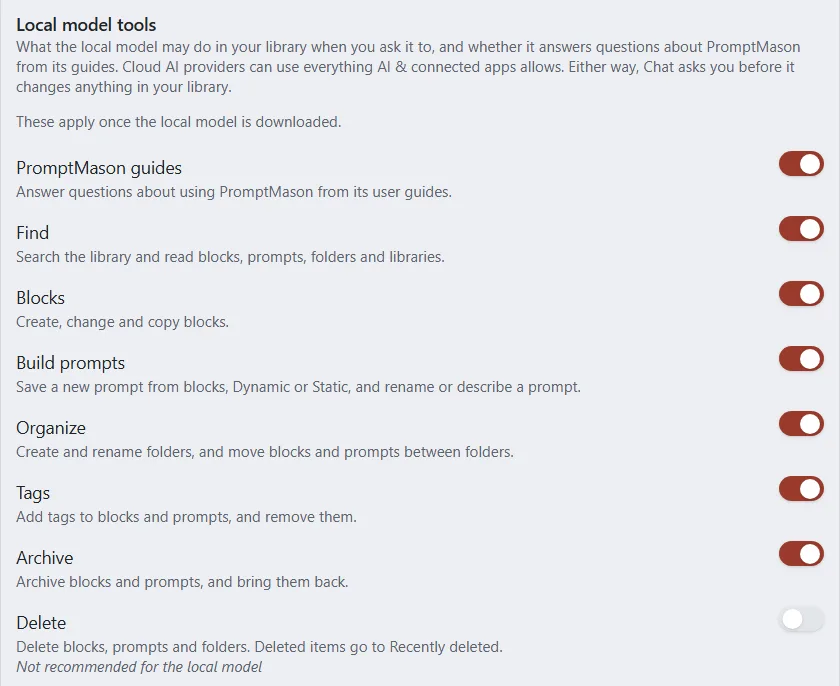
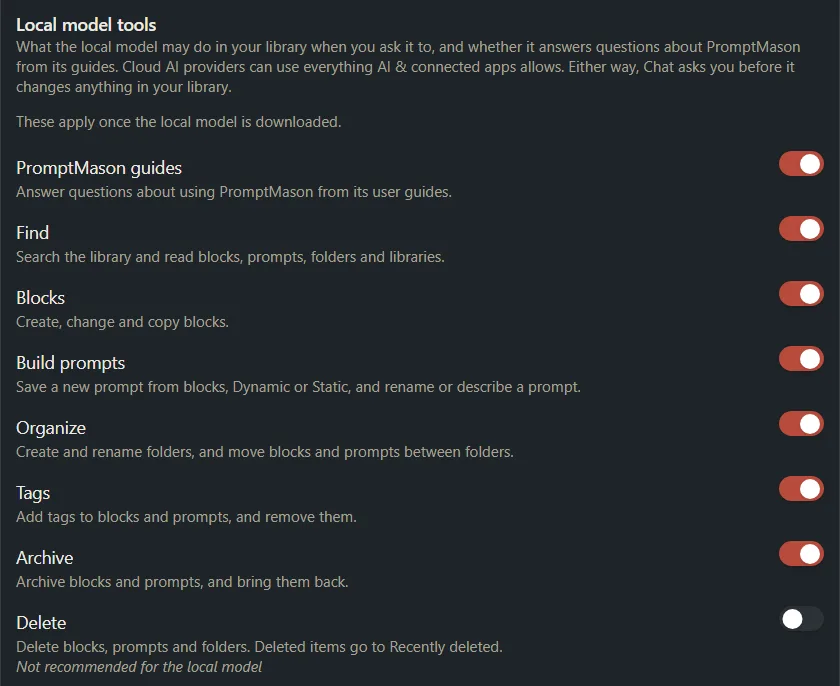
The kinds marked “Not recommended for this model” are off at first, because the local model doesn’t handle them reliably. These switches apply once the local model is downloaded. With PromptMason guides off, the local model doesn’t look in the guides, except in a chat started with Ask about PromptMason. Cloud providers can use everything What connected apps can do allows. Either way, Chat asks you before it changes anything in your library.
Save a reply as a prompt
When a reply contains a prompt written as prompt code (for example from the Build a prompt skill), Save as prompt appears under it.
- Click Save as prompt. Build opens with a new, unsaved prompt on its Code tab.
- Check the blocks, name the prompt and save it as you would any prompt. See Edit a prompt as code.
Rename or delete a chat
The rename and delete buttons appear when you point to a chat in the Chats list.
Rename:
- Point to the chat and click the pencil (Rename).
- Type the new name (up to 120 characters) and press Enter. Esc cancels.
Delete:
- Point to the chat and click the trash can (Delete).
- In Delete this chat?, click Delete chat.
Deleting a chat removes it and its messages from this computer. It can’t be undone, and it can’t delete what a cloud provider already received.
To delete every chat at once, click Settings, then Chat, then Delete all chats, and confirm with Delete all chats. This can’t be undone either. Your blocks, prompts and settings aren’t affected.
If something goes wrong
| Message | What to do |
|---|---|
| “Set up an AI provider first: download the local model, or add an API key, in Settings → AI & connected apps.” | Set up a provider (Set up AI), then send again. |
| “Download the local model in Settings → AI & connected apps first.” | The chat uses the local model, which isn’t downloaded. Download it (Free, private AI on your PC), or choose another provider under Model. |
| “Set up [Provider] in Settings → AI & connected apps first.” | Add that provider’s key again, or choose another provider under Model. |
| “This message is too long for the local model. Shorten it, or choose a cloud provider for this chat.” | Shorten the message, or switch the chat to a cloud provider. |
| “This message is too long to send. Shorten it and try again.” | Shorten the message. A message can be up to 100,000 characters, and must also fit the limit in Chat and context. |
| “The message couldn’t be sent. Check your connection and try again.” | Check your internet connection, then click Send again. Your message is back in the box. |
| “The reply couldn’t finish. Check your connection and try again.” | Check your connection, then click Try again under the reply. |
| A message from the provider under a reply | Your provider refused or failed the request. Read its message (for example, a key that has expired or an account with no credit), fix it with the provider, then click Try again. |
| “Wait for the reply to finish, or stop it.” | A reply is still being written. Wait, or click Stop. |
| “This skill is too long for a chat: keep it under 20,000 characters.” | Shorten the skill’s document, or choose another skill. |
| “Only a Markdown document whose Type is Skill can be a chat skill, and this one is not in your library.” | Choose another skill, or set the document’s Type back to Skill. |
| “Your chats couldn’t be loaded. Try again.”, “This chat couldn’t be opened. Try again.”, “The chat couldn’t be renamed. Try again.”, “The chat couldn’t be deleted. Try again.”, or “The provider couldn’t be changed. Try again.” (also the model or the skill) | Try the same action again. If it keeps happening, restart PromptMason. |
| “Couldn’t copy to the clipboard.” | Try Copy again. |
| Sending or Try again opens the paused-library message | Your library is paused. You can still read, rename and delete chats. See When your library is paused. |
Want a hand?
Copy this prompt into Claude, ChatGPT or another AI assistant, and it walks you through it step by step.
I want to use PromptMason's Chat screen. Walk me through starting a chat, choosing a model, running a saved prompt from the “Prompts” panel, asking it how to do something in PromptMason, and saving a good reply as a prompt.
Copy adds a short note about PromptMason and this guide's steps, so the assistant has what it needs.
I want to use PromptMason's Chat screen. Walk me through starting a chat, choosing a model, running a saved prompt from the “Prompts” panel, asking it how to do something in PromptMason, and saving a good reply as a prompt. About PromptMason: a Windows desktop app for building AI prompts from reusable blocks. A person writes blocks (reusable pieces of prompt text), builds prompts from them on the Build screen (or keeps a Markdown document, such as a Skill), and copies a prompt into an AI tool, runs it in PromptMason’s own Chat, or lets a connected AI agent use it through PromptMason’s built-in MCP server (the Chrome extension copies prompts on any website). AI assist, Evaluate and Chat use a local model that runs on the person’s PC, or their own AI provider. The guides are also on PromptMason’s Help screen, and Chat can answer “how do I” questions from them. Libraries hold the blocks and prompts; a person can sync their personal library to their other PCs and share team libraries, both through a folder in cloud storage they already have (OneDrive, Google Drive or Dropbox). Everything synced is encrypted and every edit is signed and checked. A recovery kit (a file plus a code) is the spare copy of the person’s keys, for when every PC is lost. The official guide for this is "Run prompts in Chat": https://promptmason.ai/docs/chat-basics Its full text follows, between the lines. Use it as the source of truth, and if anything I see differs from it, tell me rather than guessing. --- The Chat screen runs your prompts with an AI model and shows the replies, with your prompts in a panel beside the conversation. It works with the local model on your computer, or with an AI provider you set up with your own API key or your own server. This page shows how to use it; [Chat and context](https://promptmason.ai/docs/chat) explains what each message sends, how long chats are handled, and where chats are kept. Chats are on every plan and don't count toward the Free limits. ## Before you start - **Chat must be switched on.** If **Chat & Browse** isn't in the sidebar, click **Settings**, then **Features**, and turn on **Chat**. See [Show or hide features](https://promptmason.ai/docs/features). - **You need an AI provider.** Download the [local model](https://promptmason.ai/docs/local-model), or add an API key ([Set up AI](https://promptmason.ai/docs/ai-setup)). Until one is set up, the Chat tab shows **Set up AI to start chatting**. Click **Download the free local model** to open **Settings → AI & connected apps** at the local model, where you download it. You can add an API key in the same place. ## The Chat screen Click **Chat & Browse** in the sidebar, or press Ctrl+9. The screen has three areas: - **Chats** on the left: your saved chats, newest first. - **The conversation** in the middle, on the **Chat** tab. With [web tabs](https://promptmason.ai/docs/web-tabs) on, websites open in more tabs beside it. - **Prompts** on the right: your prompts and blocks, to run in the chat. The **Chats** and **Prompts** buttons at the top right show or hide the side areas. Drag the line between two areas to resize them. In a narrow window, if both side areas don't fit, the one you opened last stays open. The screen stays loaded while you use other screens, so a reply keeps arriving while you're away. ## Start a chat 1. Click **Chat & Browse** in the sidebar. 2. Click **New chat** at the top of the chats list, or press Ctrl+N when you're not typing in the message box. 3. Optional: under **Model**, choose the provider and model for this chat (see [Choose the model](#choose-the-model)). 4. Type your message in the box at the bottom. Enter sends it; Shift+Enter starts a new line. 5. Click **Send**. The reply appears under your message as it's written, with "Writing…" until the first words arrive. The provider and model are shown under the reply. A new chat is saved when you send its first message. Its name is taken from that message until you [rename it](#rename-or-delete-a-chat). While a reply is being written, **Send** becomes **Stop**. Click **Stop** to end the reply early; what arrived so far is kept, marked "Stopped." You can type your next message while a reply is being written, and send it once the reply is done. ## The lines under the chat's header Under the **Model** picker, a grey notice starts with a short line that says where this chat's messages go: | Line | Means | |---|---| | "Private: this chat stays on this computer." | The local model. None of the chat leaves the computer. | | "Messages in this chat are sent to [Provider] and charged to your [Provider] account." | A cloud provider you use with an API key. | | "Messages in this chat are sent to your OpenAI-compatible server, and any charges go to your account there." | Your own server, set up under **Your own AI server** in Settings ([Set up AI](https://promptmason.ai/docs/ai-setup)). | The notice shows only that first line at first, with a small arrow at its right. Click the line to open the rest of the notice, and click it again to close it. PromptMason remembers whether you left it open. In the open notice, with a cloud provider, the last line shows how many tokens the chat has sent so far, beside **How chat memory works**, for example "Sent in this chat: 18,000 tokens to OpenAI". A token is about three quarters of a word. The count covers everything each message sends, including the earlier part of the chat that goes with it ([more](https://promptmason.ai/docs/chat#with-a-cloud-provider)). If the chat can use your library, a line in the open notice says so (see [Let the chat work in your library](#let-the-chat-work-in-your-library)). **How chat memory works** opens a short explanation of what each message sends, with a link to [Chat and context](https://promptmason.ai/docs/chat). ## Choose the model A new chat starts with your default provider and its first model, set under **Default AI provider** in **Settings → AI & connected apps**. To use a different model for this chat, click the **Model** picker and choose a provider, then a model. The picker lists only the providers you've set up, with the local model first. The choice applies to this chat only. You can't change it while a reply is being written. If the chat already has messages and you choose a different cloud provider, PromptMason asks first, because your next message sends the recent conversation to that provider. This happens when you move from the local model to a cloud provider, and from one cloud provider to another. In the **Switch this chat to [Provider]?** dialog: - **Switch** moves this chat to the new provider. Nothing is sent until your next message. - **New chat** starts a new, empty chat on the new provider. This chat is kept as it was. - **Cancel** keeps the current provider. Moving a chat to the local model never asks, because none of the chat leaves the computer. Choosing another model of the same provider doesn't ask either. While the local model isn't downloaded, the **Model** row also has a **Download the free local model** button. It opens **Settings → AI & connected apps** at the local model, where you download it. Once it's downloaded, the button isn't shown. If you remove a provider in Settings, a chat that used it shows "[Provider] (not set up)". Choose another provider to carry on. ## Run a prompt from the Prompts panel 1. In the **Prompts** area on the right, find a prompt, block or document. Type in **Search prompts and blocks** to narrow the list. 2. Click it. A preview shows the text that will be sent. 3. Click one of these: - **Run in chat** sends it to the chat now. If no chat is open, a new one starts. - **Copy** copies it to the clipboard. To put a prompt in the message box so you can change it first, copy it and paste it there. For a Markdown document, **Download .md** saves it as a file. 4. If the prompt has [variables](https://promptmason.ai/docs/variables) that need a value, **Fill in your values** opens first. Type a value in each box, then click the form's **Run in chat** button. A line above your message reads "Ran" followed by the prompt's name. With no AI provider set up, the panel offers only **Copy**. When a web tab is showing instead of the Chat tab, the panel offers **Run in this tab**. See [Web tabs](https://promptmason.ai/docs/web-tabs#put-a-prompt-in-a-sites-message-box). ## Work with replies - Replies are formatted: headings, lists, tables and code. Links open in your web browser, except links to PromptMason's guides, which open in **Help**. - **Copy** under any message copies its text. - **Try again** appears under the last reply when it failed or was stopped. It asks for the reply again. - The view follows a reply as it grows. Scroll up to read something earlier and it stops following. ## Use a skill A skill gives the chat instructions to follow from its next message on, such as how to build a prompt with you. The skill is sent with every message in the chat. 1. In the chat's header, click the **Skill** picker (it shows **No skill** at first). 2. Choose one: - **Ask about PromptMason**, built in: "Ask how to do something in PromptMason. The answers come from its user guides." See [Ask how to use PromptMason](#ask-how-to-use-promptmason). - **Build a prompt**, built in: "Write a prompt with the AI, block by block, and save it to your library." - Any of **Your skills**: your Markdown documents whose Type is **Skill**. See [Markdown documents and Skills](https://promptmason.ai/docs/markdown-documents). - **No skill** to stop using one. When a skill saves something to your library, Chat asks first, like any other change ([Approve or refuse a change](#approve-or-refuse-a-change)). In a new, empty chat, the **Start with a skill** buttons do the same. Choosing a skill sends nothing by itself. A skill must be under 20,000 characters. If a skill's document is deleted, or its Type is no longer Skill, the picker shows **Skill not found**. Choose another skill, or **No skill**. To read or change the built-in skills' wording, edit the **Skill: Ask about PromptMason** and **Skill: Build a prompt** entries in [the AI instructions](https://promptmason.ai/docs/ai-instructions). ## Ask how to use PromptMason Chat can answer questions about PromptMason itself, such as "How do I turn on backups?" or "Where do I change the theme?", from these guides. They're the same guides as in **Help**, as they were when your version of PromptMason was made. - **In any chat:** ask your question. With a cloud provider, the chat can look in the guides for any message. With the local model, it looks in the guides only when your message asks how, where, what or why about something in PromptMason. - **In a chat just for questions:** click **Ask about PromptMason** at the top of the **Help** screen, or choose **Ask about PromptMason** under **Start with a skill** in a new chat. A new chat starts with that skill, and every message in it can look in the guides. While the chat looks something up, a line in the reply says "Searched the guides for" followed by your question. The reply gives the guide's steps, with the names of buttons and settings in bold as the guide writes them, and ends with a link to the guide. Click the link to open that part of the guide in **Help**. If the guides don't cover your question, the reply says so. What goes where: - **With the local model**, your question and the parts of the guides it looks up stay on your computer. - **With a cloud provider**, your question and the parts of the guides the chat finds are sent to that provider, with the rest of the chat. Nothing from your library goes with them. Looking things up in the guides reads nothing in your library, so it works whatever **What connected apps can do** is set to, **Off** included. ## Let the chat work in your library A chat can find, create and change blocks, prompts and folders in your library when you ask it to, for example "Make a Constraints block that says to keep answers under 200 words." Chat asks you before it changes anything (see [Approve or refuse a change](#approve-or-refuse-a-change)). It uses the same setting as AI agents and the Chrome extension: **What connected apps can do** in **Settings → AI & connected apps**. With a cloud provider, whatever the chat reads from your library is sent to that provider, and with **Full access** (the default) a cloud chat can also change your library, after you approve each change. See [Privacy in PromptMason](https://promptmason.ai/docs/privacy-overview). | Setting | What the chat can do | |---|---| | **Full access** | Find blocks, prompts and folders, and change them after you approve. The line under the header says "This chat can find and change blocks, prompts and folders in your library. It asks you before each change." | | **Read-only** | Read your library but not change it. The line says "This chat can read your library but not change it." | | **Off** | Nothing in your library. No line shows. | Click **Change** on that line to open the setting. (The line is in the header's notice, which you open by clicking its first line.) Changing it also changes what AI agents and the Chrome extension can do. See [Control what connected apps can do](https://promptmason.ai/docs/agent-access). While the chat works, a line in the reply shows "Working…", then what it did, with **Open** to go to a block or prompt it made or changed. If something couldn't be done, the line starts with "Couldn't" and says why; the reply carries on. Anything a chat deletes goes to Recently deleted, where you can restore it ([Archive, delete and restore](https://promptmason.ai/docs/archive-and-delete)). ### Approve or refuse a change Reading and searching your library never ask. Before Chat changes anything, it stops and shows a card in the reply that asks **Allow this change to your library?** The card says what it wants to do, for example **Create prompt "Cold email"** or **Delete block "Tone"**, with a short look at what will be saved. Nothing changes until you answer. | Button | What it does | |---|---| | **Allow** | Makes this change. The next change asks again. | | **Allow for this chat** | Makes this change, and lets this conversation make other changes without asking. | | **Don't allow** | Doesn't make the change. Chat is told you said no, and the reply carries on without it. The reply shows **Not allowed:** and the action. | To answer from the keyboard, press Shift+Tab in the message box to reach the card, then press Enter on a button. While the card waits, the line under the message box says the reply is waiting for your answer. There is no time limit on your answer. Things to know: - **Allow for this chat** lasts only for that conversation, and only until you close PromptMason. A new chat asks again. - Clicking **Stop** while a card waits counts as **Don't allow**. So does switching to another chat, or deleting the chat. - This applies to Chat only. AI agents such as Claude Desktop, and the Chrome extension, don't show these cards: what they can do is set by **What connected apps can do** alone. ### With the local model The local model is smaller, so it gets only the kinds of tools switched on for it, and only when your message asks it to do something in your library. A question gets an answer, not a search of your library; a question about using PromptMason gets the guides ([Ask how to use PromptMason](#ask-how-to-use-promptmason)). To choose the kinds of tools: 1. Click **Settings** in the sidebar, then **Chat**. 2. Under **Local model tools**, turn each kind on or off: **PromptMason guides**, **Find**, **Blocks**, **Build prompts**, **Organize**, **Tags**, **Archive**, **Delete**, **More prompt tools**, **Browse everything**, **Variables**, **Notes and expected outputs** and **Libraries**. The kinds marked "Not recommended for this model" are off at first, because the local model doesn't handle them reliably. These switches apply once the local model is downloaded. With **PromptMason guides** off, the local model doesn't look in the guides, except in a chat started with **Ask about PromptMason**. Cloud providers can use everything **What connected apps can do** allows. Either way, Chat asks you before it changes anything in your library. ## Save a reply as a prompt When a reply contains a prompt written as prompt code (for example from the **Build a prompt** skill), **Save as prompt** appears under it. 1. Click **Save as prompt**. Build opens with a new, unsaved prompt on its Code tab. 2. Check the blocks, name the prompt and save it as you would any prompt. See [Edit a prompt as code](https://promptmason.ai/docs/code-view). ## Rename or delete a chat The rename and delete buttons appear when you point to a chat in the **Chats** list. **Rename:** 1. Point to the chat and click the pencil (**Rename**). 2. Type the new name (up to 120 characters) and press Enter. Esc cancels. **Delete:** 1. Point to the chat and click the trash can (**Delete**). 2. In **Delete this chat?**, click **Delete chat**. Deleting a chat removes it and its messages from this computer. It can't be undone, and it can't delete what a cloud provider already received. To delete every chat at once, click **Settings**, then **Chat**, then **Delete all chats**, and confirm with **Delete all chats**. This can't be undone either. Your blocks, prompts and settings aren't affected. ## If something goes wrong | Message | What to do | |---|---| | "Set up an AI provider first: download the local model, or add an API key, in Settings → AI & connected apps." | Set up a provider ([Set up AI](https://promptmason.ai/docs/ai-setup)), then send again. | | "Download the local model in Settings → AI & connected apps first." | The chat uses the local model, which isn't downloaded. Download it ([Free, private AI on your PC](https://promptmason.ai/docs/local-model)), or choose another provider under **Model**. | | "Set up [Provider] in Settings → AI & connected apps first." | Add that provider's key again, or choose another provider under **Model**. | | "This message is too long for the local model. Shorten it, or choose a cloud provider for this chat." | Shorten the message, or switch the chat to a cloud provider. | | "This message is too long to send. Shorten it and try again." | Shorten the message. A message can be up to 100,000 characters, and must also fit the limit in [Chat and context](https://promptmason.ai/docs/chat#change-the-limits). | | "The message couldn't be sent. Check your connection and try again." | Check your internet connection, then click **Send** again. Your message is back in the box. | | "The reply couldn't finish. Check your connection and try again." | Check your connection, then click **Try again** under the reply. | | A message from the provider under a reply | Your provider refused or failed the request. Read its message (for example, a key that has expired or an account with no credit), fix it with the provider, then click **Try again**. | | "Wait for the reply to finish, or stop it." | A reply is still being written. Wait, or click **Stop**. | | "This skill is too long for a chat: keep it under 20,000 characters." | Shorten the skill's document, or choose another skill. | | "Only a Markdown document whose Type is Skill can be a chat skill, and this one is not in your library." | Choose another skill, or set the document's Type back to **Skill**. | | "Your chats couldn't be loaded. Try again.", "This chat couldn't be opened. Try again.", "The chat couldn't be renamed. Try again.", "The chat couldn't be deleted. Try again.", or "The provider couldn't be changed. Try again." (also the model or the skill) | Try the same action again. If it keeps happening, restart PromptMason. | | "Couldn't copy to the clipboard." | Try **Copy** again. | | Sending or **Try again** opens the paused-library message | Your library is paused. You can still read, rename and delete chats. See [When your library is paused](https://promptmason.ai/docs/paused-library). | --- How to help me: - Go one step at a time. After each step, ask what I see on screen before giving the next one. - Use the exact words on PromptMason’s buttons and screens, as the guide does. - Never ask me for my recovery code, my recovery kit file, a password or my invite line, and never ask me to paste them here. - Start by asking which step I’m on, or what I see now.