Install, update and remove
Install PromptMason on Windows, start your 14 days of Pro, update to a new version, and remove it.
PromptMason is a desktop app for Windows. This page covers installing it, the first time you open it, updating it and removing it.
What you need
- Windows 10 or later (64-bit). Mac and Linux versions are coming soon.
- An internet connection to download the installer, to activate a license key if you have one, and to check for updates. If you have a key, PromptMason also checks your license each time it starts and every 24 hours. If it can’t, it keeps your plan as it was at the last check: you see a warning after 3 days, and the Free limits apply after 14 days until a check works (how your license is checked).
- No key. PromptMason starts with 14 days of Pro by itself. A key is only for people who buy Pro. See Your trial and license key.
Install
- On the Download page, click Download and enter your email.
- The next page gives you the installer.
- If your browser warns that the installer isn’t commonly downloaded, choose Keep. In Microsoft Edge, open the menu next to Delete and choose Keep; if it asks again, choose Show more, then Keep anyway. PromptMason is digitally signed; browsers show this for new apps until enough people have downloaded them.
- Open the installer. Its file name starts with
PromptMason-and ends with-setup.exe. - If Windows shows a blue Windows protected your PC screen, click More info, then Run anyway. Windows shows this for apps it hasn’t seen often yet.
- PromptMason installs for your Windows account and opens by itself. You don’t need to be an administrator.
You’ll find PromptMason in the Start menu and on your desktop.
The first time you open it
-
PromptMason asks How would you like to start?
- Start simple shows the essentials: blocks, building prompts, your prompt library and Chat. Every other optional feature is off, including the Home screen, so PromptMason opens on the Prompts screen.
- Show me everything turns every feature on. PromptMason opens on Home.
Closing the question without choosing (with Esc, the X or a click outside it) counts as Start simple. You can change this any time in Settings → Features. See Show or hide features.
-
Your 14 days of Pro start by themselves. You don’t need a key. After 14 days, PromptMason moves to the Free plan (up to 25 blocks and 15 prompts).
-
PromptMason then opens Settings → Plan once, at License key, with the line “Have a key? Paste it here, then select Activate.” Only enter a key if you bought Pro or support gave you one. Otherwise, close Settings.
You can enter a key later in Settings → Plan. See Your trial and license key.
If your library is empty, a card also appears in the bottom-right corner offering the Starter pack of ready-made blocks and prompts. See Add a block pack.
Update
PromptMason updates itself. About 10 seconds after it opens, and every 4 hours while it’s open, it checks for a newer version. Unless you turn that off (see below), a newer version downloads in the background while you work.
When the download finishes, a line appears across the top of the window saying the new version is ready to install. It has two buttons:
- Restart to update closes PromptMason, installs the update and opens it again. You don’t have to do anything else, and Windows doesn’t ask anything.
- Later hides the line until PromptMason next opens.
If you click Later or ignore the line, the update installs the next time you close PromptMason, as long as Install updates automatically is on.
To check for an update yourself, click Settings, then General, and look under Updates. It shows where things stand: “PromptMason is up to date.”, “Downloading version X (N%)…”, or “Version X is ready. It installs when you close PromptMason, or restart now.” Click Check for updates to look right away. Once an update is ready, the button becomes Restart to update.
To choose when an update downloads, go to Settings, then General, and turn off Install updates automatically. It’s on by default. PromptMason still checks on the same schedule, but it no longer downloads or installs anything by itself. When it finds a newer version, the line across the top of the window says “PromptMason X is available.” with two buttons:
- Download update starts the download. When it finishes, you see “PromptMason X is ready to install.” with Restart to update and Later, as above.
- Later hides the line until PromptMason next opens.
Under Updates, the message becomes “Version X is available.” and the button is Download update. If you turn Install updates automatically back on while a version is waiting, the download starts.
With the switch off, an update installs only when you click Restart to update. Closing PromptMason doesn’t install it. This is true for an update you downloaded with Download update, and for one that had already downloaded before you turned the switch off. While one is waiting, Updates says “Version X is ready. Restart PromptMason to install it.”
Checking for updates needs an internet connection. If PromptMason can’t reach the update server when you click Check for updates, it says “Couldn’t reach the update server. Check your internet connection; PromptMason tries again later.” When a check that PromptMason makes by itself fails, it says nothing and tries again later.
Updating keeps your blocks, prompts, settings, license and the downloaded local model.
You can still get a fresh installer from the Download page, for example to reinstall. Open it and it replaces the old version.
Installing an older version over a newer one isn’t supported. The installer on the Download page is always the latest, so you shouldn’t need to. If you do, and the newer version had already upgraded your library, the older one can’t open it. It shows a card titled “Update PromptMason to open your library” instead of the app: “Your library was saved by a newer version of PromptMason, so this version can’t open it. Nothing in it was changed. Update PromptMason to open it.” The card also shows the update status and a button: Check for updates, Download update or Restart to update. Update PromptMason and your library opens as it was.
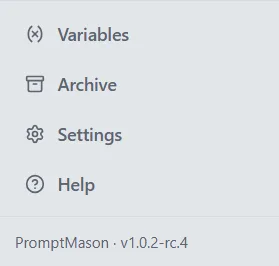
To see which version you have, look at the line at the bottom of the sidebar, or click Settings, then General, and look under About PromptMason.
Remove
If you’re removing PromptMason from this PC for good, if you have a license key on it, take the key off first, so you can use it on another computer:
- In PromptMason, click Settings in the sidebar, then Plan.
- Click Advanced, then Remove license.
Then remove the app:
- Windows 11: open Windows Settings, then Apps, then Installed apps. Find PromptMason, click the … next to it, then click Uninstall.
- Windows 10: open Windows Settings, then Apps, then Apps & features. Click PromptMason, then click Uninstall.
What removing deletes and keeps
- Deleted: the downloaded local model (about 1.3 GB). If you install PromptMason again, download the model again in Settings → AI & connected apps.
- Kept on the PC: your blocks, prompts and settings, so they’re back if you install PromptMason again on this PC in the same Windows account.
Your library on this PC can only be read in the Windows account and on the PC where it was made. Copying PromptMason’s data folder to another PC doesn’t work. To move your work to another PC, use Export and import, or use your library on a second PC.
To keep a copy of your work somewhere else before you remove PromptMason, go to Settings → Backup & data and click Export next to Export everything. The file holds your personal library, not team libraries, and it isn’t encrypted, so keep it somewhere only you can open. See Export and import.
Want a hand?
Copy this prompt into Claude, ChatGPT or another AI assistant, and it walks you through it step by step.
I'm installing PromptMason on my Windows PC. Walk me through the installer, the Windows warning, and my 14 days of Pro.
Copy adds a short note about PromptMason and this guide's steps, so the assistant has what it needs.
I'm installing PromptMason on my Windows PC. Walk me through the installer, the Windows warning, and my 14 days of Pro. About PromptMason: a Windows desktop app for building AI prompts from reusable blocks. A person writes blocks (reusable pieces of prompt text), builds prompts from them on the Build screen (or keeps a Markdown document, such as a Skill), and copies a prompt into an AI tool, runs it in PromptMason’s own Chat, or lets a connected AI agent use it through PromptMason’s built-in MCP server (the Chrome extension copies prompts on any website). AI assist, Evaluate and Chat use a local model that runs on the person’s PC, or their own AI provider. The guides are also on PromptMason’s Help screen, and Chat can answer “how do I” questions from them. Libraries hold the blocks and prompts; a person can sync their personal library to their other PCs and share team libraries, both through a folder in cloud storage they already have (OneDrive, Google Drive or Dropbox). Everything synced is encrypted and every edit is signed and checked. A recovery kit (a file plus a code) is the spare copy of the person’s keys, for when every PC is lost. The official guide for this is "Install, update and remove": https://promptmason.ai/docs/installation Its full text follows, between the lines. Use it as the source of truth, and if anything I see differs from it, tell me rather than guessing. --- PromptMason is a desktop app for Windows. This page covers installing it, the first time you open it, updating it and removing it. ## What you need - Windows 10 or later (64-bit). Mac and Linux versions are coming soon. - An internet connection to download the installer, to activate a license key if you have one, and to check for updates. If you have a key, PromptMason also checks your license each time it starts and every 24 hours. If it can't, it keeps your plan as it was at the last check: you see a warning after 3 days, and the Free limits apply after 14 days until a check works ([how your license is checked](https://promptmason.ai/docs/license#how-your-license-is-checked)). - No key. PromptMason starts with 14 days of Pro by itself. A key is only for people who buy Pro. See [Your trial and license key](https://promptmason.ai/docs/license). ## Install 1. On the [Download](https://promptmason.ai/download) page, click **Download** and enter your email. 2. The next page gives you the installer. 3. If your browser warns that the installer isn't commonly downloaded, choose **Keep**. In Microsoft Edge, open the menu next to **Delete** and choose **Keep**; if it asks again, choose **Show more**, then **Keep anyway**. PromptMason is digitally signed; browsers show this for new apps until enough people have downloaded them. 4. Open the installer. Its file name starts with `PromptMason-` and ends with `-setup.exe`. 5. If Windows shows a blue **Windows protected your PC** screen, click **More info**, then **Run anyway**. Windows shows this for apps it hasn't seen often yet. 6. PromptMason installs for your Windows account and opens by itself. You don't need to be an administrator. You'll find PromptMason in the Start menu and on your desktop. ## The first time you open it 1. PromptMason asks **How would you like to start?** - **Start simple** shows the essentials: blocks, building prompts, your prompt library and Chat. Every other optional feature is off, including the Home screen, so PromptMason opens on the **Prompts** screen. - **Show me everything** turns every feature on. PromptMason opens on **Home**. Closing the question without choosing (with Esc, the X or a click outside it) counts as **Start simple**. You can change this any time in **Settings → Features**. See [Show or hide features](https://promptmason.ai/docs/features). 2. Your 14 days of Pro start by themselves. You don't need a key. After 14 days, PromptMason moves to the Free plan (up to 25 blocks and 15 prompts). 3. PromptMason then opens **Settings → Plan** once, at **License key**, with the line "Have a key? Paste it here, then select Activate." Only enter a key if you bought Pro or support gave you one. Otherwise, close Settings. You can enter a key later in **Settings → Plan**. See [Your trial and license key](https://promptmason.ai/docs/license). If your library is empty, a card also appears in the bottom-right corner offering the Starter pack of ready-made blocks and prompts. See [Add a block pack](https://promptmason.ai/docs/block-packs). ## Update PromptMason updates itself. About 10 seconds after it opens, and every 4 hours while it's open, it checks for a newer version. Unless you turn that off (see below), a newer version downloads in the background while you work. When the download finishes, a line appears across the top of the window saying the new version is ready to install. It has two buttons: - **Restart to update** closes PromptMason, installs the update and opens it again. You don't have to do anything else, and Windows doesn't ask anything. - **Later** hides the line until PromptMason next opens. If you click **Later** or ignore the line, the update installs the next time you close PromptMason, as long as **Install updates automatically** is on. To check for an update yourself, click **Settings**, then **General**, and look under **Updates**. It shows where things stand: "PromptMason is up to date.", "Downloading version X (N%)…", or "Version X is ready. It installs when you close PromptMason, or restart now." Click **Check for updates** to look right away. Once an update is ready, the button becomes **Restart to update**. To choose when an update downloads, go to **Settings**, then **General**, and turn off **Install updates automatically**. It's on by default. PromptMason still checks on the same schedule, but it no longer downloads or installs anything by itself. When it finds a newer version, the line across the top of the window says "PromptMason X is available." with two buttons: - **Download update** starts the download. When it finishes, you see "PromptMason X is ready to install." with **Restart to update** and **Later**, as above. - **Later** hides the line until PromptMason next opens. Under **Updates**, the message becomes "Version X is available." and the button is **Download update**. If you turn **Install updates automatically** back on while a version is waiting, the download starts. With the switch off, an update installs only when you click **Restart to update**. Closing PromptMason doesn't install it. This is true for an update you downloaded with **Download update**, and for one that had already downloaded before you turned the switch off. While one is waiting, **Updates** says "Version X is ready. Restart PromptMason to install it." Checking for updates needs an internet connection. If PromptMason can't reach the update server when you click **Check for updates**, it says "Couldn’t reach the update server. Check your internet connection; PromptMason tries again later." When a check that PromptMason makes by itself fails, it says nothing and tries again later. Updating keeps your blocks, prompts, settings, license and the downloaded [local model](https://promptmason.ai/docs/local-model). You can still get a fresh installer from the [Download](https://promptmason.ai/download) page, for example to reinstall. Open it and it replaces the old version. Installing an older version over a newer one isn't supported. The installer on the [Download](https://promptmason.ai/download) page is always the latest, so you shouldn't need to. If you do, and the newer version had already upgraded your library, the older one can't open it. It shows a card titled "Update PromptMason to open your library" instead of the app: "Your library was saved by a newer version of PromptMason, so this version can’t open it. Nothing in it was changed. Update PromptMason to open it." The card also shows the update status and a button: **Check for updates**, **Download update** or **Restart to update**. Update PromptMason and your library opens as it was. To see which version you have, look at the line at the bottom of the sidebar, or click **Settings**, then **General**, and look under **About PromptMason**. ## Remove If you're removing PromptMason from this PC for good, if you have a license key on it, take the key off first, so you can use it on another computer: 1. In PromptMason, click **Settings** in the sidebar, then **Plan**. 2. Click **Advanced**, then **Remove license**. Then remove the app: - **Windows 11:** open Windows **Settings**, then **Apps**, then **Installed apps**. Find **PromptMason**, click the **…** next to it, then click **Uninstall**. - **Windows 10:** open Windows **Settings**, then **Apps**, then **Apps & features**. Click **PromptMason**, then click **Uninstall**. ### What removing deletes and keeps - **Deleted:** the downloaded [local model](https://promptmason.ai/docs/local-model) (about 1.3 GB). If you install PromptMason again, download the model again in **Settings → AI & connected apps**. - **Kept on the PC:** your blocks, prompts and settings, so they're back if you install PromptMason again on this PC in the same Windows account. Your library on this PC can only be read in the Windows account and on the PC where it was made. Copying PromptMason's data folder to another PC doesn't work. To move your work to another PC, use [Export and import](https://promptmason.ai/docs/export-import), or [use your library on a second PC](https://promptmason.ai/docs/second-pc). To keep a copy of your work somewhere else before you remove PromptMason, go to **Settings → Backup & data** and click **Export** next to **Export everything**. The file holds your personal library, not team libraries, and it isn't encrypted, so keep it somewhere only you can open. See [Export and import](https://promptmason.ai/docs/export-import). --- How to help me: - Go one step at a time. After each step, ask what I see on screen before giving the next one. - Use the exact words on PromptMason’s buttons and screens, as the guide does. - Never ask me for my recovery code, my recovery kit file, a password or my invite line, and never ask me to paste them here. - Start by asking which step I’m on, or what I see now.