Folders, moving and copying
Make folders, file your blocks and prompts in them, and move or copy items and whole folders.
Folders hold your blocks and prompts, the way folders hold files on your PC. Folders can hold other folders, as deep as you like. Each block or prompt is in one folder, or in none. You manage folders from the sidebar and from Explorer; both have the same right-click menus.
Folders are always available. They aren’t a feature you need to turn on.
The folder list in the sidebar
Your folders are listed in the sidebar, under the screen names, in A to Z order.
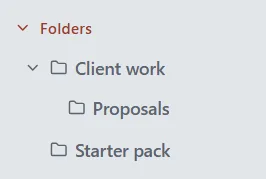
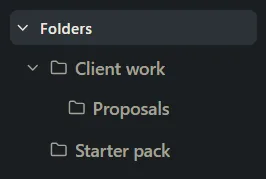
- With only your personal library, the list starts with Folders.
- Once you have a team library, the list starts with Libraries, then a row for each library (yours, Personal, first), each with its own folders. See Personal and team libraries.
Click the arrow next to a folder (or Folders, or a library) to open or close it. PromptMason remembers which ones you left open.
Make a folder
-
In the sidebar, right-click Folders for a top-level folder, or right-click a folder to make one inside it. With team libraries, right-click a library’s row for a top-level folder in that library.
-
Click New folder.
-
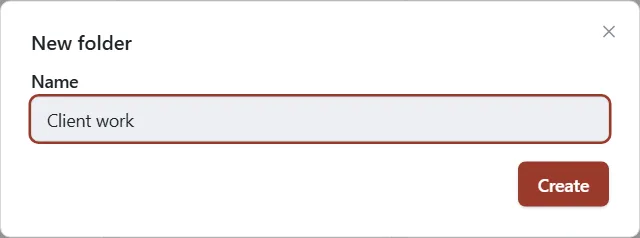
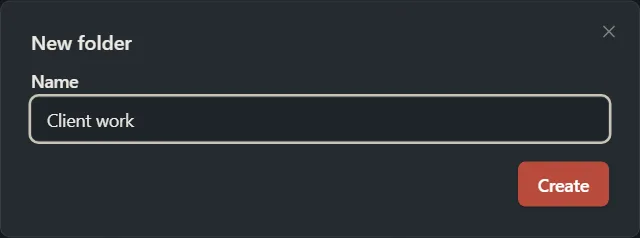
Type a name under Name.
-
Click Create.
The folder appears in the sidebar. You can also click New folder at the top of Explorer, which makes the folder inside the one you’re viewing.
Rename a folder
- Right-click the folder in the sidebar or in Explorer.
- Click Rename.
- Type the new name and click Rename.
Show what’s in a folder
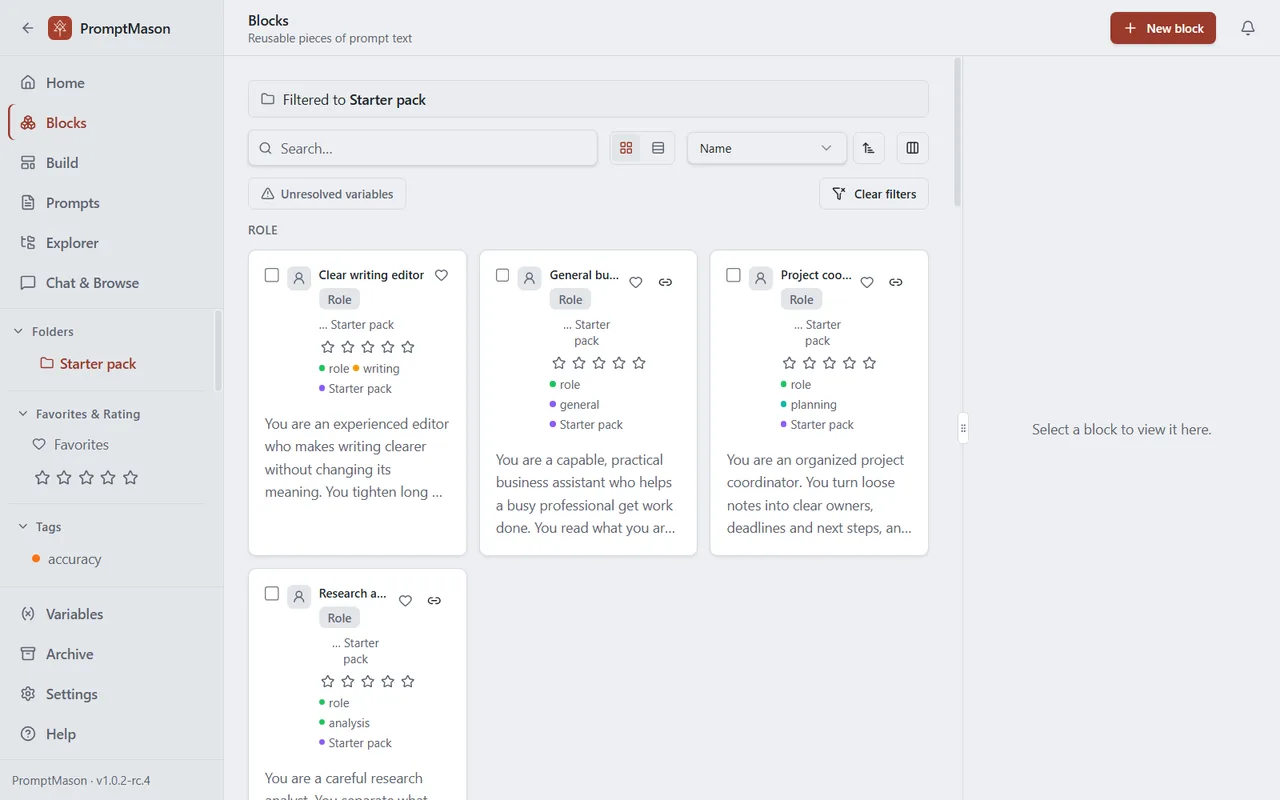
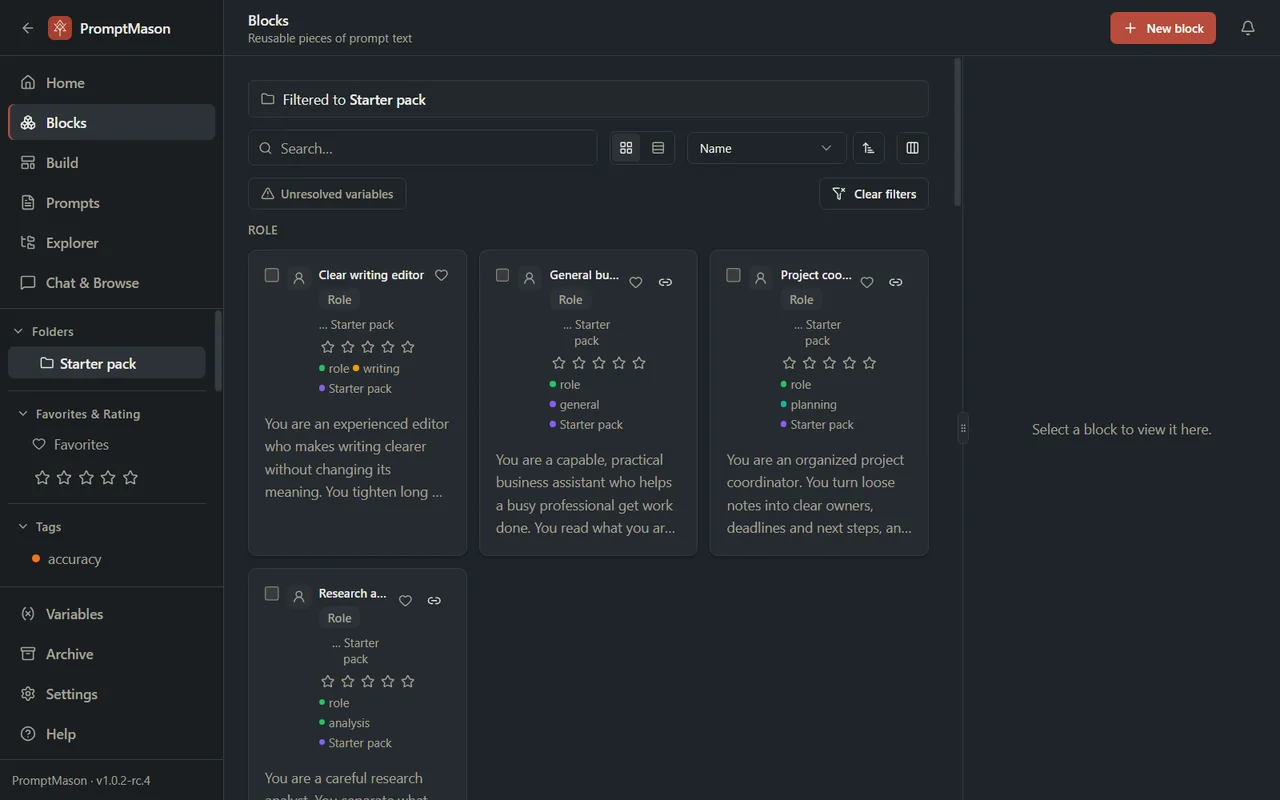
Click a folder in the sidebar. Blocks, Prompts and Explorer then show only what’s in that folder, and so does the list of blocks on the Build screen.
-
The filter shows only what’s directly in the folder, not what’s in its subfolders. To see the subfolders too, open the folder in Explorer.
-
On Blocks and Prompts, a bar above the list reads Filtered to and the folder’s path, for example Filtered to Marketing › Social. Click a folder name in the bar to go up to that folder. Explorer opens the folder on its All Files tab instead.
-
The filter stays on as you move between screens.
To see everything again, click Folders (or Libraries) at the top of the sidebar’s list, or click Clear filters in the toolbar.
You can also click an item’s location (on its tile, or in the Location column) to show the folder it’s in. My Files means the item isn’t in a folder; clicking it shows everything again.
Put a new item in a folder
When you create a block, a Static prompt or a new prompt on the Build screen, choose its folder under Location, in the Properties panel. It starts at the folder selected in the sidebar, or My Files (no folder) if none is.
Once an item is saved, you change its folder with Move.
Move an item
-
Right-click the block or prompt on the Blocks, Prompts or Explorer screen.
-
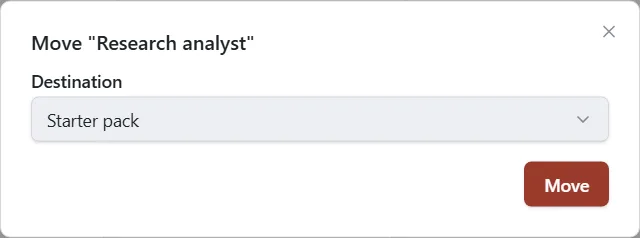
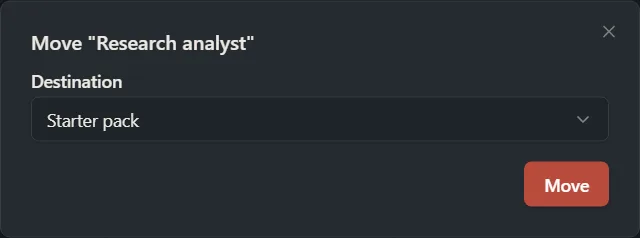
Click Move.
-
Under Destination, choose a folder, or My Files (no folder) for no folder (No folder in a team library).
-
Click Move.
To move several at once, tick their boxes and click Move in the bar that appears above the list. In Explorer you can also drag an item onto a folder.
Moving doesn’t change what’s in an item and doesn’t count as a new version. Moving never counts toward the Free plan’s limits.
Move an item to another library
If you have a team library, the Move window also has a Library list, and the folder list is called Folder. Pick the library, then the folder (No folder is a team library’s top level). The Library list appears when everything you’re moving is in the same library and you haven’t selected any folders. Libraries you can only view aren’t listed.
- Moving into a team library shows Everyone in [library] will see it and can use it.
- If you move a Dynamic prompt that uses blocks from the library it’s leaving, Move its blocks too? lists the blocks that go with it. Click Move [n] items to move them all, or Back to change your mind. Other prompts that use those blocks keep working.
For more about moving between libraries, see Personal and team libraries.
Copy an item
Copy in a list makes a second block or prompt. It isn’t the same as copying text to the clipboard; for that, see Copy and use a prompt.
- Right-click the block or prompt on the Blocks, Prompts or Explorer screen.
- Click Copy.
- Under Destination, choose the folder for the copy.
- Click Copy.
To copy several at once, tick their boxes and click Copy in the bar above the list. A copy always stays in the same library as the original.
What a copy carries
| Comes with the copy | Doesn’t come with the copy |
|---|---|
| The text (or, for a Dynamic prompt, its list of blocks), type and tags, plus a prompt’s description and character limit | Comments |
| Its kind: Static, Dynamic or Markdown | The heart and the star rating: a copy starts unrated and not a favorite |
| Expected output, with any attached files | Earlier versions: a copy starts its own history with one version |
The copy is named after the original with (copy) at the end, for example “Sales email (copy)”.
A copied Dynamic prompt uses the same library blocks as the original, so changing one of those blocks changes both prompts. Blocks embedded in the original prompt are copied too, so the copy’s embedded blocks are its own. See Library blocks and embedded blocks.
Move a folder
- Right-click the folder in the sidebar or in Explorer.
- Click Move.
- Under Destination, choose the folder to put it in, or My Files (no folder) (No folder in a team library) to make it a top-level folder.
- Click Move.
Or drag it: in the sidebar, drag a folder onto another folder, or onto Folders (or its library’s row) to make it top-level. Explorer works the same way, and you can drop onto a name in the path above the list.
Everything inside the folder moves with it. You can’t move a folder into itself or one of its own subfolders. A folder stays in its own library: to put its contents in another library, move the items instead.
Copy a folder
- Right-click the folder in the sidebar or in Explorer.
- Click Copy.
- Under Destination, choose where the copy goes.
- Click Copy.
The copy holds all the folder’s subfolders, blocks and prompts (archived items aren’t copied). The new top folder is named with (copy) at the end; everything inside keeps its name. Each block and prompt is copied as described in What a copy carries.
Delete a folder
-
Right-click the folder in the sidebar or in Explorer.
-
Click Delete.
-
Windows asks you to confirm. For a folder with things in it, the message says how many subfolders, blocks and prompts it holds:
Delete folder “[name]” and everything inside it? This deletes [n] subfolder(s), [n] block(s), and [n] prompt(s). The blocks and prompts go to Recently deleted for 30 days; the folders are gone for good.
-
Click OK.
The blocks and prompts go to Recently deleted on the Archive screen, where you can restore them for 30 days (see Archive, delete and restore). Archived blocks and prompts in the folder go there too, with the rest, although the message doesn’t count them. The folders themselves can’t be restored. A restored item comes back with no folder. If you only want to empty a folder, move its items out first.
If the sidebar was filtered to the folder you deleted, it switches to the folder above it.
If the folder can’t be deleted, a message box says why, or says Failed to delete folder. Try again. In a team library you need to be an editor or owner to delete folders.
Copying on the Free plan
On the Free plan, PromptMason checks a copy before it starts. If the copy would take you over 25 blocks or 15 prompts, the Free plan limit message opens instead and nothing is copied. For several items or a folder, it says how many the copy would add and how many more you have room for, for example This would add 6 blocks and 2 prompts. You have room for 4 more blocks and 3 more prompts on the Free plan. Copy fewer items, or see Plans and limits.
When your library is paused
If your library is paused (you’re on the Free plan with more than 25 blocks or 15 prompts, for example after your 14 days of Pro end), you can’t make, rename, move or copy folders, or move or copy items, until you’re back within the limits. You can still delete folders. See When your library is paused.
Want a hand?
Copy this prompt into Claude, ChatGPT or another AI assistant, and it walks you through it step by step.
I want to organize my PromptMason blocks and prompts into folders. Help me plan a simple folder layout and walk me through creating the folders and moving my items into them.
Copy adds a short note about PromptMason and this guide's steps, so the assistant has what it needs.
I want to organize my PromptMason blocks and prompts into folders. Help me plan a simple folder layout and walk me through creating the folders and moving my items into them. About PromptMason: a Windows desktop app for building AI prompts from reusable blocks. A person writes blocks (reusable pieces of prompt text), builds prompts from them on the Build screen (or keeps a Markdown document, such as a Skill), and copies a prompt into an AI tool, runs it in PromptMason’s own Chat, or lets a connected AI agent use it through PromptMason’s built-in MCP server (the Chrome extension copies prompts on any website). AI assist, Evaluate and Chat use a local model that runs on the person’s PC, or their own AI provider. The guides are also on PromptMason’s Help screen, and Chat can answer “how do I” questions from them. Libraries hold the blocks and prompts; a person can sync their personal library to their other PCs and share team libraries, both through a folder in cloud storage they already have (OneDrive, Google Drive or Dropbox). Everything synced is encrypted and every edit is signed and checked. A recovery kit (a file plus a code) is the spare copy of the person’s keys, for when every PC is lost. The official guide for this is "Folders, moving and copying": https://promptmason.ai/docs/folders Its full text follows, between the lines. Use it as the source of truth, and if anything I see differs from it, tell me rather than guessing. --- Folders hold your blocks and prompts, the way folders hold files on your PC. Folders can hold other folders, as deep as you like. Each block or prompt is in one folder, or in none. You manage folders from the sidebar and from [Explorer](https://promptmason.ai/docs/explorer); both have the same right-click menus. Folders are always available. They aren't a feature you need to turn on. ## The folder list in the sidebar Your folders are listed in the sidebar, under the screen names, in A to Z order. - With only your personal library, the list starts with **Folders**. - Once you have a team library, the list starts with **Libraries**, then a row for each library (yours, **Personal**, first), each with its own folders. See [Personal and team libraries](https://promptmason.ai/docs/libraries). Click the arrow next to a folder (or **Folders**, or a library) to open or close it. PromptMason remembers which ones you left open. ## Make a folder 1. In the sidebar, right-click **Folders** for a top-level folder, or right-click a folder to make one inside it. With team libraries, right-click a library's row for a top-level folder in that library. 2. Click **New folder**. 3. Type a name under **Name**. 4. Click **Create**. The folder appears in the sidebar. You can also click **New folder** at the top of **Explorer**, which makes the folder inside the one you're viewing. ## Rename a folder 1. Right-click the folder in the sidebar or in Explorer. 2. Click **Rename**. 3. Type the new name and click **Rename**. ## Show what's in a folder Click a folder in the sidebar. **Blocks**, **Prompts** and **Explorer** then show only what's in that folder, and so does the list of blocks on the **Build** screen. - The filter shows only what's directly in the folder, not what's in its subfolders. To see the subfolders too, open the folder in [Explorer](https://promptmason.ai/docs/explorer#move-around-your-folders). - On **Blocks** and **Prompts**, a bar above the list reads **Filtered to** and the folder's path, for example **Filtered to Marketing › Social**. Click a folder name in the bar to go up to that folder. **Explorer** opens the folder on its **All Files** tab instead. - The filter stays on as you move between screens. To see everything again, click **Folders** (or **Libraries**) at the top of the sidebar's list, or click **Clear filters** in the toolbar. You can also click an item's location (on its tile, or in the **Location** column) to show the folder it's in. **My Files** means the item isn't in a folder; clicking it shows everything again. ## Put a new item in a folder When you create a block, a Static prompt or a new prompt on the **Build** screen, choose its folder under **Location**, in the **Properties** panel. It starts at the folder selected in the sidebar, or **My Files (no folder)** if none is. Once an item is saved, you change its folder with **Move**. ## Move an item 1. Right-click the block or prompt on the **Blocks**, **Prompts** or **Explorer** screen. 2. Click **Move**. 3. Under **Destination**, choose a folder, or **My Files (no folder)** for no folder (**No folder** in a team library). 4. Click **Move**. To move several at once, tick their boxes and click **Move** in the bar that appears above the list. In Explorer you can also drag an item onto a folder. Moving doesn't change what's in an item and doesn't count as a new version. Moving never counts toward the Free plan's limits. ### Move an item to another library If you have a team library, the **Move** window also has a **Library** list, and the folder list is called **Folder**. Pick the library, then the folder (**No folder** is a team library's top level). The **Library** list appears when everything you're moving is in the same library and you haven't selected any folders. Libraries you can only view aren't listed. - Moving into a team library shows **Everyone in [library] will see it and can use it.** - If you move a Dynamic prompt that uses blocks from the library it's leaving, **Move its blocks too?** lists the blocks that go with it. Click **Move [n] items** to move them all, or **Back** to change your mind. Other prompts that use those blocks keep working. For more about moving between libraries, see [Personal and team libraries](https://promptmason.ai/docs/libraries). ## Copy an item **Copy** in a list makes a second block or prompt. It isn't the same as copying text to the clipboard; for that, see [Copy and use a prompt](https://promptmason.ai/docs/use-prompts). 1. Right-click the block or prompt on the **Blocks**, **Prompts** or **Explorer** screen. 2. Click **Copy**. 3. Under **Destination**, choose the folder for the copy. 4. Click **Copy**. To copy several at once, tick their boxes and click **Copy** in the bar above the list. A copy always stays in the same library as the original. ### What a copy carries | Comes with the copy | Doesn't come with the copy | |---|---| | The text (or, for a Dynamic prompt, its list of blocks), type and tags, plus a prompt's description and character limit | Comments | | Its kind: Static, Dynamic or Markdown | The heart and the star rating: a copy starts unrated and not a favorite | | Expected output, with any attached files | Earlier versions: a copy starts its own history with one version | The copy is named after the original with **(copy)** at the end, for example "Sales email (copy)". A copied Dynamic prompt uses the same library blocks as the original, so changing one of those blocks changes both prompts. Blocks embedded in the original prompt are copied too, so the copy's embedded blocks are its own. See [Library blocks and embedded blocks](https://promptmason.ai/docs/embedded-blocks). ## Move a folder 1. Right-click the folder in the sidebar or in Explorer. 2. Click **Move**. 3. Under **Destination**, choose the folder to put it in, or **My Files (no folder)** (**No folder** in a team library) to make it a top-level folder. 4. Click **Move**. Or drag it: in the sidebar, drag a folder onto another folder, or onto **Folders** (or its library's row) to make it top-level. Explorer works the same way, and you can drop onto a name in the path above the list. Everything inside the folder moves with it. You can't move a folder into itself or one of its own subfolders. A folder stays in its own library: to put its contents in another library, move the items instead. ## Copy a folder 1. Right-click the folder in the sidebar or in Explorer. 2. Click **Copy**. 3. Under **Destination**, choose where the copy goes. 4. Click **Copy**. The copy holds all the folder's subfolders, blocks and prompts (archived items aren't copied). The new top folder is named with **(copy)** at the end; everything inside keeps its name. Each block and prompt is copied as described in [What a copy carries](#what-a-copy-carries). ## Delete a folder 1. Right-click the folder in the sidebar or in Explorer. 2. Click **Delete**. 3. Windows asks you to confirm. For a folder with things in it, the message says how many subfolders, blocks and prompts it holds: **Delete folder "[name]" and everything inside it? This deletes [n] subfolder(s), [n] block(s), and [n] prompt(s). The blocks and prompts go to Recently deleted for 30 days; the folders are gone for good.** 4. Click **OK**. The blocks and prompts go to **Recently deleted** on the Archive screen, where you can restore them for 30 days (see [Archive, delete and restore](https://promptmason.ai/docs/archive-and-delete)). Archived blocks and prompts in the folder go there too, with the rest, although the message doesn't count them. **The folders themselves can't be restored.** A restored item comes back with no folder. If you only want to empty a folder, move its items out first. If the sidebar was filtered to the folder you deleted, it switches to the folder above it. If the folder can't be deleted, a message box says why, or says **Failed to delete folder**. Try again. In a team library you need to be an editor or owner to delete folders. ## Copying on the Free plan On the Free plan, PromptMason checks a copy before it starts. If the copy would take you over 25 blocks or 15 prompts, the **Free plan limit** message opens instead and nothing is copied. For several items or a folder, it says how many the copy would add and how many more you have room for, for example **This would add 6 blocks and 2 prompts. You have room for 4 more blocks and 3 more prompts on the Free plan.** Copy fewer items, or see [Plans and limits](https://promptmason.ai/docs/plans). ## When your library is paused If your library is paused (you're on the Free plan with more than 25 blocks or 15 prompts, for example after your 14 days of Pro end), you can't make, rename, move or copy folders, or move or copy items, until you're back within the limits. You can still delete folders. See [When your library is paused](https://promptmason.ai/docs/paused-library). --- How to help me: - Go one step at a time. After each step, ask what I see on screen before giving the next one. - Use the exact words on PromptMason’s buttons and screens, as the guide does. - Never ask me for my recovery code, my recovery kit file, a password or my invite line, and never ask me to paste them here. - Start by asking which step I’m on, or what I see now.