Connect an AI agent through MCP
Add PromptMason to Claude Desktop, Cursor or Claude Code, and understand the security notice Claude Desktop shows.
An AI agent is an AI app that can use tools from other apps, such as Claude Desktop, Cursor and Claude Code. Once you connect PromptMason, your agent can search your library and fill in a prompt for you. With Full access it can also save new blocks and prompts.
The connection uses PromptMason’s built-in MCP server. MCP (Model Context Protocol) is an open standard that lets AI apps use another app’s tools. The server is part of PromptMason, so there’s nothing extra to install. PromptMason’s built-in MCP server explains what it does and how you stay in control.
Before you start
- Install PromptMason and open it. Keep it open while you use your AI agent: the agent can only reach your library while PromptMason is running.
- Click Settings in the sidebar, then AI & connected apps. Under What connected apps can do, choose Full access (your agent can read and change your library) or Read-only (it can only search and read). Full access is the default. See Control what connected apps can do.
- Below that, find Connect an AI agent. It has a row for Claude Desktop, Cursor and Claude Code.
If What connected apps can do is set to Off, the buttons in these rows are turned off. Pointing at one shows “Connected apps are Off. Choose Full access or Read-only above first.”
What each row can show
| The row shows | What it means |
|---|---|
| An Add button | The app is on this PC and ready. Follow the steps for that app below. |
| “Not installed on this computer” (no button) | PromptMason didn’t find the app on this PC. Install it, then switch back to the PromptMason window. |
| “Open Cursor once, then come back” (no button) | Cursor is installed but has never been opened. Open Cursor once, then switch back to PromptMason. The Add button appears. |
| Copy command (Claude Code) | Always shown. PromptMason can’t tell whether Claude Code is installed, so install Claude Code before you use it. |
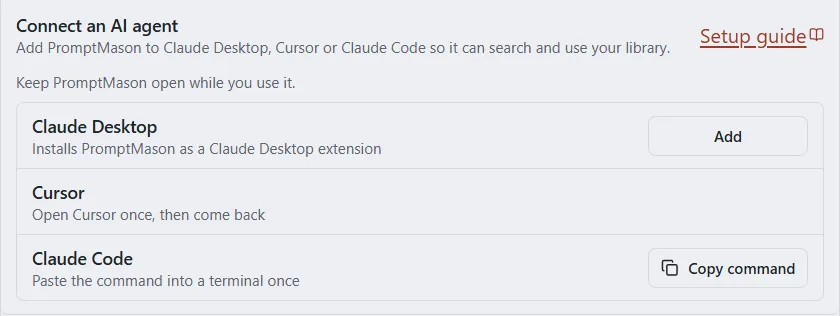
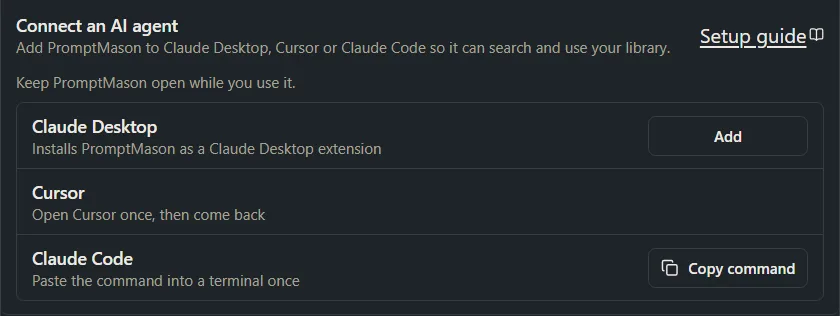
PromptMason checks for these apps again each time you switch back to its window, so the rows update on their own after you install or open an app.
PromptMason doesn’t show a “Connected” state, because it can’t tell whether you finished the install in the other app. Check in the agent instead (see Check that it worked).
Claude Desktop
- In PromptMason, click Add next to Claude Desktop. The button shows Adding… for a moment.
- PromptMason saves a file called PromptMason.mcpb (a Claude Desktop extension) to your Downloads folder, replacing any earlier copy. What happens next depends on your PC:
-
If Claude Desktop opens its install screen for PromptMason, the row says “Finish in Claude Desktop: click Install”. Click Install in Claude Desktop.
-
If Claude Desktop doesn’t open, File Explorer opens with PromptMason.mcpb selected, and the row says “PromptMason.mcpb is in your Downloads folder”. This is the usual case with the Microsoft Store version of Claude Desktop. Continue with Install the file in Claude Desktop.


-
Install the file in Claude Desktop
- Open Claude Desktop and go to Settings → Extensions.
- Drag PromptMason.mcpb from the File Explorer window (or your Downloads folder) onto that page.
- Claude Desktop shows PromptMason’s install screen. Click Install.
About the security notice
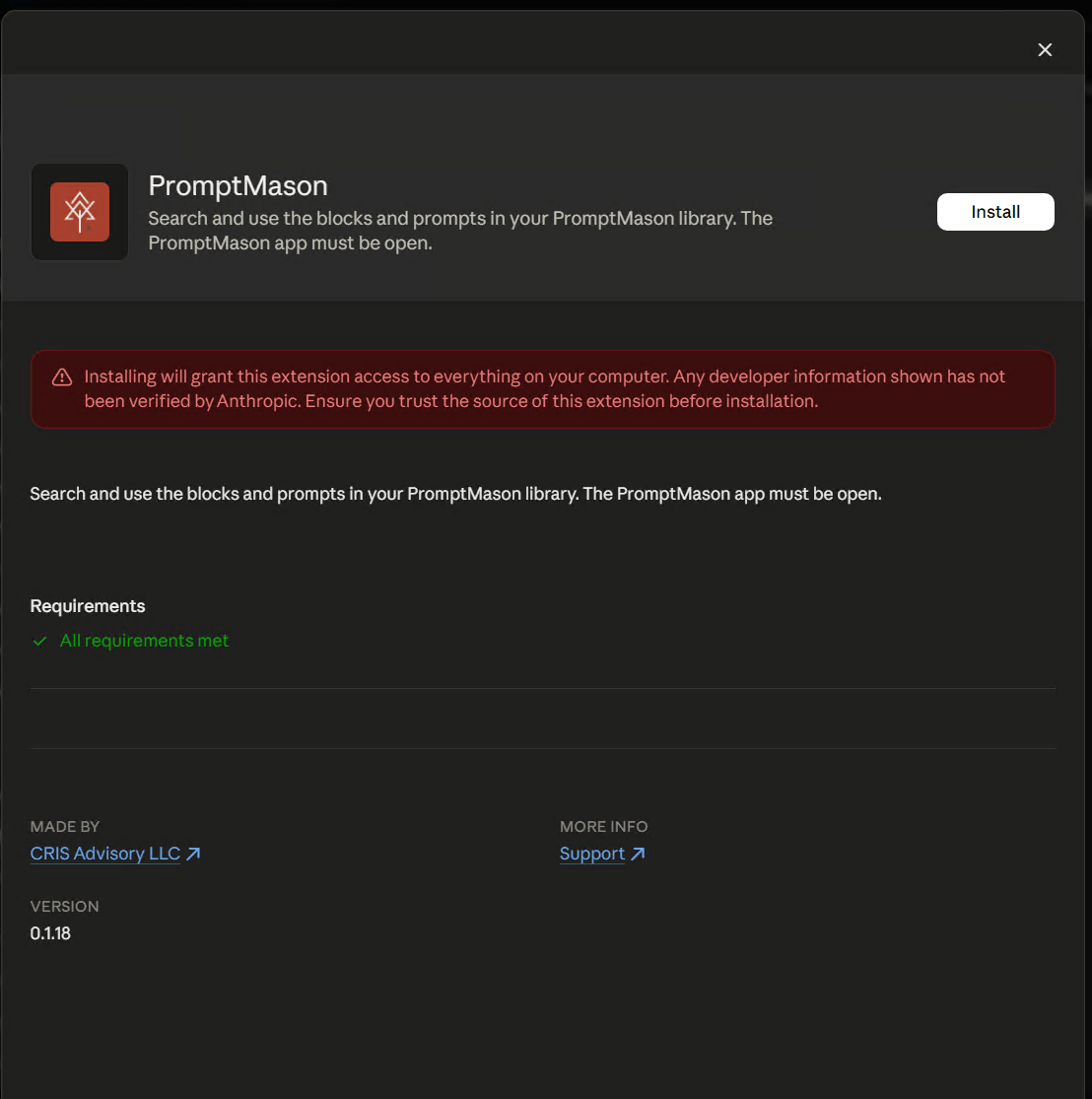
Claude Desktop shows a red notice when you install an extension from a file. It says the extension gets access to your computer and that the developer details haven’t been verified by Anthropic. This is expected for PromptMason. PromptMason’s own row says the same: “Claude shows a security notice for any extension installed from a file. That’s expected.”
What PromptMason’s extension actually does:
- It talks only to the PromptMason app on the same computer.
- It doesn’t connect to the internet.
- It doesn’t read your other files. The only file it reads is PromptMason’s own access key, so it can prove to the app that it’s allowed in.
The agent itself is a separate app. What it reads from your library goes to its own AI service, under that service’s terms, and PromptMason can’t take it back. If your library holds sensitive material, set What connected apps can do to Off when you don’t want an agent to see it; Read-only stops changes but still lets the agent read. See Privacy in PromptMason.
You stay in control from PromptMason: in Settings → AI & connected apps, you can switch to Read-only or Off at any time. If Claude Desktop is open when you change this, restart Claude Desktop so it picks up the change.
Check that it worked
In Claude Desktop, go to Settings → Extensions. PromptMason is listed and switched on. Then start a chat and ask, for example: “Search PromptMason for onboarding.” If Claude asks for permission to use PromptMason, allow it.
If you can’t drag the file
In Claude Desktop, go to Settings → Extensions → Advanced settings, click Install Extension, and choose PromptMason.mcpb from your Downloads folder. Claude lists this button under a developer heading with a warning, but it installs the same file the same way.
Remove PromptMason from Claude Desktop
Go to Settings → Extensions, open the menu next to PromptMason, and remove it.
Add PromptMason to Claude Desktop’s settings file instead
You can add PromptMason to Claude Desktop’s settings file yourself instead of installing the extension. This takes a few more steps and suits people comfortable editing a settings file. It works the same way once it’s set up.
-
If you installed the PromptMason extension earlier, remove it first (see above), so Claude doesn’t load PromptMason twice.
-
In Claude Desktop, go to Settings → Developer and click Edit Config. Claude opens its settings file, and creates it if it doesn’t exist yet.
-
Add the
promptmasonentry below insidemcpServers. ReplaceYOURNAMEwith your Windows user name (the folder name underC:\Users). Keep the double backslashes.{ "mcpServers": { "promptmason": { "command": "C:\\Users\\YOURNAME\\AppData\\Local\\Programs\\promptmason\\PromptMason.exe", "args": [ "C:\\Users\\YOURNAME\\AppData\\Local\\Programs\\promptmason\\resources\\app.asar.unpacked\\out\\mcp\\index.js" ], "env": { "ELECTRON_RUN_AS_NODE": "1" } } } }If the file already lists other entries under
mcpServers, addpromptmasonnext to them rather than replacing the file. These paths are where PromptMason installs by default, and they stay the same when PromptMason updates. -
Save the file, then quit Claude Desktop completely (right-click the Claude icon near the clock and choose Quit) and open it again.
-
Go to Settings → Connectors. PromptMason is listed, marked Local dev.
This route shows no install screen or security notice, because Claude reads the settings file directly. The same PromptMason settings apply: What connected apps can do still controls what Claude may do.
Cursor
- Open Cursor at least once on this PC. If the Cursor row in PromptMason says “Open Cursor once, then come back”, open Cursor, then switch back to the PromptMason window. The Add button appears.
- In PromptMason, click Add next to Cursor. The row says “Finish in Cursor: click Install”.
- Cursor opens and asks to install PromptMason. Click Install.
Claude Code
Install Claude Code first. PromptMason can’t tell whether Claude Code is on your PC, so its Copy command button always shows.
- In PromptMason, click Copy command next to Claude Code. The button shows Copied for a moment.
- Open a terminal, such as PowerShell or Command Prompt.
- Paste the command and press Enter.
PromptMason is then available in every project. You only need to do this once on each PC. The command includes where PromptMason is installed on this PC, so on another PC, copy it from PromptMason on that PC.
After you change what connected apps can do
An AI agent learns what it may do with PromptMason when it starts. If an agent is open when you change What connected apps can do, close it completely and open it again. PromptMason shows the same reminder under the setting: “If an AI agent is open when you change this, restart it to update what it can do.”
Other AI agents
Only Claude Desktop, Cursor and Claude Code have a button. To add PromptMason to another AI agent by hand, give it the same program, file path and setting shown in Add PromptMason to Claude Desktop’s settings file instead, in the format that agent’s own setup instructions use. If that agent asks for a token, see The API token for an agent you set up yourself.
Next steps
- MCP tools: what an AI agent can do, with example requests.
- Control what connected apps can do: Full access, Read-only, Off, and team libraries.
If something doesn’t work
See Troubleshooting MCP connections, or email support@promptmason.ai.
Claude Desktop and Cursor change their screens from time to time. If a step here doesn’t match what you see, let us know and we’ll update this page.
Want a hand?
Copy this prompt into Claude, ChatGPT or another AI assistant, and it walks you through it step by step.
I want my AI agent to use my PromptMason library. Walk me through connecting PromptMason to Claude Desktop, Cursor or Claude Code, one step at a time, and tell me how to check that it worked.
Copy adds a short note about PromptMason and this guide's steps, so the assistant has what it needs.
I want my AI agent to use my PromptMason library. Walk me through connecting PromptMason to Claude Desktop, Cursor or Claude Code, one step at a time, and tell me how to check that it worked. About PromptMason: a Windows desktop app for building AI prompts from reusable blocks. A person writes blocks (reusable pieces of prompt text), builds prompts from them on the Build screen (or keeps a Markdown document, such as a Skill), and copies a prompt into an AI tool, runs it in PromptMason’s own Chat, or lets a connected AI agent use it through PromptMason’s built-in MCP server (the Chrome extension copies prompts on any website). AI assist, Evaluate and Chat use a local model that runs on the person’s PC, or their own AI provider. The guides are also on PromptMason’s Help screen, and Chat can answer “how do I” questions from them. Libraries hold the blocks and prompts; a person can sync their personal library to their other PCs and share team libraries, both through a folder in cloud storage they already have (OneDrive, Google Drive or Dropbox). Everything synced is encrypted and every edit is signed and checked. A recovery kit (a file plus a code) is the spare copy of the person’s keys, for when every PC is lost. The official guide for this is "Connect an AI agent through MCP": https://promptmason.ai/docs/connect-ai-agent Its full text follows, between the lines. Use it as the source of truth, and if anything I see differs from it, tell me rather than guessing. --- An AI agent is an AI app that can use tools from other apps, such as Claude Desktop, Cursor and Claude Code. Once you connect PromptMason, your agent can search your library and fill in a prompt for you. With **Full access** it can also save new blocks and prompts. The connection uses PromptMason's built-in MCP server. MCP (Model Context Protocol) is an open standard that lets AI apps use another app's tools. The server is part of PromptMason, so there's nothing extra to install. [PromptMason's built-in MCP server](https://promptmason.ai/docs/mcp-server) explains what it does and how you stay in control. ## Before you start - Install PromptMason and open it. Keep it open while you use your AI agent: the agent can only reach your library while PromptMason is running. - Click **Settings** in the sidebar, then **AI & connected apps**. Under **What connected apps can do**, choose **Full access** (your agent can read and change your library) or **Read-only** (it can only search and read). **Full access** is the default. See [Control what connected apps can do](https://promptmason.ai/docs/agent-access). - Below that, find **Connect an AI agent**. It has a row for Claude Desktop, Cursor and Claude Code. If **What connected apps can do** is set to **Off**, the buttons in these rows are turned off. Pointing at one shows "Connected apps are Off. Choose Full access or Read-only above first." ### What each row can show | The row shows | What it means | |---|---| | An **Add** button | The app is on this PC and ready. Follow the steps for that app below. | | "Not installed on this computer" (no button) | PromptMason didn't find the app on this PC. Install it, then switch back to the PromptMason window. | | "Open Cursor once, then come back" (no button) | Cursor is installed but has never been opened. Open Cursor once, then switch back to PromptMason. The **Add** button appears. | | **Copy command** (Claude Code) | Always shown. PromptMason can't tell whether Claude Code is installed, so install Claude Code before you use it. | PromptMason checks for these apps again each time you switch back to its window, so the rows update on their own after you install or open an app. PromptMason doesn't show a "Connected" state, because it can't tell whether you finished the install in the other app. Check in the agent instead (see [Check that it worked](#check-that-it-worked)). ## Claude Desktop 1. In PromptMason, click **Add** next to Claude Desktop. The button shows **Adding…** for a moment. 2. PromptMason saves a file called **PromptMason.mcpb** (a Claude Desktop extension) to your Downloads folder, replacing any earlier copy. What happens next depends on your PC: - If Claude Desktop opens its install screen for PromptMason, the row says "Finish in Claude Desktop: click Install". Click **Install** in Claude Desktop. - If Claude Desktop doesn't open, File Explorer opens with **PromptMason.mcpb** selected, and the row says "PromptMason.mcpb is in your Downloads folder". This is the usual case with the Microsoft Store version of Claude Desktop. Continue with [Install the file in Claude Desktop](#install-the-file-in-claude-desktop). ### Install the file in Claude Desktop 1. Open Claude Desktop and go to **Settings → Extensions**. 2. Drag **PromptMason.mcpb** from the File Explorer window (or your Downloads folder) onto that page. 3. Claude Desktop shows PromptMason's install screen. Click **Install**. ### About the security notice Claude Desktop shows a red notice when you install an extension from a file. It says the extension gets access to your computer and that the developer details haven't been verified by Anthropic. This is expected for PromptMason. PromptMason's own row says the same: "Claude shows a security notice for any extension installed from a file. That's expected." What PromptMason's extension actually does: - It talks only to the PromptMason app on the same computer. - It doesn't connect to the internet. - It doesn't read your other files. The only file it reads is PromptMason's own access key, so it can prove to the app that it's allowed in. The agent itself is a separate app. What it reads from your library goes to its own AI service, under that service's terms, and PromptMason can't take it back. If your library holds sensitive material, set **What connected apps can do** to **Off** when you don't want an agent to see it; **Read-only** stops changes but still lets the agent read. See [Privacy in PromptMason](https://promptmason.ai/docs/privacy-overview). You stay in control from PromptMason: in **Settings → AI & connected apps**, you can switch to **Read-only** or **Off** at any time. If Claude Desktop is open when you change this, restart Claude Desktop so it picks up the change. ### Check that it worked In Claude Desktop, go to **Settings → Extensions**. PromptMason is listed and switched on. Then start a chat and ask, for example: "Search PromptMason for onboarding." If Claude asks for permission to use PromptMason, allow it. ### If you can't drag the file In Claude Desktop, go to **Settings → Extensions → Advanced settings**, click **Install Extension**, and choose **PromptMason.mcpb** from your Downloads folder. Claude lists this button under a developer heading with a warning, but it installs the same file the same way. ### Remove PromptMason from Claude Desktop Go to **Settings → Extensions**, open the menu next to PromptMason, and remove it. ### Add PromptMason to Claude Desktop's settings file instead You can add PromptMason to Claude Desktop's settings file yourself instead of installing the extension. This takes a few more steps and suits people comfortable editing a settings file. It works the same way once it's set up. 1. If you installed the PromptMason extension earlier, remove it first (see above), so Claude doesn't load PromptMason twice. 2. In Claude Desktop, go to **Settings → Developer** and click **Edit Config**. Claude opens its settings file, and creates it if it doesn't exist yet. 3. Add the `promptmason` entry below inside `mcpServers`. Replace `YOURNAME` with your Windows user name (the folder name under `C:\Users`). Keep the double backslashes. ```json { "mcpServers": { "promptmason": { "command": "C:\\Users\\YOURNAME\\AppData\\Local\\Programs\\promptmason\\PromptMason.exe", "args": [ "C:\\Users\\YOURNAME\\AppData\\Local\\Programs\\promptmason\\resources\\app.asar.unpacked\\out\\mcp\\index.js" ], "env": { "ELECTRON_RUN_AS_NODE": "1" } } } } ``` If the file already lists other entries under `mcpServers`, add `promptmason` next to them rather than replacing the file. These paths are where PromptMason installs by default, and they stay the same when PromptMason updates. 4. Save the file, then quit Claude Desktop completely (right-click the Claude icon near the clock and choose **Quit**) and open it again. 5. Go to **Settings → Connectors**. PromptMason is listed, marked **Local dev**. This route shows no install screen or security notice, because Claude reads the settings file directly. The same PromptMason settings apply: **What connected apps can do** still controls what Claude may do. ## Cursor 1. Open Cursor at least once on this PC. If the Cursor row in PromptMason says "Open Cursor once, then come back", open Cursor, then switch back to the PromptMason window. The **Add** button appears. 2. In PromptMason, click **Add** next to Cursor. The row says "Finish in Cursor: click Install". 3. Cursor opens and asks to install PromptMason. Click **Install**. ## Claude Code Install Claude Code first. PromptMason can't tell whether Claude Code is on your PC, so its **Copy command** button always shows. 1. In PromptMason, click **Copy command** next to Claude Code. The button shows **Copied** for a moment. 2. Open a terminal, such as PowerShell or Command Prompt. 3. Paste the command and press Enter. PromptMason is then available in every project. You only need to do this once on each PC. The command includes where PromptMason is installed on this PC, so on another PC, copy it from PromptMason on that PC. ## After you change what connected apps can do An AI agent learns what it may do with PromptMason when it starts. If an agent is open when you change **What connected apps can do**, close it completely and open it again. PromptMason shows the same reminder under the setting: "If an AI agent is open when you change this, restart it to update what it can do." ## Other AI agents Only Claude Desktop, Cursor and Claude Code have a button. To add PromptMason to another AI agent by hand, give it the same program, file path and setting shown in [Add PromptMason to Claude Desktop's settings file instead](#add-promptmason-to-claude-desktops-settings-file-instead), in the format that agent's own setup instructions use. If that agent asks for a token, see [The API token for an agent you set up yourself](https://promptmason.ai/docs/agent-access#the-api-token-for-an-agent-you-set-up-yourself). ## Next steps - [MCP tools: what an AI agent can do](https://promptmason.ai/docs/agent-tools), with example requests. - [Control what connected apps can do](https://promptmason.ai/docs/agent-access): Full access, Read-only, Off, and team libraries. ## If something doesn't work See [Troubleshooting MCP connections](https://promptmason.ai/docs/mcp-troubleshooting), or email [support@promptmason.ai](mailto:support@promptmason.ai). Claude Desktop and Cursor change their screens from time to time. If a step here doesn't match what you see, let us know and we'll update this page. --- How to help me: - Go one step at a time. After each step, ask what I see on screen before giving the next one. - Use the exact words on PromptMason’s buttons and screens, as the guide does. - Never ask me for my recovery code, my recovery kit file, a password or my invite line, and never ask me to paste them here. - Start by asking which step I’m on, or what I see now.