Build a prompt
Put blocks together on the Build screen, check the result in the preview, and save it as a prompt.
The Build screen is where you put blocks together into a prompt. You pick blocks from a list, put them in order, and watch the finished text build up in the preview. Most people save the result as a dynamic prompt, which keeps up with later changes to its blocks (see Static prompts, dynamic prompts and documents).
Open the Build screen
Any of these opens Build with an empty prompt:
- Click Build in the sidebar (or press Ctrl+2).
- On the Prompts screen with no prompts yet, click Build a prompt.
- If the Home screen is turned on, click New Dynamic Prompt there.
To change a dynamic prompt you’ve already saved, open it from the Prompts screen: click it, then click the pencil (Open in Build), or double-click it.
On the Free plan, if you already have 15 prompts, Build a prompt and New Dynamic Prompt open the Free plan limit window instead. See Plans and limits.
The screen at a glance
- Blocks, on the left: your library blocks, to pick from.
- The canvas, in the middle: the blocks in this prompt, in order. It says Drag blocks here to build your prompt while it’s empty.
- Visual and Code, above the canvas: Visual shows the blocks as cards; Code shows the same prompt as text (Edit a prompt as code). Embedded Block, on the right of that row, adds a block for this prompt only.
- Preview and Properties, on the right: the finished text, and the prompt’s settings.
- The name box and the Save buttons, along the top.
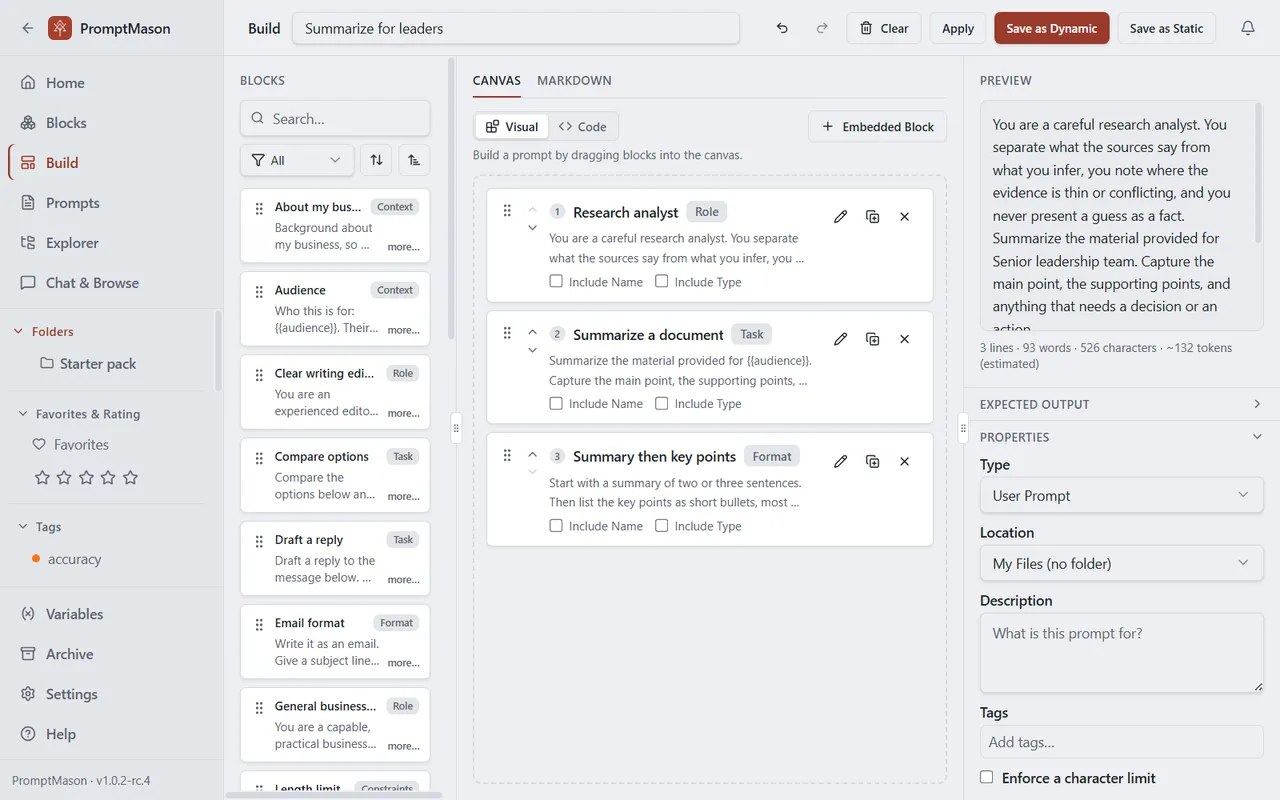
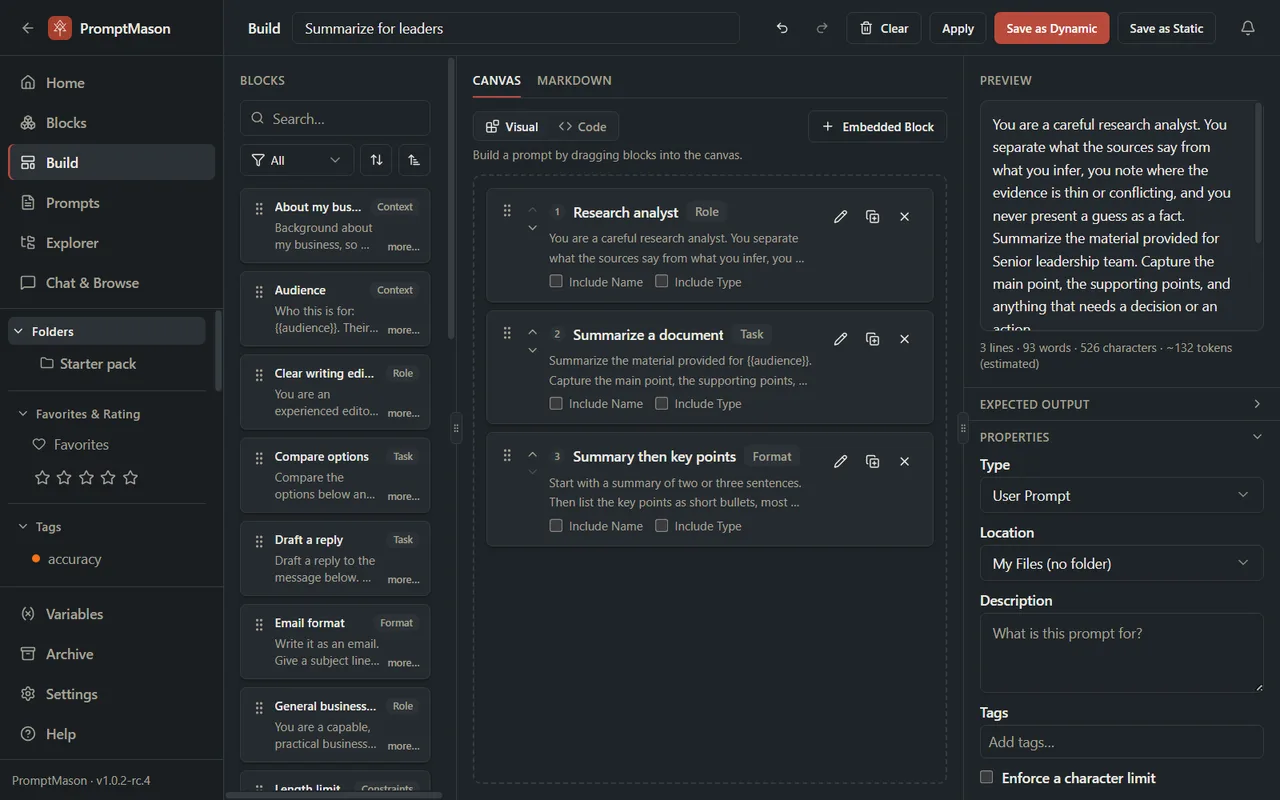
Drag the lines between the parts to make any of them wider.
If the Markdown editor feature is on, a new item shows two tabs, Canvas and Markdown. This page is about the Canvas tab. The Markdown tab is for documents (Markdown documents and Skills). Switching tabs drops what is on the side you leave. If it has unsaved work, PromptMason asks Discard your changes? first.
Find a block
The Blocks list shows your library blocks. Archived blocks, and blocks embedded in other prompts, aren’t listed.
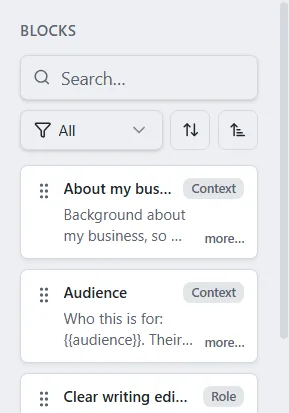
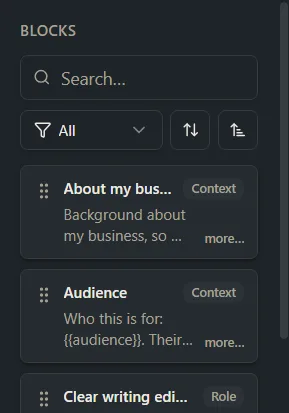
- Search: type in the Search… box (Ctrl+F). It looks at each block’s name, text, type and tags.
- Filter by type: click the funnel and choose a type, for example Role. Ctrl+click to choose several. Choose All to see every type again.
- Sort: click the sort button to sort by Name, Rating (only when the Favorites & ratings feature is on), Date created or Last modified, and the arrow next to it to reverse the order.
- Read the whole block: each card shows the first two lines. Click more… on the card to read all of it.
- More than one page: the list shows 50 blocks at a time. Under it, use Show to choose 25, 50, 75 or 100, and the Previous page and Next page arrows to move between pages.
The list also follows the folder, tag, favorites and rating filters chosen in the sidebar. If a block you expect isn’t there, check the sidebar, and see No blocks are listed.
Add blocks
- Drag a block from the list onto the canvas. A blue line shows where it will go.
- Or double-click a block to add it at the end.
You can add the same block more than once. To write text for this prompt only, without making a library block, click Embedded Block (Library blocks and embedded blocks).
Put blocks in order
- Drag a block by its handle (the dotted grip on its left) to a new place.
- Or use the up and down arrows on the block.
The number on each block is its place in the prompt.
Remove blocks
- Click the X on a block (Remove from prompt). It’s removed straight away, without asking.
- Click Clear at the top to remove every block. This doesn’t ask either.
Removing a block from a prompt doesn’t delete the block. It stays on the Blocks screen.
To bring back library blocks you removed, click Undo (or press Ctrl+Z). Redo (Ctrl+Shift+Z or Ctrl+Y) puts the change back. Undo and Redo work for adding, removing and reordering blocks, for the Include Name and Include Type boxes, and for tags. While the cursor is in a text box, Ctrl+Z and Ctrl+Shift+Z undo and redo your typing instead, so use the Undo and Redo buttons at the top for changes to the blocks. Don’t count on Undo to bring back an embedded block you’ve written but not saved: copy its text first if you want to keep it.
Block headers: Include Name and Include Type
Each block on the canvas has two boxes, Include Name and Include Type. Tick them to put a header line above that block’s text in the prompt, for example:
| Ticked | Header in the prompt |
|---|---|
| Include Type | ### ROLE ### |
| Include Name | ### Support agent ### |
| Both | ### ROLE: Support agent ### |
| Neither | No header |
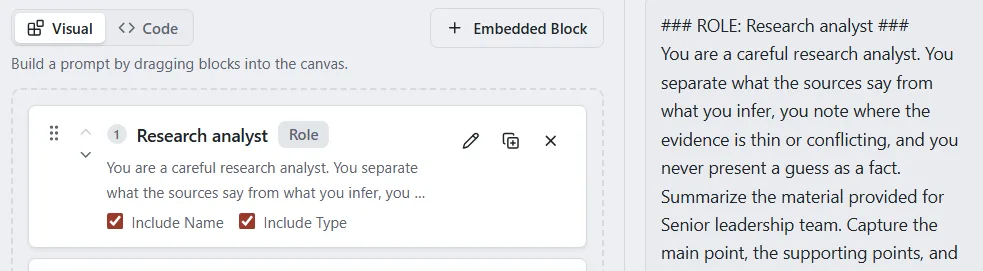
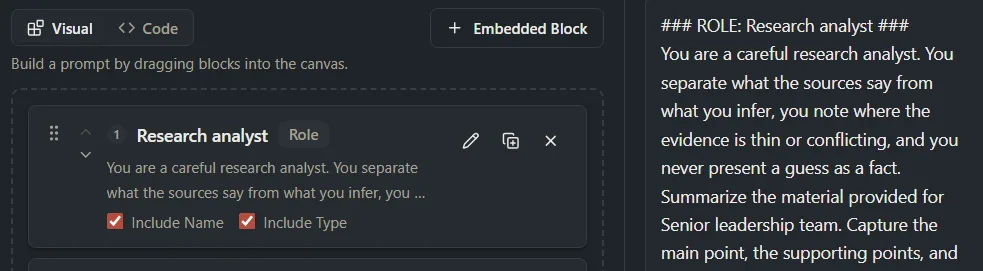
Headers help an AI model see where one part of the prompt ends and the next begins. Each block in the prompt has its own choice, even when the same block is used twice.
A block with a header starts a new section, with the blank lines from Settings above it. A block with no header continues the section above it, with no blank line in between. To keep several blocks together in one section, give the first one a header and leave the others without.
New blocks start with both boxes unticked. To change that, and to change the ### marker or the space between blocks, see Formatting, block headers and hidden notes.
Check the preview
Preview, on the right, shows the prompt’s text as it builds up, with the block headers and with hidden notes left out.
- Variables with a fixed value are filled in. A variable that asks for a value each time shows its default value, or its name in brackets, such as
[audience], if it has none. You type the real value when you copy the prompt. - When the Variables feature is on, a variable name that doesn’t exist shows a warning, Unresolved variable: followed by the name. Check the spelling, or click Create variable “name” in the warning to make it on the Variables screen.
- A block marked Archived still adds its text to the prompt. To change that, take it out of the prompt.
Under the preview, a line counts the lines, words and characters, and estimates the tokens. A token is the unit AI models measure text in; four characters is roughly one token, so the count is an estimate.
Set a character limit
Some AI tools only take a certain number of characters. To be warned when the prompt is too long:
-
Under Properties, tick Enforce a character limit.
-
Type the limit under Max characters.
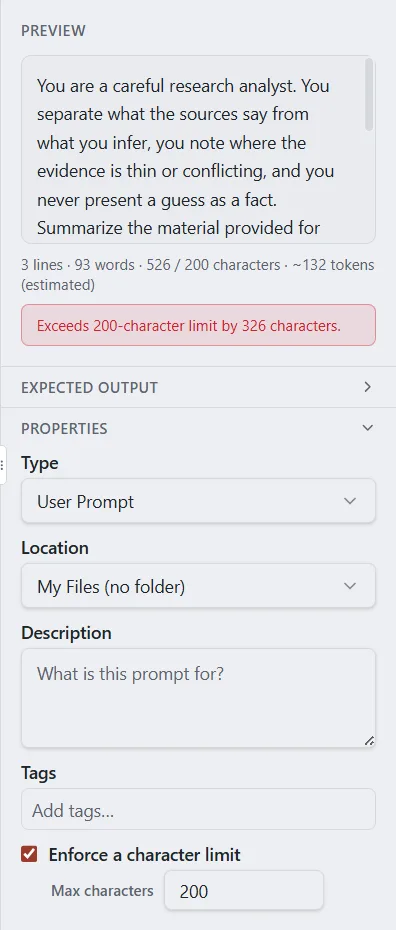
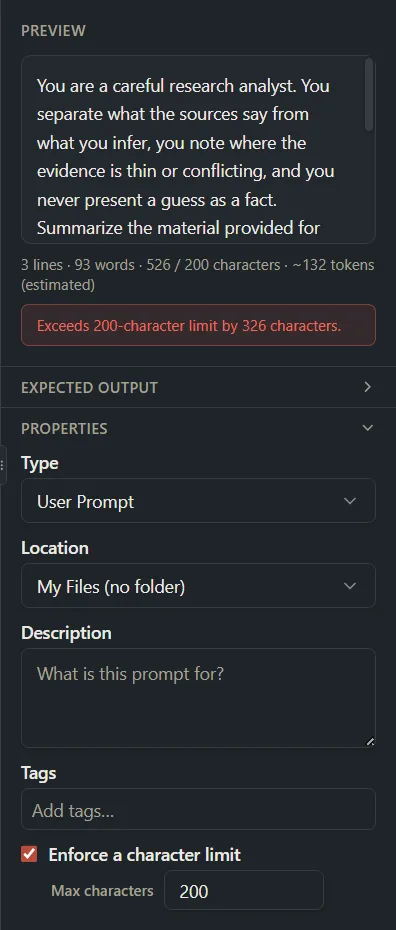
When the prompt is longer, a red box under the preview says by how much, for example Exceeds 8,000-character limit by 120 characters. It’s a warning only: you can still save and copy the prompt.
Properties
Under Properties, on the right:
- Type: what kind of prompt this is, for example User Prompt or System Prompt (Block types, prompt types and defaults).
- Location: the folder for a new prompt. To move a saved prompt, use Move on the Prompts screen (Folders, moving and copying).
- Description: a note about what the prompt is for.
- Tags: shown when the Tags feature is on.
- Enforce a character limit: see Set a character limit.
Expected output is under the preview, and, when the Comments feature is on, a saved prompt also has Comments under the canvas.
Save the prompt
- Type a name in the box at the top left.
- Click one of the buttons at the top right:
| Button | When it shows | What it does |
|---|---|---|
| Save as Dynamic | New prompt | Saves a dynamic prompt and goes to the Prompts screen. |
| Save as Static | New prompt | Saves the text as it is now, as a static prompt, and goes to the Prompts screen. |
| Update Prompt | Saved prompt | Saves your changes and goes to the Prompts screen. |
| Apply | Always | Saves as a dynamic prompt and keeps you on Build. |
Ctrl+S does the same as Save as Dynamic or Update Prompt.
After Apply on a new prompt, it counts as saved: the button changes to Update Prompt, Location goes away, and the Comments panel appears.
To choose between dynamic and static, see Static prompts, dynamic prompts and documents. Choose dynamic unless you have a reason not to. PromptMason has no button to change a saved prompt’s kind, so choose before you save.
To copy the finished prompt, save it, then copy it from the Prompts screen (Copy and use a prompt).
Leave without saving
When you’re changing a saved prompt, click Cancel at the top (or press Esc) to go back to the Prompts screen.
If you have unsaved changes and you click Cancel, click another screen in the sidebar, or switch tabs, PromptMason asks Discard your changes? Click Keep Editing to go back and save, or Discard Changes to lose them.
If something goes wrong
The Save buttons are grayed out
The prompt needs at least one block. Each embedded block you’ve added also needs a name, a type and some text.
Give this prompt a name to save it.
Type a name in the box at the top, then save again.
Failed to save.
The save didn’t go through. Try again. If it keeps happening, contact support@promptmason.ai.
Saved, but an expected output couldn’t be saved
The message starts Saved. and says how many expected outputs couldn’t be saved. The prompt was saved, but a result you added under Expected Output wasn’t, and Build stays open. Add the result again from the saved prompt (Expected output).
The Free plan limit window opens
On the Free plan you can have 15 prompts and 25 blocks. A new prompt counts toward the 15, and each new block you save to the Block Library counts toward the 25. See Plans and limits.
The Your library is paused window opens
Your library is over the Free plan’s limits, so saving is turned off. See When your library is paused.
No blocks are listed
If the list says No blocks yet. Create some on the Blocks screen., you haven’t made any library blocks yet. See Create and edit blocks.
If it says No blocks match the current filters., clear the search box, choose All in the type filter, and check the folder, tag and favorites filters in the sidebar.
Want a hand?
Copy this prompt into Claude, ChatGPT or another AI assistant, and it walks you through it step by step.
I have some blocks in PromptMason and want to put them together into a prompt on the Build screen. Walk me through adding and ordering the blocks, the block headers, and which Save button to use.
Copy adds a short note about PromptMason and this guide's steps, so the assistant has what it needs.
I have some blocks in PromptMason and want to put them together into a prompt on the Build screen. Walk me through adding and ordering the blocks, the block headers, and which Save button to use. About PromptMason: a Windows desktop app for building AI prompts from reusable blocks. A person writes blocks (reusable pieces of prompt text), builds prompts from them on the Build screen (or keeps a Markdown document, such as a Skill), and copies a prompt into an AI tool, runs it in PromptMason’s own Chat, or lets a connected AI agent use it through PromptMason’s built-in MCP server (the Chrome extension copies prompts on any website). AI assist, Evaluate and Chat use a local model that runs on the person’s PC, or their own AI provider. The guides are also on PromptMason’s Help screen, and Chat can answer “how do I” questions from them. Libraries hold the blocks and prompts; a person can sync their personal library to their other PCs and share team libraries, both through a folder in cloud storage they already have (OneDrive, Google Drive or Dropbox). Everything synced is encrypted and every edit is signed and checked. A recovery kit (a file plus a code) is the spare copy of the person’s keys, for when every PC is lost. The official guide for this is "Build a prompt": https://promptmason.ai/docs/build-prompt Its full text follows, between the lines. Use it as the source of truth, and if anything I see differs from it, tell me rather than guessing. --- The Build screen is where you put blocks together into a prompt. You pick blocks from a list, put them in order, and watch the finished text build up in the preview. Most people save the result as a dynamic prompt, which keeps up with later changes to its blocks (see [Static prompts, dynamic prompts and documents](https://promptmason.ai/docs/static-and-dynamic)). ## Open the Build screen Any of these opens Build with an empty prompt: - Click **Build** in the sidebar (or press Ctrl+2). - On the Prompts screen with no prompts yet, click **Build a prompt**. - If the Home screen is turned on, click **New Dynamic Prompt** there. To change a dynamic prompt you've already saved, open it from the Prompts screen: click it, then click the pencil (**Open in Build**), or double-click it. On the Free plan, if you already have 15 prompts, **Build a prompt** and **New Dynamic Prompt** open the **Free plan limit** window instead. See [Plans and limits](https://promptmason.ai/docs/plans). ## The screen at a glance - **Blocks**, on the left: your library blocks, to pick from. - **The canvas**, in the middle: the blocks in this prompt, in order. It says **Drag blocks here to build your prompt** while it's empty. - **Visual** and **Code**, above the canvas: Visual shows the blocks as cards; Code shows the same prompt as text ([Edit a prompt as code](https://promptmason.ai/docs/code-view)). **Embedded Block**, on the right of that row, adds a block for this prompt only. - **Preview** and **Properties**, on the right: the finished text, and the prompt's settings. - **The name box and the Save buttons**, along the top. Drag the lines between the parts to make any of them wider. If the **Markdown editor** feature is on, a new item shows two tabs, **Canvas** and **Markdown**. This page is about the **Canvas** tab. The **Markdown** tab is for documents ([Markdown documents and Skills](https://promptmason.ai/docs/markdown-documents)). Switching tabs drops what is on the side you leave. If it has unsaved work, PromptMason asks **Discard your changes?** first. ## Find a block The **Blocks** list shows your library blocks. Archived blocks, and blocks embedded in other prompts, aren't listed. - **Search:** type in the **Search…** box (Ctrl+F). It looks at each block's name, text, type and tags. - **Filter by type:** click the funnel and choose a type, for example **Role**. Ctrl+click to choose several. Choose **All** to see every type again. - **Sort:** click the sort button to sort by **Name**, **Rating** (only when the Favorites & ratings feature is on), **Date created** or **Last modified**, and the arrow next to it to reverse the order. - **Read the whole block:** each card shows the first two lines. Click **more…** on the card to read all of it. - **More than one page:** the list shows 50 blocks at a time. Under it, use **Show** to choose 25, 50, 75 or 100, and the **Previous page** and **Next page** arrows to move between pages. The list also follows the folder, tag, favorites and rating filters chosen in the sidebar. If a block you expect isn't there, check the sidebar, and see [No blocks are listed](#no-blocks-are-listed). ## Add blocks - **Drag** a block from the list onto the canvas. A blue line shows where it will go. - Or **double-click** a block to add it at the end. You can add the same block more than once. To write text for this prompt only, without making a library block, click **Embedded Block** ([Library blocks and embedded blocks](https://promptmason.ai/docs/embedded-blocks)). ## Put blocks in order - Drag a block by its handle (the dotted grip on its left) to a new place. - Or use the up and down arrows on the block. The number on each block is its place in the prompt. ## Remove blocks - Click the X on a block (**Remove from prompt**). It's removed straight away, without asking. - Click **Clear** at the top to remove every block. This doesn't ask either. Removing a block from a prompt doesn't delete the block. It stays on the Blocks screen. To bring back library blocks you removed, click **Undo** (or press Ctrl+Z). **Redo** (Ctrl+Shift+Z or Ctrl+Y) puts the change back. Undo and Redo work for adding, removing and reordering blocks, for the **Include Name** and **Include Type** boxes, and for tags. While the cursor is in a text box, Ctrl+Z and Ctrl+Shift+Z undo and redo your typing instead, so use the **Undo** and **Redo** buttons at the top for changes to the blocks. Don't count on Undo to bring back an [embedded block](https://promptmason.ai/docs/embedded-blocks) you've written but not saved: copy its text first if you want to keep it. ## Block headers: Include Name and Include Type Each block on the canvas has two boxes, **Include Name** and **Include Type**. Tick them to put a header line above that block's text in the prompt, for example: | Ticked | Header in the prompt | |---|---| | **Include Type** | `### ROLE ###` | | **Include Name** | `### Support agent ###` | | Both | `### ROLE: Support agent ###` | | Neither | No header | Headers help an AI model see where one part of the prompt ends and the next begins. Each block in the prompt has its own choice, even when the same block is used twice. A block with a header starts a new section, with the blank lines from Settings above it. A block with no header continues the section above it, with no blank line in between. To keep several blocks together in one section, give the first one a header and leave the others without. New blocks start with both boxes unticked. To change that, and to change the `###` marker or the space between blocks, see [Formatting, block headers and hidden notes](https://promptmason.ai/docs/text-formatting#block-headers). ## Check the preview **Preview**, on the right, shows the prompt's text as it builds up, with the block headers and with [hidden notes](https://promptmason.ai/docs/text-formatting#hidden-notes) left out. - [Variables](https://promptmason.ai/docs/variables) with a fixed value are filled in. A variable that asks for a value each time shows its default value, or its name in brackets, such as `[audience]`, if it has none. You type the real value when you copy the prompt. - When the Variables feature is on, a variable name that doesn't exist shows a warning, **Unresolved variable:** followed by the name. Check the spelling, or click **Create variable “name”** in the warning to make it on the Variables screen. - A block marked **Archived** still adds its text to the prompt. To change that, take it out of the prompt. Under the preview, a line counts the lines, words and characters, and estimates the tokens. A token is the unit AI models measure text in; four characters is roughly one token, so the count is an estimate. ## Set a character limit Some AI tools only take a certain number of characters. To be warned when the prompt is too long: 1. Under **Properties**, tick **Enforce a character limit**. 2. Type the limit under **Max characters**. When the prompt is longer, a red box under the preview says by how much, for example **Exceeds 8,000-character limit by 120 characters.** It's a warning only: you can still save and copy the prompt. ## Properties Under **Properties**, on the right: - **Type**: what kind of prompt this is, for example **User Prompt** or **System Prompt** ([Block types, prompt types and defaults](https://promptmason.ai/docs/types-and-defaults)). - **Location**: the folder for a new prompt. To move a saved prompt, use **Move** on the Prompts screen ([Folders, moving and copying](https://promptmason.ai/docs/folders)). - **Description**: a note about what the prompt is for. - **Tags**: shown when the Tags feature is on. - **Enforce a character limit**: see [Set a character limit](#set-a-character-limit). [Expected output](https://promptmason.ai/docs/expected-output) is under the preview, and, when the Comments feature is on, a saved prompt also has [Comments](https://promptmason.ai/docs/comments) under the canvas. ## Save the prompt 1. Type a name in the box at the top left. 2. Click one of the buttons at the top right: | Button | When it shows | What it does | |---|---|---| | **Save as Dynamic** | New prompt | Saves a dynamic prompt and goes to the Prompts screen. | | **Save as Static** | New prompt | Saves the text as it is now, as a static prompt, and goes to the Prompts screen. | | **Update Prompt** | Saved prompt | Saves your changes and goes to the Prompts screen. | | **Apply** | Always | Saves as a dynamic prompt and keeps you on Build. | Ctrl+S does the same as **Save as Dynamic** or **Update Prompt**. After **Apply** on a new prompt, it counts as saved: the button changes to **Update Prompt**, **Location** goes away, and the **Comments** panel appears. To choose between dynamic and static, see [Static prompts, dynamic prompts and documents](https://promptmason.ai/docs/static-and-dynamic). Choose dynamic unless you have a reason not to. PromptMason has no button to change a saved prompt's kind, so choose before you save. To copy the finished prompt, save it, then copy it from the Prompts screen ([Copy and use a prompt](https://promptmason.ai/docs/use-prompts)). ## Leave without saving When you're changing a saved prompt, click **Cancel** at the top (or press Esc) to go back to the Prompts screen. If you have unsaved changes and you click **Cancel**, click another screen in the sidebar, or switch tabs, PromptMason asks **Discard your changes?** Click **Keep Editing** to go back and save, or **Discard Changes** to lose them. ## If something goes wrong ### The Save buttons are grayed out The prompt needs at least one block. Each embedded block you've added also needs a name, a type and some text. ### Give this prompt a name to save it. Type a name in the box at the top, then save again. ### Failed to save. The save didn't go through. Try again. If it keeps happening, contact support@promptmason.ai. ### Saved, but an expected output couldn't be saved The message starts **Saved.** and says how many expected outputs couldn't be saved. The prompt was saved, but a result you added under **Expected Output** wasn't, and Build stays open. Add the result again from the saved prompt ([Expected output](https://promptmason.ai/docs/expected-output)). ### The Free plan limit window opens On the Free plan you can have 15 prompts and 25 blocks. A new prompt counts toward the 15, and each new block you save to the Block Library counts toward the 25. See [Plans and limits](https://promptmason.ai/docs/plans). ### The Your library is paused window opens Your library is over the Free plan's limits, so saving is turned off. See [When your library is paused](https://promptmason.ai/docs/paused-library). ### No blocks are listed If the list says **No blocks yet. Create some on the Blocks screen.**, you haven't made any library blocks yet. See [Create and edit blocks](https://promptmason.ai/docs/blocks). If it says **No blocks match the current filters.**, clear the search box, choose **All** in the type filter, and check the folder, tag and favorites filters in the sidebar. --- How to help me: - Go one step at a time. After each step, ask what I see on screen before giving the next one. - Use the exact words on PromptMason’s buttons and screens, as the guide does. - Never ask me for my recovery code, my recovery kit file, a password or my invite line, and never ask me to paste them here. - Start by asking which step I’m on, or what I see now.