Team libraries
The same prompts for your whole team, always up to date
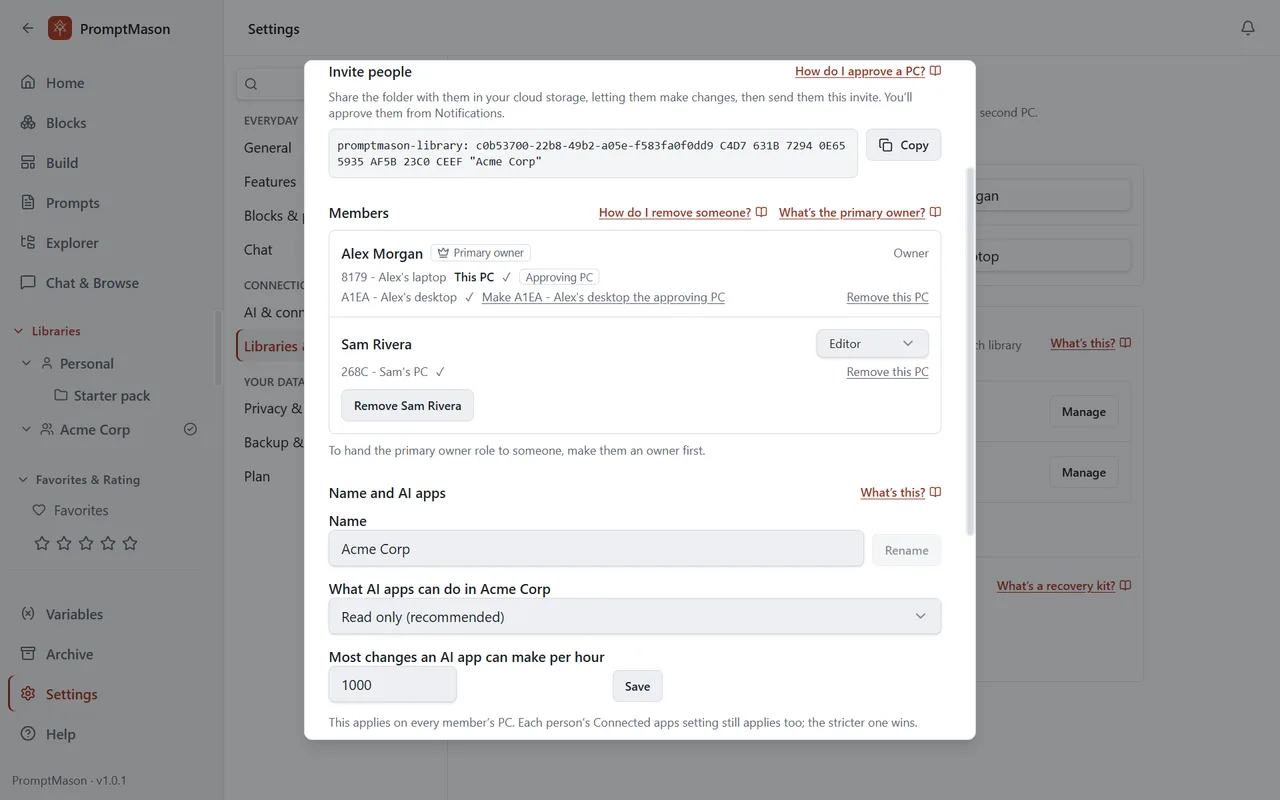
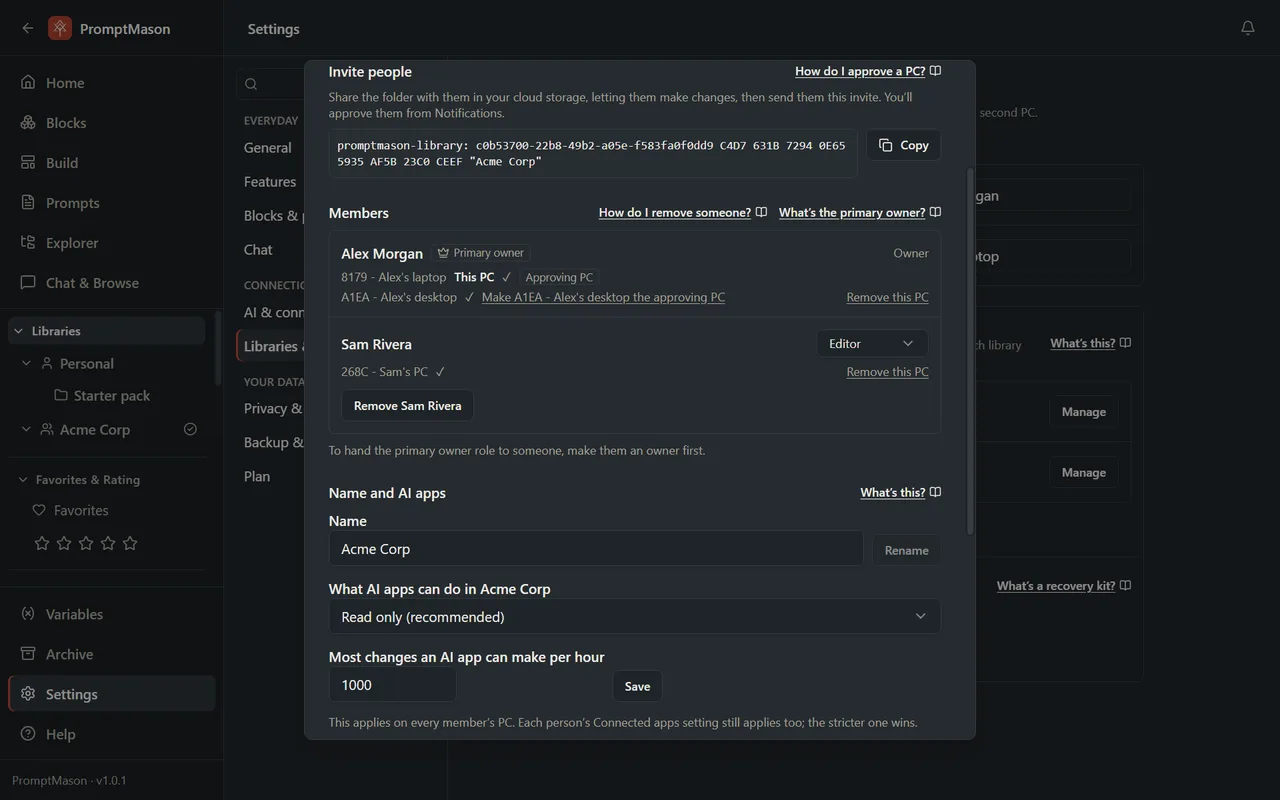
Give coworkers, friends or family a shared library of blocks and prompts. It syncs through the cloud folder you already use, only the people you invite can read it, and your own library stays private alongside it.
How it works
No new account, no new server
A team library syncs through a folder in the cloud storage your team already uses: OneDrive, SharePoint, Google Drive, Dropbox or a network drive. Nothing is kept on our servers.
Only your team can read it
The library is encrypted before it reaches the folder. Every change is signed and checked, and you approve every computer that joins by comparing a code with its owner.
Improve once, everyone has it
Change a prompt and it arrives on every member’s computer as the folder syncs. Each item shows who made it and who changed it last, with the earlier versions kept.
Who can do what
Each member has a role, and the primary owner can change it at any time.
- Reader
- Uses what’s in the library, and can rate and favorite.
- Editor
- Uses and changes what’s in it. New members start as editors.
- Owner
- Also exports and backs up the library, and restores deleted items.
- Primary owner
- One owner who also approves computers, removes people, changes roles, and sets what AI apps may do in the library.
AI apps connected through Built-in MCP can only read a team library unless the primary owner allows more, with a limit on how many changes an AI app can make per hour.
How to set one up
- 1
In PromptMason, click Settings, then Libraries & sharing, and click Create a team library.
- 2
Choose where in your cloud storage it goes. PromptMason makes a folder there; share that folder with your team.
- 3
Copy the invite and send it. When someone asks to join, compare the approval code with them and approve.
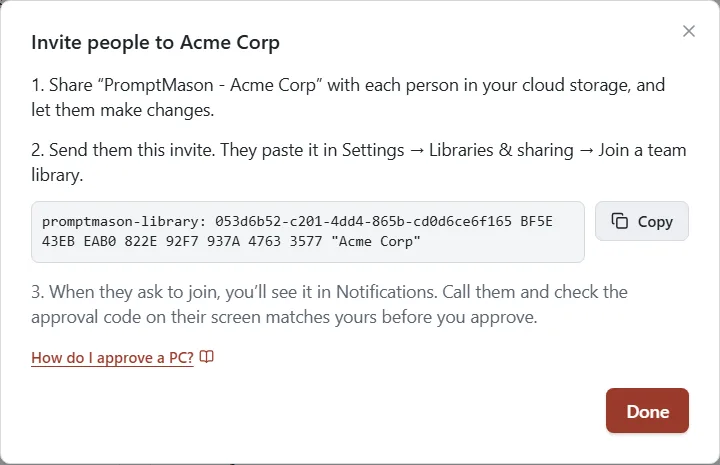
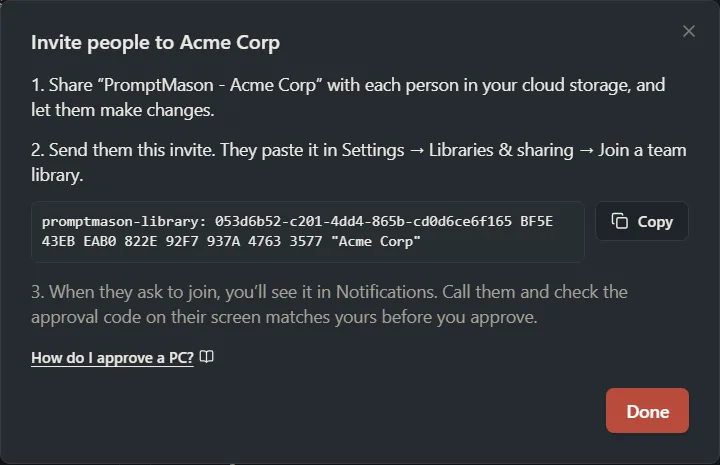
Every step with pictures is in the team libraries guide. For what is protected and how, see How PromptMason keeps your libraries safe.
Team libraries work on Free and on Pro, for teams of up to about 25 people. A shared library counts toward each person’s Free limits, so a team that shares more than 25 blocks or 15 prompts needs Pro for each person. See pricing.