Keyboard shortcuts
See every keyboard shortcut in PromptMason, change any of them, and put them back to the defaults.
PromptMason has keyboard shortcuts for moving between screens and for common actions. Below are the defaults. You can change any of them.
Default shortcuts
The shortcuts are listed in the same three groups, and with the same names, as the Keyboard shortcuts dialog in Settings.
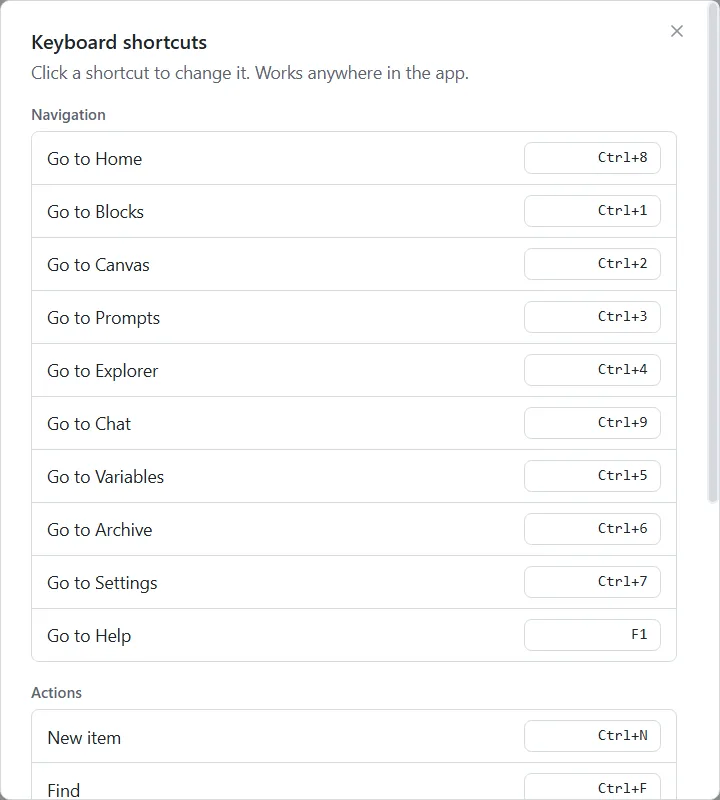
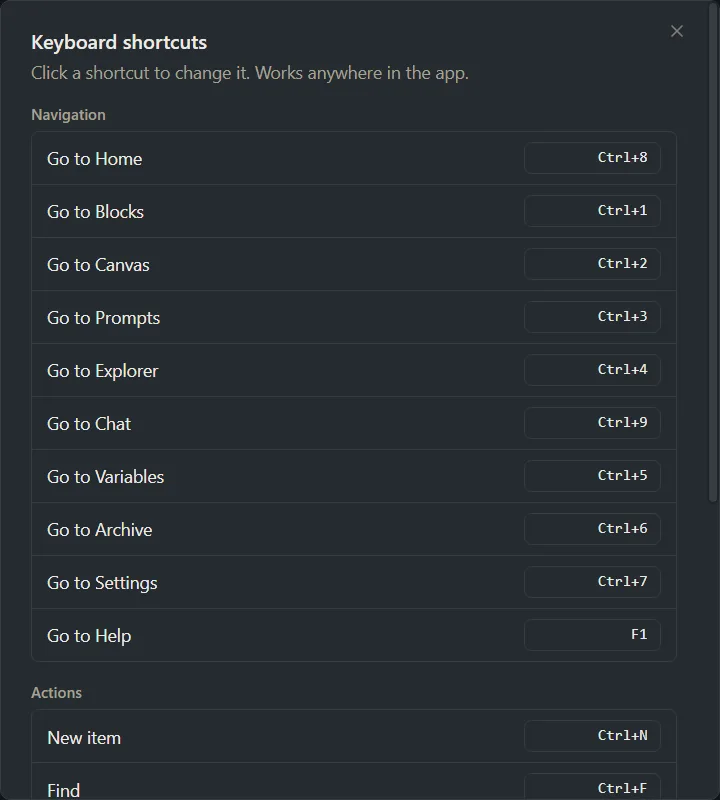
Navigation
| Shortcut | Keys | What it does |
|---|---|---|
| Go to Home | Ctrl+8 | Opens Home. |
| Go to Blocks | Ctrl+1 | Opens Blocks. |
| Go to Canvas | Ctrl+2 | Opens Build. |
| Go to Prompts | Ctrl+3 | Opens Prompts. |
| Go to Explorer | Ctrl+4 | Opens Explorer. |
| Go to Chat | Ctrl+9 | Opens Chat & Browse. |
| Go to Variables | Ctrl+5 | Opens Variables. |
| Go to Archive | Ctrl+6 | Opens Archive. |
| Go to Settings | Ctrl+7 | Opens Settings. |
| Go to Help | F1 | Opens Help, the guides inside PromptMason. See Get help. |
Actions
| Shortcut | Keys | What it does |
|---|---|---|
| New item | Ctrl+N | Starts something new on the screen you’re on: a block on Blocks, a static prompt on Prompts, a variable on Variables, a folder on Explorer, or a chat on Chat & Browse. |
| Find | Ctrl+F | Puts the cursor in the current screen’s search box. |
| Delete | Delete | On Blocks or Prompts, asks whether to archive or delete the open block or prompt. |
| Copy to Clipboard | Ctrl+Shift+C | On Blocks or Prompts, copies the open block or prompt while you’re viewing it (not while you’re editing it). |
Editing
| Shortcut | Keys | What it does |
|---|---|---|
| Save | Ctrl+S | Saves what you’re editing on Blocks or Prompts. On Build it saves the prompt as a dynamic prompt (on the Markdown tab, the document). |
| Cancel / Close | Esc | Stops editing on Blocks, Prompts or Build. If a dialog is open, Esc closes the dialog first. |
| Undo (Canvas) | Ctrl+Z | On Build’s Canvas tab, undoes your last change to the prompt’s blocks, such as adding, removing or moving one. |
| Redo (Canvas) | Ctrl+Shift+Z | On Build’s Canvas tab, redoes what you undid. Ctrl+Y does the same. |
| AI assist | Ctrl+Shift+A | Runs AI assist, with no instruction, on the text box you’re typing in, when that box has an AI assist button. See Improve text with AI assist. |
The dialog shows Esc as Escape.
Ctrl+Y always redoes on the Canvas tab. It isn’t listed in the dialog and can’t be changed.
Shortcuts while you type
Only Save, Cancel / Close, AI assist and Go to Help work while the cursor is in a text box. The others do nothing while you’re typing. That way the Delete key deletes a character rather than the item, and Ctrl+Z undoes your typing rather than a change on the Canvas tab. Click outside the text box to use them.
Shortcuts for features that are off
Four shortcuts belong to a feature you can turn off in Settings → Features:
| Shortcut | Feature |
|---|---|
| Go to Home | Home dashboard |
| Go to Chat | Chat |
| Go to Variables | Variables |
| AI assist | AI assist |
While a feature is off, its shortcut does nothing and isn’t listed in the dialog. Turn the feature on again to use it. See Show or hide features.
Change a shortcut
- Click Settings in the sidebar, then General.
- Next to Keyboard shortcuts, click Customize….
- In the Keyboard shortcuts dialog, find the shortcut you want to change and click the keys shown next to it. The button changes to Press keys….
- Press the new keys, for example Ctrl+Shift+N.
The new keys show next to the shortcut and work straight away. There’s no Save button. A changed shortcut gets a reset button next to it.
To stop without changing anything, press Esc or click somewhere else in the dialog. Because Esc stops recording, you can’t record Esc itself. If you changed Cancel / Close and want Esc back, reset it (see Go back to the defaults).
If the keys are already in use
If another shortcut already uses the keys you pressed, the dialog shows a message in red, such as “Ctrl+S” is already used by Save., and nothing changes.
- Press different keys, or
- Change the other shortcut first, then come back to this one.
The message can name a shortcut that isn’t in the list, because its feature is off. Ctrl+Y is kept for Redo (Canvas), so it can’t be used for anything else.
Go back to the defaults
-
One shortcut: click the reset button next to it (it shows Reset to default when you point at it).
-
Every shortcut: click Reset all to defaults at the bottom of the dialog. This button shows once you’ve changed at least one shortcut.
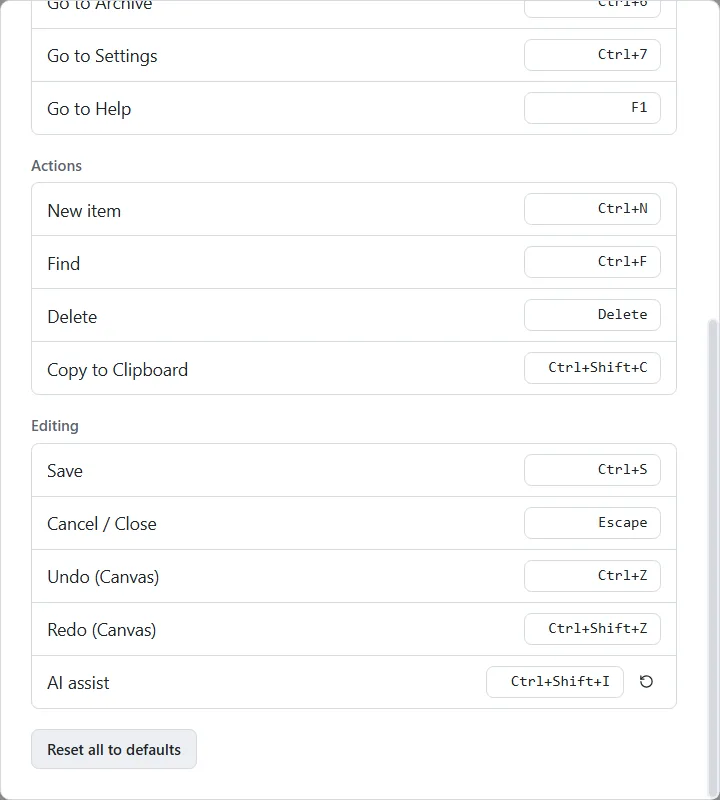
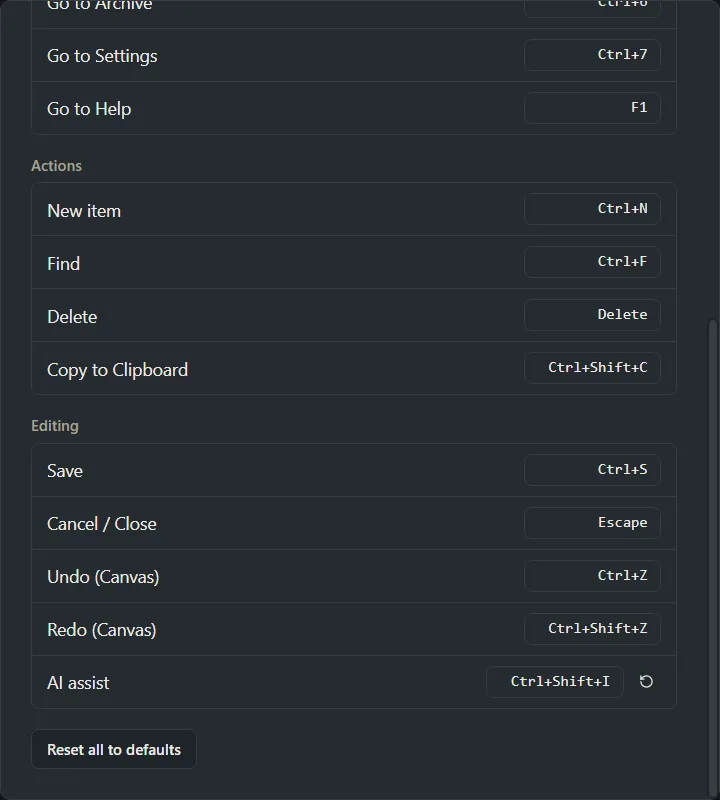
Neither asks you to confirm. If you reset by mistake, change the shortcut again.
Want a hand?
Copy this prompt into Claude, ChatGPT or another AI assistant, and it walks you through it step by step.
I want to change a keyboard shortcut in PromptMason. Walk me through changing it, and tell me what to do if the keys I want are already in use.
Copy adds a short note about PromptMason and this guide's steps, so the assistant has what it needs.
I want to change a keyboard shortcut in PromptMason. Walk me through changing it, and tell me what to do if the keys I want are already in use. About PromptMason: a Windows desktop app for building AI prompts from reusable blocks. A person writes blocks (reusable pieces of prompt text), builds prompts from them on the Build screen (or keeps a Markdown document, such as a Skill), and copies a prompt into an AI tool, runs it in PromptMason’s own Chat, or lets a connected AI agent use it through PromptMason’s built-in MCP server (the Chrome extension copies prompts on any website). AI assist, Evaluate and Chat use a local model that runs on the person’s PC, or their own AI provider. The guides are also on PromptMason’s Help screen, and Chat can answer “how do I” questions from them. Libraries hold the blocks and prompts; a person can sync their personal library to their other PCs and share team libraries, both through a folder in cloud storage they already have (OneDrive, Google Drive or Dropbox). Everything synced is encrypted and every edit is signed and checked. A recovery kit (a file plus a code) is the spare copy of the person’s keys, for when every PC is lost. The official guide for this is "Keyboard shortcuts": https://promptmason.ai/docs/keyboard-shortcuts Its full text follows, between the lines. Use it as the source of truth, and if anything I see differs from it, tell me rather than guessing. --- PromptMason has keyboard shortcuts for moving between screens and for common actions. Below are the defaults. You can change any of them. ## Default shortcuts The shortcuts are listed in the same three groups, and with the same names, as the **Keyboard shortcuts** dialog in Settings. ### Navigation | Shortcut | Keys | What it does | |---|---|---| | **Go to Home** | Ctrl+8 | Opens Home. | | **Go to Blocks** | Ctrl+1 | Opens Blocks. | | **Go to Canvas** | Ctrl+2 | Opens Build. | | **Go to Prompts** | Ctrl+3 | Opens Prompts. | | **Go to Explorer** | Ctrl+4 | Opens Explorer. | | **Go to Chat** | Ctrl+9 | Opens Chat & Browse. | | **Go to Variables** | Ctrl+5 | Opens Variables. | | **Go to Archive** | Ctrl+6 | Opens Archive. | | **Go to Settings** | Ctrl+7 | Opens Settings. | | **Go to Help** | F1 | Opens Help, the guides inside PromptMason. See [Get help](https://promptmason.ai/docs/get-help#read-the-guides-in-promptmason). | ### Actions | Shortcut | Keys | What it does | |---|---|---| | **New item** | Ctrl+N | Starts something new on the screen you're on: a block on Blocks, a static prompt on Prompts, a variable on Variables, a folder on Explorer, or a chat on Chat & Browse. | | **Find** | Ctrl+F | Puts the cursor in the current screen's search box. | | **Delete** | Delete | On Blocks or Prompts, asks whether to archive or delete the open block or prompt. | | **Copy to Clipboard** | Ctrl+Shift+C | On Blocks or Prompts, copies the open block or prompt while you're viewing it (not while you're editing it). | ### Editing | Shortcut | Keys | What it does | |---|---|---| | **Save** | Ctrl+S | Saves what you're editing on Blocks or Prompts. On Build it saves the prompt as a dynamic prompt (on the **Markdown** tab, the document). | | **Cancel / Close** | Esc | Stops editing on Blocks, Prompts or Build. If a dialog is open, Esc closes the dialog first. | | **Undo (Canvas)** | Ctrl+Z | On Build's **Canvas** tab, undoes your last change to the prompt's blocks, such as adding, removing or moving one. | | **Redo (Canvas)** | Ctrl+Shift+Z | On Build's **Canvas** tab, redoes what you undid. Ctrl+Y does the same. | | **AI assist** | Ctrl+Shift+A | Runs AI assist, with no instruction, on the text box you're typing in, when that box has an **AI assist** button. See [Improve text with AI assist](https://promptmason.ai/docs/ai-assist). | The dialog shows Esc as **Escape**. Ctrl+Y always redoes on the Canvas tab. It isn't listed in the dialog and can't be changed. ## Shortcuts while you type Only **Save**, **Cancel / Close**, **AI assist** and **Go to Help** work while the cursor is in a text box. The others do nothing while you're typing. That way the Delete key deletes a character rather than the item, and Ctrl+Z undoes your typing rather than a change on the Canvas tab. Click outside the text box to use them. ## Shortcuts for features that are off Four shortcuts belong to a feature you can turn off in **Settings** → **Features**: | Shortcut | Feature | |---|---| | **Go to Home** | Home dashboard | | **Go to Chat** | Chat | | **Go to Variables** | Variables | | **AI assist** | AI assist | While a feature is off, its shortcut does nothing and isn't listed in the dialog. Turn the feature on again to use it. See [Show or hide features](https://promptmason.ai/docs/features). ## Change a shortcut 1. Click **Settings** in the sidebar, then **General**. 2. Next to **Keyboard shortcuts**, click **Customize…**. 3. In the **Keyboard shortcuts** dialog, find the shortcut you want to change and click the keys shown next to it. The button changes to **Press keys…**. 4. Press the new keys, for example Ctrl+Shift+N. The new keys show next to the shortcut and work straight away. There's no Save button. A changed shortcut gets a reset button next to it. To stop without changing anything, press Esc or click somewhere else in the dialog. Because Esc stops recording, you can't record Esc itself. If you changed **Cancel / Close** and want Esc back, reset it (see [Go back to the defaults](#go-back-to-the-defaults)). ## If the keys are already in use If another shortcut already uses the keys you pressed, the dialog shows a message in red, such as **"Ctrl+S" is already used by Save.**, and nothing changes. - Press different keys, or - Change the other shortcut first, then come back to this one. The message can name a shortcut that isn't in the list, because its feature is off. Ctrl+Y is kept for **Redo (Canvas)**, so it can't be used for anything else. ## Go back to the defaults - **One shortcut:** click the reset button next to it (it shows **Reset to default** when you point at it). - **Every shortcut:** click **Reset all to defaults** at the bottom of the dialog. This button shows once you've changed at least one shortcut. Neither asks you to confirm. If you reset by mistake, change the shortcut again. --- How to help me: - Go one step at a time. After each step, ask what I see on screen before giving the next one. - Use the exact words on PromptMason’s buttons and screens, as the guide does. - Never ask me for my recovery code, my recovery kit file, a password or my invite line, and never ask me to paste them here. - Start by asking which step I’m on, or what I see now.