Add a block pack
Add a ready-made set of blocks, prompts and variables to your library, from the app or from a file downloaded from the website.
A block pack is a ready-made set of blocks, prompts and variables to start from. Every item in a pack is yours to change or delete.
The packs
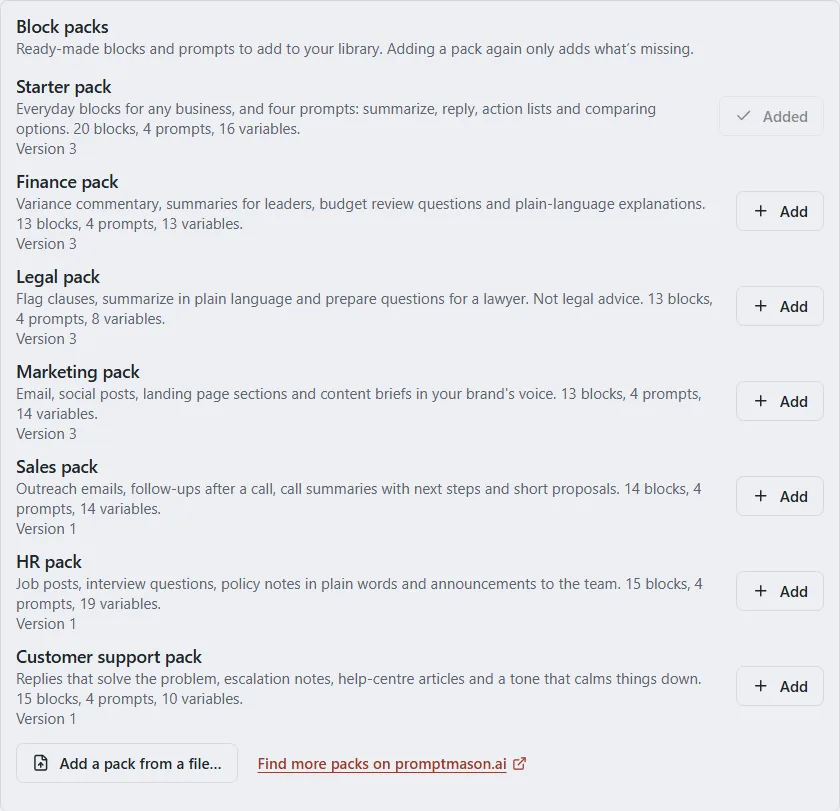
PromptMason comes with seven packs:
| Pack | What’s in it |
|---|---|
| Starter pack | Everyday blocks for any business, and four prompts: summarize a document, reply to a message, turn meeting notes into an action list, and compare options. |
| Finance pack | Variance commentary, summaries for leaders, budget review questions and plain-language explanations of finance terms. |
| Legal pack | Flag clauses, summarize a contract in plain language and prepare questions for a lawyer. It isn’t legal advice. |
| Marketing pack | Email, social posts, landing page sections and content briefs in your brand’s voice. |
| Sales pack | Outreach emails, follow-ups after a call, call summaries with next steps and short proposals. |
| HR pack | Job posts, interview questions, policy notes in plain words and announcements to the team. |
| Customer support pack | Replies that solve the problem, escalation notes, help-centre articles and a tone that calms things down. |
Settings shows how many blocks, prompts and variables each pack has. The prompt library on the website has the packs to download.
Add the Starter pack when you first open PromptMason
The first time you open PromptMason, with nothing in your library yet, a card in the bottom-right corner asks Start with ready-made blocks?
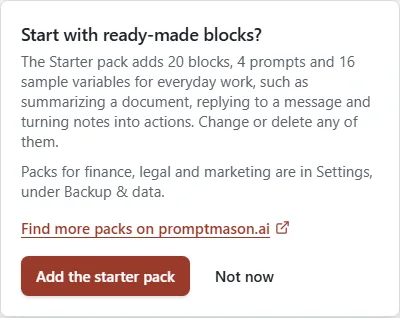
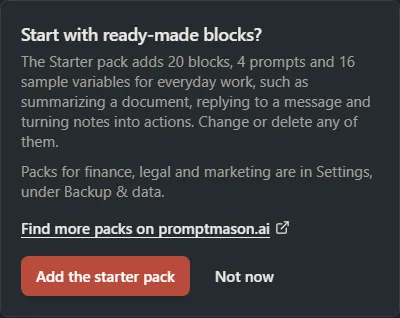
- Click Add the starter pack to add it.
- Click Not now to skip it.
Either way, the card doesn’t show again. You can add the Starter pack, or any other pack, from Settings at any time.
Add a pack from Settings
-
Click Settings in the sidebar, then Backup & data.
-
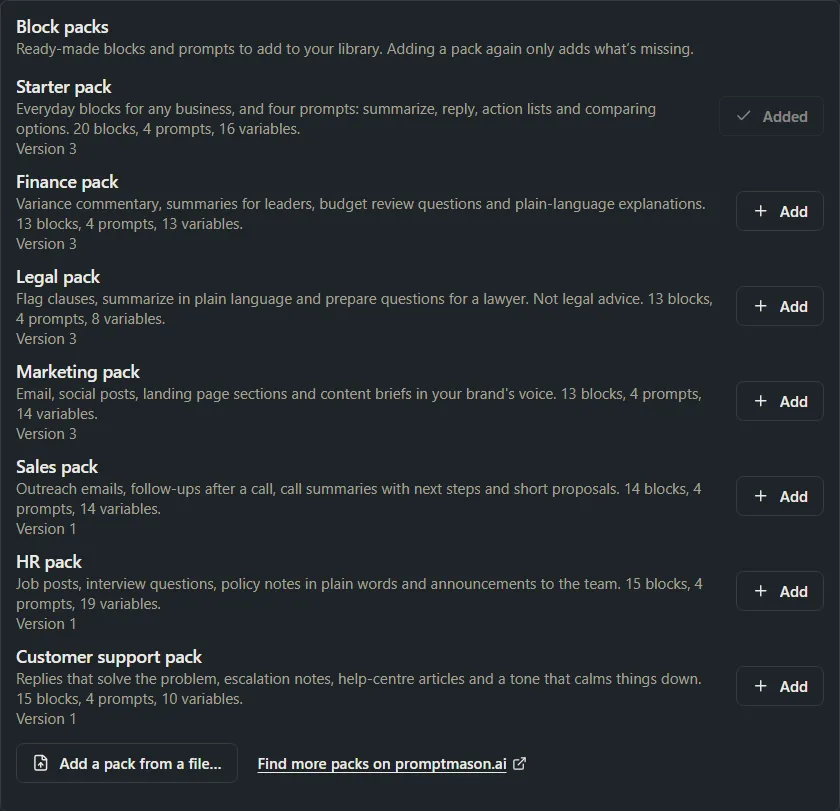
Scroll to Block packs.
-
Find the pack and click Add.
A line under the list says what was added, for example “Starter pack: Added 20 blocks, 4 prompts and 16 variables.” The button changes to Added. The line can also say how many items it brought back from the Archive, and how many were already there.
Add a pack downloaded from the website
The website can have a newer version of a pack than the one in your app, or a pack the app doesn’t have yet.
- Go to promptmason.ai/packs and click Download next to the pack. The file’s name ends in
.promptmason.json. - In PromptMason, click Settings in the sidebar, then Backup & data.
- Scroll to Block packs and click Add a pack from a file….
- Pick the file you downloaded.
The line under the list says what was added. If the pack’s version from the file is different from the app’s, the pack’s row says which version was added from a file.
You can also get to the website from the Find more packs on promptmason.ai link in Block packs.
Mega packs
Mega packs are bigger packs for one profession or one industry, such as FP&A or health care, with a few hundred blocks and the prompts built from them. They’re in the prompt library on the website, listed by profession and by industry, and each has its own page showing everything inside it.
The Free plan holds 25 blocks and 15 prompts, so a Mega pack is made for Pro. Every download of PromptMason starts with 14 days of Pro, so you can add any Mega pack during the trial. On the Free plan you can still add a Mega pack and read it: PromptMason tells you first, and your library stays read-only until you remove what you don’t need, or move to Pro (see On the Free plan).
To add one:
- Go to promptmason.ai/packs, open the pack you want and click Download.
- In PromptMason, click Settings in the sidebar, then Backup & data.
- Scroll to Block packs, click Add a pack from a file… and pick the file.
The pack goes into a folder named after it, with one subfolder for each topic, and every block and prompt is tagged with the pack’s name. A pack marked Coming soon isn’t written yet; click I want this pack to tell us you’d like it.
What adding a pack does
- Nothing is replaced. The pack is added next to what you already have, in your personal library.
- One folder per pack. Each pack’s blocks and prompts go into a folder named after the pack, such as Starter pack.
- Dynamic prompts. The pack’s prompts are dynamic: they’re built from the pack’s blocks, so a change to a block shows in every prompt that uses it. See Static prompts, dynamic prompts and documents.
- The pack’s name as a tag. Every block and prompt from a pack is tagged with the pack’s name, such as
Starter pack. Click it under Tags in the sidebar to see everything from that pack at once. - Variables. The pack adds the variables its blocks use (see Variables). Some hold facts about your business, with sample values such as “Example Company”. Others ask for a value each time you copy, and some of those have a default value.
- Your variables are kept. If you already have a variable with the same name (capitals don’t count), the pack uses yours and doesn’t change it.
Make a pack your own
After adding a pack:
-
Click Variables in the sidebar.
-
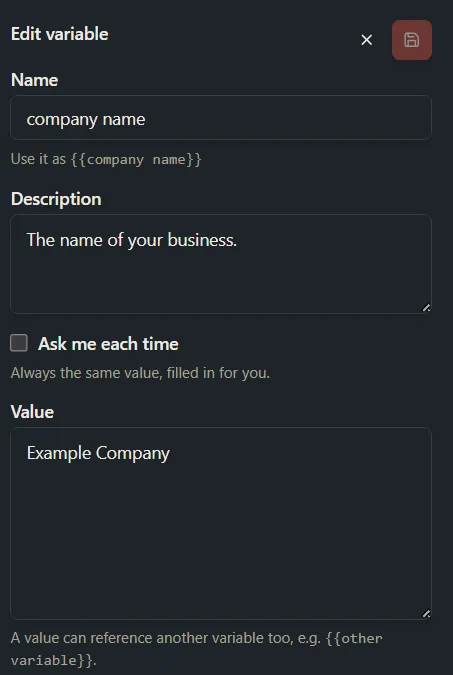
Click each variable with a sample value, such as
company name, type your own value in Value, and click the Save icon (the disk) at the top right of the pane.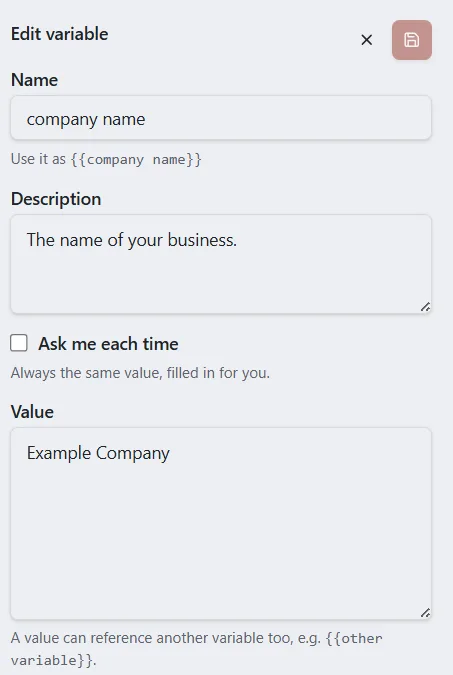
-
Open the pack’s blocks on the Blocks screen and change their text as you like (see Create and edit blocks).
Every prompt from the pack picks up your values and your changes.
Add a pack again
Adding a pack again only adds what’s missing. The button reads Add missing items when some of the pack’s blocks or prompts are archived or deleted, or one of its variables is gone. It reads Add again if none of the pack’s blocks and prompts are left.


- Items still in your library are left as they are, with your changes.
- Items in the Archive are brought back from it.
- Items you deleted are added again.
- If you deleted the pack’s folder, it’s made again.
When everything is there, the button reads Added, and adding the same pack from a file says Everything in the … is already in your library.
Remove a pack’s items
-
Click Prompts or Blocks in the sidebar.
-
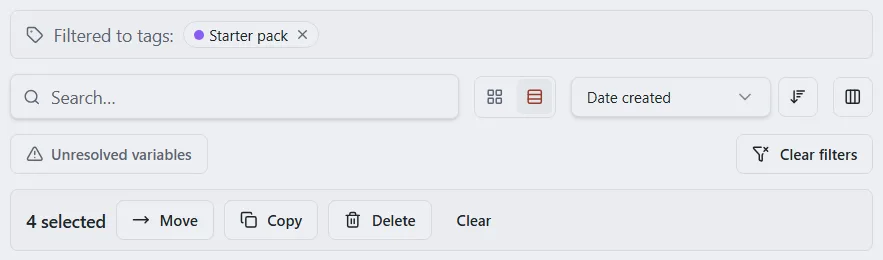
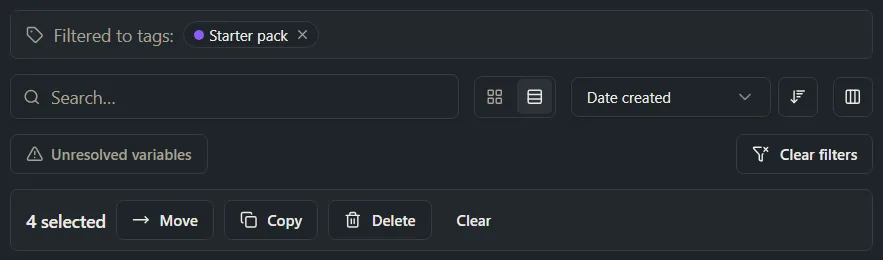
Click the pack’s name, such as Starter pack, under Tags in the sidebar. (If you don’t see Tags, turn on the Tags feature: see Show or hide features.)
-
Tick the items you want to remove, or tick the box at the top of the list to select them all.
-
Click Delete in the bar that appears, then choose Archive or Delete.
-
Repeat on the other screen (Blocks or Prompts) to remove the rest of the pack.
Deleted items go to Recently deleted for 30 days. See Archive, delete and restore. Variables the pack added stay on the Variables screen until you delete them there.
On the Free plan
The Free plan includes up to 25 blocks and 15 prompts. Only the items a pack would add count; items already in your library don’t. Variables don’t count.
If the pack is bigger than that, PromptMason asks first. A window titled Add the … anyway? says how many blocks and prompts the pack has and how many the Free plan has room for. It also tells you what happens next: your library becomes read-only until you remove what you don’t need or move to Pro. You can still read, search and export everything meanwhile.
- Cancel adds nothing.
- Add anyway adds the whole pack. A banner across the top then says Your library is paused.
This is how a Free library can take in a large pack, read all of it, and decide about Pro with the content in front of you. To start editing again, remove the items you don’t need (see Remove a pack’s items, or delete the pack’s folder to remove all of it) or move to Pro. See When your library is paused, Plans and limits and Pricing.
A library that is already paused takes no pack, whatever its size.
Messages
| Message | What to do |
|---|---|
| This file isn’t a block pack. To bring in a backup or your own export, use Import… instead. | Pick the .promptmason.json file you downloaded from the prompt library. For your own exported files, see Export and import. |
| The … couldn’t be added … or That pack couldn’t be added … Your library is unchanged. | Nothing was added. If the line also says the file isn’t a block pack, download the pack again from the prompt library. Otherwise try again, and if it keeps happening, close and reopen PromptMason. |
| The packs couldn’t be loaded. Close and reopen PromptMason, then try again. | Close PromptMason, open it again, and go back to Block packs. |
| The pack couldn’t be added. Try again, or add it later in Settings. | Shown on the first-launch card. Click Add the starter pack again, or add it later from Block packs in Settings. |
| Your library is paused | Packs can’t be added while your library is paused. See When your library is paused. |
Want a hand?
Copy this prompt into Claude, ChatGPT or another AI assistant, and it walks you through it step by step.
I'm new to PromptMason and want to start from ready-made blocks. Walk me through adding the Starter pack, changing its sample values to my own business, and removing the samples later.
Copy adds a short note about PromptMason and this guide's steps, so the assistant has what it needs.
I'm new to PromptMason and want to start from ready-made blocks. Walk me through adding the Starter pack, changing its sample values to my own business, and removing the samples later. About PromptMason: a Windows desktop app for building AI prompts from reusable blocks. A person writes blocks (reusable pieces of prompt text), builds prompts from them on the Build screen (or keeps a Markdown document, such as a Skill), and copies a prompt into an AI tool, runs it in PromptMason’s own Chat, or lets a connected AI agent use it through PromptMason’s built-in MCP server (the Chrome extension copies prompts on any website). AI assist, Evaluate and Chat use a local model that runs on the person’s PC, or their own AI provider. The guides are also on PromptMason’s Help screen, and Chat can answer “how do I” questions from them. Libraries hold the blocks and prompts; a person can sync their personal library to their other PCs and share team libraries, both through a folder in cloud storage they already have (OneDrive, Google Drive or Dropbox). Everything synced is encrypted and every edit is signed and checked. A recovery kit (a file plus a code) is the spare copy of the person’s keys, for when every PC is lost. The official guide for this is "Add a block pack": https://promptmason.ai/docs/block-packs Its full text follows, between the lines. Use it as the source of truth, and if anything I see differs from it, tell me rather than guessing. --- A block pack is a ready-made set of blocks, prompts and variables to start from. Every item in a pack is yours to change or delete. ## The packs PromptMason comes with seven packs: | Pack | What's in it | |---|---| | **Starter pack** | Everyday blocks for any business, and four prompts: summarize a document, reply to a message, turn meeting notes into an action list, and compare options. | | **Finance pack** | Variance commentary, summaries for leaders, budget review questions and plain-language explanations of finance terms. | | **Legal pack** | Flag clauses, summarize a contract in plain language and prepare questions for a lawyer. It isn't legal advice. | | **Marketing pack** | Email, social posts, landing page sections and content briefs in your brand's voice. | | **Sales pack** | Outreach emails, follow-ups after a call, call summaries with next steps and short proposals. | | **HR pack** | Job posts, interview questions, policy notes in plain words and announcements to the team. | | **Customer support pack** | Replies that solve the problem, escalation notes, help-centre articles and a tone that calms things down. | Settings shows how many blocks, prompts and variables each pack has. The [prompt library](https://promptmason.ai/packs) on the website has the packs to download. ## Add the Starter pack when you first open PromptMason The first time you open PromptMason, with nothing in your library yet, a card in the bottom-right corner asks **Start with ready-made blocks?** - Click **Add the starter pack** to add it. - Click **Not now** to skip it. Either way, the card doesn't show again. You can add the Starter pack, or any other pack, from Settings at any time. ## Add a pack from Settings 1. Click **Settings** in the sidebar, then **Backup & data**. 2. Scroll to **Block packs**. 3. Find the pack and click **Add**. A line under the list says what was added, for example "Starter pack: Added 20 blocks, 4 prompts and 16 variables." The button changes to **Added**. The line can also say how many items it brought back from the Archive, and how many were already there. ## Add a pack downloaded from the website The website can have a newer version of a pack than the one in your app, or a pack the app doesn't have yet. 1. Go to [promptmason.ai/packs](https://promptmason.ai/packs) and click **Download** next to the pack. The file's name ends in `.promptmason.json`. 2. In PromptMason, click **Settings** in the sidebar, then **Backup & data**. 3. Scroll to **Block packs** and click **Add a pack from a file…**. 4. Pick the file you downloaded. The line under the list says what was added. If the pack's version from the file is different from the app's, the pack's row says which version was added from a file. You can also get to the website from the **Find more packs on promptmason.ai** link in **Block packs**. ## Mega packs Mega packs are bigger packs for one profession or one industry, such as FP&A or health care, with a few hundred blocks and the prompts built from them. They’re in the prompt library on the website, listed by profession and by industry, and each has its own page showing everything inside it. The Free plan holds 25 blocks and 15 prompts, so a Mega pack is made for Pro. Every download of PromptMason starts with 14 days of Pro, so you can add any Mega pack during the trial. On the Free plan you can still add a Mega pack and read it: PromptMason tells you first, and your library stays read-only until you remove what you don’t need, or move to Pro (see [On the Free plan](#on-the-free-plan)). To add one: 1. Go to [promptmason.ai/packs](https://promptmason.ai/packs), open the pack you want and click **Download**. 2. In PromptMason, click **Settings** in the sidebar, then **Backup & data**. 3. Scroll to **Block packs**, click **Add a pack from a file…** and pick the file. The pack goes into a folder named after it, with one subfolder for each topic, and every block and prompt is tagged with the pack’s name. A pack marked **Coming soon** isn’t written yet; click **I want this pack** to tell us you’d like it. ## What adding a pack does - **Nothing is replaced.** The pack is added next to what you already have, in your personal library. - **One folder per pack.** Each pack's blocks and prompts go into a folder named after the pack, such as **Starter pack**. - **Dynamic prompts.** The pack's prompts are dynamic: they're built from the pack's blocks, so a change to a block shows in every prompt that uses it. See [Static prompts, dynamic prompts and documents](https://promptmason.ai/docs/static-and-dynamic). - **The pack's name as a tag.** Every block and prompt from a pack is tagged with the pack's name, such as `Starter pack`. Click it under **Tags** in the sidebar to see everything from that pack at once. - **Variables.** The pack adds the variables its blocks use (see [Variables](https://promptmason.ai/docs/variables)). Some hold facts about your business, with sample values such as "Example Company". Others ask for a value each time you copy, and some of those have a default value. - **Your variables are kept.** If you already have a variable with the same name (capitals don't count), the pack uses yours and doesn't change it. ## Make a pack your own After adding a pack: 1. Click **Variables** in the sidebar. 2. Click each variable with a sample value, such as `company name`, type your own value in **Value**, and click the **Save** icon (the disk) at the top right of the pane. 3. Open the pack's blocks on the **Blocks** screen and change their text as you like (see [Create and edit blocks](https://promptmason.ai/docs/blocks)). Every prompt from the pack picks up your values and your changes. ## Add a pack again Adding a pack again only adds what's missing. The button reads **Add missing items** when some of the pack's blocks or prompts are archived or deleted, or one of its variables is gone. It reads **Add** again if none of the pack's blocks and prompts are left. - Items still in your library are left as they are, with your changes. - Items in the **Archive** are brought back from it. - Items you deleted are added again. - If you deleted the pack's folder, it's made again. When everything is there, the button reads **Added**, and adding the same pack from a file says **Everything in the … is already in your library.** ## Remove a pack's items 1. Click **Prompts** or **Blocks** in the sidebar. 2. Click the pack's name, such as **Starter pack**, under **Tags** in the sidebar. (If you don't see **Tags**, turn on the Tags feature: see [Show or hide features](https://promptmason.ai/docs/features).) 3. Tick the items you want to remove, or tick the box at the top of the list to select them all. 4. Click **Delete** in the bar that appears, then choose **Archive** or **Delete**. 5. Repeat on the other screen (**Blocks** or **Prompts**) to remove the rest of the pack. Deleted items go to **Recently deleted** for 30 days. See [Archive, delete and restore](https://promptmason.ai/docs/archive-and-delete). Variables the pack added stay on the **Variables** screen until you delete them there. ## On the Free plan The Free plan includes up to 25 blocks and 15 prompts. Only the items a pack would add count; items already in your library don't. Variables don't count. If the pack is bigger than that, PromptMason asks first. A window titled **Add the … anyway?** says how many blocks and prompts the pack has and how many the Free plan has room for. It also tells you what happens next: your library becomes read-only until you remove what you don't need or move to Pro. You can still read, search and export everything meanwhile. - **Cancel** adds nothing. - **Add anyway** adds the whole pack. A banner across the top then says **Your library is paused.** This is how a Free library can take in a large pack, read all of it, and decide about Pro with the content in front of you. To start editing again, remove the items you don't need (see [Remove a pack's items](#remove-a-packs-items), or delete the pack's folder to remove all of it) or move to Pro. See [When your library is paused](https://promptmason.ai/docs/paused-library), [Plans and limits](https://promptmason.ai/docs/plans) and [Pricing](https://promptmason.ai/pricing). A library that is already paused takes no pack, whatever its size. ## Messages | Message | What to do | |---|---| | **This file isn’t a block pack. To bring in a backup or your own export, use Import… instead.** | Pick the `.promptmason.json` file you downloaded from the prompt library. For your own exported files, see [Export and import](https://promptmason.ai/docs/export-import). | | **The … couldn’t be added …** or **That pack couldn’t be added … Your library is unchanged.** | Nothing was added. If the line also says the file isn’t a block pack, download the pack again from the prompt library. Otherwise try again, and if it keeps happening, close and reopen PromptMason. | | **The packs couldn’t be loaded. Close and reopen PromptMason, then try again.** | Close PromptMason, open it again, and go back to **Block packs**. | | **The pack couldn’t be added. Try again, or add it later in Settings.** | Shown on the first-launch card. Click **Add the starter pack** again, or add it later from **Block packs** in Settings. | | **Your library is paused** | Packs can't be added while your library is paused. See [When your library is paused](https://promptmason.ai/docs/paused-library). | --- How to help me: - Go one step at a time. After each step, ask what I see on screen before giving the next one. - Use the exact words on PromptMason’s buttons and screens, as the guide does. - Never ask me for my recovery code, my recovery kit file, a password or my invite line, and never ask me to paste them here. - Start by asking which step I’m on, or what I see now.