Troubleshooting MCP connections
What to do when adding PromptMason to your AI agent doesn't finish, or your AI agent reports a problem with PromptMason.
This page covers problems connecting an AI agent (Claude Desktop, Cursor or Claude Code) to PromptMason, and the messages an agent can pass on from PromptMason. AI agents connect through MCP (Model Context Protocol), a standard way for AI apps to use another app’s tools. If you haven’t connected an agent yet, follow the steps in Connect an AI agent through MCP. For the Chrome extension, see Popup messages.
The rows under Connect an AI agent are in Settings → AI & connected apps.
Setting up
Claude Desktop didn’t open after I clicked Add
That’s normal on many PCs, including ones with the Microsoft Store version of Claude Desktop. PromptMason saved PromptMason.mcpb to your Downloads folder and opened File Explorer with the file selected. The row says “PromptMason.mcpb is in your Downloads folder”.
In Claude Desktop, go to Settings → Extensions, drag the file onto that page, then click Install. For the full steps, see Install the file in Claude Desktop.
Claude Desktop shows a red security notice
That’s expected. Claude Desktop shows it for any extension installed from a file. PromptMason’s extension talks only to the PromptMason app on the same computer, doesn’t connect to the internet, and reads no file except PromptMason’s own access key (more about the notice).
The Cursor row says “Open Cursor once, then come back”
Cursor is installed but has never been opened on this PC, so there’s no Add button yet. Open Cursor once, then switch back to the PromptMason window. The row checks again and shows Add.
Cursor didn’t ask to install PromptMason
Make sure Cursor has been opened at least once on this PC, then click Add next to Cursor again. Cursor opens and asks to install PromptMason; click Install.
It says “Not installed on this computer”
PromptMason didn’t find that app on this PC, so there’s nothing to add PromptMason to yet. Install Claude Desktop or Cursor, then switch back to the PromptMason window: the rows check again each time you return to it.
- Claude Desktop then shows an Add button.
- Cursor shows “Open Cursor once, then come back” until you’ve opened Cursor once. Then it shows Add.
The Add and Copy command buttons are grayed out
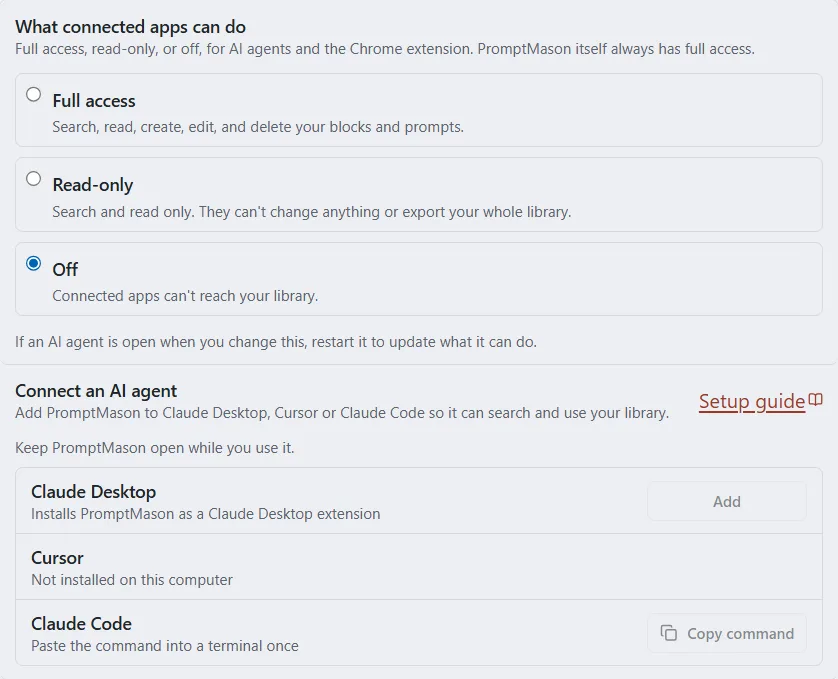
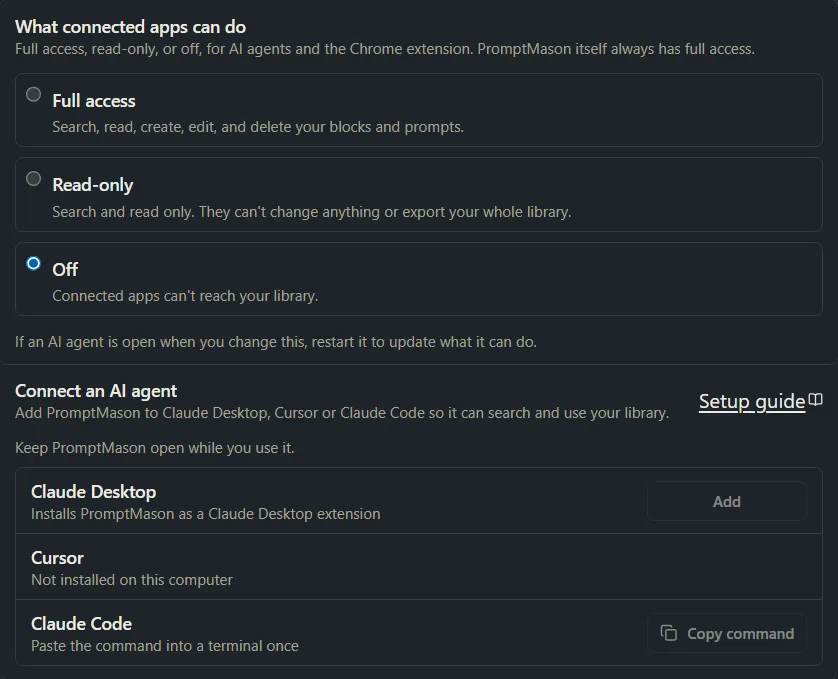
What connected apps can do is set to Off. Pointing at a button shows “Connected apps are Off. Choose Full access or Read-only above first.” Choose Full access or Read-only in the same card, then click Add or Copy command.
The row shows a message in red
| Message | What to do |
|---|---|
| “The Claude Desktop extension is missing from this installation.” | Download PromptMason from the download page and install it over your current copy. Your library is kept. See Install, update and remove. Then click Add again. |
| “Connected apps are Off. Choose Full access or Read-only above, then add.” | Choose Full access or Read-only under What connected apps can do, then click Add again. |
| “Could not add PromptMason to Claude Desktop.” or “Could not add PromptMason to Cursor.” | Click Add again. If it keeps happening, email support with the message. |
The Claude Code command didn’t work
Claude Code must be installed before you paste the command; PromptMason can’t check this for you. Click Copy command again in PromptMason on the same PC, paste the whole command into a terminal such as PowerShell or Command Prompt, and press Enter. The command includes where PromptMason is installed on that PC, so a command copied on another PC may point to the wrong place. Copy it from PromptMason on the PC where you’ll use it.
Using the agent
The agent says it couldn’t reach PromptMason
If PromptMason isn’t running when your AI agent tries to use it, the agent reports:
Could not reach PromptMason. Make sure the PromptMason app is open on this computer, then try again.
Open PromptMason and try again. You don’t need to restart the agent.
The agent says PromptMason rejected the API token
The agent reports:
PromptMason rejected the API token. The token is read automatically from the PromptMason app on this computer, so make sure the app is running under the same user account as this AI agent. If you entered a token by hand when setting up this agent, remove it or update it to the token shown in PromptMason under Settings → AI & connected apps.
There are two causes:
- PromptMason and the agent run under different Windows user accounts. Sign in to Windows as the account that runs PromptMason, then use the agent from there.
- You typed a token into the agent’s setup yourself, and it no longer matches, for example after Regenerate API token. Remove that token from the agent’s setup, or replace it with the one under Set up another AI agent by hand in Settings → AI & connected apps (see The API token).
Agents added with Add or Copy command pick up a new token on their own.
The agent doesn’t list any PromptMason tools
If What connected apps can do was set to Off when the agent started, the agent has no PromptMason tools at all. Choose Full access or Read-only, then close the agent completely and open it again.
The agent says PromptMason is turned off
PromptMason is turned off for connected apps. Turn it on in PromptMason under Settings → AI & connected apps.
The setting was changed to Off while the agent was running. Choose Full access or Read-only, then restart the agent.
The agent can read but won’t save anything
An agent started while What connected apps can do is Read-only has only the search and read tools, so it tells you it can’t make the change. An agent that was started under Full access gets this message instead when it tries:
PromptMason is read-only for connected apps. To allow changes, choose Full access in PromptMason under Settings → AI & connected apps.
Choose Full access if you want your agent to create and change blocks and prompts, then restart the agent.
I changed the setting and nothing changed
An agent learns which PromptMason tools it has when it starts. Close the agent completely and open it again after you change What connected apps can do.
An agent that started while PromptMason was closed offers all of PromptMason’s tools, whatever the setting. PromptMason still refuses anything the setting doesn’t allow, with the messages above. Restart the agent while PromptMason is open to get the right list.
The agent says your library is paused
The message starts:
Your library is paused. The Free plan includes up to 25 blocks and 15 prompts…
While your library is paused, AI agents can’t search, read, use or change anything in it, even in Read-only. Upgrade to Pro, or permanently delete items until you’re within the Free plan. Deleting down to the limits ends the pause straight away. See When your library is paused.
The agent says the Free plan limit is reached
The message starts “The Free plan includes up to…” and names blocks or prompts. The agent tried to create or copy past the Free limit of 25 blocks or 15 prompts. Upgrade to Pro, or permanently delete items you no longer need (archived items count toward the limit). See Plans and limits.
Team library messages
| Message | What to do |
|---|---|
| “This library is read-only for AI apps. An owner can change this in Settings → Libraries & sharing.” | The team library lets AI agents read only. Only its primary owner can change this, in Settings → Libraries & sharing → Manage → Name and AI apps. See Set what AI apps can do in a team library. |
| “You can view this library but not change it. Ask a library owner for edit access.” | You can only view this library. Ask a library owner for edit access. |
| “Too many changes from an AI app. Try again later.” | The agent reached the library’s limit of changes per hour. Try again later, or ask the primary owner to raise Most changes an AI app can make per hour. |
| “Library not found” | The agent asked for a library it can’t see. A team library set to Nothing: AI apps can’t see it is hidden from AI agents. Ask the agent to list your libraries and use one from that list. |
The agent says a folder is not empty
Folder is not empty — move or delete its contents first
The folder still has something in it. Move what’s in it, or ask the agent to delete the folder together with its contents. Deleted blocks and prompts go to Recently deleted.
PromptMason won’t start: “port … is already in use”
AI agents and the Chrome extension reach PromptMason through a connection on this PC that PromptMason opens when it starts. If something else is already using it, PromptMason shows a message titled PromptMason failed to start: “PromptMason could not start: port … is already in use (is another copy of PromptMason running?).” (The message shows a number where this page shows “…”.)
- Check for another copy of PromptMason: open Task Manager (Ctrl+Shift+Esc), and end any PromptMason task.
- Open PromptMason again.
- If the message still appears, restart your PC and open PromptMason again.
If it keeps happening, email support with the full message.
If you’re still stuck
Email support@promptmason.ai with which AI agent you use, what you were trying to do, the exact message, and the PromptMason version shown in the sidebar.
Want a hand?
Copy this prompt into Claude, ChatGPT or another AI assistant, and it walks you through it step by step.
My AI agent isn't working with PromptMason. Here is the exact message it shows: [paste the message]. Help me work out what's wrong and fix it, one step at a time.
Copy adds a short note about PromptMason and this guide's steps, so the assistant has what it needs.
My AI agent isn't working with PromptMason. Here is the exact message it shows: [paste the message]. Help me work out what's wrong and fix it, one step at a time. About PromptMason: a Windows desktop app for building AI prompts from reusable blocks. A person writes blocks (reusable pieces of prompt text), builds prompts from them on the Build screen (or keeps a Markdown document, such as a Skill), and copies a prompt into an AI tool, runs it in PromptMason’s own Chat, or lets a connected AI agent use it through PromptMason’s built-in MCP server (the Chrome extension copies prompts on any website). AI assist, Evaluate and Chat use a local model that runs on the person’s PC, or their own AI provider. The guides are also on PromptMason’s Help screen, and Chat can answer “how do I” questions from them. Libraries hold the blocks and prompts; a person can sync their personal library to their other PCs and share team libraries, both through a folder in cloud storage they already have (OneDrive, Google Drive or Dropbox). Everything synced is encrypted and every edit is signed and checked. A recovery kit (a file plus a code) is the spare copy of the person’s keys, for when every PC is lost. The official guide for this is "Troubleshooting MCP connections": https://promptmason.ai/docs/mcp-troubleshooting Its full text follows, between the lines. Use it as the source of truth, and if anything I see differs from it, tell me rather than guessing. --- This page covers problems connecting an AI agent (Claude Desktop, Cursor or Claude Code) to PromptMason, and the messages an agent can pass on from PromptMason. AI agents connect through MCP (Model Context Protocol), a standard way for AI apps to use another app's tools. If you haven't connected an agent yet, follow the steps in [Connect an AI agent through MCP](https://promptmason.ai/docs/connect-ai-agent). For the Chrome extension, see [Popup messages](https://promptmason.ai/docs/chrome-extension#popup-messages). The rows under **Connect an AI agent** are in **Settings → AI & connected apps**. ## Setting up ### Claude Desktop didn't open after I clicked Add That's normal on many PCs, including ones with the Microsoft Store version of Claude Desktop. PromptMason saved **PromptMason.mcpb** to your Downloads folder and opened File Explorer with the file selected. The row says "PromptMason.mcpb is in your Downloads folder". In Claude Desktop, go to **Settings → Extensions**, drag the file onto that page, then click **Install**. For the full steps, see [Install the file in Claude Desktop](https://promptmason.ai/docs/connect-ai-agent#install-the-file-in-claude-desktop). ### Claude Desktop shows a red security notice That's expected. Claude Desktop shows it for any extension installed from a file. PromptMason's extension talks only to the PromptMason app on the same computer, doesn't connect to the internet, and reads no file except PromptMason's own access key ([more about the notice](https://promptmason.ai/docs/connect-ai-agent#about-the-security-notice)). ### The Cursor row says "Open Cursor once, then come back" Cursor is installed but has never been opened on this PC, so there's no **Add** button yet. Open Cursor once, then switch back to the PromptMason window. The row checks again and shows **Add**. ### Cursor didn't ask to install PromptMason Make sure Cursor has been opened at least once on this PC, then click **Add** next to Cursor again. Cursor opens and asks to install PromptMason; click **Install**. ### It says "Not installed on this computer" PromptMason didn't find that app on this PC, so there's nothing to add PromptMason to yet. Install Claude Desktop or Cursor, then switch back to the PromptMason window: the rows check again each time you return to it. - Claude Desktop then shows an **Add** button. - Cursor shows "Open Cursor once, then come back" until you've opened Cursor once. Then it shows **Add**. ### The Add and Copy command buttons are grayed out **What connected apps can do** is set to **Off**. Pointing at a button shows "Connected apps are Off. Choose Full access or Read-only above first." Choose **Full access** or **Read-only** in the same card, then click **Add** or **Copy command**. ### The row shows a message in red | Message | What to do | |---|---| | "The Claude Desktop extension is missing from this installation." | Download PromptMason from the [download page](https://promptmason.ai/download) and install it over your current copy. Your library is kept. See [Install, update and remove](https://promptmason.ai/docs/installation). Then click **Add** again. | | "Connected apps are Off. Choose Full access or Read-only above, then add." | Choose **Full access** or **Read-only** under **What connected apps can do**, then click **Add** again. | | "Could not add PromptMason to Claude Desktop." or "Could not add PromptMason to Cursor." | Click **Add** again. If it keeps happening, email support with the message. | ### The Claude Code command didn't work Claude Code must be installed before you paste the command; PromptMason can't check this for you. Click **Copy command** again in PromptMason on the same PC, paste the whole command into a terminal such as PowerShell or Command Prompt, and press Enter. The command includes where PromptMason is installed on that PC, so a command copied on another PC may point to the wrong place. Copy it from PromptMason on the PC where you'll use it. ## Using the agent ### The agent says it couldn't reach PromptMason If PromptMason isn't running when your AI agent tries to use it, the agent reports: > Could not reach PromptMason. Make sure the PromptMason app is open on this computer, then try again. Open PromptMason and try again. You don't need to restart the agent. ### The agent says PromptMason rejected the API token The agent reports: > PromptMason rejected the API token. The token is read automatically from the PromptMason app on this computer, so make sure the app is running under the same user account as this AI agent. If you entered a token by hand when setting up this agent, remove it or update it to the token shown in PromptMason under Settings → AI & connected apps. There are two causes: - **PromptMason and the agent run under different Windows user accounts.** Sign in to Windows as the account that runs PromptMason, then use the agent from there. - **You typed a token into the agent's setup yourself**, and it no longer matches, for example after **Regenerate API token**. Remove that token from the agent's setup, or replace it with the one under **Set up another AI agent by hand** in **Settings → AI & connected apps** (see [The API token](https://promptmason.ai/docs/agent-access#the-api-token-for-an-agent-you-set-up-yourself)). Agents added with **Add** or **Copy command** pick up a new token on their own. ### The agent doesn't list any PromptMason tools If **What connected apps can do** was set to **Off** when the agent started, the agent has no PromptMason tools at all. Choose **Full access** or **Read-only**, then close the agent completely and open it again. ### The agent says PromptMason is turned off > PromptMason is turned off for connected apps. Turn it on in PromptMason under Settings → AI & connected apps. The setting was changed to **Off** while the agent was running. Choose **Full access** or **Read-only**, then restart the agent. ### The agent can read but won't save anything An agent started while **What connected apps can do** is **Read-only** has only the search and read tools, so it tells you it can't make the change. An agent that was started under **Full access** gets this message instead when it tries: > PromptMason is read-only for connected apps. To allow changes, choose Full access in PromptMason under Settings → AI & connected apps. Choose **Full access** if you want your agent to create and change blocks and prompts, then restart the agent. ### I changed the setting and nothing changed An agent learns which PromptMason tools it has when it starts. Close the agent completely and open it again after you change **What connected apps can do**. An agent that started while PromptMason was closed offers all of PromptMason's tools, whatever the setting. PromptMason still refuses anything the setting doesn't allow, with the messages above. Restart the agent while PromptMason is open to get the right list. ### The agent says your library is paused The message starts: > Your library is paused. The Free plan includes up to 25 blocks and 15 prompts… While your library is paused, AI agents can't search, read, use or change anything in it, even in **Read-only**. Upgrade to Pro, or permanently delete items until you're within the Free plan. Deleting down to the limits ends the pause straight away. See [When your library is paused](https://promptmason.ai/docs/paused-library). ### The agent says the Free plan limit is reached The message starts "The Free plan includes up to…" and names blocks or prompts. The agent tried to create or copy past the Free limit of 25 blocks or 15 prompts. Upgrade to Pro, or permanently delete items you no longer need (archived items count toward the limit). See [Plans and limits](https://promptmason.ai/docs/plans). ### Team library messages | Message | What to do | |---|---| | "This library is read-only for AI apps. An owner can change this in Settings → Libraries & sharing." | The team library lets AI agents read only. Only its primary owner can change this, in **Settings → Libraries & sharing → Manage → Name and AI apps**. See [Set what AI apps can do in a team library](https://promptmason.ai/docs/agent-access#set-what-ai-apps-can-do-in-a-team-library). | | "You can view this library but not change it. Ask a library owner for edit access." | You can only view this library. Ask a library owner for edit access. | | "Too many changes from an AI app. Try again later." | The agent reached the library's limit of changes per hour. Try again later, or ask the primary owner to raise **Most changes an AI app can make per hour**. | | "Library not found" | The agent asked for a library it can't see. A team library set to **Nothing: AI apps can’t see it** is hidden from AI agents. Ask the agent to list your libraries and use one from that list. | ### The agent says a folder is not empty > Folder is not empty — move or delete its contents first The folder still has something in it. Move what's in it, or ask the agent to delete the folder together with its contents. Deleted blocks and prompts go to **Recently deleted**. ## PromptMason won't start: "port … is already in use" AI agents and the Chrome extension reach PromptMason through a connection on this PC that PromptMason opens when it starts. If something else is already using it, PromptMason shows a message titled **PromptMason failed to start**: "PromptMason could not start: port … is already in use (is another copy of PromptMason running?)." (The message shows a number where this page shows "…".) 1. Check for another copy of PromptMason: open Task Manager (Ctrl+Shift+Esc), and end any **PromptMason** task. 2. Open PromptMason again. 3. If the message still appears, restart your PC and open PromptMason again. If it keeps happening, email support with the full message. ## If you're still stuck Email [support@promptmason.ai](mailto:support@promptmason.ai) with which AI agent you use, what you were trying to do, the exact message, and the PromptMason version shown in the sidebar. --- How to help me: - Go one step at a time. After each step, ask what I see on screen before giving the next one. - Use the exact words on PromptMason’s buttons and screens, as the guide does. - Never ask me for my recovery code, my recovery kit file, a password or my invite line, and never ask me to paste them here. - Start by asking which step I’m on, or what I see now.