Lock PromptMason with a password
Turn on App Lock, choose when PromptMason locks itself, lock it now, and change or remove the password.
App Lock puts a password on PromptMason’s window. When it’s locked, the window shows only the lock screen, with none of your library in view, until someone types the password. It’s off to start with.
App Lock is a screen lock. Your library is encrypted on disk whether App Lock is on or off (How your data is protected on this PC). App Lock stops someone who sits down at your unlocked PC from opening PromptMason.
App Lock locks the window only. While PromptMason is locked, connected AI agents, the Chrome extension and Chat’s library tools can still reach your library, at the level set in What connected apps can do (Control what connected apps can do). To stop them, set it to Off.
Turn on App Lock
-
Click Settings in the sidebar, then Privacy & security.
-
Next to App Lock, click Enable App Lock.
-
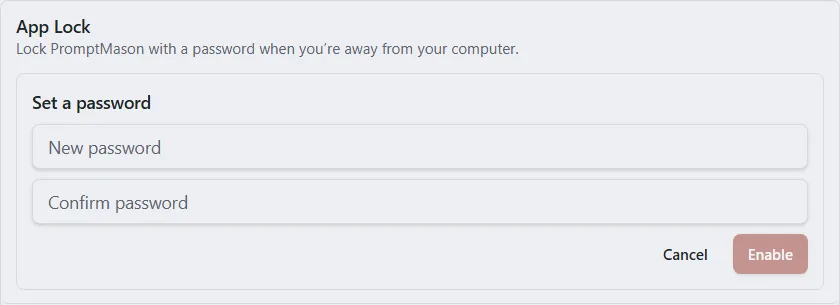
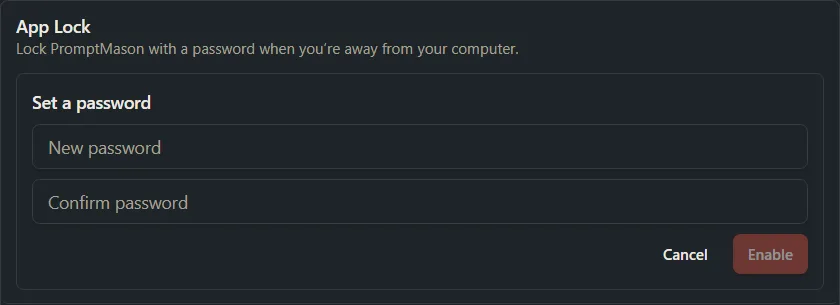
Under Set a password, type a password of at least 4 characters in the first box.
-
Type it again in the second box.
-
Click Enable.
-
The first time, Save your recovery kit appears. Save the kit file, write down the code, type its last 4 characters, then click I’ve saved my kit. The kit is how you get back in if you forget your password. See Your recovery kit. If you already saved a kit on this PC, for backups or a library, you don’t see this step.
To stop without changing anything, click Cancel.
When it worked, PromptMason locks straight away and shows the lock screen. If you had already unlocked PromptMason earlier in the same session, it locks the next time it starts instead. Type your new password and click Unlock. See Unlock PromptMason. Back in Privacy & security, App Lock shows Password set and “A password is set. The app will lock on next launch and after the inactivity timer below.”
Choose a password you’ll remember. If you forget it, you need your recovery kit to get back in (see If you forget your password).
| Message | What to do |
|---|---|
| “Passwords do not match.” | Type the same password in both boxes, then click Enable again. |
| “Password must be at least 4 characters.” | Choose a longer password. |
Choose when it locks
With App Lock on, PromptMason always locks when it starts. It can also lock itself when you haven’t used it for a while.
-
Click Settings in the sidebar, then Privacy & security.
-
Under App Lock, open the Auto-lock after list.
-
Choose Never, 5 minutes, 15 minutes, 30 minutes or 1 hour.
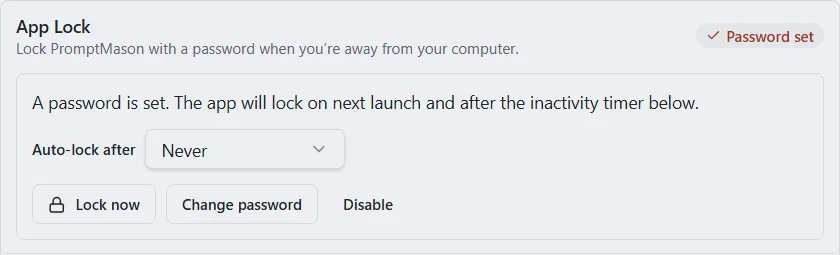
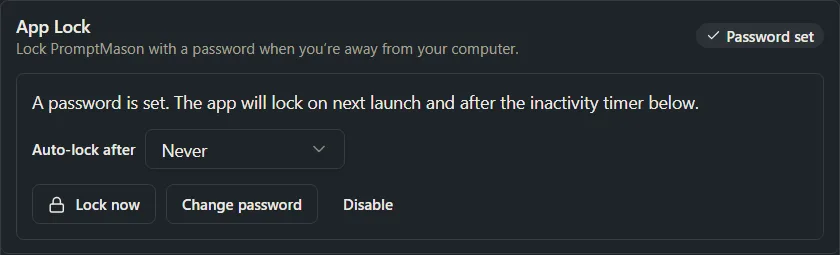
The time counts from the last time you clicked, typed, scrolled or touched the screen in PromptMason’s window. Moving the mouse alone doesn’t count. With Never (the starting choice), PromptMason locks only when it starts, or when you lock it yourself.
Lock it now
- Click Settings in the sidebar, then Privacy & security.
- Under App Lock, click Lock now.
PromptMason locks straight away.
Unlock PromptMason
The lock screen says PromptMason is locked and “Enter your password to unlock this session.”
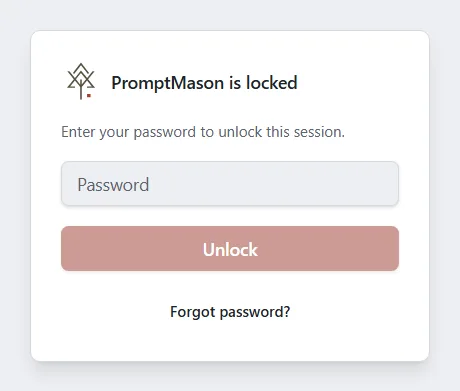
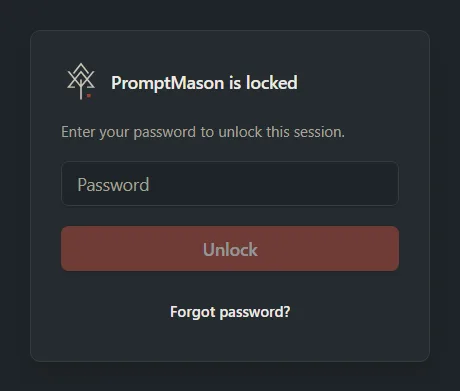
- Type your password in the box.
- Click Unlock, or press Enter.
If you see “Incorrect password.”, the box clears. Type the password again, checking that Caps Lock is off.
If you see “Could not verify password.”, try again. If it keeps happening, close PromptMason and open it again.
Change your password
- Click Settings in the sidebar, then Privacy & security.
- Under App Lock, click Change password.
- Type the new password in the first box, and again in the second.
- Click Save.
You see “Password changed.” If you see “New passwords do not match.”, type the same password in both boxes and click Save again. If you see “Password must be at least 4 characters.”, choose a longer password. To stop without changing anything, click Cancel.
Changing the password doesn’t ask for the current one. Anyone using PromptMason while it’s unlocked could change it. Lock PromptMason, or your PC, when you step away.
Turn off App Lock
Turning it off asks for your current password.
- Click Settings in the sidebar, then Privacy & security.
- Under App Lock, click Disable.
- Under Disable App Lock, type your current password.
- Click Disable.
To stop without changing anything, click Cancel instead.
You see “App Lock disabled.” From then on, anyone who can use your PC can open PromptMason.
If you see “Password is incorrect”, type your current password again. If you’ve forgotten it, see If you forget your password.
If you forget your password
Your recovery kit gets you back in. You need both the kit file and its code.
- On the lock screen, click Forgot password?
- Under Your recovery kit file, choose your kit file.
- Under Its code, type the code. Capital or small letters both work, and spaces don’t matter.
- Type a new password under New password, and again under Type it again.
- Click Unlock.
PromptMason unlocks, and the new password is the one that works from now on. To go back to the password box instead, click Back.
| Message | What to do |
|---|---|
| “That recovery code doesn’t open this kit.” | Check the code against the one you wrote down. The code has no zeros, so an O is always the letter. |
| “That kit isn’t for the keys on this PC…” | Choose the kit file you saved from this PC. If you made a new kit since, use the newest one. |
| “That file isn’t a PromptMason recovery kit.” | Choose the kit file, named like PromptMason-recovery-kit-….json. |
| “Passwords do not match.” | Type the same new password in both boxes. |
If you’ve lost your kit too, there’s no way back into PromptMason on this PC. Forgetting the password doesn’t damage or delete anything, but nobody can unlock it for you, PromptMason included.
Other things to know
- Recovery kit: while App Lock is on, making a new recovery kit asks for your App Lock password (Your recovery kit).
- Export and import: your App Lock password is never in an exported file. Importing a file never turns App Lock on or off or changes its password. When App Lock is on here, Replace everything from a file does take the Auto-lock after time from the file, so check it afterwards. See Export and import.
- Each PC has its own lock. App Lock doesn’t sync. Turn it on separately on each PC where you want it.
Want a hand?
Copy this prompt into Claude, ChatGPT or another AI assistant, and it walks you through it step by step.
I share my PC and want to lock PromptMason with a password. Walk me through turning on “App Lock” and choosing when it locks itself.
Copy adds a short note about PromptMason and this guide's steps, so the assistant has what it needs.
I share my PC and want to lock PromptMason with a password. Walk me through turning on “App Lock” and choosing when it locks itself. About PromptMason: a Windows desktop app for building AI prompts from reusable blocks. A person writes blocks (reusable pieces of prompt text), builds prompts from them on the Build screen (or keeps a Markdown document, such as a Skill), and copies a prompt into an AI tool, runs it in PromptMason’s own Chat, or lets a connected AI agent use it through PromptMason’s built-in MCP server (the Chrome extension copies prompts on any website). AI assist, Evaluate and Chat use a local model that runs on the person’s PC, or their own AI provider. The guides are also on PromptMason’s Help screen, and Chat can answer “how do I” questions from them. Libraries hold the blocks and prompts; a person can sync their personal library to their other PCs and share team libraries, both through a folder in cloud storage they already have (OneDrive, Google Drive or Dropbox). Everything synced is encrypted and every edit is signed and checked. A recovery kit (a file plus a code) is the spare copy of the person’s keys, for when every PC is lost. The official guide for this is "Lock PromptMason with a password": https://promptmason.ai/docs/app-lock Its full text follows, between the lines. Use it as the source of truth, and if anything I see differs from it, tell me rather than guessing. --- App Lock puts a password on PromptMason's window. When it's locked, the window shows only the lock screen, with none of your library in view, until someone types the password. It's off to start with. App Lock is a screen lock. Your library is encrypted on disk whether App Lock is on or off ([How your data is protected on this PC](https://promptmason.ai/docs/data-on-this-pc)). App Lock stops someone who sits down at your unlocked PC from opening PromptMason. App Lock locks the window only. While PromptMason is locked, connected AI agents, the Chrome extension and Chat's library tools can still reach your library, at the level set in **What connected apps can do** ([Control what connected apps can do](https://promptmason.ai/docs/agent-access)). To stop them, set it to **Off**. ## Turn on App Lock 1. Click **Settings** in the sidebar, then **Privacy & security**. 2. Next to **App Lock**, click **Enable App Lock**. 3. Under **Set a password**, type a password of at least 4 characters in the first box. 4. Type it again in the second box. 5. Click **Enable**. 6. The first time, **Save your recovery kit** appears. Save the kit file, write down the code, type its last 4 characters, then click **I’ve saved my kit**. The kit is how you get back in if you forget your password. See [Your recovery kit](https://promptmason.ai/docs/recovery-kit). If you already saved a kit on this PC, for backups or a library, you don't see this step. To stop without changing anything, click **Cancel**. When it worked, PromptMason locks straight away and shows the lock screen. If you had already unlocked PromptMason earlier in the same session, it locks the next time it starts instead. Type your new password and click **Unlock**. See [Unlock PromptMason](#unlock-promptmason). Back in **Privacy & security**, **App Lock** shows **Password set** and "A password is set. The app will lock on next launch and after the inactivity timer below." Choose a password you'll remember. If you forget it, you need your recovery kit to get back in (see [If you forget your password](#if-you-forget-your-password)). | Message | What to do | |---|---| | "Passwords do not match." | Type the same password in both boxes, then click **Enable** again. | | "Password must be at least 4 characters." | Choose a longer password. | ## Choose when it locks With App Lock on, PromptMason always locks when it starts. It can also lock itself when you haven't used it for a while. 1. Click **Settings** in the sidebar, then **Privacy & security**. 2. Under **App Lock**, open the **Auto-lock after** list. 3. Choose **Never**, **5 minutes**, **15 minutes**, **30 minutes** or **1 hour**. The time counts from the last time you clicked, typed, scrolled or touched the screen in PromptMason's window. Moving the mouse alone doesn't count. With **Never** (the starting choice), PromptMason locks only when it starts, or when you lock it yourself. ## Lock it now 1. Click **Settings** in the sidebar, then **Privacy & security**. 2. Under **App Lock**, click **Lock now**. PromptMason locks straight away. ## Unlock PromptMason The lock screen says **PromptMason is locked** and "Enter your password to unlock this session." 1. Type your password in the box. 2. Click **Unlock**, or press Enter. If you see "Incorrect password.", the box clears. Type the password again, checking that Caps Lock is off. If you see "Could not verify password.", try again. If it keeps happening, close PromptMason and open it again. ## Change your password 1. Click **Settings** in the sidebar, then **Privacy & security**. 2. Under **App Lock**, click **Change password**. 3. Type the new password in the first box, and again in the second. 4. Click **Save**. You see "Password changed." If you see "New passwords do not match.", type the same password in both boxes and click **Save** again. If you see "Password must be at least 4 characters.", choose a longer password. To stop without changing anything, click **Cancel**. Changing the password doesn't ask for the current one. Anyone using PromptMason while it's unlocked could change it. Lock PromptMason, or your PC, when you step away. ## Turn off App Lock Turning it off asks for your current password. 1. Click **Settings** in the sidebar, then **Privacy & security**. 2. Under **App Lock**, click **Disable**. 3. Under **Disable App Lock**, type your current password. 4. Click **Disable**. To stop without changing anything, click **Cancel** instead. You see "App Lock disabled." From then on, anyone who can use your PC can open PromptMason. If you see "Password is incorrect", type your current password again. If you've forgotten it, see [If you forget your password](#if-you-forget-your-password). ## If you forget your password Your recovery kit gets you back in. You need both the kit file and its code. 1. On the lock screen, click **Forgot password?** 2. Under **Your recovery kit file**, choose your kit file. 3. Under **Its code**, type the code. Capital or small letters both work, and spaces don't matter. 4. Type a new password under **New password**, and again under **Type it again**. 5. Click **Unlock**. PromptMason unlocks, and the new password is the one that works from now on. To go back to the password box instead, click **Back**. | Message | What to do | |---|---| | "That recovery code doesn’t open this kit." | Check the code against the one you wrote down. The code has no zeros, so an O is always the letter. | | "That kit isn’t for the keys on this PC…" | Choose the kit file you saved from this PC. If you made a new kit since, use the newest one. | | "That file isn’t a PromptMason recovery kit." | Choose the kit file, named like `PromptMason-recovery-kit-….json`. | | "Passwords do not match." | Type the same new password in both boxes. | If you've lost your kit too, there's no way back into PromptMason on this PC. Forgetting the password doesn't damage or delete anything, but nobody can unlock it for you, PromptMason included. ## Other things to know - **Recovery kit:** while App Lock is on, making a new recovery kit asks for your App Lock password ([Your recovery kit](https://promptmason.ai/docs/recovery-kit)). - **Export and import:** your App Lock password is never in an exported file. Importing a file never turns App Lock on or off or changes its password. When App Lock is on here, **Replace everything from a file** does take the **Auto-lock after** time from the file, so check it afterwards. See [Export and import](https://promptmason.ai/docs/export-import). - **Each PC has its own lock.** App Lock doesn't sync. Turn it on separately on each PC where you want it. --- How to help me: - Go one step at a time. After each step, ask what I see on screen before giving the next one. - Use the exact words on PromptMason’s buttons and screens, as the guide does. - Never ask me for my recovery code, my recovery kit file, a password or my invite line, and never ask me to paste them here. - Start by asking which step I’m on, or what I see now.