Sync problems
What each sync message in PromptMason means, and what to do about it.
Find the message you see. In the messages below, [library] is the library’s name, [PC] is a PC shown as its approval code and name (for example “38C5 - Alex’s laptop”), and [name] is a person. The member list is the library’s record of who is in it and which PCs belong to each person.
If you came here from a title in Notifications, jump to it: Can’t reach the library folder, The library folder was empty, The library folder is read-only, This isn’t the library’s folder, This PC needs to re-sync a library, Changes from a PC haven’t arrived, Two copies of a PC are writing, Another copy of this PC is writing, The member list needs the primary owner, Update PromptMason, A PC’s clock looks wrong, Some changes weren’t shared, Paused until tomorrow, Unexpected files in the library folder, Something in the library folder was ignored. Other titles are in Other Notifications items.
Where sync messages show
-
Status. Each team library in the sidebar has a small status icon; point at it to read it. Settings → Libraries & sharing shows the same words: Up to date, Syncing, Can’t reach the library folder, Needs your attention, Waiting for approval, or Only on this PC. Personal and team libraries explains each icon.
-
Notifications. The bell in the top-right corner. To do lists things you need to act on; they stay until they’re done. Earlier lists things that were only for your information. See Notifications.
-
Manage. In Settings → Libraries & sharing, click Manage next to a library. Sync shows what it’s waiting for and has a Sync now button. Needs attention lists open problems. Each one is explained below.


Most problems come from the cloud storage app, not PromptMason. First check that your cloud storage app is running and signed in, and that it keeps the whole library folder on this PC (how). Then click Sync now.
PromptMason only syncs while it’s open: closing its window quits the app. A PC’s changes reach the others once PromptMason has been open on it with its cloud storage app running.
Waiting messages
These show under Sync in Manage. They usually clear by themselves.
- “Waiting for the cloud to bring down a file.” Your cloud storage has a file online only. Set it to keep the whole folder on this PC (how). PromptMason tries again on its own.
- “Waiting for changes from [PC] to arrive.” That PC saved changes that haven’t reached the folder yet, usually because it’s offline or its cloud storage app isn’t running. They arrive when it syncs. After a day, the library’s primary owner sees Changes from a PC haven’t arrived.
- “Waiting for a member-list change to arrive in the library folder.” A change to who is in the library is still on its way through your cloud storage. Wait a few minutes.
Can’t reach the library folder
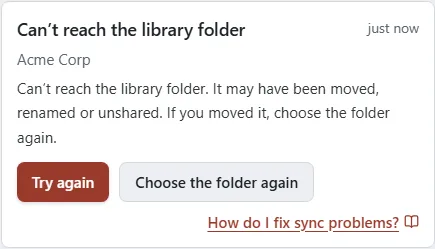
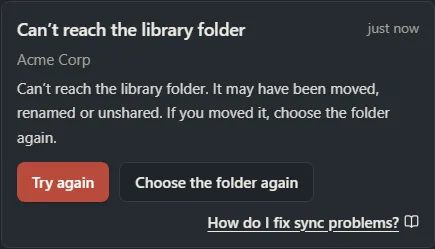
“Can’t reach the library folder. It may have been moved, renamed or unshared. If you moved it, choose the folder again.”
The same item can also say “The library folder isn’t a folder.” That means something other than a folder is now where the library’s folder was. The steps are the same.
-
Check your cloud storage app is running and signed in, then click Try again in Notifications.
-
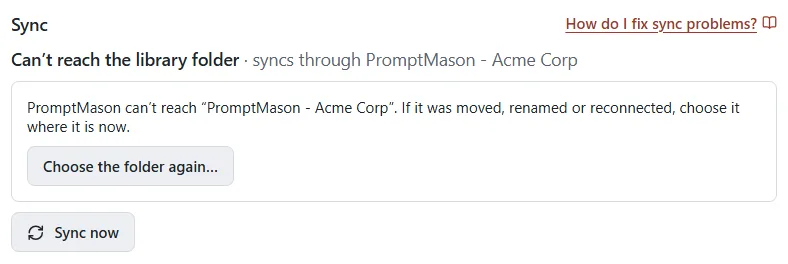
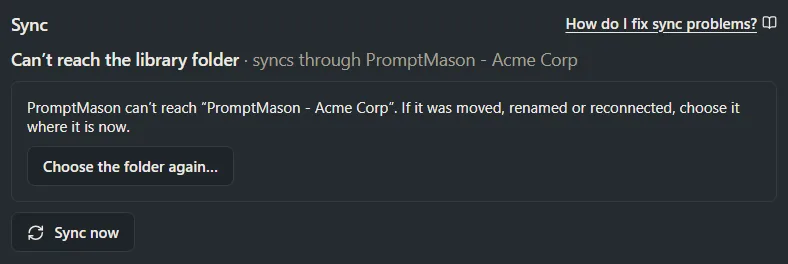
If the folder was moved, renamed or reconnected, click Choose the folder again in Notifications. The library’s Manage window opens. Under Sync it says “PromptMason can’t reach “[folder]”. If it was moved, renamed or reconnected, choose it where it is now.” Click Choose the folder again… and pick the library’s folder where it is now. PromptMason checks it’s the same library.
-
If it was unshared, ask the person who shared it.
Changes you make meanwhile stay on this PC and go out when the folder is back.
If the folder is gone for good, the primary owner puts the library in a new folder from their approving PC. In the same window, they click Put [library] in a new folder…, pick where, and click OK. That button shows only while this problem is open. PromptMason makes a new PromptMason - [library name] folder there and copies the library into it from that PC. The primary owner shares the new folder with everyone, and each person chooses it on each of their PCs with Choose the folder again. No one is approved again, and each PC puts back what it wrote.
The library folder was empty
“The folder for [library] was empty. [library] stays on this PC, and PromptMason put its files back. If you moved the folder, choose the folder again.”
Someone, or a cloud storage app, emptied the folder or swapped it for another. Nothing was deleted from your PC. PromptMason put the library back from this PC’s copy. If you moved the library’s folder on purpose, click Choose the folder again in Notifications and pick it where it is now. Otherwise click OK.
The library folder is read-only
“The library folder is read-only on this PC.”
Your PC can read the folder but not write to it. Ask whoever shared the folder to let you make changes (edit access), then click Try again.
This isn’t the library’s folder
“This folder isn’t the library you joined.”
The folder now holds a different library, or was replaced. Click Open library settings to see which folder it is. Check with the library’s primary owner which folder is the right one. Don’t copy files into the library folder by hand.
This PC needs to re-sync a library
“This PC kept a member-list change for [library] that the other PCs dropped, so some changes can’t reach it. Re-sync the library to catch up; what you made on this PC is kept and shared again.”
This can happen when two changes to who is in the library were made at the same moment, for example one with the primary owner’s recovery kit and one on their approving PC. Every PC follows the same one, but this PC had already acted on the other. Click Re-sync. The PC reads the library again from the start. What you made on this PC is kept and shared again.
Changes from a PC haven’t arrived
“Changes from [PC] since [date and time] UTC haven’t arrived.” (UTC is the world time standard, not your local time.)
Some of that PC’s changes are missing from the folder: it hasn’t synced for a day, or a file was deleted. Only the library’s primary owner sees this.
- If the PC still exists, open PromptMason on it with its cloud storage app running. It puts back anything missing on its own.
- If the PC is gone for good (a broken laptop, say), the primary owner can click Remove that PC and skip them, then OK, on their approving PC. That removes the PC and lets the rest of its changes through. The PC would have to be approved again to come back.
Two copies of a PC are writing
“Two copies of [PC] are writing to this library. Their changes are paused until the primary owner removes that PC.”
This happens when a PC’s disk was copied, or restored from an old backup or snapshot, and both copies are running. Every PC in the library shows it. If you’re not the primary owner, tell them; you don’t need to do anything else. The primary owner sorts it out:
-
Click Open library settings.
-
Under Members, find the PC and click Remove this PC.
-
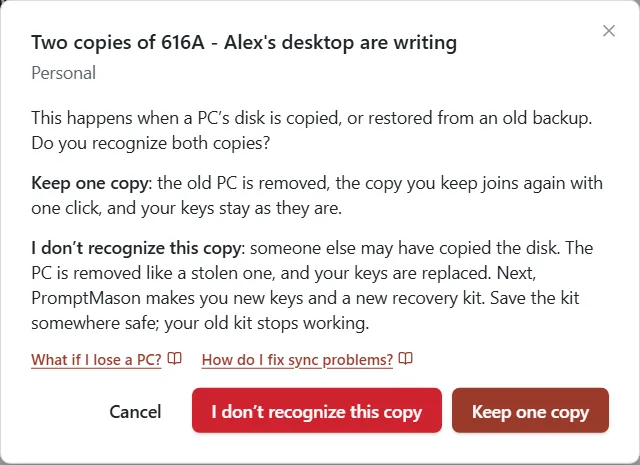
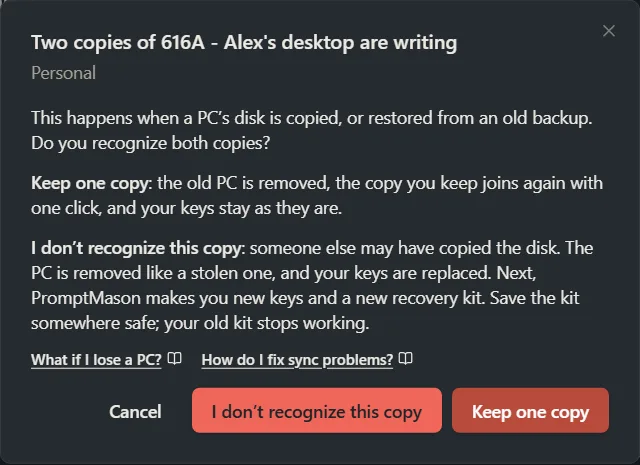
The window says Two copies of [PC] are writing. Ask the PC’s owner whether they recognize both copies, then choose:
- Keep one copy if they made the copy themselves (a new PC set up from the old disk, say). The old PC is removed, and the copy they keep joins again with one click. Their keys stay as they are.
- I don’t recognize this copy if nobody knows where the other copy came from: someone may have copied the disk. The PC is removed like a stolen one, and the person’s keys are replaced, as in Lost or stolen PC or kit.
Another copy of this PC is writing
“Another copy of this PC is writing to [library]. This PC has stopped writing to it; ask the primary owner which copy to keep.”
This PC found that a copy of it is also writing to the library, so it stopped writing. Your edits stay on this PC. Ask the primary owner to remove the old PC (above). Then, on the copy you keep, click Re-join with this PC. It re-joins every library this PC syncs, with new keys, and sends again everything either copy changed.
- If this PC was your approving PC, the Keep this copy window asks for your recovery kit, because no other PC can approve it again. Choose your kit file, type its code, and click Keep this copy.
- If your keys were replaced (“I don’t recognize this copy”) and you have another PC in the library, that PC confirms this one after you click Re-join with this PC.
- If your keys were replaced and you have no other PC in the library, the Replace your keys window opens first. Click Replace my keys and save your new kit. Then click Re-join with this PC again; the primary owner resets your identity after a call.
The member list needs the primary owner
- “One PC wrote two different member-list changes. This PC is waiting for the primary owner to sort it out.” Tell the primary owner. They click Open library settings and remove the PC that wrote both, as in Two copies of a PC are writing.
- “This PC’s membership was approved on a member-list change other PCs rejected. Ask the primary owner to approve it again.” Ask the primary owner to approve this PC again.
Update PromptMason
“Update PromptMason to read a change from [name].”
Usually someone is using a newer version of PromptMason. Click Check for updates in the notification, or open Settings → General → Updates and click Check for updates there. When the update is ready, click Restart to update. If PromptMason says it is up to date, or the message comes back, email support@promptmason.ai with the exact message.
A PC’s clock looks wrong
“The clock on [PC] looks wrong; its saves will win conflicts until it’s fixed.”
On that PC (ask the person who uses it), open Windows Settings, then Time & language, then Date & time, and turn on Set time automatically.
Some changes weren’t shared
One of these:
- “[n] changes you made in [library] haven’t been shared: your role there is now [role], which can’t make them. They stay on this PC, and are shared if your role allows them again.” Your role was changed while you had unsent edits. Ask the primary owner if you need your old role back.
- “[n] changes you made in [library] are too large to share. Make them smaller to share them; they stay on this PC meanwhile.” An item is too big, usually because of a large attachment. Make it smaller and save it again.
- “[n] changes made after this PC was removed weren’t shared. Export them if you need them.” This PC was removed from the library, so edits made after that stay only on this PC, where the library is now read-only. Open each item and copy the text you need into your personal library, before you take the library off this PC.
Paused until tomorrow
“This PC has written as much as it can to this library today. It will continue tomorrow (UTC).”
This only happens after a very large amount of changes in one day, such as many big attachments. It carries on by itself the next day. The day is counted in UTC, the world time standard, so it may start at a different hour than your own midnight.
Unexpected files in the library folder
“[n] unexpected files in the library folder.”
Something other than PromptMason put files in the library folder. Usually it’s your cloud storage making a conflict copy (a file with a PC’s name or “conflicted copy” added). PromptMason ignores them and nothing is lost. Keep other files out of the library folder.
Something in the library folder was ignored
These are for your information. PromptMason didn’t trust a file in the folder, so it ignored it, or put the real one back. Every edit is signed and checked, so a file that wasn’t written by a PC in the library, or was changed afterwards, is never used. The library keeps working.
- “A change in the library folder didn’t check out and was ignored.”
- “Files from a device that isn’t a member were ignored.” Often a PC that’s waiting to be approved.
- “A member-list file in the library folder didn’t check out and was ignored.”
- “A member-list change from an unauthorised key was ignored.”
- “A member-list file was missing from the library folder; it was put back.”
- “A file in the library folder was posing as a member-list file; it was replaced with the real one.”
- “A file in the library folder was posing as the library’s id file; it was replaced with the real one.”
- “A file in the library folder was too large to be one PromptMason wrote, and was ignored: [file].”
- “The library folder holds more requests than PromptMason reads at once, so some weren’t read.” PromptMason reads the rest over the next few syncs.
- “Two member-list changes were made at the same moment. Every PC follows the same one; a PC that kept the other one is asked to re-sync.”
- “Another of your PCs changed the member list at the same moment. This PC’s change was made again on top of it.”
- “Another of your PCs changed the member list at the same moment, and this PC’s change no longer fits on top of it. Check the member list.” Open Manage and make the change again on your approving PC if it’s still needed.
If these keep appearing, check who the folder is shared with in your cloud storage, and remove anyone who shouldn’t be there. See How PromptMason keeps your libraries safe.
A library was deleted
These show under Earlier in Notifications:
- [name] deleted [library], “It was taken off this PC.” The library’s primary owner deleted the team library for everyone, and PromptMason took it off this PC. Nothing to do. If you think it was a mistake, ask the primary owner; they may have an export or a backup.
- You deleted [library], “Every member’s PC takes it off the next time it syncs. Copies made outside PromptMason can’t be recalled.” You deleted the library for everyone. Nothing more to do.
If you try to use a library that was deleted, PromptMason says “This library was deleted.” See Delete a library for everyone.
Other Notifications items
These have their own guides. Notifications explains the panel and its buttons.
| You see | Message | Guide |
|---|---|---|
| Someone asked to join | “A new person wants to join from [PC]. Compare approval code [code] with them before approving.” | Approve a PC |
| A member’s new PC asked to join | “[name]’s new PC, [PC], vouched for by [PC], wants to join.” or “…proven by [name]’s own identity, wants to join.” | Approve a PC |
| A PC is waiting to be confirmed | On the primary owner’s approving PC: “[PC] says it belongs to someone already in this library. If it’s your PC, compare the approval code with the code on that PC and click This is my PC to add it. If it’s someone else’s, one of their PCs confirms it first.” On the primary owner’s other PCs: “[PC] says it belongs to someone already in this library. Waiting for one of their PCs to vouch for it.” | Use your library on a second PC |
| Is this your PC? | On your approving PC, in your personal library: “[PC] wants to join your personal library. If it’s your PC, compare the approval code with the code on that PC and click This is my PC to add it.” On your other PCs, in any library: “[PC] wants to join as someone already in this library. If it’s yours, compare the approval code with the code on that PC and click This is my PC.” | Use your library on a second PC |
| Identity reset request | “Identity reset for [name] onto [PC]: call [name] first and compare the approval code.” or “Someone who lost every PC they used in this library asks to be restored onto [PC]. Call them first and compare the approval code.” | Lost or stolen PC or kit |
| A member made a new recovery kit | “[name] made a new recovery kit on [PC] and needs one click to use it here.” | Your recovery kit |
| A request to join didn’t check out | “A request with a certificate that didn’t check out was ignored.” or “Two people vouched for the same PC. Remove one of the vouchers to continue.” | Approve a PC |
| Your request was declined | “Your request in [library] was declined or removed from the library folder. Ask the library’s primary owner about it.” | Approve a PC |
| Remove them from the shared folder too | “Also remove [name] from the folder’s sharing in your cloud storage.” | Remove a person or a PC |
| Waiting for PCs to pick up the change | “These PCs haven’t picked up the new key yet: [PCs].” | Remove a person or a PC |
| You no longer have access to this library | “You have been removed from [library]. Your copy stays on this PC, read-only.” or “This PC was removed from [library]. Your copy stays on this PC, read-only.” | Team libraries |
| A change wasn’t applied | “A change from [name] wasn’t applied because their role doesn’t allow it.” or “A change from [name] was about an item this PC keeps in another library, so it wasn’t applied.” | Team libraries |
| Replace your keys | “[PC] was removed from [library], and it still holds your keys. Replace them now and save your new recovery kit; your old kit stops working. If that PC was in other libraries, ask their primary owners to remove it there too.” | Lost or stolen PC or kit |
| A new recovery kit was made | “A new recovery kit was made on [PC] on [date]; the old kit no longer works. If that wasn’t you, remove that PC from your libraries now.” | Lost or stolen PC or kit |
| Identity reset | “[owner] reset [name]’s identity onto a new PC, [PC], on [date].” | Lost or stolen PC or kit |
| Confirm you saved your recovery kit | “Keep your recovery kit file and its code somewhere safe, away from this PC. You’ll only need them if you ever lose every PC you use PromptMason on.” | Your recovery kit |
| Edited at the same time | “[name] edited [item] at the same time as you. Both versions are in History.” Click Open to see the item. | Team libraries |
| [name] deleted [library] or You deleted [library] | “It was taken off this PC.” or “Every member’s PC takes it off the next time it syncs. Copies made outside PromptMason can’t be recalled.” | A library was deleted |
| Your last backup didn’t finish | “Couldn’t write to the backup folder. Check that the folder is available, then choose “Back up now” in Settings.” It can also start with “The last backup didn’t finish. PromptMason will try again.” | Backups |
When PromptMason says it can’t do something
These messages appear in the window you’re using, in place of the change you asked for. Nothing was changed. Find the message in the group that fits what you were doing.
Library folders and invites
| Message | What to do |
|---|---|
| “Connect to the library folder first.” | Changes to who is in a library need the folder. Get your cloud storage connected (see Can’t reach the library folder) and try again. |
| “This library doesn’t sync to a folder.” | It’s only on this PC. To share it, use Share through this folder in Manage. |
| “This library already syncs to a folder.” | Nothing to do. |
| “That folder already holds a library. Join it instead.” | Use Join a team library, or choose an empty folder. |
| “The new folder must be empty. Choose where PromptMason should make it.” | Pick another place for the new folder. |
| “PromptMason couldn’t make a folder there. Choose another place.” | Windows didn’t let PromptMason create a folder in the place you picked. In Google Drive, pick My Drive, not the top of the Google Drive drive (usually G:). Otherwise pick a folder you can add files to. |
| “A folder of that name was just made there. Choose where again.” | Click the button again and pick where; PromptMason picks a free name. |
| “PromptMason couldn’t make a folder there. Choose another place.” | Pick a place you can save files to, such as a folder in your cloud storage. |
| “That folder doesn’t hold a PromptMason library.” | Choose the folder the library was shared through, as it appears on this PC. |
| “That folder is still coming down from your cloud storage. Set it to keep a copy on this PC, then try again in a minute.” | Set the folder to stay on this PC (how), wait a minute, and try again. |
| “This folder isn’t the library you joined.” | See This isn’t the library’s folder. |
| “That folder doesn’t match the invite. Check you picked the folder you were sent.” | Choose the folder for the library named in the invite. |
| “That doesn’t look like a PromptMason invite line.” | Paste the whole invite, starting with promptmason-library:. |
| “This library was deleted.” | The primary owner deleted it for everyone. See A library was deleted. |
| “Library not found” | The library isn’t on this PC any more, or connected AI apps aren’t allowed to see it. Check Settings → Libraries & sharing. |
Approving, removing and changing members
| Message | What to do |
|---|---|
| “Only the primary owner can change who is in this library.” | Ask the library’s primary owner. |
| “Do this from [PC], the PC that approves changes to who is in this library.” | Go to that PC. Other windows say the same thing in their own words: Review says “Approve this from [PC], the PC that approves changes to who is in [library].” and has only Close; Manage says “Approve PCs, remove them and change roles from [PC], the PC that approves changes to who is in [library].” (for your personal library: “Add and remove your PCs from [PC], your approving PC.”). See The primary owner. |
| “Waiting for a member-list change to arrive in the library folder.” | A change to who is in the library is still on its way. Wait a few minutes and try again. |
| “A request with a certificate that didn’t check out was ignored. (…)” | The request can’t be approved. Close the window and click Ignore it on the item in Notifications. If the person still needs to join, ask them to ask again; if it keeps happening, email support with the exact message. |
| “This PC was the one that approves changes to who is in this library. Open your recovery kit to keep this copy.” | See Another copy of this PC is writing. |
| “This PC isn’t a member of this library yet.” | Wait for the primary owner to approve this PC. |
| “This PC has stopped writing to this library.” | See Another copy of this PC is writing. |
| “That request isn’t in the library folder any more.” | The PC withdrew it, or it was declined. Close the window. |
| “This PC says it belongs to someone already in the library. Waiting for one of their PCs to vouch for it.” | The person confirms it from their other PC with This is my PC. |
| “Only a PC that is already approved can vouch for another PC of yours.” | Confirm the new PC from a PC that’s already in the library. |
| “That PC doesn’t need a voucher.” | The request isn’t from another PC of someone already in the library. The primary owner handles it from Someone asked to join. |
| “Type the person’s name before approving.” | Type Their name. |
| “Choose who this is before resetting their identity.” | Pick the member under Who is this?. |
| “That person isn’t an active member of this library.” | Pick someone who’s still in the library, or add them as a new member. |
| “The primary owner can’t be reset from another PC. They restore their own identity with their recovery kit.” | The primary owner uses Restore with recovery kit. See Lost or stolen PC or kit. |
| “That PC asked to be restored as someone else.” | Check with the person; pick the member the request names. |
| “That PC belongs to someone else.” | The PC asking to be restored is already in the library as another person. Decline the request and check with both people. |
| “That person isn’t in this library.” or “That PC isn’t in this library.” | The member list changed while the window was open. Close Manage, open it again and check. |
| “That person was removed from this library.” | They were removed while this window was open. Close Manage and open it again. To add a removed person back, email support@promptmason.ai. |
| “That PC is already in this library.” | Nothing to do. |
| “Make someone else the primary owner before removing yourself.” | Hand the role to another owner first (how). |
| “Make someone else the primary owner first.” | You tried to change your own role. Hand the primary owner role to another owner first. |
| “Only another owner can become the primary owner.” | Change the person’s role to Owner, then click Make primary owner. |
| “They need an approved PC in this library first.” | Wait until one of their PCs is approved, then try again. |
| “Only another of the primary owner’s PCs can be the approving PC.” | Pick one of your own PCs that’s in the library. |
| “Make another of your PCs the approving PC first.” | You’re removing your approving PC. First make another of your PCs the approving PC (how), then remove it from there. |
| “Deleting a library is a change of its own.” | Wait for any other change to the library to finish, then try Delete for everyone again. |
| “Only a team library can be deleted for everyone.” | Your personal library can’t be deleted. |
| “That change isn’t allowed (…)” | The member list moved on while you were making the change. Close Manage, open it again, check the change is still needed, and try again. If it keeps happening, email support with the exact message. |
Your recovery kit and keys
| Message | What to do |
|---|---|
| “Open your recovery kit to continue: choose the kit file and type its code.” | Choose your kit file and type its code. |
| “Choose your kit file and type its code.” | Fill in both, then try again. |
| “That file isn’t a PromptMason recovery kit.” | Choose the kit file you saved, not another file. |
| “That recovery code doesn’t look right. Check it and try again.” | Check the code you typed. It has no zeros, so an O is always the letter. |
| “That recovery code doesn’t open this kit.” | The code and the file don’t belong together. Check you have the code that came with this file. |
| “This recovery kit is damaged.” | Use another copy of the kit, or make a new kit from a PC you still use (how). |
| “That kit isn’t for the keys on this PC. Choose the file you saved from this PC, or make a new kit.” | Choose the kit you saved from this PC, or click Lost it? Make a new kit. |
| “That recovery kit belongs to someone else.” | Use your own kit. |
| “That recovery kit stopped working when one of your PCs was removed. Make a new kit on a PC you still use, or ask the primary owner to reset your identity.” | See Lost or stolen PC or kit. |
| “There is no recovery kit to confirm yet.” | Nothing to check: you haven’t made a kit on this PC. |
| “Enter your App Lock password to make a new recovery kit.” | Type your App Lock password and try again. |
| “Turn on a team library, personal sync, backups or App Lock first.” | This PC has no keys yet, so there’s no kit to make. You save a kit when you first turn one of these on. |
| “This PC is still waiting to be approved in [library]. Make your new kit once it’s approved, so [library] gets your new keys too.” | Wait for the primary owner of that library to approve this PC, then make the new kit. |
| “This PC’s keys were replaced when its other copy was removed. Replace your keys on this PC first, then join again.” | Click Replace my keys, save the new kit, then join again. |
| “Your personal library comes back with your recovery kit: choose “Restore with recovery kit” instead.” | See Lost or stolen PC or kit. |
Your personal library
| Message | What to do |
|---|---|
| “Your personal library can only sync to your own PCs.” | To add a PC, use Join from another PC next to Personal. To share with other people, create a team library and move items into it. |
| “This PC’s personal library already syncs to a folder.” | Nothing to do. |
| “Your personal library can’t be shared.” | Create a team library and move the items you want to share into it. |
| “Your personal library can’t be removed.”, “…can’t be renamed.” or “…can’t be deleted.” | These only apply to team libraries. Your personal library is always called Personal. |
Roles, owners and AI apps
| Message | What to do |
|---|---|
| “You can view this library but not change it. Ask a library owner for edit access.” | You’re a reader in this library. Only the primary owner changes roles, so ask them. |
| “Only a library owner can restore deleted items.” | Ask an owner of the library to restore it from Recently deleted. |
| “Only a library owner can export this library.” or “Only a library owner can import into this library.” | Ask an owner of the library. |
| “Only a library owner can change library settings.” | Ask the library’s primary owner. |
| “This library is read-only for AI apps. An owner can change this in Settings → Libraries & sharing.” | An AI app tried to change the library. Only the primary owner changes this, under Name and AI apps in Manage. |
| “Too many changes from an AI app. Try again later.” | The AI app reached the library’s limit for the hour. Wait, or ask the primary owner to raise Most changes an AI app can make per hour. |
| “Attachments in team libraries can be up to 25 MB.” | Attach a smaller file. |
Still stuck?
Email support@promptmason.ai with the library’s name and the exact message.
Want a hand?
Copy this prompt into Claude, ChatGPT or another AI assistant, and it walks you through it step by step.
PromptMason shows a sync message I don't understand. I'll paste the exact text. Explain what it means and walk me through fixing it.
Copy adds a short note about PromptMason and this guide's steps, so the assistant has what it needs.
PromptMason shows a sync message I don't understand. I'll paste the exact text. Explain what it means and walk me through fixing it. About PromptMason: a Windows desktop app for building AI prompts from reusable blocks. A person writes blocks (reusable pieces of prompt text), builds prompts from them on the Build screen (or keeps a Markdown document, such as a Skill), and copies a prompt into an AI tool, runs it in PromptMason’s own Chat, or lets a connected AI agent use it through PromptMason’s built-in MCP server (the Chrome extension copies prompts on any website). AI assist, Evaluate and Chat use a local model that runs on the person’s PC, or their own AI provider. The guides are also on PromptMason’s Help screen, and Chat can answer “how do I” questions from them. Libraries hold the blocks and prompts; a person can sync their personal library to their other PCs and share team libraries, both through a folder in cloud storage they already have (OneDrive, Google Drive or Dropbox). Everything synced is encrypted and every edit is signed and checked. A recovery kit (a file plus a code) is the spare copy of the person’s keys, for when every PC is lost. The official guide for this is "Sync problems": https://promptmason.ai/docs/sync-problems Its full text follows, between the lines. Use it as the source of truth, and if anything I see differs from it, tell me rather than guessing. --- Find the message you see. In the messages below, [library] is the library's name, [PC] is a PC shown as its approval code and name (for example "38C5 - Alex's laptop"), and [name] is a person. The member list is the library's record of who is in it and which PCs belong to each person. If you came here from a title in Notifications, jump to it: [Can’t reach the library folder](#cant-reach-the-library-folder), [The library folder was empty](#the-library-folder-was-empty), [The library folder is read-only](#the-library-folder-is-read-only), [This isn’t the library’s folder](#this-isnt-the-librarys-folder), [This PC needs to re-sync a library](#this-pc-needs-to-re-sync-a-library), [Changes from a PC haven’t arrived](#changes-from-a-pc-havent-arrived), [Two copies of a PC are writing](#two-copies-of-a-pc-are-writing), [Another copy of this PC is writing](#another-copy-of-this-pc-is-writing), [The member list needs the primary owner](#the-member-list-needs-the-primary-owner), [Update PromptMason](#update-promptmason), [A PC’s clock looks wrong](#a-pcs-clock-looks-wrong), [Some changes weren’t shared](#some-changes-werent-shared), [Paused until tomorrow](#paused-until-tomorrow), [Unexpected files in the library folder](#unexpected-files-in-the-library-folder), [Something in the library folder was ignored](#something-in-the-library-folder-was-ignored). Other titles are in [Other Notifications items](#other-notifications-items). ## Where sync messages show - **Status.** Each team library in the sidebar has a small status icon; point at it to read it. **Settings → Libraries & sharing** shows the same words: **Up to date**, **Syncing**, **Can’t reach the library folder**, **Needs your attention**, **Waiting for approval**, or **Only on this PC**. [Personal and team libraries](https://promptmason.ai/docs/libraries#sync-status) explains each icon. - **Notifications.** The bell in the top-right corner. **To do** lists things you need to act on; they stay until they're done. **Earlier** lists things that were only for your information. See [Notifications](https://promptmason.ai/docs/notifications). - **Manage.** In **Settings → Libraries & sharing**, click **Manage** next to a library. **Sync** shows what it's waiting for and has a **Sync now** button. **Needs attention** lists open problems. Each one is explained below. Most problems come from the cloud storage app, not PromptMason. First check that your cloud storage app is running and signed in, and that it keeps the whole library folder on this PC ([how](https://promptmason.ai/docs/team-libraries#keep-the-whole-folder-on-every-pc)). Then click **Sync now**. PromptMason only syncs while it's open: closing its window quits the app. A PC's changes reach the others once PromptMason has been open on it with its cloud storage app running. ## Waiting messages These show under **Sync** in **Manage**. They usually clear by themselves. - **"Waiting for the cloud to bring down a file."** Your cloud storage has a file online only. Set it to keep the whole folder on this PC ([how](https://promptmason.ai/docs/team-libraries#keep-the-whole-folder-on-every-pc)). PromptMason tries again on its own. - **"Waiting for changes from [PC] to arrive."** That PC saved changes that haven't reached the folder yet, usually because it's offline or its cloud storage app isn't running. They arrive when it syncs. After a day, the library's primary owner sees [Changes from a PC haven’t arrived](#changes-from-a-pc-havent-arrived). - **"Waiting for a member-list change to arrive in the library folder."** A change to who is in the library is still on its way through your cloud storage. Wait a few minutes. ## Can’t reach the library folder "Can’t reach the library folder. It may have been moved, renamed or unshared. If you moved it, choose the folder again." The same item can also say "The library folder isn’t a folder." That means something other than a folder is now where the library's folder was. The steps are the same. 1. Check your cloud storage app is running and signed in, then click **Try again** in Notifications. 2. If the folder was moved, renamed or reconnected, click **Choose the folder again** in Notifications. The library's **Manage** window opens. Under **Sync** it says "PromptMason can’t reach “[folder]”. If it was moved, renamed or reconnected, choose it where it is now." Click **Choose the folder again…** and pick the library's folder where it is now. PromptMason checks it's the same library. 3. If it was unshared, ask the person who shared it. Changes you make meanwhile stay on this PC and go out when the folder is back. **If the folder is gone for good,** the primary owner puts the library in a new folder from their approving PC. In the same window, they click **Put [library] in a new folder…**, pick where, and click **OK**. That button shows only while this problem is open. PromptMason makes a new **PromptMason - [library name]** folder there and copies the library into it from that PC. The primary owner shares the new folder with everyone, and each person chooses it on each of their PCs with **Choose the folder again**. No one is approved again, and each PC puts back what it wrote. ## The library folder was empty "The folder for [library] was empty. [library] stays on this PC, and PromptMason put its files back. If you moved the folder, choose the folder again." Someone, or a cloud storage app, emptied the folder or swapped it for another. Nothing was deleted from your PC. PromptMason put the library back from this PC's copy. If you moved the library's folder on purpose, click **Choose the folder again** in Notifications and pick it where it is now. Otherwise click **OK**. ## The library folder is read-only "The library folder is read-only on this PC." Your PC can read the folder but not write to it. Ask whoever shared the folder to let you make changes (edit access), then click **Try again**. ## This isn’t the library’s folder "This folder isn’t the library you joined." The folder now holds a different library, or was replaced. Click **Open library settings** to see which folder it is. Check with the library's primary owner which folder is the right one. Don't copy files into the library folder by hand. ## This PC needs to re-sync a library "This PC kept a member-list change for [library] that the other PCs dropped, so some changes can’t reach it. Re-sync the library to catch up; what you made on this PC is kept and shared again." This can happen when two changes to who is in the library were made at the same moment, for example one with the primary owner's recovery kit and one on their approving PC. Every PC follows the same one, but this PC had already acted on the other. Click **Re-sync**. The PC reads the library again from the start. What you made on this PC is kept and shared again. ## Changes from a PC haven’t arrived "Changes from [PC] since [date and time] UTC haven’t arrived." (UTC is the world time standard, not your local time.) Some of that PC's changes are missing from the folder: it hasn't synced for a day, or a file was deleted. Only the library's primary owner sees this. - **If the PC still exists,** open PromptMason on it with its cloud storage app running. It puts back anything missing on its own. - **If the PC is gone for good** (a broken laptop, say), the primary owner can click **Remove that PC and skip them**, then **OK**, on their approving PC. That removes the PC and lets the rest of its changes through. The PC would have to be approved again to come back. ## Two copies of a PC are writing "Two copies of [PC] are writing to this library. Their changes are paused until the primary owner removes that PC." This happens when a PC's disk was copied, or restored from an old backup or snapshot, and both copies are running. Every PC in the library shows it. If you're not the primary owner, tell them; you don't need to do anything else. The primary owner sorts it out: 1. Click **Open library settings**. 2. Under **Members**, find the PC and click **Remove this PC**. 3. The window says **Two copies of [PC] are writing**. Ask the PC's owner whether they recognize both copies, then choose: - **Keep one copy** if they made the copy themselves (a new PC set up from the old disk, say). The old PC is removed, and the copy they keep joins again with one click. Their keys stay as they are. - **I don’t recognize this copy** if nobody knows where the other copy came from: someone may have copied the disk. The PC is removed like a stolen one, and the person's keys are replaced, as in [Lost or stolen PC or kit](https://promptmason.ai/docs/lost-device#one-pc-was-lost-or-stolen). ## Another copy of this PC is writing "Another copy of this PC is writing to [library]. This PC has stopped writing to it; ask the primary owner which copy to keep." This PC found that a copy of it is also writing to the library, so it stopped writing. Your edits stay on this PC. Ask the primary owner to remove the old PC (above). Then, on the copy you keep, click **Re-join with this PC**. It re-joins every library this PC syncs, with new keys, and sends again everything either copy changed. - If this PC was your **approving PC**, the **Keep this copy** window asks for your recovery kit, because no other PC can approve it again. Choose your kit file, type its code, and click **Keep this copy**. - If your keys were replaced ("I don’t recognize this copy") and you have another PC in the library, that PC confirms this one after you click **Re-join with this PC**. - If your keys were replaced and you have no other PC in the library, the **Replace your keys** window opens first. Click **Replace my keys** and save your new kit. Then click **Re-join with this PC** again; the primary owner resets your identity after a call. ## The member list needs the primary owner - "One PC wrote two different member-list changes. This PC is waiting for the primary owner to sort it out." Tell the primary owner. They click **Open library settings** and remove the PC that wrote both, as in [Two copies of a PC are writing](#two-copies-of-a-pc-are-writing). - "This PC’s membership was approved on a member-list change other PCs rejected. Ask the primary owner to approve it again." Ask the primary owner to approve this PC again. ## Update PromptMason "Update PromptMason to read a change from [name]." Usually someone is using a newer version of PromptMason. Click **Check for updates** in the notification, or open **Settings → General → Updates** and click **Check for updates** there. When the update is ready, click **Restart to update**. If PromptMason says it is up to date, or the message comes back, email [support@promptmason.ai](mailto:support@promptmason.ai) with the exact message. ## A PC’s clock looks wrong "The clock on [PC] looks wrong; its saves will win conflicts until it’s fixed." On that PC (ask the person who uses it), open Windows **Settings**, then **Time & language**, then **Date & time**, and turn on **Set time automatically**. ## Some changes weren’t shared One of these: - "[n] changes you made in [library] haven’t been shared: your role there is now [role], which can’t make them. They stay on this PC, and are shared if your role allows them again." Your role was changed while you had unsent edits. Ask the primary owner if you need your old role back. - "[n] changes you made in [library] are too large to share. Make them smaller to share them; they stay on this PC meanwhile." An item is too big, usually because of a large attachment. Make it smaller and save it again. - "[n] changes made after this PC was removed weren’t shared. Export them if you need them." This PC was removed from the library, so edits made after that stay only on this PC, where the library is now read-only. Open each item and copy the text you need into your personal library, before you take the library off this PC. ## Paused until tomorrow "This PC has written as much as it can to this library today. It will continue tomorrow (UTC)." This only happens after a very large amount of changes in one day, such as many big attachments. It carries on by itself the next day. The day is counted in UTC, the world time standard, so it may start at a different hour than your own midnight. ## Unexpected files in the library folder "[n] unexpected files in the library folder." Something other than PromptMason put files in the library folder. Usually it's your cloud storage making a conflict copy (a file with a PC's name or "conflicted copy" added). PromptMason ignores them and nothing is lost. Keep other files out of the library folder. ## Something in the library folder was ignored These are for your information. PromptMason didn't trust a file in the folder, so it ignored it, or put the real one back. Every edit is signed and checked, so a file that wasn't written by a PC in the library, or was changed afterwards, is never used. The library keeps working. - "A change in the library folder didn’t check out and was ignored." - "Files from a device that isn’t a member were ignored." Often a PC that's waiting to be approved. - "A member-list file in the library folder didn’t check out and was ignored." - "A member-list change from an unauthorised key was ignored." - "A member-list file was missing from the library folder; it was put back." - "A file in the library folder was posing as a member-list file; it was replaced with the real one." - "A file in the library folder was posing as the library’s id file; it was replaced with the real one." - "A file in the library folder was too large to be one PromptMason wrote, and was ignored: [file]." - "The library folder holds more requests than PromptMason reads at once, so some weren’t read." PromptMason reads the rest over the next few syncs. - "Two member-list changes were made at the same moment. Every PC follows the same one; a PC that kept the other one is asked to re-sync." - "Another of your PCs changed the member list at the same moment. This PC’s change was made again on top of it." - "Another of your PCs changed the member list at the same moment, and this PC’s change no longer fits on top of it. Check the member list." Open **Manage** and make the change again on your approving PC if it's still needed. If these keep appearing, check who the folder is shared with in your cloud storage, and remove anyone who shouldn't be there. See [How PromptMason keeps your libraries safe](https://promptmason.ai/docs/security-overview). ## A library was deleted These show under **Earlier** in Notifications: - **[name] deleted [library]**, "It was taken off this PC." The library's primary owner deleted the team library for everyone, and PromptMason took it off this PC. Nothing to do. If you think it was a mistake, ask the primary owner; they may have an export or a backup. - **You deleted [library]**, "Every member’s PC takes it off the next time it syncs. Copies made outside PromptMason can’t be recalled." You deleted the library for everyone. Nothing more to do. If you try to use a library that was deleted, PromptMason says "This library was deleted." See [Delete a library for everyone](https://promptmason.ai/docs/team-libraries#delete-a-library-for-everyone). ## Other Notifications items These have their own guides. [Notifications](https://promptmason.ai/docs/notifications) explains the panel and its buttons. | You see | Message | Guide | |---|---|---| | **Someone asked to join** | "A new person wants to join from [PC]. Compare approval code [code] with them before approving." | [Approve a PC](https://promptmason.ai/docs/approve-device#someone-new) | | **A member’s new PC asked to join** | "[name]’s new PC, [PC], vouched for by [PC], wants to join." or "…proven by [name]’s own identity, wants to join." | [Approve a PC](https://promptmason.ai/docs/approve-device#a-members-new-pc) | | **A PC is waiting to be confirmed** | On the primary owner's approving PC: "[PC] says it belongs to someone already in this library. If it’s your PC, compare the approval code with the code on that PC and click This is my PC to add it. If it’s someone else’s, one of their PCs confirms it first." On the primary owner's other PCs: "[PC] says it belongs to someone already in this library. Waiting for one of their PCs to vouch for it." | [Use your library on a second PC](https://promptmason.ai/docs/second-pc#a-team-library) | | **Is this your PC?** | On your approving PC, in your personal library: "[PC] wants to join your personal library. If it’s your PC, compare the approval code with the code on that PC and click This is my PC to add it." On your other PCs, in any library: "[PC] wants to join as someone already in this library. If it’s yours, compare the approval code with the code on that PC and click This is my PC." | [Use your library on a second PC](https://promptmason.ai/docs/second-pc) | | **Identity reset request** | "Identity reset for [name] onto [PC]: call [name] first and compare the approval code." or "Someone who lost every PC they used in this library asks to be restored onto [PC]. Call them first and compare the approval code." | [Lost or stolen PC or kit](https://promptmason.ai/docs/lost-device#you-lost-every-pc-and-your-kit) | | **A member made a new recovery kit** | "[name] made a new recovery kit on [PC] and needs one click to use it here." | [Your recovery kit](https://promptmason.ai/docs/recovery-kit#a-member-made-a-new-recovery-kit) | | **A request to join didn’t check out** | "A request with a certificate that didn’t check out was ignored." or "Two people vouched for the same PC. Remove one of the vouchers to continue." | [Approve a PC](https://promptmason.ai/docs/approve-device#other-things-you-may-see) | | **Your request was declined** | "Your request in [library] was declined or removed from the library folder. Ask the library’s primary owner about it." | [Approve a PC](https://promptmason.ai/docs/approve-device#if-youre-the-one-joining) | | **Remove them from the shared folder too** | "Also remove [name] from the folder’s sharing in your cloud storage." | [Remove a person or a PC](https://promptmason.ai/docs/remove-someone#remove-them-from-the-shared-folder-too) | | **Waiting for PCs to pick up the change** | "These PCs haven’t picked up the new key yet: [PCs]." | [Remove a person or a PC](https://promptmason.ai/docs/remove-someone#waiting-for-pcs-to-pick-up-the-change) | | **You no longer have access to this library** | "You have been removed from [library]. Your copy stays on this PC, read-only." or "This PC was removed from [library]. Your copy stays on this PC, read-only." | [Team libraries](https://promptmason.ai/docs/team-libraries#notices-about-a-team-library) | | **A change wasn’t applied** | "A change from [name] wasn’t applied because their role doesn’t allow it." or "A change from [name] was about an item this PC keeps in another library, so it wasn’t applied." | [Team libraries](https://promptmason.ai/docs/team-libraries#notices-about-a-team-library) | | **Replace your keys** | "[PC] was removed from [library], and it still holds your keys. Replace them now and save your new recovery kit; your old kit stops working. If that PC was in other libraries, ask their primary owners to remove it there too." | [Lost or stolen PC or kit](https://promptmason.ai/docs/lost-device#notices-you-may-see) | | **A new recovery kit was made** | "A new recovery kit was made on [PC] on [date]; the old kit no longer works. If that wasn’t you, remove that PC from your libraries now." | [Lost or stolen PC or kit](https://promptmason.ai/docs/lost-device#notices-you-may-see) | | **Identity reset** | "[owner] reset [name]’s identity onto a new PC, [PC], on [date]." | [Lost or stolen PC or kit](https://promptmason.ai/docs/lost-device#notices-you-may-see) | | **Confirm you saved your recovery kit** | "Keep your recovery kit file and its code somewhere safe, away from this PC. You’ll only need them if you ever lose every PC you use PromptMason on." | [Your recovery kit](https://promptmason.ai/docs/recovery-kit#if-you-havent-confirmed-yet) | | **Edited at the same time** | "[name] edited [item] at the same time as you. Both versions are in History." Click **Open** to see the item. | [Team libraries](https://promptmason.ai/docs/team-libraries#working-together) | | **[name] deleted [library]** or **You deleted [library]** | "It was taken off this PC." or "Every member’s PC takes it off the next time it syncs. Copies made outside PromptMason can’t be recalled." | [A library was deleted](#a-library-was-deleted) | | **Your last backup didn’t finish** | "Couldn't write to the backup folder. Check that the folder is available, then choose “Back up now” in Settings." It can also start with "The last backup didn’t finish. PromptMason will try again." | [Backups](https://promptmason.ai/docs/backups#if-a-backup-fails) | ## When PromptMason says it can't do something These messages appear in the window you're using, in place of the change you asked for. Nothing was changed. Find the message in the group that fits what you were doing. ### Library folders and invites | Message | What to do | |---|---| | "Connect to the library folder first." | Changes to who is in a library need the folder. Get your cloud storage connected (see [Can’t reach the library folder](#cant-reach-the-library-folder)) and try again. | | "This library doesn’t sync to a folder." | It's only on this PC. To share it, use **Share through this folder** in **Manage**. | | "This library already syncs to a folder." | Nothing to do. | | "That folder already holds a library. Join it instead." | Use **Join a team library**, or choose an empty folder. | | "The new folder must be empty. Choose where PromptMason should make it." | Pick another place for the new folder. | | "PromptMason couldn’t make a folder there. Choose another place." | Windows didn't let PromptMason create a folder in the place you picked. In Google Drive, pick **My Drive**, not the top of the Google Drive drive (usually G:). Otherwise pick a folder you can add files to. | | "A folder of that name was just made there. Choose where again." | Click the button again and pick where; PromptMason picks a free name. | | "PromptMason couldn’t make a folder there. Choose another place." | Pick a place you can save files to, such as a folder in your cloud storage. | | "That folder doesn’t hold a PromptMason library." | Choose the folder the library was shared through, as it appears on this PC. | | "That folder is still coming down from your cloud storage. Set it to keep a copy on this PC, then try again in a minute." | Set the folder to stay on this PC ([how](https://promptmason.ai/docs/team-libraries#keep-the-whole-folder-on-every-pc)), wait a minute, and try again. | | "This folder isn’t the library you joined." | See [This isn’t the library’s folder](#this-isnt-the-librarys-folder). | | "That folder doesn’t match the invite. Check you picked the folder you were sent." | Choose the folder for the library named in the invite. | | "That doesn’t look like a PromptMason invite line." | Paste the whole invite, starting with `promptmason-library:`. | | "This library was deleted." | The primary owner deleted it for everyone. See [A library was deleted](#a-library-was-deleted). | | "Library not found" | The library isn't on this PC any more, or connected AI apps aren't allowed to see it. Check **Settings → Libraries & sharing**. | ### Approving, removing and changing members | Message | What to do | |---|---| | "Only the primary owner can change who is in this library." | Ask the library's primary owner. | | "Do this from [PC], the PC that approves changes to who is in this library." | Go to that PC. Other windows say the same thing in their own words: **Review** says "Approve this from [PC], the PC that approves changes to who is in [library]." and has only **Close**; **Manage** says "Approve PCs, remove them and change roles from [PC], the PC that approves changes to who is in [library]." (for your personal library: "Add and remove your PCs from [PC], your approving PC."). See [The primary owner](https://promptmason.ai/docs/primary-owner#your-approving-pc). | | "Waiting for a member-list change to arrive in the library folder." | A change to who is in the library is still on its way. Wait a few minutes and try again. | | "A request with a certificate that didn’t check out was ignored. (…)" | The request can't be approved. Close the window and click **Ignore it** on the item in Notifications. If the person still needs to join, ask them to ask again; if it keeps happening, email support with the exact message. | | "This PC was the one that approves changes to who is in this library. Open your recovery kit to keep this copy." | See [Another copy of this PC is writing](#another-copy-of-this-pc-is-writing). | | "This PC isn’t a member of this library yet." | Wait for the primary owner to approve this PC. | | "This PC has stopped writing to this library." | See [Another copy of this PC is writing](#another-copy-of-this-pc-is-writing). | | "That request isn’t in the library folder any more." | The PC withdrew it, or it was declined. Close the window. | | "This PC says it belongs to someone already in the library. Waiting for one of their PCs to vouch for it." | The person confirms it from their other PC with **This is my PC**. | | "Only a PC that is already approved can vouch for another PC of yours." | Confirm the new PC from a PC that's already in the library. | | "That PC doesn’t need a voucher." | The request isn't from another PC of someone already in the library. The primary owner handles it from **Someone asked to join**. | | "Type the person’s name before approving." | Type **Their name**. | | "Choose who this is before resetting their identity." | Pick the member under **Who is this?**. | | "That person isn’t an active member of this library." | Pick someone who's still in the library, or add them as a new member. | | "The primary owner can’t be reset from another PC. They restore their own identity with their recovery kit." | The primary owner uses **Restore with recovery kit**. See [Lost or stolen PC or kit](https://promptmason.ai/docs/lost-device#you-lost-every-pc-and-still-have-your-kit). | | "That PC asked to be restored as someone else." | Check with the person; pick the member the request names. | | "That PC belongs to someone else." | The PC asking to be restored is already in the library as another person. Decline the request and check with both people. | | "That person isn’t in this library." or "That PC isn’t in this library." | The member list changed while the window was open. Close **Manage**, open it again and check. | | "That person was removed from this library." | They were removed while this window was open. Close **Manage** and open it again. To add a removed person back, email [support@promptmason.ai](mailto:support@promptmason.ai). | | "That PC is already in this library." | Nothing to do. | | "Make someone else the primary owner before removing yourself." | Hand the role to another owner first ([how](https://promptmason.ai/docs/primary-owner#hand-the-role-to-another-owner)). | | "Make someone else the primary owner first." | You tried to change your own role. Hand the primary owner role to another owner first. | | "Only another owner can become the primary owner." | Change the person's role to **Owner**, then click **Make primary owner**. | | "They need an approved PC in this library first." | Wait until one of their PCs is approved, then try again. | | "Only another of the primary owner’s PCs can be the approving PC." | Pick one of your own PCs that's in the library. | | "Make another of your PCs the approving PC first." | You're removing your approving PC. First make another of your PCs the approving PC ([how](https://promptmason.ai/docs/primary-owner#make-another-of-your-pcs-the-approving-pc)), then remove it from there. | | "Deleting a library is a change of its own." | Wait for any other change to the library to finish, then try **Delete for everyone** again. | | "Only a team library can be deleted for everyone." | Your personal library can't be deleted. | | "That change isn’t allowed (…)" | The member list moved on while you were making the change. Close **Manage**, open it again, check the change is still needed, and try again. If it keeps happening, email support with the exact message. | ### Your recovery kit and keys | Message | What to do | |---|---| | "Open your recovery kit to continue: choose the kit file and type its code." | Choose your kit file and type its code. | | "Choose your kit file and type its code." | Fill in both, then try again. | | "That file isn’t a PromptMason recovery kit." | Choose the kit file you saved, not another file. | | "That recovery code doesn’t look right. Check it and try again." | Check the code you typed. It has no zeros, so an O is always the letter. | | "That recovery code doesn’t open this kit." | The code and the file don't belong together. Check you have the code that came with this file. | | "This recovery kit is damaged." | Use another copy of the kit, or make a new kit from a PC you still use ([how](https://promptmason.ai/docs/recovery-kit#make-another-copy)). | | "That kit isn’t for the keys on this PC. Choose the file you saved from this PC, or make a new kit." | Choose the kit you saved from this PC, or click **Lost it? Make a new kit**. | | "That recovery kit belongs to someone else." | Use your own kit. | | "That recovery kit stopped working when one of your PCs was removed. Make a new kit on a PC you still use, or ask the primary owner to reset your identity." | See [Lost or stolen PC or kit](https://promptmason.ai/docs/lost-device). | | "There is no recovery kit to confirm yet." | Nothing to check: you haven't made a kit on this PC. | | "Enter your App Lock password to make a new recovery kit." | Type your **App Lock password** and try again. | | "Turn on a team library, personal sync, backups or App Lock first." | This PC has no keys yet, so there's no kit to make. You save a kit when you first turn one of these on. | | "This PC is still waiting to be approved in [library]. Make your new kit once it’s approved, so [library] gets your new keys too." | Wait for the primary owner of that library to approve this PC, then make the new kit. | | "This PC’s keys were replaced when its other copy was removed. Replace your keys on this PC first, then join again." | Click **Replace my keys**, save the new kit, then join again. | | "Your personal library comes back with your recovery kit: choose “Restore with recovery kit” instead." | See [Lost or stolen PC or kit](https://promptmason.ai/docs/lost-device#you-lost-every-pc-and-still-have-your-kit). | ### Your personal library | Message | What to do | |---|---| | "Your personal library can only sync to your own PCs." | To add a PC, use **Join from another PC** next to **Personal**. To share with other people, create a team library and [move items into it](https://promptmason.ai/docs/libraries#move-items-to-another-library). | | "This PC’s personal library already syncs to a folder." | Nothing to do. | | "Your personal library can’t be shared." | Create a team library and move the items you want to share into it. | | "Your personal library can’t be removed.", "…can’t be renamed." or "…can’t be deleted." | These only apply to team libraries. Your personal library is always called **Personal**. | ### Roles, owners and AI apps | Message | What to do | |---|---| | "You can view this library but not change it. Ask a library owner for edit access." | You're a reader in this library. Only the primary owner changes roles, so ask them. | | "Only a library owner can restore deleted items." | Ask an owner of the library to restore it from **Recently deleted**. | | "Only a library owner can export this library." or "Only a library owner can import into this library." | Ask an owner of the library. | | "Only a library owner can change library settings." | Ask the library's primary owner. | | "This library is read-only for AI apps. An owner can change this in Settings → Libraries & sharing." | An AI app tried to change the library. Only the primary owner changes this, under **Name and AI apps** in **Manage**. | | "Too many changes from an AI app. Try again later." | The AI app reached the library's limit for the hour. Wait, or ask the primary owner to raise **Most changes an AI app can make per hour**. | | "Attachments in team libraries can be up to 25 MB." | Attach a smaller file. | ## Still stuck? Email [support@promptmason.ai](mailto:support@promptmason.ai) with the library's name and the exact message. --- How to help me: - Go one step at a time. After each step, ask what I see on screen before giving the next one. - Use the exact words on PromptMason’s buttons and screens, as the guide does. - Never ask me for my recovery code, my recovery kit file, a password or my invite line, and never ask me to paste them here. - Start by asking which step I’m on, or what I see now.