Export and import
Save your personal library to a file, add a file's contents to your library, or replace your library with a file.
Export saves your personal library to one file. Import adds what’s in a file to your personal library. Use them to move your work to a new PC, to keep a copy you control, or to bring back an earlier copy. An exported file is not encrypted: anyone who opens it can read it. See Keep the file somewhere safe.
Everything here is in Settings, under Backup & data, in the Move or copy your work card. Replace everything from a file is below it, under Advanced.
For copies that PromptMason makes for you on a schedule, see Backups. To keep the same library on two PCs, see Use your library on a second PC.
What the file holds
An exported file holds your personal library:
- folders
- blocks and prompts, including Markdown documents, each with its version history
- variables
- comments
- expected output, with attached files
- your settings and your block and prompt types
- the record of when you used AI assist (not what was sent)
It doesn’t hold:
- Team libraries. Each member’s PC holds a full copy of a team library, and an owner’s backups include it. An owner can also export a team library on its own; see Export or import a team library.
- Your AI provider keys, your license key or your App Lock password.
- Your chats and web tabs’ browsing history.
- Items in Recently deleted.
Keep the file somewhere safe
The exported file is not encrypted. Anyone who opens it can read every block, prompt, variable value and comment in it, in plain text. Inside PromptMason your library is protected (How your data is protected on this PC); once you export it, the file’s safety is up to you. Privacy in PromptMason explains where PromptMason’s protection ends.
- Keep it somewhere only you can open, such as a folder on your own PC or a private folder in your cloud storage.
- Don’t email it or put it in a shared folder unless you mean everyone with access to read it.
- Delete copies you no longer need.
Backups are different: each backup is locked so only you can open it.
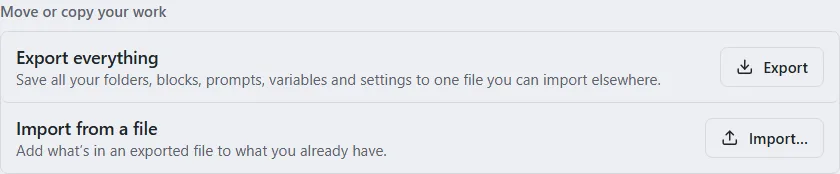
Export everything
-
Click Settings in the sidebar, then Backup & data.
-
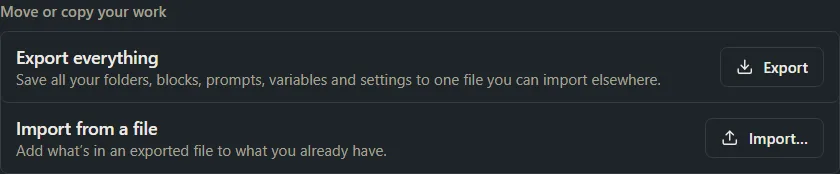
Under Export everything, click Export.
-
Windows asks where to save the file. It’s named like promptmason-bundle-2026-10-12.json, with the date. Pick a folder and click Save.
Export works on every plan, even while your library is paused.
If a line under Import… says “Export failed:” and a reason, click Export again. If it keeps failing, close and reopen PromptMason, then try again.
Import from a file
Import adds a file’s items to your personal library. Nothing already there is changed or removed.
-
Click Settings in the sidebar, then Backup & data.
-
Under Import from a file, click Import….
-
Choose the exported file (a .json file) and click Open.
-
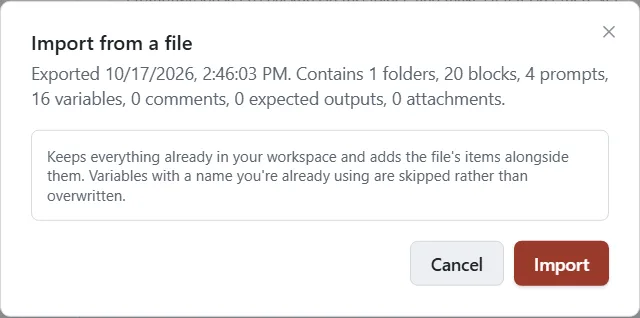
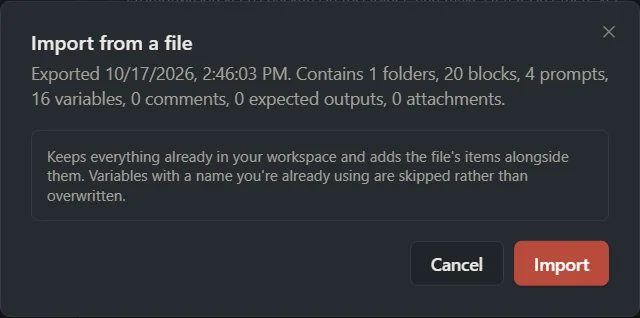
The Import from a file window shows when the file was exported and what it contains. Variables with a name you already use are skipped, not overwritten.
-
Click Import.
When it worked, a line under the button says what was imported, for example “Imported 3 folders, 20 blocks, 12 prompts, …”. It may also say:
- “Skipped n variable(s) — a variable of that name already exists.” Your own variable of that name was kept.
- “n attachment(s) were referenced by the file but their bytes weren’t included.” Some attached files weren’t in the exported file. The rest of the import is complete.
Importing doesn’t change your settings or your block and prompt types.
Replace everything from a file
This wipes your personal library and loads the file in its place. It can’t be undone. Export first if you might want to come back to what you have now.
-
Click Settings in the sidebar, then Backup & data.
-
Click Advanced at the bottom of the pane.
-
Under Replace everything from a file, click Replace everything….


-
Choose the exported file and click Open.
-
The Replace everything from a file window shows when the file was exported and what it contains. Click Replace everything.
-
Windows asks “REPLACE ALL WORKSPACE DATA?” Click OK to go ahead, or Cancel to stop.
When it worked, a line starts with “Restored” and says what was loaded. It shows under Import…, in the Move or copy your work card near the top of the pane, not under the Replace button.
What Replace changes:
- Your folders, blocks, prompts, variables, comments, expected output and attachments are replaced by the file’s.
- Your settings and your block and prompt types are replaced by the file’s, except App Lock: this PC keeps App Lock on or off as it was, and keeps its password. If App Lock is on, the Auto-lock after time comes from the file, so check it afterwards.
- This PC’s chats and browsing history are removed.
- Your license key and AI provider keys stay as they are.
Free plan limits
On the Free plan, an import must leave you within 25 blocks and 15 prompts, counted across every library on this PC. PromptMason checks this before it changes anything. If the file doesn’t fit, the Free plan limit window opens and nothing is imported or wiped. It says how many blocks and prompts the file has. To import it, buy Pro (Upgrade), or delete items to make room and try again. See Plans and limits.
While your library is paused, importing isn’t possible; the Your library is paused window opens instead. See When your library is paused.
If a file won’t import
| Message | What to do |
|---|---|
| “That file is not valid JSON.” | The file is damaged or isn’t an export. Export it again from the PC it came from. |
| “Bundle is missing exportedAt.” | The file is incomplete or was changed after export. Export it again. |
| “That file is not a PromptMason workspace export or bundle.” | Choose a file made with Export. If it’s a block pack, add it under Block packs with Add a pack from a file… instead (Add a block pack). |
| “This file is from an older version of PromptMason and can’t be imported. Export a new bundle from the app you made it in.” | Open PromptMason on the PC the file came from, and export again. |
| “Import failed — check the file and try again.” | Check you chose the right file, then try again. |
| “That file isn’t a PromptMason bundle.” (importing into a team library) | Choose a file made with Export. |
| “Import failed:” and a reason, then “Your current data is unchanged.” | Nothing was imported. Try again. If it keeps failing, write to support@promptmason.ai. |
Move to a new PC
- On the old PC, export everything (see Export everything).
- Copy the file to the new PC, for example on a USB drive or through your own cloud storage.
- Install PromptMason on the new PC (see Install, update and remove) and activate your license key there if you have one (see Your trial and license key).
- On the new PC, import the file (see Import from a file). If you also want your settings and your block and prompt types, use Replace everything from a file instead; it wipes anything already in the new PC’s personal library first.
- Delete the copy of the file you used to move it, if you don’t need it any more.
Copying PromptMason’s data folder to the new PC doesn’t work: the data is locked to the Windows account it was made on (why). Team libraries come to a new PC by joining them from it; see Use your library on a second PC.
Export or import a team library
Only an owner of a team library can export it or import into it.
- Click Settings in the sidebar, then Libraries & sharing.
- Under Libraries, click Manage next to the team library.
- Under Import and export:
- To export, click Export followed by the library’s name. Windows asks where to save the file. Like any export, the file isn’t encrypted.
- To import, click Import a bundle into followed by the library’s name, and choose the file. Then click Add to what’s there to add the file’s items, or Replace everything to replace the library’s contents with the file’s (Windows asks you to confirm), or Cancel.
Everyone in the library gets what you import. Replace everything replaces the library for every member and can’t be undone, so export the library first. A file holds blocks and prompts, never members or keys. On the Free plan, the same limits apply as for your personal library.
Want a hand?
Copy this prompt into Claude, ChatGPT or another AI assistant, and it walks you through it step by step.
I want to move my PromptMason library to a new PC using Export and Import. Walk me through it, and tell me what the file includes and where I should keep it.
Copy adds a short note about PromptMason and this guide's steps, so the assistant has what it needs.
I want to move my PromptMason library to a new PC using Export and Import. Walk me through it, and tell me what the file includes and where I should keep it. About PromptMason: a Windows desktop app for building AI prompts from reusable blocks. A person writes blocks (reusable pieces of prompt text), builds prompts from them on the Build screen (or keeps a Markdown document, such as a Skill), and copies a prompt into an AI tool, runs it in PromptMason’s own Chat, or lets a connected AI agent use it through PromptMason’s built-in MCP server (the Chrome extension copies prompts on any website). AI assist, Evaluate and Chat use a local model that runs on the person’s PC, or their own AI provider. The guides are also on PromptMason’s Help screen, and Chat can answer “how do I” questions from them. Libraries hold the blocks and prompts; a person can sync their personal library to their other PCs and share team libraries, both through a folder in cloud storage they already have (OneDrive, Google Drive or Dropbox). Everything synced is encrypted and every edit is signed and checked. A recovery kit (a file plus a code) is the spare copy of the person’s keys, for when every PC is lost. The official guide for this is "Export and import": https://promptmason.ai/docs/export-import Its full text follows, between the lines. Use it as the source of truth, and if anything I see differs from it, tell me rather than guessing. --- Export saves your personal library to one file. Import adds what's in a file to your personal library. Use them to move your work to a new PC, to keep a copy you control, or to bring back an earlier copy. **An exported file is not encrypted**: anyone who opens it can read it. See [Keep the file somewhere safe](#keep-the-file-somewhere-safe). Everything here is in **Settings**, under **Backup & data**, in the **Move or copy your work** card. **Replace everything from a file** is below it, under **Advanced**. For copies that PromptMason makes for you on a schedule, see [Backups](https://promptmason.ai/docs/backups). To keep the same library on two PCs, see [Use your library on a second PC](https://promptmason.ai/docs/second-pc). ## What the file holds An exported file holds your **personal library**: - folders - blocks and prompts, including Markdown documents, each with its version history - variables - comments - expected output, with attached files - your settings and your block and prompt types - the record of when you used AI assist (not what was sent) It doesn't hold: - **Team libraries.** Each member's PC holds a full copy of a team library, and an owner's backups include it. An owner can also export a team library on its own; see [Export or import a team library](#export-or-import-a-team-library). - Your AI provider keys, your license key or your App Lock password. - Your chats and web tabs' browsing history. - Items in **Recently deleted**. ## Keep the file somewhere safe The exported file is **not encrypted**. Anyone who opens it can read every block, prompt, variable value and comment in it, in plain text. Inside PromptMason your library is protected ([How your data is protected on this PC](https://promptmason.ai/docs/data-on-this-pc)); once you export it, the file's safety is up to you. [Privacy in PromptMason](https://promptmason.ai/docs/privacy-overview#where-promptmasons-protection-ends) explains where PromptMason's protection ends. - Keep it somewhere only you can open, such as a folder on your own PC or a private folder in your cloud storage. - Don't email it or put it in a shared folder unless you mean everyone with access to read it. - Delete copies you no longer need. [Backups](https://promptmason.ai/docs/backups) are different: each backup is locked so only you can open it. ## Export everything 1. Click **Settings** in the sidebar, then **Backup & data**. 2. Under **Export everything**, click **Export**. 3. Windows asks where to save the file. It's named like **promptmason-bundle-2026-10-12.json**, with the date. Pick a folder and click **Save**. Export works on every plan, even while your library is paused. If a line under **Import…** says "Export failed:" and a reason, click **Export** again. If it keeps failing, close and reopen PromptMason, then try again. ## Import from a file Import adds a file's items to your personal library. Nothing already there is changed or removed. 1. Click **Settings** in the sidebar, then **Backup & data**. 2. Under **Import from a file**, click **Import…**. 3. Choose the exported file (a **.json** file) and click **Open**. 4. The **Import from a file** window shows when the file was exported and what it contains. Variables with a name you already use are skipped, not overwritten. 5. Click **Import**. When it worked, a line under the button says what was imported, for example "Imported 3 folders, 20 blocks, 12 prompts, …". It may also say: - "Skipped *n* variable(s) — a variable of that name already exists." Your own variable of that name was kept. - "*n* attachment(s) were referenced by the file but their bytes weren't included." Some attached files weren't in the exported file. The rest of the import is complete. Importing doesn't change your settings or your block and prompt types. ## Replace everything from a file This wipes your personal library and loads the file in its place. **It can't be undone.** Export first if you might want to come back to what you have now. 1. Click **Settings** in the sidebar, then **Backup & data**. 2. Click **Advanced** at the bottom of the pane. 3. Under **Replace everything from a file**, click **Replace everything…**. 4. Choose the exported file and click **Open**. 5. The **Replace everything from a file** window shows when the file was exported and what it contains. Click **Replace everything**. 6. Windows asks "REPLACE ALL WORKSPACE DATA?" Click **OK** to go ahead, or **Cancel** to stop. When it worked, a line starts with "Restored" and says what was loaded. It shows under **Import…**, in the **Move or copy your work** card near the top of the pane, not under the Replace button. What Replace changes: - Your folders, blocks, prompts, variables, comments, expected output and attachments are replaced by the file's. - Your settings and your block and prompt types are replaced by the file's, except App Lock: this PC keeps App Lock on or off as it was, and keeps its password. If App Lock is on, the **Auto-lock after** time comes from the file, so check it afterwards. - This PC's chats and browsing history are removed. - Your license key and AI provider keys stay as they are. ## Free plan limits On the Free plan, an import must leave you within 25 blocks and 15 prompts, counted across every library on this PC. PromptMason checks this before it changes anything. If the file doesn't fit, the **Free plan limit** window opens and nothing is imported or wiped. It says how many blocks and prompts the file has. To import it, buy Pro (**Upgrade**), or delete items to make room and try again. See [Plans and limits](https://promptmason.ai/docs/plans). While your library is paused, importing isn't possible; the **Your library is paused** window opens instead. See [When your library is paused](https://promptmason.ai/docs/paused-library). ## If a file won't import | Message | What to do | |---|---| | "That file is not valid JSON." | The file is damaged or isn't an export. Export it again from the PC it came from. | | "Bundle is missing exportedAt." | The file is incomplete or was changed after export. Export it again. | | "That file is not a PromptMason workspace export or bundle." | Choose a file made with **Export**. If it's a block pack, add it under **Block packs** with **Add a pack from a file…** instead ([Add a block pack](https://promptmason.ai/docs/block-packs)). | | "This file is from an older version of PromptMason and can't be imported. Export a new bundle from the app you made it in." | Open PromptMason on the PC the file came from, and export again. | | "Import failed — check the file and try again." | Check you chose the right file, then try again. | | "That file isn’t a PromptMason bundle." (importing into a team library) | Choose a file made with **Export**. | | "Import failed:" and a reason, then "Your current data is unchanged." | Nothing was imported. Try again. If it keeps failing, write to [support@promptmason.ai](mailto:support@promptmason.ai). | ## Move to a new PC 1. On the old PC, export everything (see [Export everything](#export-everything)). 2. Copy the file to the new PC, for example on a USB drive or through your own cloud storage. 3. Install PromptMason on the new PC (see [Install, update and remove](https://promptmason.ai/docs/installation)) and activate your license key there if you have one (see [Your trial and license key](https://promptmason.ai/docs/license)). 4. On the new PC, import the file (see [Import from a file](#import-from-a-file)). If you also want your settings and your block and prompt types, use [Replace everything from a file](#replace-everything-from-a-file) instead; it wipes anything already in the new PC's personal library first. 5. Delete the copy of the file you used to move it, if you don't need it any more. Copying PromptMason's data folder to the new PC doesn't work: the data is locked to the Windows account it was made on ([why](https://promptmason.ai/docs/data-on-this-pc#copying-the-data-folder-doesnt-work)). Team libraries come to a new PC by joining them from it; see [Use your library on a second PC](https://promptmason.ai/docs/second-pc#a-team-library). ## Export or import a team library Only an owner of a team library can export it or import into it. 1. Click **Settings** in the sidebar, then **Libraries & sharing**. 2. Under **Libraries**, click **Manage** next to the team library. 3. Under **Import and export**: - To export, click **Export** followed by the library's name. Windows asks where to save the file. Like any export, the file isn't encrypted. - To import, click **Import a bundle into** followed by the library's name, and choose the file. Then click **Add to what’s there** to add the file's items, or **Replace everything** to replace the library's contents with the file's (Windows asks you to confirm), or **Cancel**. Everyone in the library gets what you import. **Replace everything** replaces the library for every member and can't be undone, so export the library first. A file holds blocks and prompts, never members or keys. On the Free plan, the same limits apply as for your personal library. --- How to help me: - Go one step at a time. After each step, ask what I see on screen before giving the next one. - Use the exact words on PromptMason’s buttons and screens, as the guide does. - Never ask me for my recovery code, my recovery kit file, a password or my invite line, and never ask me to paste them here. - Start by asking which step I’m on, or what I see now.