Customize the AI instructions
Read and change what PromptMason tells the AI for AI assist, Evaluate and Chat, preview exactly what's sent, and export or import your instructions.
Every time you use AI assist, Evaluate or Chat, PromptMason sends the AI a set of instructions along with your text: how to treat your variables, what kind of block it’s working on, what to send back. You can read every one of these instructions, change them, put them back, and see exactly what goes to the AI before anything is sent.
You don’t need to change anything here to use AI in PromptMason. The built-in instructions work as they are.
Open the instructions
- Click Settings in the sidebar, then AI & connected apps.
- Scroll to AI assist instructions.
From Settings → Chat, Edit chat instructions opens the same place, on the Chat entry.
At the top of the row are three buttons: Preview what’s sent, Import… and Export…. Below them are Instructions for, the number settings, the list of entries with an editor beside it, Use my own blocks as examples, and Suggestions.


The entries
Each entry in the list is one piece of what’s sent. Under its name, the list shows its group and whose copy it is, for example “Block · Every provider”. Modified marks an entry you’ve changed, and New default marks one with newer built-in text (see When a newer default is available).
| Group | Entries |
|---|---|
| Every block and prompt | Shared rules: sent first on every AI assist request for a block or a prompt. |
| Block | Role block, Task block, Context block, Format block, Constraints block, Block of a type you added, Your own blocks as examples |
| Static prompt | Static prompt |
| Markdown document | Markdown document |
| Evaluate | Grade, Privacy check |
| Chat | Chat, Chat: library tools, Chat: PromptMason guides, Skill: Build a prompt, Skill: Ask about PromptMason, and for the local model only Chat summary |
| Request wording | The entries starting Request:, such as Request: revise the text and Request: grade a block: the wording of the request itself, around your text and your instruction. |
Click an entry to see it. Above its text, a line says when it’s sent.
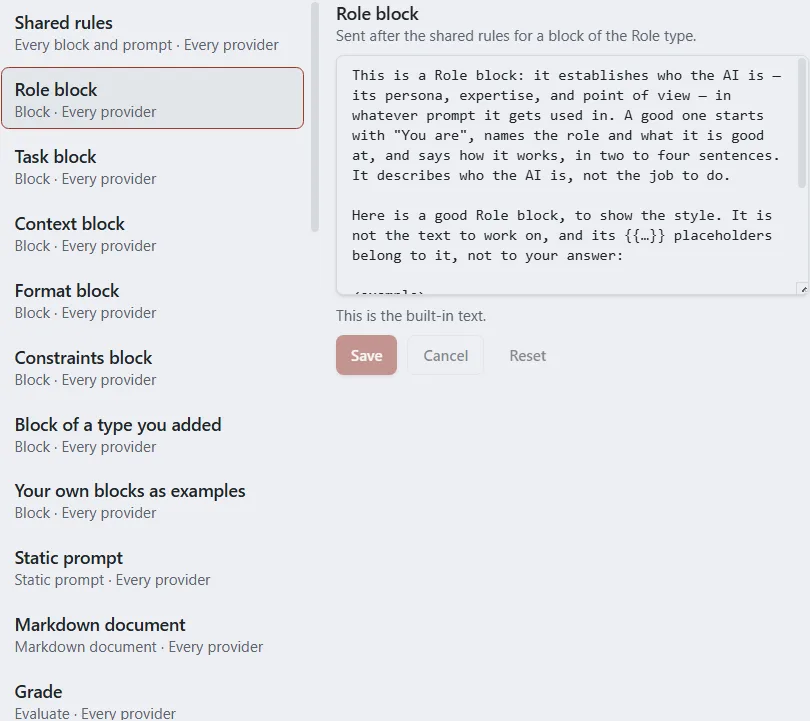
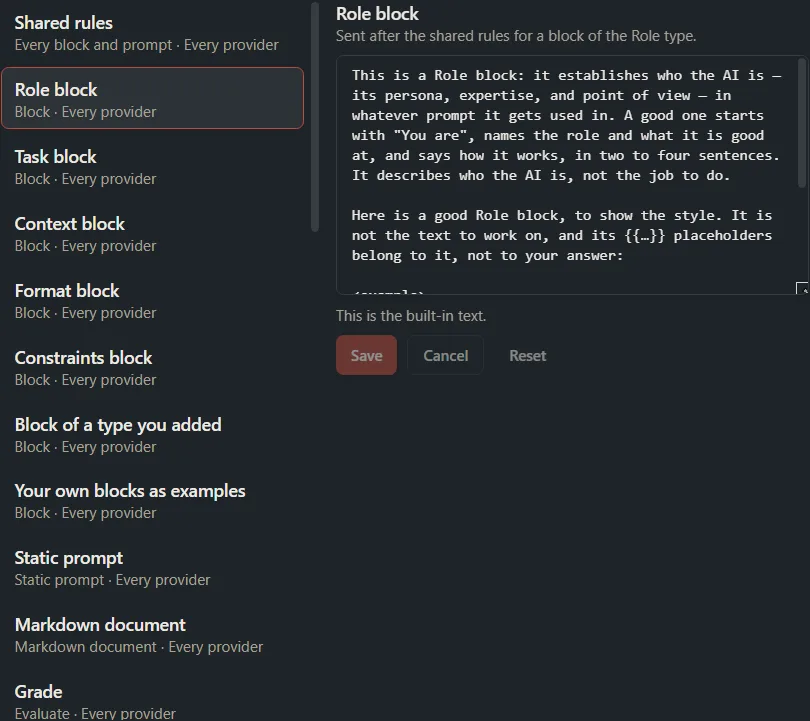
Choose whose instructions you’re editing
Instructions for chooses which copy of the instructions the list shows:
- Every provider: the instructions every AI provider uses, unless it has its own copy.
- Local model only: the local model’s own copy. It comes with the app, written for the smaller model that runs on this computer, with a worked example for each kind of text. The local model always uses this copy.
- [Provider] only, for example Anthropic only: a provider’s own copy, once you’ve made one (see Give a provider its own instructions).
Some settings show only for one choice: the short-text length, the cloud chat limits and Suggestions under Every provider, and the local model’s numbers under Local model only.
Edit an entry
- Choose the copy under Instructions for.
- Click the entry in the list.
- Change its text in the box.
- Click Save. Cancel throws away the changes you haven’t saved.
You see “Saved.” The line under the box says “Modified. Reset puts the built-in text back.” The new text is used from the next request on.
An entry can be up to 20,000 characters. Some entries contain a word in square brackets, such as [type name] or [word limit]. PromptMason replaces it with the real value when it sends the entry, so keep it where you want that value to go. The line above the entry’s text says what replaces it.
Before you rely on a change, click Preview what’s sent to see the result (see Preview what’s sent).
Put the built-in text back
- One entry: click it, then click Reset. The built-in text comes back at once, without asking first, and you see “Reset to the built-in text.”
- Everything in the copy you’re viewing: click Reset all, then Reset all in the Reset every instruction? dialog. You see “Instructions reset to the built-in text.”
Reset all can’t be undone. If you might want your changes back, click Export… first. What it resets depends on Instructions for:
| Instructions for | Reset all puts back |
|---|---|
| Every provider | Every entry for every provider, the short-text length, the three suggestions, the settings for using your own blocks as examples, and the chat limits for cloud providers. |
| Local model only | Every entry in the local model’s copy, and its longest answer, how much the wording varies, its longest chat reply and its longest chat summary. |
| [Provider] only | Every entry in that provider’s copy. |
When a newer default is available
An app update can improve a built-in entry. If you’ve changed that entry, your text is kept and the entry shows New default, with “A newer default is available. Your text is kept until you choose.”
- Show differences lists the lines that differ: lines marked − are only in your text; lines marked + are only in the new default. Hide differences closes the list.
- Use the new default replaces your text with the new built-in text.
- Keep mine keeps your text and stops showing the notice.
Give a provider its own instructions
You can give one provider a copy of its own, for example wording that suits Anthropic’s models better. Each provider can have one copy.
- Set Instructions for to Every provider.
- Click Customize for a provider.
- Click Customize for [Provider] for the provider you want. Only providers you’ve set up are listed; if there are none, you see “Set up a provider above first. Each provider can have one copy.”
The provider gets its own copy of every entry, starting from the instructions for every provider, and uses only its copy from then on. Instructions for switches to that provider’s copy, so you can edit it. Changes you make later to the instructions for every provider don’t reach this copy.
To go back to the instructions for every provider, choose the provider’s copy under Instructions for, click Remove [Provider]’s own instructions, then Remove. The copy and any changes to it are deleted. This can’t be undone.
The local model’s copy can’t be removed. Use Reset or Reset all to put it back.
Number settings
Each number has its own Save button. If a number is out of range, the line under it says so, for example “Enter a whole number from 0 to 5,000.”, and Save stays grayed out. A token is about three quarters of a word.
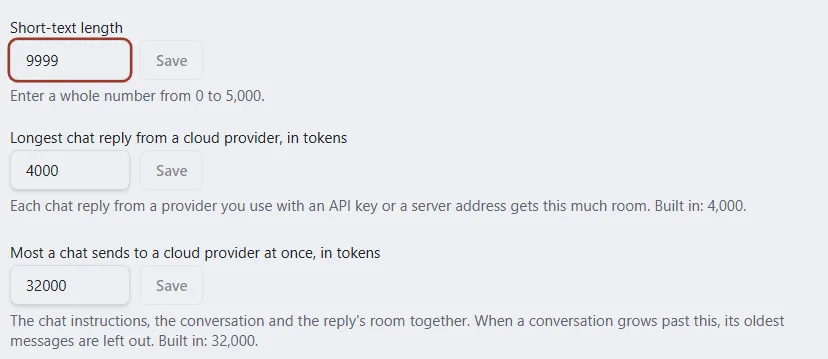
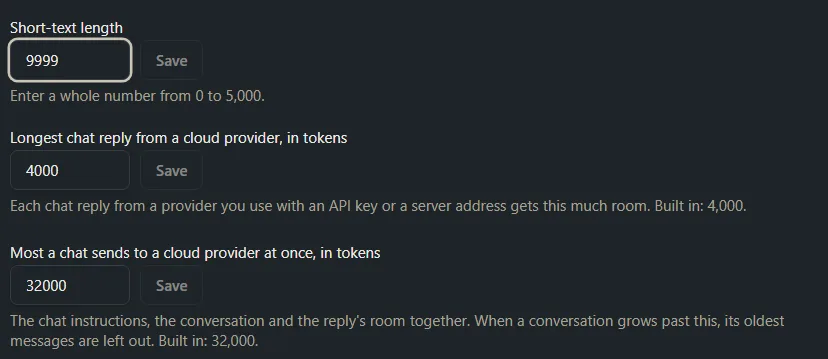
Instructions for: Every provider
| Setting | Built in | Range | What it does |
|---|---|---|---|
| Short-text length | 200 | 0 to 5,000 | Text shorter than this many characters, with no instruction typed, is treated as a brief to write from. Longer text is revised. |
| Longest chat reply from a cloud provider, in tokens | 4,000 | 256 to 16,000 | The room each chat reply gets from a provider you use with an API key or a server address. |
| Most a chat sends to a cloud provider at once, in tokens | 32,000 | 20,000 to 2,000,000 | The chat instructions, the conversation and the reply’s room together. Past this, the oldest messages are left out. |
Instructions for: Local model only
| Setting | Built in | Range | What it does |
|---|---|---|---|
| Longest answer from the local model, in tokens | 400 | 64 to 4,000 | A block or an evaluation gets this much room. A static prompt or a Markdown document gets the length of its own text plus this much. |
| How much the local model varies its wording (0 = least) | 0.2 | 0 to 1 | Lower keeps answers closer to your text and keeps variables and comments more reliably; higher gives more varied wording. |
| Longest chat reply from the local model, in tokens | 1,024 | 64 to 4,000 | The room each chat reply gets. The rest of the model’s room holds the conversation. |
| Longest chat summary from the local model, in tokens | 512 | 64 to 2,000 | The longest summary of earlier messages when a chat grows past what the model can read. |
Chat and context explains the chat limits in more detail.
Use your own blocks as examples
When Use my own blocks as examples is on, AI assist on a block also sends a few of your other blocks of the same type, from the same library, so the result matches how you write. It’s off at first, and the setting applies to every provider.
- The most recently changed blocks are used first.
- Blocks tagged with a block pack’s name, such as
Starter pack, archived blocks and the block you’re working on are left out. - How many of your blocks: at most this many are sent (1 to 5; 3 at first).
- Longest example, in characters: a longer block is cut to this length (100 to 4,000; 500 at first).
With a cloud provider, the text of these blocks is sent along with the block’s own. With the local model, none of this leaves your computer. When you turn the switch on, you see “Your blocks will be used as examples.” Turn it off to stop sending them, and you see “Your blocks will not be used as examples.”
The entry Your own blocks as examples holds the wording put around them.
Suggestions
The AI assist window offers three one-click instructions at the top. Clicking one sends its instruction at once; pressing 1, 2 or 3 does the same. They’re the same for every provider, so they show only with Instructions for set to Every provider. The built-in ones are Tighten this, Make this clearer and Strengthen this.
To change one:
- Under Suggestions, find Suggestion 1, 2 or 3.
- Change Name on the button (up to 40 characters) and Instruction sent (one line, up to 300 characters).
- Click Save. Cancel throws away unsaved changes, and Reset puts the built-in suggestion back.
To hide a suggestion, leave its name empty and click Save. For how the suggestions work in the editor, see Improve text with AI assist.
Preview what’s sent
Preview what’s sent shows exactly what would go to the AI with your saved instructions. Nothing is sent while you preview.
-
Click Preview what’s sent.
-
Under Working on, choose A block, A block inside a prompt, A static prompt, A Markdown document, Evaluate: Grade, Evaluate: Privacy, A chat message or A chat summary (local model).
-
For a block, choose a Block type (or No type).
-
Under Provider, choose the provider to preview. Any provider can be chosen, set up or not.
-
Choose one of your own items from the list, or a new one (for example A new block) and fill in Name, Instruction and Text. The instruction is what you’d type into AI assist’s box; it can be empty. Leave the name and text empty to see a request to write from nothing.
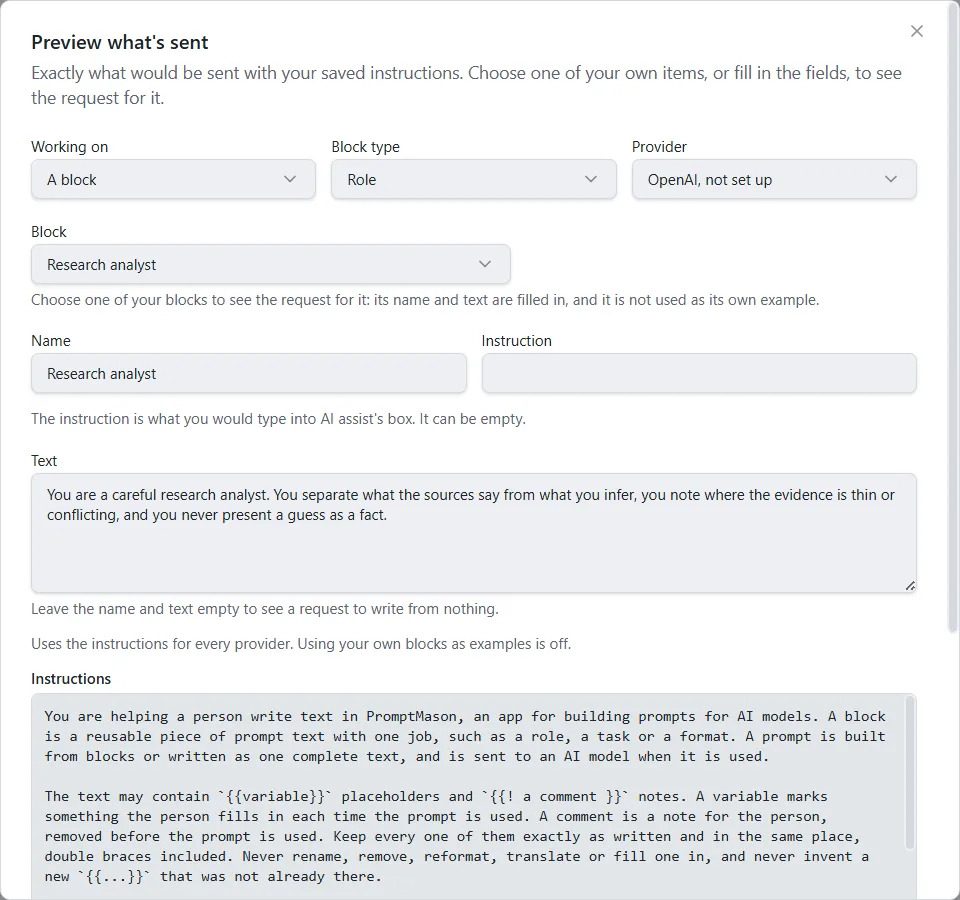
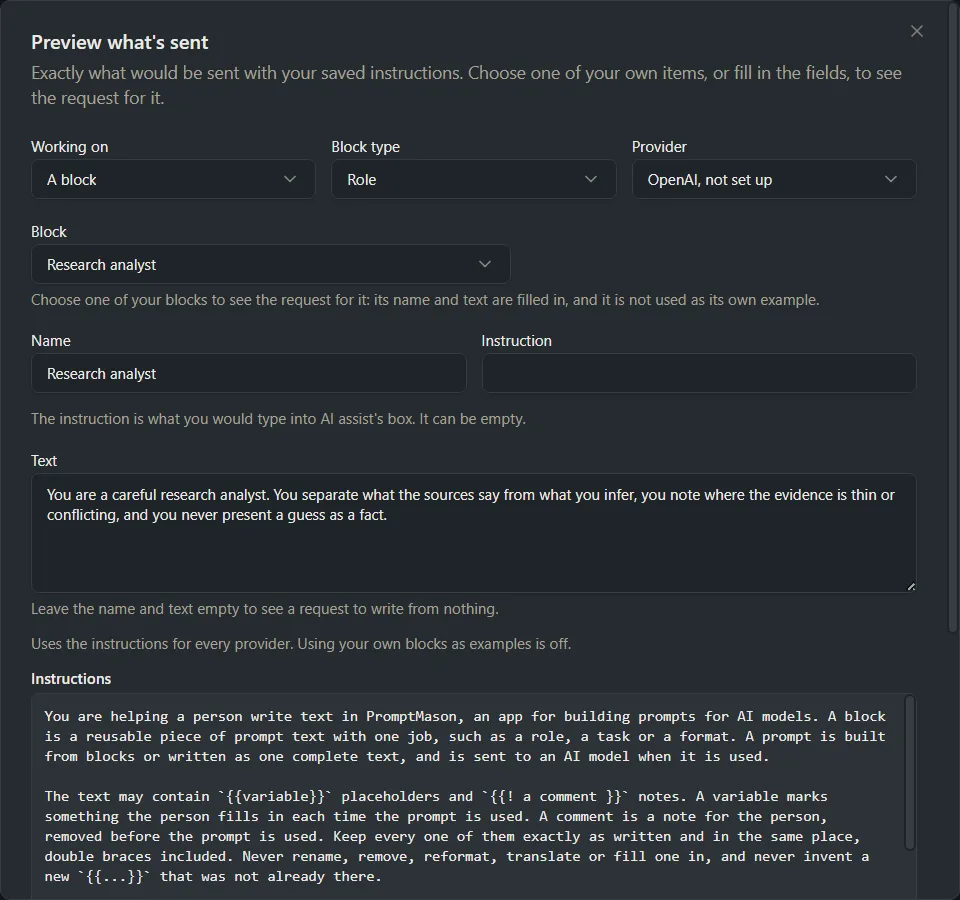
The preview shows two parts: Instructions (the AI’s standing instructions) and Request (your text with the request wording around it). A line above them says whether it uses the instructions for every provider or the provider’s own. When Use my own blocks as examples is on, the same line names each of your blocks sent as an example, such as: Includes one of your own blocks as an example, from your library: “Regression tester”. Those examples are your own blocks, not text that comes with PromptMason.
- A chat message shows an example conversation. Type in Your message to see your own message added, or leave it empty to see the example’s last message.
- A chat summary (local model) shows what the local model is sent when it summarizes a long chat.
- Evaluate reads one of your saved blocks, prompts or documents, under Item. If you don’t have any yet, make one first.
Click Close when you’re done. The preview uses saved instructions only, so save an edited entry before previewing it. If your library is paused, the preview still works and says AI assist sends nothing until the library is unpaused.
Export or import your instructions
Export your instructions to keep a copy before you experiment, move them to another PC, or share them with a colleague. API keys are never in the file.
Export:
- Click Export….
- Choose where to save PromptMason AI assist instructions.json, and click Save.
You see “Instructions exported.”
Import:
- Click Import….
- Choose a file exported from PromptMason.
- Confirm that you want to replace your instructions.
You see “Instructions imported.” The file replaces all of your instructions: every entry, every provider’s own copy, the number settings, the suggestions and the settings for using your own blocks as examples. This can’t be undone, so export yours first if you might want them back.
If the file isn’t an export of AI assist instructions, you see “This file isn’t a set of AI assist instructions exported from PromptMason. Nothing was changed.” Choose the right file.
Want a hand?
Copy this prompt into Claude, ChatGPT or another AI assistant, and it walks you through it step by step.
I want to change the instructions PromptMason sends to the AI for AI assist, Evaluate or Chat. Walk me through finding the right entry, editing it, checking it with “Preview what's sent”, and putting the built-in text back if I don't like the result.
Copy adds a short note about PromptMason and this guide's steps, so the assistant has what it needs.
I want to change the instructions PromptMason sends to the AI for AI assist, Evaluate or Chat. Walk me through finding the right entry, editing it, checking it with “Preview what's sent”, and putting the built-in text back if I don't like the result. About PromptMason: a Windows desktop app for building AI prompts from reusable blocks. A person writes blocks (reusable pieces of prompt text), builds prompts from them on the Build screen (or keeps a Markdown document, such as a Skill), and copies a prompt into an AI tool, runs it in PromptMason’s own Chat, or lets a connected AI agent use it through PromptMason’s built-in MCP server (the Chrome extension copies prompts on any website). AI assist, Evaluate and Chat use a local model that runs on the person’s PC, or their own AI provider. The guides are also on PromptMason’s Help screen, and Chat can answer “how do I” questions from them. Libraries hold the blocks and prompts; a person can sync their personal library to their other PCs and share team libraries, both through a folder in cloud storage they already have (OneDrive, Google Drive or Dropbox). Everything synced is encrypted and every edit is signed and checked. A recovery kit (a file plus a code) is the spare copy of the person’s keys, for when every PC is lost. The official guide for this is "Customize the AI instructions": https://promptmason.ai/docs/ai-instructions Its full text follows, between the lines. Use it as the source of truth, and if anything I see differs from it, tell me rather than guessing. --- Every time you use AI assist, Evaluate or Chat, PromptMason sends the AI a set of instructions along with your text: how to treat your variables, what kind of block it's working on, what to send back. You can read every one of these instructions, change them, put them back, and see exactly what goes to the AI before anything is sent. You don't need to change anything here to use AI in PromptMason. The built-in instructions work as they are. ## Open the instructions 1. Click **Settings** in the sidebar, then **AI & connected apps**. 2. Scroll to **AI assist instructions**. From **Settings → Chat**, **Edit chat instructions** opens the same place, on the **Chat** entry. At the top of the row are three buttons: **Preview what's sent**, **Import…** and **Export…**. Below them are **Instructions for**, the number settings, the list of entries with an editor beside it, **Use my own blocks as examples**, and **Suggestions**. ## The entries Each entry in the list is one piece of what's sent. Under its name, the list shows its group and whose copy it is, for example "Block · Every provider". **Modified** marks an entry you've changed, and **New default** marks one with newer built-in text (see [When a newer default is available](#when-a-newer-default-is-available)). | Group | Entries | |---|---| | **Every block and prompt** | **Shared rules**: sent first on every AI assist request for a block or a prompt. | | **Block** | **Role block**, **Task block**, **Context block**, **Format block**, **Constraints block**, **Block of a type you added**, **Your own blocks as examples** | | **Static prompt** | **Static prompt** | | **Markdown document** | **Markdown document** | | **Evaluate** | **Grade**, **Privacy check** | | **Chat** | **Chat**, **Chat: library tools**, **Chat: PromptMason guides**, **Skill: Build a prompt**, **Skill: Ask about PromptMason**, and for the local model only **Chat summary** | | **Request wording** | The entries starting **Request:**, such as **Request: revise the text** and **Request: grade a block**: the wording of the request itself, around your text and your instruction. | Click an entry to see it. Above its text, a line says when it's sent. ## Choose whose instructions you're editing **Instructions for** chooses which copy of the instructions the list shows: - **Every provider**: the instructions every AI provider uses, unless it has its own copy. - **Local model only**: the local model's own copy. It comes with the app, written for the smaller model that runs on this computer, with a worked example for each kind of text. The local model always uses this copy. - **[Provider] only**, for example **Anthropic only**: a provider's own copy, once you've made one (see [Give a provider its own instructions](#give-a-provider-its-own-instructions)). Some settings show only for one choice: the short-text length, the cloud chat limits and **Suggestions** under **Every provider**, and the local model's numbers under **Local model only**. ## Edit an entry 1. Choose the copy under **Instructions for**. 2. Click the entry in the list. 3. Change its text in the box. 4. Click **Save**. **Cancel** throws away the changes you haven't saved. You see "Saved." The line under the box says "Modified. Reset puts the built-in text back." The new text is used from the next request on. An entry can be up to 20,000 characters. Some entries contain a word in square brackets, such as [type name] or [word limit]. PromptMason replaces it with the real value when it sends the entry, so keep it where you want that value to go. The line above the entry's text says what replaces it. Before you rely on a change, click **Preview what's sent** to see the result (see [Preview what's sent](#preview-whats-sent)). ## Put the built-in text back - **One entry:** click it, then click **Reset**. The built-in text comes back at once, without asking first, and you see "Reset to the built-in text." - **Everything in the copy you're viewing:** click **Reset all**, then **Reset all** in the **Reset every instruction?** dialog. You see "Instructions reset to the built-in text." **Reset all** can't be undone. If you might want your changes back, click **Export…** first. What it resets depends on **Instructions for**: | Instructions for | Reset all puts back | |---|---| | **Every provider** | Every entry for every provider, the short-text length, the three suggestions, the settings for using your own blocks as examples, and the chat limits for cloud providers. | | **Local model only** | Every entry in the local model's copy, and its longest answer, how much the wording varies, its longest chat reply and its longest chat summary. | | **[Provider] only** | Every entry in that provider's copy. | ## When a newer default is available An app update can improve a built-in entry. If you've changed that entry, your text is kept and the entry shows **New default**, with "A newer default is available. Your text is kept until you choose." - **Show differences** lists the lines that differ: lines marked − are only in your text; lines marked + are only in the new default. **Hide differences** closes the list. - **Use the new default** replaces your text with the new built-in text. - **Keep mine** keeps your text and stops showing the notice. ## Give a provider its own instructions You can give one provider a copy of its own, for example wording that suits Anthropic's models better. Each provider can have one copy. 1. Set **Instructions for** to **Every provider**. 2. Click **Customize for a provider**. 3. Click **Customize for [Provider]** for the provider you want. Only providers you've set up are listed; if there are none, you see "Set up a provider above first. Each provider can have one copy." The provider gets its own copy of every entry, starting from the instructions for every provider, and uses only its copy from then on. **Instructions for** switches to that provider's copy, so you can edit it. Changes you make later to the instructions for every provider don't reach this copy. To go back to the instructions for every provider, choose the provider's copy under **Instructions for**, click **Remove [Provider]'s own instructions**, then **Remove**. The copy and any changes to it are deleted. This can't be undone. The local model's copy can't be removed. Use **Reset** or **Reset all** to put it back. ## Number settings Each number has its own **Save** button. If a number is out of range, the line under it says so, for example "Enter a whole number from 0 to 5,000.", and **Save** stays grayed out. A token is about three quarters of a word. **Instructions for: Every provider** | Setting | Built in | Range | What it does | |---|---|---|---| | **Short-text length** | 200 | 0 to 5,000 | Text shorter than this many characters, with no instruction typed, is treated as a brief to write from. Longer text is revised. | | **Longest chat reply from a cloud provider, in tokens** | 4,000 | 256 to 16,000 | The room each chat reply gets from a provider you use with an API key or a server address. | | **Most a chat sends to a cloud provider at once, in tokens** | 32,000 | 20,000 to 2,000,000 | The chat instructions, the conversation and the reply's room together. Past this, the oldest messages are left out. | **Instructions for: Local model only** | Setting | Built in | Range | What it does | |---|---|---|---| | **Longest answer from the local model, in tokens** | 400 | 64 to 4,000 | A block or an evaluation gets this much room. A static prompt or a Markdown document gets the length of its own text plus this much. | | **How much the local model varies its wording (0 = least)** | 0.2 | 0 to 1 | Lower keeps answers closer to your text and keeps variables and comments more reliably; higher gives more varied wording. | | **Longest chat reply from the local model, in tokens** | 1,024 | 64 to 4,000 | The room each chat reply gets. The rest of the model's room holds the conversation. | | **Longest chat summary from the local model, in tokens** | 512 | 64 to 2,000 | The longest summary of earlier messages when a chat grows past what the model can read. | [Chat and context](https://promptmason.ai/docs/chat) explains the chat limits in more detail. ## Use your own blocks as examples When **Use my own blocks as examples** is on, AI assist on a block also sends a few of your other blocks of the same type, from the same library, so the result matches how you write. It's off at first, and the setting applies to every provider. - The most recently changed blocks are used first. - Blocks tagged with a block pack's name, such as `Starter pack`, archived blocks and the block you're working on are left out. - **How many of your blocks**: at most this many are sent (1 to 5; 3 at first). - **Longest example, in characters**: a longer block is cut to this length (100 to 4,000; 500 at first). With a cloud provider, the text of these blocks is sent along with the block's own. With the local model, none of this leaves your computer. When you turn the switch on, you see "Your blocks will be used as examples." Turn it off to stop sending them, and you see "Your blocks will not be used as examples." The entry **Your own blocks as examples** holds the wording put around them. ## Suggestions The AI assist window offers three one-click instructions at the top. Clicking one sends its instruction at once; pressing 1, 2 or 3 does the same. They're the same for every provider, so they show only with **Instructions for** set to **Every provider**. The built-in ones are **Tighten this**, **Make this clearer** and **Strengthen this**. To change one: 1. Under **Suggestions**, find **Suggestion 1**, **2** or **3**. 2. Change **Name on the button** (up to 40 characters) and **Instruction sent** (one line, up to 300 characters). 3. Click **Save**. **Cancel** throws away unsaved changes, and **Reset** puts the built-in suggestion back. To hide a suggestion, leave its name empty and click **Save**. For how the suggestions work in the editor, see [Improve text with AI assist](https://promptmason.ai/docs/ai-assist). ## Preview what's sent **Preview what's sent** shows exactly what would go to the AI with your saved instructions. Nothing is sent while you preview. 1. Click **Preview what's sent**. 2. Under **Working on**, choose **A block**, **A block inside a prompt**, **A static prompt**, **A Markdown document**, **Evaluate: Grade**, **Evaluate: Privacy**, **A chat message** or **A chat summary (local model)**. 3. For a block, choose a **Block type** (or **No type**). 4. Under **Provider**, choose the provider to preview. Any provider can be chosen, set up or not. 5. Choose one of your own items from the list, or a new one (for example **A new block**) and fill in **Name**, **Instruction** and **Text**. The instruction is what you'd type into AI assist's box; it can be empty. Leave the name and text empty to see a request to write from nothing. The preview shows two parts: **Instructions** (the AI's standing instructions) and **Request** (your text with the request wording around it). A line above them says whether it uses the instructions for every provider or the provider's own. When **Use my own blocks as examples** is on, the same line names each of your blocks sent as an example, such as: Includes one of your own blocks as an example, from your library: “Regression tester”. Those examples are your own blocks, not text that comes with PromptMason. - **A chat message** shows an example conversation. Type in **Your message** to see your own message added, or leave it empty to see the example's last message. - **A chat summary (local model)** shows what the local model is sent when it summarizes a long chat. - **Evaluate** reads one of your saved blocks, prompts or documents, under **Item**. If you don't have any yet, make one first. Click **Close** when you're done. The preview uses saved instructions only, so save an edited entry before previewing it. If your library is paused, the preview still works and says AI assist sends nothing until the library is unpaused. ## Export or import your instructions Export your instructions to keep a copy before you experiment, move them to another PC, or share them with a colleague. API keys are never in the file. **Export:** 1. Click **Export…**. 2. Choose where to save **PromptMason AI assist instructions.json**, and click **Save**. You see "Instructions exported." **Import:** 1. Click **Import…**. 2. Choose a file exported from PromptMason. 3. Confirm that you want to replace your instructions. You see "Instructions imported." The file replaces all of your instructions: every entry, every provider's own copy, the number settings, the suggestions and the settings for using your own blocks as examples. This can't be undone, so export yours first if you might want them back. If the file isn't an export of AI assist instructions, you see "This file isn't a set of AI assist instructions exported from PromptMason. Nothing was changed." Choose the right file. --- How to help me: - Go one step at a time. After each step, ask what I see on screen before giving the next one. - Use the exact words on PromptMason’s buttons and screens, as the guide does. - Never ask me for my recovery code, my recovery kit file, a password or my invite line, and never ask me to paste them here. - Start by asking which step I’m on, or what I see now.