Edit a prompt as code
See a dynamic prompt's blocks written out as text, copy them, and edit them directly in the Code view.
The Code view shows a dynamic prompt’s blocks written out as text instead of as cards. You can read it, copy it, or edit it to change the prompt. This is an advanced feature: most people never need it, and the Visual view does the same things with drag and drop.
The Code view is useful when you want to:
- Copy a whole prompt as text, to keep it or give it to an AI assistant to work on.
- Make many changes at once, such as several new blocks.
- Turn one of a prompt’s embedded blocks into a library block.
When you save a reply from Chat as a prompt, Build opens in the Code view with the reply’s blocks ready to check and save (Run prompts in Chat).
Open the Code view
- Open the prompt on the Build screen (Build a prompt).
- Above the canvas, click Code (next to Visual).
The Code view shows the prompt’s blocks, including any embedded blocks you haven’t saved yet. It’s read-only until you click Edit. Click Copy to put all of it on the clipboard.
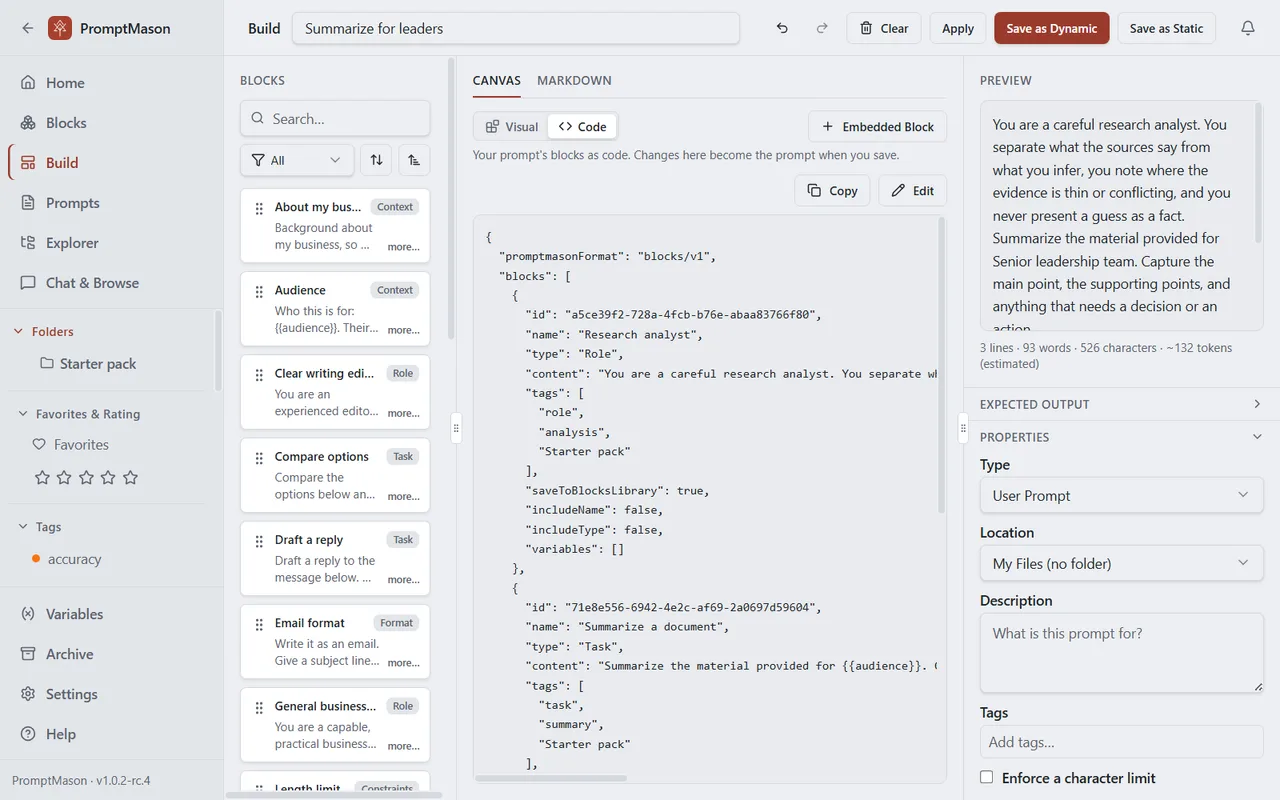
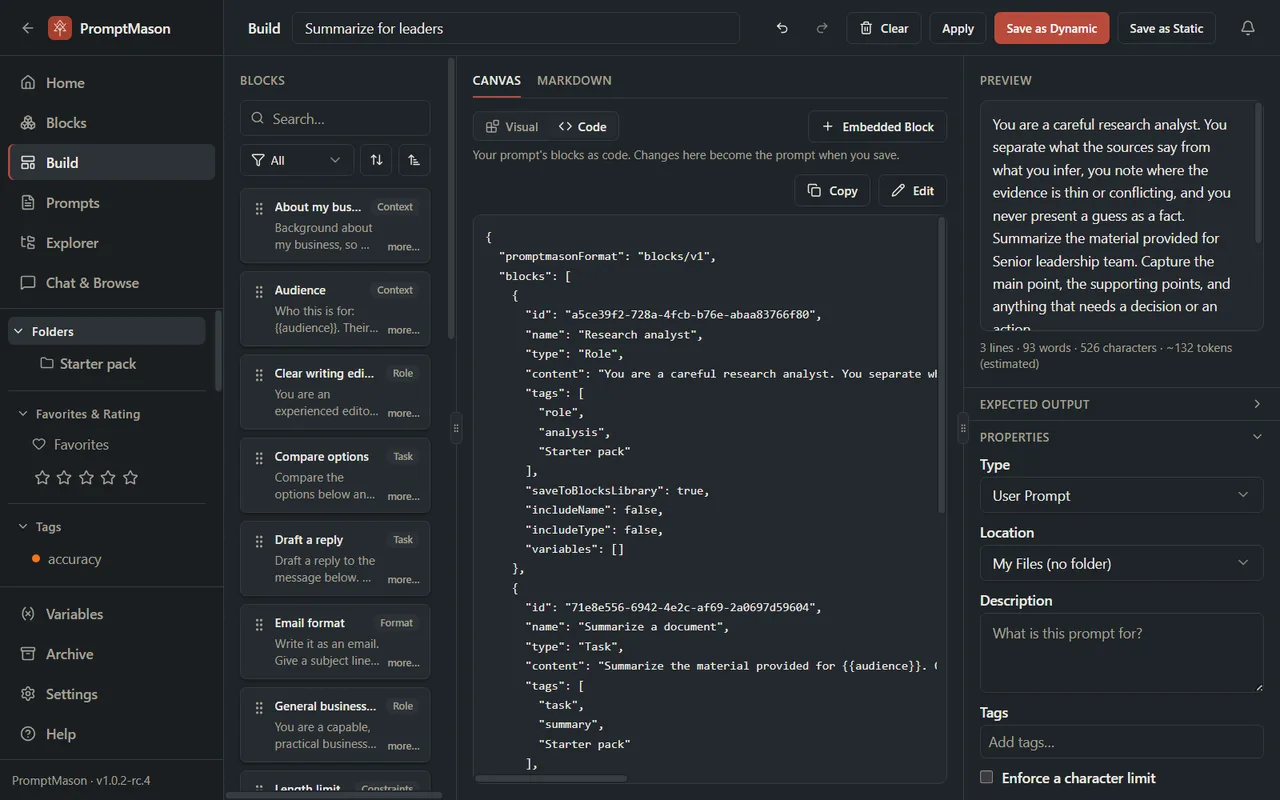
Visual and Code are two views of the same prompt. Switching between them keeps your blocks.
Edit the code
- In the Code view, click Edit.
- Change the text in the box.
- Click Format to tidy the layout and check the code. If something is wrong, a red message appears under Format (Error messages).
- Save the prompt with Save as Dynamic, Update Prompt or Apply (or Ctrl+S). For a new prompt, Save as Static also works: it saves the blocks as fixed text.
While you’re editing, the code is what gets saved, not the cards. The cards don’t follow your code changes until you save.
If you’ve changed the code and click Visual before saving, PromptMason asks Discard your changes? Click Keep Editing to go back, or Discard Changes to drop the code changes.
The bar that says Warning: this is an advanced feature. Click to learn more. opens a short explanation. Click Got it to close it.
The format
The code is in a format called blocks/v1. It’s written in JSON, a common way to write data as text: names and values in double quotes, lists in square brackets [ ], and each item in curly brackets { }, with commas between items.
The whole thing has two parts:
"promptmasonFormat": "blocks/v1", which must be there exactly as shown."blocks", the list of blocks in the prompt, in order.
Each block can have these fields:
| Field | What it is |
|---|---|
id |
The block’s ID, a long code that points to a block you already have. Leave it out for a new block. |
name |
The block’s name. |
type |
The block’s type, such as "Role". |
content |
The block’s text. Formatting shows as Markdown marks, for example **word** for bold. |
tags |
The block’s tags, as a list: ["sales", "email"]. |
saveToBlocksLibrary |
true for a library block, false for an embedded block. |
includeName |
true to put the block’s name in its header. Off if left out. |
includeType |
true to put the block’s type in its header. Off if left out. |
variables |
The variables the text uses. Shown for your information; it’s ignored when you save. |
true and false are written without quotes.
Three kinds of block entry
A block you already have has an id. Only includeName and includeType change anything; you can write it as short as { "id": "…", "includeType": true }. Changing its name, type, text or tags here does nothing for a library block: edit it on the Blocks screen instead (Create and edit blocks). For one of this prompt’s own embedded blocks, your changes to those fields are saved.
A new embedded block has no id, and needs a name, a type and content. It belongs to this prompt only.
A new library block is the same, plus "saveToBlocksLibrary": true. When you save, it’s added to the Blocks screen, and on the Free plan it counts toward your 25 blocks.
You can change an embedded block’s saveToBlocksLibrary from false to true to make it a library block. You can’t change a library block’s to false: that shows an error, because other prompts may use it. To get an embedded copy of a library block, use Convert to embedded block.
An example
This prompt uses one block you already have, with its type as a header, and adds one new embedded block:
{
  "promptmasonFormat": "blocks/v1",
  "blocks": [
    {
      "id": "6c1e9a52-0b7d-4f3e-9a41-2d8f5c7b1e03",
      "includeType": true
    },
    {
      "name": "Reply length",
      "type": "Constraints",
      "content": "Keep the reply under {{word limit}} words.",
      "includeType": true
    }
  ]
}
The ID here is made up. Copy real IDs from the Code view rather than typing them. After you click Format, the first block shows its name, type and text too.
PromptMason checks that an ID belongs to a block you have, but not that it’s the block you meant. Check the result on the canvas or in the preview before you save over a prompt that matters.
Error messages
A problem in the code shows in red under Format when you click it, or next to the prompt’s name when you save. Nothing is saved until it’s fixed.
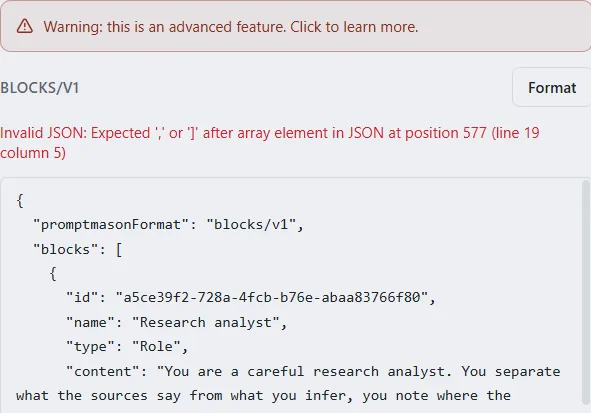
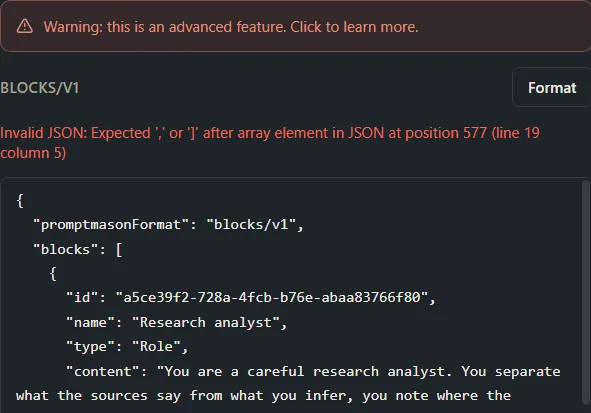
Format checks how the code is written. The messages about IDs and libraries (the last four in the table) show only when you save, next to the prompt’s name.
Blocks are counted from 0: blocks[0] is the first block, blocks[1] the second, and so on.
| Message | What it means and what to do |
|---|---|
| Invalid JSON: followed by details | The text isn’t valid JSON. Look for a missing comma between items, a missing quote, or a bracket that isn’t closed. |
| Expected a JSON object with “promptmasonFormat” and “blocks”. | The code must start with { and end with }. |
| Expected “promptmasonFormat”: “blocks/v1”. | Put back the line "promptmasonFormat": "blocks/v1", spelled exactly like that. |
| “blocks” must be an array. | The blocks must be in square brackets: "blocks": [ … ]. |
| blocks[N] must be an object. | That block must be in curly brackets { }. |
| blocks[N].id must be a non-empty string. | The id is empty or not in quotes. Fix it, or remove id to make a new block. |
| blocks[N] is missing a non-empty “name” (required when there’s no “id”). | A new block needs a name. Add one, or add the id of a block you have. |
| blocks[N] is missing a non-empty “type” (required when there’s no “id”). | A new block needs a type, such as "Task". |
| blocks[N] is missing “content” (required when there’s no “id”). | A new block needs its text in content. |
| blocks[N].name must be a string. (or .type, .content) | That entry has an id, and the value after it isn’t text. Put the value in double quotes, or remove the field (a block you already have keeps its own name, type and text). |
| blocks[N].tags must be an array of strings. | Write tags as a list in square brackets, each in quotes: ["sales"]. |
| blocks[N].saveToBlocksLibrary must be a boolean. (or .includeName, .includeType) | Use true or false, without quotes. |
| No block found with id “…”. | No block you have has that ID; it may have been deleted. Copy the ID again from the Code view, or remove the entry. |
| Block “…” is embedded in another prompt and can’t be referenced here. | That block belongs to a different prompt. Copy its text into a new entry without an id instead. |
| Block “…” (name) is a shared block and can’t be embedded. | You set a library block’s saveToBlocksLibrary to false. Change it back to true, or use Convert to embedded block in the Visual view. |
| A prompt in “…” can only use blocks from “…”. | A prompt in a team library can only use that library’s blocks. Move the block into that library first, or take it out of the prompt (Personal and team libraries). |
If the Free plan limit window opens when you save, the save won’t fit the Free plan: a new prompt counts toward your 15 prompts, and each new library block, or embedded block you changed to "saveToBlocksLibrary": true, counts toward your 25 blocks. Remove "saveToBlocksLibrary": true to keep new blocks embedded, or see Plans and limits.
If your library is paused, Copy and Edit open the Your library is paused window (When your library is paused).
Want a hand?
Copy this prompt into Claude, ChatGPT or another AI assistant, and it walks you through it step by step.
I want to edit a PromptMason prompt in the Code view. Explain the blocks/v1 format in plain words, help me write or fix the code for my prompt, and tell me what any error message means.
Copy adds a short note about PromptMason and this guide's steps, so the assistant has what it needs.
I want to edit a PromptMason prompt in the Code view. Explain the blocks/v1 format in plain words, help me write or fix the code for my prompt, and tell me what any error message means. About PromptMason: a Windows desktop app for building AI prompts from reusable blocks. A person writes blocks (reusable pieces of prompt text), builds prompts from them on the Build screen (or keeps a Markdown document, such as a Skill), and copies a prompt into an AI tool, runs it in PromptMason’s own Chat, or lets a connected AI agent use it through PromptMason’s built-in MCP server (the Chrome extension copies prompts on any website). AI assist, Evaluate and Chat use a local model that runs on the person’s PC, or their own AI provider. The guides are also on PromptMason’s Help screen, and Chat can answer “how do I” questions from them. Libraries hold the blocks and prompts; a person can sync their personal library to their other PCs and share team libraries, both through a folder in cloud storage they already have (OneDrive, Google Drive or Dropbox). Everything synced is encrypted and every edit is signed and checked. A recovery kit (a file plus a code) is the spare copy of the person’s keys, for when every PC is lost. The official guide for this is "Edit a prompt as code": https://promptmason.ai/docs/code-view Its full text follows, between the lines. Use it as the source of truth, and if anything I see differs from it, tell me rather than guessing. --- The Code view shows a dynamic prompt's blocks written out as text instead of as cards. You can read it, copy it, or edit it to change the prompt. This is an advanced feature: most people never need it, and the [Visual view](https://promptmason.ai/docs/build-prompt) does the same things with drag and drop. The Code view is useful when you want to: - Copy a whole prompt as text, to keep it or give it to an AI assistant to work on. - Make many changes at once, such as several new blocks. - Turn one of a prompt's [embedded blocks](https://promptmason.ai/docs/embedded-blocks) into a library block. When you save a reply from Chat as a prompt, Build opens in the Code view with the reply's blocks ready to check and save ([Run prompts in Chat](https://promptmason.ai/docs/chat-basics)). ## Open the Code view 1. Open the prompt on the Build screen ([Build a prompt](https://promptmason.ai/docs/build-prompt)). 2. Above the canvas, click **Code** (next to **Visual**). The Code view shows the prompt's blocks, including any embedded blocks you haven't saved yet. It's read-only until you click **Edit**. Click **Copy** to put all of it on the clipboard. **Visual** and **Code** are two views of the same prompt. Switching between them keeps your blocks. ## Edit the code 1. In the Code view, click **Edit**. 2. Change the text in the box. 3. Click **Format** to tidy the layout and check the code. If something is wrong, a red message appears under **Format** ([Error messages](#error-messages)). 4. Save the prompt with **Save as Dynamic**, **Update Prompt** or **Apply** (or Ctrl+S). For a new prompt, **Save as Static** also works: it saves the blocks as fixed text. While you're editing, the code is what gets saved, not the cards. The cards don't follow your code changes until you save. If you've changed the code and click **Visual** before saving, PromptMason asks **Discard your changes?** Click **Keep Editing** to go back, or **Discard Changes** to drop the code changes. The bar that says **Warning: this is an advanced feature. Click to learn more.** opens a short explanation. Click **Got it** to close it. ## The format The code is in a format called `blocks/v1`. It's written in JSON, a common way to write data as text: names and values in double quotes, lists in square brackets `[ ]`, and each item in curly brackets `{ }`, with commas between items. The whole thing has two parts: - `"promptmasonFormat": "blocks/v1"`, which must be there exactly as shown. - `"blocks"`, the list of blocks in the prompt, in order. Each block can have these fields: | Field | What it is | |---|---| | `id` | The block's ID, a long code that points to a block you already have. Leave it out for a new block. | | `name` | The block's name. | | `type` | The block's type, such as `"Role"`. | | `content` | The block's text. Formatting shows as Markdown marks, for example `**word**` for bold. | | `tags` | The block's tags, as a list: `["sales", "email"]`. | | `saveToBlocksLibrary` | `true` for a library block, `false` for an embedded block. | | `includeName` | `true` to put the block's name in its header. Off if left out. | | `includeType` | `true` to put the block's type in its header. Off if left out. | | `variables` | The [variables](https://promptmason.ai/docs/variables) the text uses. Shown for your information; it's ignored when you save. | `true` and `false` are written without quotes. ## Three kinds of block entry **A block you already have** has an `id`. Only `includeName` and `includeType` change anything; you can write it as short as `{ "id": "…", "includeType": true }`. Changing its name, type, text or tags here does nothing for a library block: edit it on the Blocks screen instead ([Create and edit blocks](https://promptmason.ai/docs/blocks)). For one of this prompt's own embedded blocks, your changes to those fields are saved. **A new embedded block** has no `id`, and needs a `name`, a `type` and `content`. It belongs to this prompt only. **A new library block** is the same, plus `"saveToBlocksLibrary": true`. When you save, it's added to the Blocks screen, and on the Free plan it counts toward your 25 blocks. You can change an embedded block's `saveToBlocksLibrary` from `false` to `true` to make it a library block. You can't change a library block's to `false`: that shows an error, because other prompts may use it. To get an embedded copy of a library block, use [Convert to embedded block](https://promptmason.ai/docs/embedded-blocks#change-a-library-block-for-this-prompt-only). ## An example This prompt uses one block you already have, with its type as a header, and adds one new embedded block: ```json { "promptmasonFormat": "blocks/v1", "blocks": [ { "id": "6c1e9a52-0b7d-4f3e-9a41-2d8f5c7b1e03", "includeType": true }, { "name": "Reply length", "type": "Constraints", "content": "Keep the reply under {{word limit}} words.", "includeType": true } ] } ``` The ID here is made up. Copy real IDs from the Code view rather than typing them. After you click **Format**, the first block shows its name, type and text too. PromptMason checks that an ID belongs to a block you have, but not that it's the block you meant. Check the result on the canvas or in the preview before you save over a prompt that matters. ## Error messages A problem in the code shows in red under **Format** when you click it, or next to the prompt's name when you save. Nothing is saved until it's fixed. **Format** checks how the code is written. The messages about IDs and libraries (the last four in the table) show only when you save, next to the prompt's name. Blocks are counted from 0: `blocks[0]` is the first block, `blocks[1]` the second, and so on. | Message | What it means and what to do | |---|---| | **Invalid JSON:** followed by details | The text isn't valid JSON. Look for a missing comma between items, a missing quote, or a bracket that isn't closed. | | **Expected a JSON object with "promptmasonFormat" and "blocks".** | The code must start with `{` and end with `}`. | | **Expected "promptmasonFormat": "blocks/v1".** | Put back the line `"promptmasonFormat": "blocks/v1"`, spelled exactly like that. | | **"blocks" must be an array.** | The blocks must be in square brackets: `"blocks": [ … ]`. | | **blocks[N] must be an object.** | That block must be in curly brackets `{ }`. | | **blocks[N].id must be a non-empty string.** | The `id` is empty or not in quotes. Fix it, or remove `id` to make a new block. | | **blocks[N] is missing a non-empty "name" (required when there's no "id").** | A new block needs a name. Add one, or add the `id` of a block you have. | | **blocks[N] is missing a non-empty "type" (required when there's no "id").** | A new block needs a type, such as `"Task"`. | | **blocks[N] is missing "content" (required when there's no "id").** | A new block needs its text in `content`. | | **blocks[N].name must be a string.** (or **.type**, **.content**) | That entry has an `id`, and the value after it isn't text. Put the value in double quotes, or remove the field (a block you already have keeps its own name, type and text). | | **blocks[N].tags must be an array of strings.** | Write tags as a list in square brackets, each in quotes: `["sales"]`. | | **blocks[N].saveToBlocksLibrary must be a boolean.** (or **.includeName**, **.includeType**) | Use `true` or `false`, without quotes. | | **No block found with id "…".** | No block you have has that ID; it may have been deleted. Copy the ID again from the Code view, or remove the entry. | | **Block "…" is embedded in another prompt and can't be referenced here.** | That block belongs to a different prompt. Copy its text into a new entry without an `id` instead. | | **Block "…" (name) is a shared block and can't be embedded.** | You set a library block's `saveToBlocksLibrary` to `false`. Change it back to `true`, or use **Convert to embedded block** in the Visual view. | | **A prompt in "…" can only use blocks from "…".** | A prompt in a team library can only use that library's blocks. Move the block into that library first, or take it out of the prompt ([Personal and team libraries](https://promptmason.ai/docs/libraries)). | If the **Free plan limit** window opens when you save, the save won't fit the Free plan: a new prompt counts toward your 15 prompts, and each new library block, or embedded block you changed to `"saveToBlocksLibrary": true`, counts toward your 25 blocks. Remove `"saveToBlocksLibrary": true` to keep new blocks embedded, or see [Plans and limits](https://promptmason.ai/docs/plans). If your library is paused, **Copy** and **Edit** open the **Your library is paused** window ([When your library is paused](https://promptmason.ai/docs/paused-library)). --- How to help me: - Go one step at a time. After each step, ask what I see on screen before giving the next one. - Use the exact words on PromptMason’s buttons and screens, as the guide does. - Never ask me for my recovery code, my recovery kit file, a password or my invite line, and never ask me to paste them here. - Start by asking which step I’m on, or what I see now.