Skills
Build or write a Skill, check it, and download it as a folder that Claude, ChatGPT and other AI apps can use.
Want a hand?
Copy this prompt into Claude, ChatGPT or another AI assistant, and it walks you through it step by step.
I want to make a Skill in PromptMason for my AI apps. Walk me through choosing between “Static Skill” and “Dynamic Skill”, filling in the “Front matter” card, and using “Download Skill” to get the folder.
Copy adds a short note about PromptMason and this guide's steps, so the assistant has what it needs.
I want to make a Skill in PromptMason for my AI apps. Walk me through choosing between “Static Skill” and “Dynamic Skill”, filling in the “Front matter” card, and using “Download Skill” to get the folder. About PromptMason: a desktop app for Windows and Mac for building AI prompts from reusable blocks. A person writes blocks (reusable pieces of prompt text), builds prompts from them on the Build screen (or writes a Skill for an AI app, or keeps a Markdown document), and copies a prompt into an AI tool, runs it in PromptMason’s own Chat, or lets a connected AI agent use it through PromptMason’s built-in MCP server (the Chrome extension copies prompts on any website). AI assist, Evaluate and Chat use a local model that runs on the person’s computer, or their own AI provider. The guides are also on PromptMason’s Help screen, and Chat can answer “how do I” questions from them. Libraries hold the blocks and prompts; a person can sync their personal library to their other computers and share team libraries, both through a folder in cloud storage they already have (OneDrive, Google Drive or Dropbox). Everything synced is encrypted and every edit is signed and checked. A recovery kit (a file plus a code) is the spare copy of the person’s keys, for when every computer is lost. The official guide for this is "Skills": https://promptmason.ai/docs/skills Its full text follows, between the lines. Use it as the source of truth, and if anything I see differs from it, tell me rather than guessing. --- A Skill is a set of instructions that an AI app follows when a job matches it. Skills are an open format: Claude, ChatGPT, Cursor, GitHub Copilot, Gemini CLI and many other AI apps support them. A Skill is saved as a folder with one file in it, called `SKILL.md`. The top of that file says what the Skill is called and when to use it. The rest is the instructions. PromptMason makes that folder for you. You fill in a few fields, write or build the instructions, and PromptMason checks the result and downloads it as a `.zip` file. You never type the technical part at the top of the file. A Skill you already have as a `.zip` file comes in the same way ([Import a Skill](#import-a-skill)). ## Two ways to make a Skill | | Dynamic Skill | Static Skill | |---|---|---| | How it's made | From blocks, on the Build screen | Written as text, on its own editor screen | | Where you start | **Build**, with **Build a** set to **Skill** | **Prompts**, then **New**, then **Skill** | | When a block changes | The Skill changes too | Nothing happens: it has no blocks | Choose a **Dynamic Skill** when the instructions are made of parts you already keep and reuse, such as your tone of voice or a standard format. Fix a block once and every Skill that uses it is fixed. Choose a **Static Skill** when you want to write the instructions once, exactly as you like, or when an AI app wrote them for you. Everything else works the same for both: the fields, the checks, the files, the download and using the Skill in Chat. In PromptMason's lists, the **Kind** column says **Static Skill** or **Dynamic Skill**. ## Make a Dynamic Skill 1. Click **Build** in the sidebar. 2. At the top, set **Build a** to **Skill**. A **Front matter** card appears above the blocks. 3. Type a title in the box at the top. This is the name you see in PromptMason's lists. If you leave the box empty, the Skill is saved under the **Name** from the card, exactly as you typed it. 4. Fill in the card (see [The front matter fields](#the-front-matter-fields)). 5. Drag blocks onto the canvas, as for any prompt ([Build a prompt](https://promptmason.ai/docs/build-prompt)). Tick **Heading** on a block to put its name above its text as a heading. 6. Click **Save as Dynamic Skill**, or **Apply** to save and keep building. **Save as Dynamic Skill** takes you to the Prompts screen with your Skill selected. The preview on the right shows the finished `SKILL.md`. Click **File** above it to see the file's exact text, with the `---` lines, and **Preview** to go back to the formatted view. The instructions start with the title as a heading, then each block in order. A block with **Heading** ticked gets its name as a heading above it. A block without it carries on from the text above. A block with no text adds nothing, not even its heading. Hidden notes are left out. ## Make a Static Skill 1. Click **Prompts** in the sidebar, then **New**, then **Skill**. 2. Type a title in the **Skill title** box at the top. This is the name you see in PromptMason's lists. If you leave the box empty, the Skill is saved under the **Name** from the card, exactly as you typed it. 3. Fill in the **Front matter** card. 4. Write the instructions in the large box below it. It is a plain text box: PromptMason saves exactly what you type, so headings, links and tags written in Markdown stay as you wrote them. The Tab key moves to the next control instead of indenting. The buttons above the box (**Bold**, **Italic**, **Heading**, **Bulleted list**, **Numbered list**, **Quote**, **Code** and **Link**) type the Markdown for you. See [Format with the toolbar](https://promptmason.ai/docs/markdown-documents#format-with-the-toolbar). 5. The pane on the right shows the finished `SKILL.md` as you write, and counts its characters and lines. Click **File**, above the instructions, to see the file's exact text, with the `---` lines, and **Edit** to go back to writing. 6. Click **Save**, or **Apply** to save and keep writing. **Save** takes you to the Prompts screen with your Skill selected. If AI assist is set up, it works on the instructions only. The fields at the top are never sent to a model. See [Improve text with AI assist](https://promptmason.ai/docs/ai-assist). A Skill with a problem in its fields still saves. A problem stops the download and the copy, and the card shows what to fix. ## The front matter fields The **Front matter** card holds what an AI app reads first. It is pinned above the blocks on Build and above the instructions on the editor screen. **Name** and **Description** are always shown. The rest are under **More fields**, which opens by itself when one of them has something in it. | Field | What it is for | |---|---| | **Name** | Required. The Skill's name, which also names the folder. | | **Description** | Required. What the Skill does **and when to use it**. AI apps read this to decide whether to use the Skill, so a vague description means it is not used. It can be up to 1,024 characters. The line under the box counts them. | | **License** | Optional, under **More fields**. A short name for the terms you share the Skill under, such as MIT. | | **Compatibility** | Optional, under **More fields**. What the Skill needs, such as "Needs a web browser". Up to 500 characters. | | **Allowed tools** | Optional, under **More fields**. The tools the Skill may use, separated by spaces. Some AI apps ignore it. | | **Metadata** | Optional, under **More fields**. Extra pairs of a name and a value, such as author and Alex Morgan. Click **Add** for each pair and **Remove** to take one away. Up to 20 pairs. | The description is also the item's own **Description**, so you don't fill it in twice. If an AI app saved the Skill and wrote a field the card doesn't have, the card says, for example, **1 other field kept from the saved file**, with a **Remove** button. The field is kept and written back when you download, until you remove it. ### How the name is checked A Skill's name can use only lowercase letters, numbers and hyphens, up to 64 characters, with no hyphen at the start or end and no double hyphens. AI apps require this, so PromptMason checks it as you type and never changes what you typed. - With the name box empty, the card says **A Skill needs a name. Suggested: ‘pdf-processing’.** (made from your title) with a **Use it** button. - With a name that breaks the rules, such as `PDF Processing`, the card explains the rule and offers the fixed name. Click **Use it** to take it. - A variable can't be the name: **The name can't use a variable.** Claude may refuse a Skill whose name contains the word "claude" or "anthropic". PromptMason lists this as a note, not a stop. ### The description limit **Enforce a character limit**, under **Properties**, normally limits a whole prompt. On a Skill it limits the description. Use it if a tool you upload to accepts shorter descriptions. The line under **Properties** says **Applies to the description of this Skill.** ## Use variables for shared values Values you reuse, such as your company name or the author, can be [variables](https://promptmason.ai/docs/variables) written as `{{author}}`. They work in the description, the license, the compatibility, the allowed tools, each metadata value and the instructions. The card says so once, under the description: **Every field here except the name can use {{variables}}, such as {{author}}.** They can't be used in the name. Variables are filled in when you download or copy the Skill, not when you save it, so changing a variable changes every Skill that uses it. A variable that asks each time is asked for then, in the **Fill in your values** window. A variable with no value is kept as written, such as `{{client}}`, and listed as a note. Hidden notes written as `{{! … }}` are left out of the finished file. ## The counters and notes Under the preview of the finished `SKILL.md`, a line counts its characters and lines, for example **SKILL.md: 396 characters · 12 lines**. A Skill over 500 lines shows a note that shorter Skills are followed more reliably, and suggests moving detail into a file. It is advice, not a rule. ## Add files to a Skill A Skill can carry extra files, such as a reference page the instructions point to, or a script. Under **Files**, click **Add file**: - **New file** keeps a file inside this Skill. Type its **File path**, for example `references/pricing.md`, then its text, and click **Done**. - **Link a document** uses one of your Markdown documents from the same library as a file. Choose the document, then type its **File path**. The document stays where it is and can be used by several Skills. Its text is read when you download. Each file shows its size, whether it is **Kept in this Skill** or a **Linked document**, and whether the instructions mention it: **Linked from SKILL.md** or **Not linked from SKILL.md yet**. An AI app finds a file by the path written in the instructions, so mention each one, for example in a Markdown link such as `[prices](references/pricing.md)`. A file's path uses `/` between folders, can't start with `/`, can't contain `..`, and can't be `SKILL.md`. It can be up to 200 characters and 5 folders deep. Files are text only. A Skill can have up to 50 files, each up to 1 MB, and 10 MB in all. They don't count toward the Free plan's 15 prompts. If you delete a linked document, the Skill's download stops until you fix it: **‘references/pricing.md’ points to a document that is no longer in your library.** If you archive it, its text is still used and a note says so. Each time you change a file's text, PromptMason records a version. Restoring an earlier version of the Skill from **History** brings back the files as they were. See [Version history](https://promptmason.ai/docs/version-history). ## Download Skill 1. Save the Skill first. The buttons are grayed out with **Save your changes first.** while there is anything unsaved. 2. Click **Download Skill**. You find it in the pane on the Prompts screen, under the preview on Build, beside **Edit** and **File** on a Static Skill's editor screen, and in a Skill's right-click menu. 3. If a variable asks each time, type its value in the **Fill in your values** window and click **Download Skill**. 4. Choose where to save the file. You get `<name>.zip`, named after the Skill's name. Inside is one folder with the same name, holding `SKILL.md` and your files at their paths: ``` quarterly-report-writer/ SKILL.md references/pricing.md ``` `SKILL.md` is plain text. Hidden notes are gone and variables are filled in. ### When the download stops If something is wrong, PromptMason doesn't write anything. A window titled **This Skill can't be downloaded yet** lists what to fix, and **Copy SKILL.md** and the chat picker stop for the same reasons. The messages are: | Message | What to do | |---|---| | **A Skill needs a name.** | Fill in **Name**, or click **Use it**. | | **The name can use only lowercase letters, numbers and hyphens, up to 64 characters, with no hyphen at the start or end and no double hyphens.** | Take the suggestion with **Use it**, or fix the name. | | **The name can't use a variable.** | Type a plain name. | | **A Skill needs a description: what it does and when to use it.** | Fill in **Description**. A description made only of variables with no value counts as empty. | | **The description is … characters. Skills can use up to 1,024.** | Shorten it. If you set **Enforce a character limit**, the message names your own limit. | | **Compatibility can be up to 500 characters.** | Shorten it. | | **License is too long.**, **Allowed tools is too long.**, **A Skill can have up to 20 metadata entries.** | Shorten the field, or take out a pair. | | **The instructions start with their own front matter, the block between two --- lines. Move its values into the Front matter fields above.** | Delete that block from the instructions and put its values into the card instead. | | **‘…’ can't be used as a file path.** | Fix the path. The message says why. | | **Files can be up to 1 MB each, 50 files and 10 MB in all.** | Remove or shorten files. | | **‘…’ points to a document that is no longer in your library.** | Restore the document from **Recently deleted**, or remove the file. | ### Notes before it downloads A note doesn't stop the download. A window titled **Download with these notes?** lists them, with **Cancel** and **Download anyway**. | Note | What it means | |---|---| | **{{client}} has no value, so it was kept as written.** | A variable has no value, so its `{{name}}` is in the file. Give the variable a value, or click **Download anyway**. | | **Claude may refuse a Skill whose name contains ‘claude’.** | Rename it if you want to upload it to Claude. | | **Claude may refuse a description with a tag in it.** | The description has something like `<name>` in it. | | **This Skill has no instructions yet.** | The file will have only the fields. | | **SKILL.md is over 500 lines. …** | Advice to move detail into a file. | | A linked document is archived, or a block is removed or unavailable | The note says what was used instead. | ## Import a Skill **Import** brings a Skill that is already a `.zip` file into PromptMason. Use it for a Skill you downloaded from PromptMason on another computer, one you exported from Claude or another AI app, or one someone sent you. 1. Click **Prompts**, then **New**, then **Import a Skill…**. 2. Choose the `.zip` file. A file that ends in `.skill` works too. The Skill is added to your list and opens on the right. Its name, description and other fields are filled in from the top of its `SKILL.md`, and its files are kept at their paths. `SKILL.md` can be at the top of the zip or inside one folder, and the files can sit in that folder too. A Skill always comes in as a **Static Skill**, because a zip holds the finished text, not the blocks it was made from. It counts as one prompt on the Free plan, and its files don't count. Importing the same file twice gives you two Skills. The Skill is checked the same way as one saved from a connected AI app (see [Save a Skill from a connected AI app](#save-a-skill-from-a-connected-ai-app)). A name that breaks the rules is fixed and reported, and a missing description is refused. When something was changed or left out, a window called **Skill imported** tells you. It can have up to three lists: - **Changed to fit:** what PromptMason fixed, for example a name made lowercase. - **Not brought in:** files that couldn't come in. A Skill's files are text only, so a picture or any other file that isn't text is left out, and so is a file over 1 MB. Each is listed by name, for example **‘logo.png’ isn't a text file**. The rest of the Skill is saved. - **Worth knowing:** notes about the Skill, such as a name that uses a reserved word. If the Skill can't be imported, a window called **This Skill can't be imported** says why, and nothing is added to your library: - **This .zip has no SKILL.md in it, so it isn't a Skill.** The file must be called `SKILL.md`, in capital letters. - **This .zip holds more than one Skill.** Zip each Skill on its own and import them one at a time. - The zip is password protected, or damaged. - The `SKILL.md` has no description, or its fields can't be read. The message says what to fix. ## Copy SKILL.md **Copy SKILL.md** puts the finished file on the clipboard as plain text, filled in and checked the same way as the download. Use it to paste a Skill into an AI app that takes text. The pane in the Chrome extension has the same button, but no download ([The Chrome extension](https://promptmason.ai/docs/chrome-extension)). ## Save a Skill from a connected AI app An AI app that is connected to PromptMason can save a Skill straight to your library. Ask it, for example: **Save this Skill to PromptMason.** It sends the whole `SKILL.md`, with the fields at the top, using the `save_skill` tool. See [Connect an AI agent through MCP](https://promptmason.ai/docs/connect-ai-agent). PromptMason reads the fields, saves the name and description into the card, and saves the instructions exactly as sent. It tells the AI app what it changed: - A name that breaks the rules is fixed and reported, for example **The name ‘PDF Processing’ was changed to ‘pdf-processing’**. - A list of allowed tools is joined with spaces. - A name that is missing is taken from the first heading of the instructions. Only what can't be fixed is refused, and the AI app is told why in plain words. A missing description is refused: **A Skill needs a description: what it does and when to use it.** So is a description over the limit, or front matter that can't be read. The saved Skill is a Static Skill. It has its own files if the AI app sent some. To change its text later, ask the AI app to update it (`update_skill`), which records a new version. A Skill built from blocks is changed with its blocks instead, and an AI app can read it with `get_skill`. See [MCP tools](https://promptmason.ai/docs/agent-tools). ## Get a Skill as a zip file from a connected AI app An AI app that is connected to PromptMason can also get a Skill as a zip file, the same file **Download Skill** saves, with the `get_skill_zip` tool. Ask it, for example: **Get my quarterly report Skill from PromptMason as a zip file.** It gets the file, its name and a checksum, so it can check that nothing changed on the way. A Skill you haven't changed gives the same file every time. It works in Read-only mode too. See [MCP tools](https://promptmason.ai/docs/agent-tools#get-a-skill-as-a-zip-file-read-only-and-full-access). ## Use a Skill in Chat Every Skill you have is in the **Skill** picker in a chat's header, under **Your skills**, marked **Static Skill** or **Dynamic Skill**. Choose one and the chat follows it from its next message on. You can also type **/** at the start of the message box and pick a Skill from the list: the box then starts with the Skill's name, such as **/meeting-notes-helper**, and you type your message after it. The chat is sent the finished `SKILL.md`, up to 20,000 characters. A chat can't read a Skill's files, and a Skill that has some says so under its name. A Skill with a problem shows **This Skill can't be used yet:** and the first problem. See [Run prompts in Chat](https://promptmason.ai/docs/chat-basics#use-a-skill). ## Add a Skill to Claude or ChatGPT Download the Skill first. Then: **In Claude** (claude.ai): 1. Click your name at the bottom left, then **Settings**, then **Capabilities**, and make sure **Code execution and file creation** is on. 2. In the left sidebar click **Customize**, then **Skills**. 3. Click **+**, then **+ Create skill**, then **Upload a skill**. 4. Choose the `.zip` file you downloaded. 5. Make sure the switch next to the Skill is on. Start a new chat and ask for something the description says it is for. **In ChatGPT:** 1. Open **Skills**. It is in the sidebar, or under your name or picture. Where it sits can differ by plan. 2. Click **Create**, then **Upload from your computer**. 3. Choose the `.zip` file. ChatGPT checks it first and tells you if something is wrong. Other AI apps that support Skills, such as Cursor, GitHub Copilot or Gemini CLI, take the same folder: unzip it where that app keeps its Skills. The app's own help says where. An AI app has its own rules, which can change. If one refuses a Skill, it names the reason. Fix that in PromptMason and download again. ## Skills and the Markdown documents switch A Skill isn't a Markdown document. A document stays a plain document: no fields, no checks and no download. See [Markdown documents](https://promptmason.ai/docs/markdown-documents). **Settings → Features → Markdown documents** hides the **Document** entry, never **Skill**. --- How to help me: - Go one step at a time. After each step, ask what I see on screen before giving the next one. - Use the exact words on PromptMason’s buttons and screens, as the guide does. - Never ask me for my recovery code, my recovery kit file, a password or my invite line, and never ask me to paste them here. - Start by asking which step I’m on, or what I see now.A Skill is a set of instructions that an AI app follows when a job matches it. Skills are an open format: Claude, ChatGPT, Cursor, GitHub Copilot, Gemini CLI and many other AI apps support them. A Skill is saved as a folder with one file in it, called SKILL.md. The top of that file says what the Skill is called and when to use it. The rest is the instructions.
PromptMason makes that folder for you. You fill in a few fields, write or build the instructions, and PromptMason checks the result and downloads it as a .zip file. You never type the technical part at the top of the file. A Skill you already have as a .zip file comes in the same way (Import a Skill).
Two ways to make a Skill
| Dynamic Skill | Static Skill | |
|---|---|---|
| How it’s made | From blocks, on the Build screen | Written as text, on its own editor screen |
| Where you start | Build, with Build a set to Skill | Prompts, then New, then Skill |
| When a block changes | The Skill changes too | Nothing happens: it has no blocks |
Choose a Dynamic Skill when the instructions are made of parts you already keep and reuse, such as your tone of voice or a standard format. Fix a block once and every Skill that uses it is fixed.
Choose a Static Skill when you want to write the instructions once, exactly as you like, or when an AI app wrote them for you.
Everything else works the same for both: the fields, the checks, the files, the download and using the Skill in Chat. In PromptMason’s lists, the Kind column says Static Skill or Dynamic Skill.
Make a Dynamic Skill
- Click Build in the sidebar.
- At the top, set Build a to Skill. A Front matter card appears above the blocks.
- Type a title in the box at the top. This is the name you see in PromptMason’s lists. If you leave the box empty, the Skill is saved under the Name from the card, exactly as you typed it.
- Fill in the card (see The front matter fields).
- Drag blocks onto the canvas, as for any prompt (Build a prompt). Tick Heading on a block to put its name above its text as a heading.
- Click Save as Dynamic Skill, or Apply to save and keep building. Save as Dynamic Skill takes you to the Prompts screen with your Skill selected.
The preview on the right shows the finished SKILL.md. Click File above it to see the file’s exact text, with the --- lines, and Preview to go back to the formatted view. The instructions start with the title as a heading, then each block in order. A block with Heading ticked gets its name as a heading above it. A block without it carries on from the text above. A block with no text adds nothing, not even its heading. Hidden notes are left out.
Make a Static Skill
-
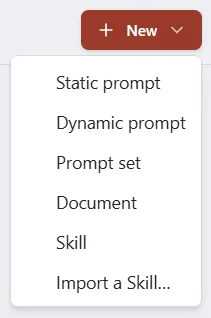
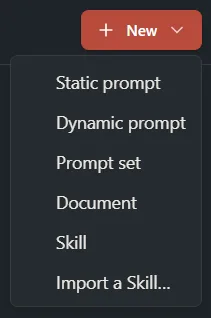
Click Prompts in the sidebar, then New, then Skill.
-
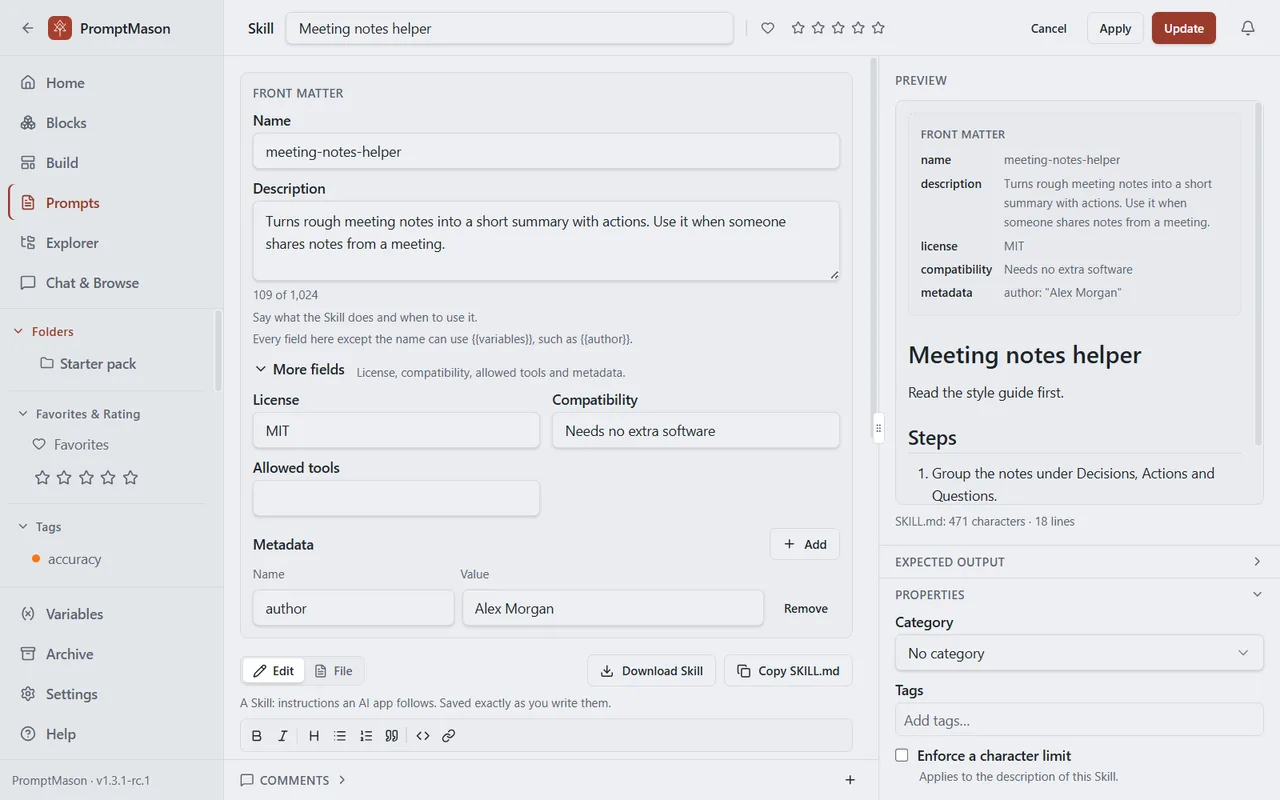
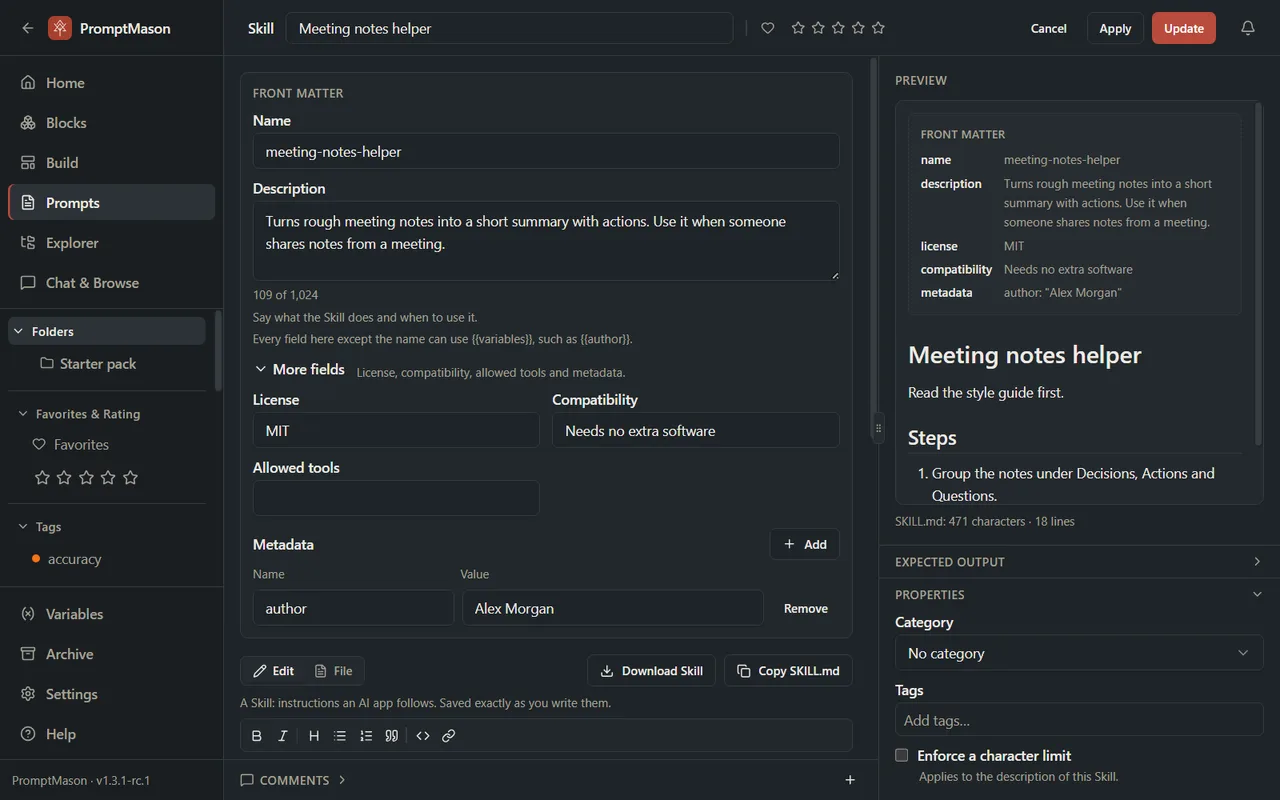
Type a title in the Skill title box at the top. This is the name you see in PromptMason’s lists. If you leave the box empty, the Skill is saved under the Name from the card, exactly as you typed it.
-
Fill in the Front matter card.
-
Write the instructions in the large box below it. It is a plain text box: PromptMason saves exactly what you type, so headings, links and tags written in Markdown stay as you wrote them. The Tab key moves to the next control instead of indenting. The buttons above the box (Bold, Italic, Heading, Bulleted list, Numbered list, Quote, Code and Link) type the Markdown for you. See Format with the toolbar.
-
The pane on the right shows the finished
SKILL.mdas you write, and counts its characters and lines. Click File, above the instructions, to see the file’s exact text, with the---lines, and Edit to go back to writing. -
Click Save, or Apply to save and keep writing. Save takes you to the Prompts screen with your Skill selected.
If AI assist is set up, it works on the instructions only. The fields at the top are never sent to a model. See Improve text with AI assist.
A Skill with a problem in its fields still saves. A problem stops the download and the copy, and the card shows what to fix.
The front matter fields
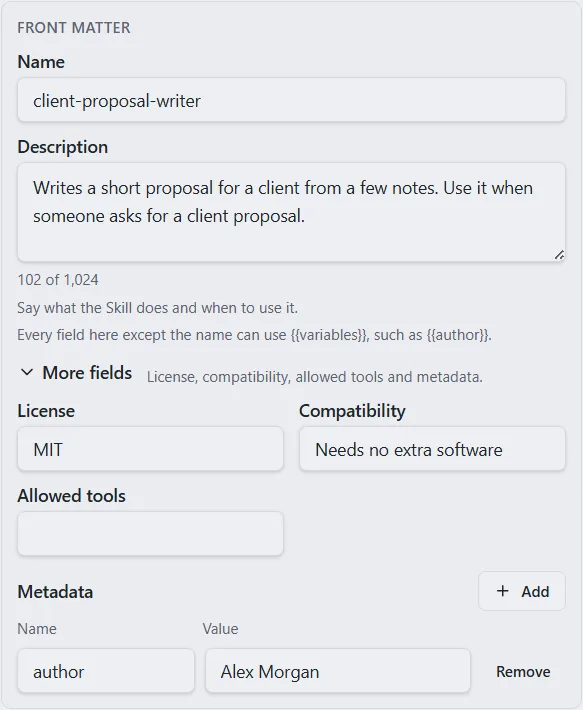
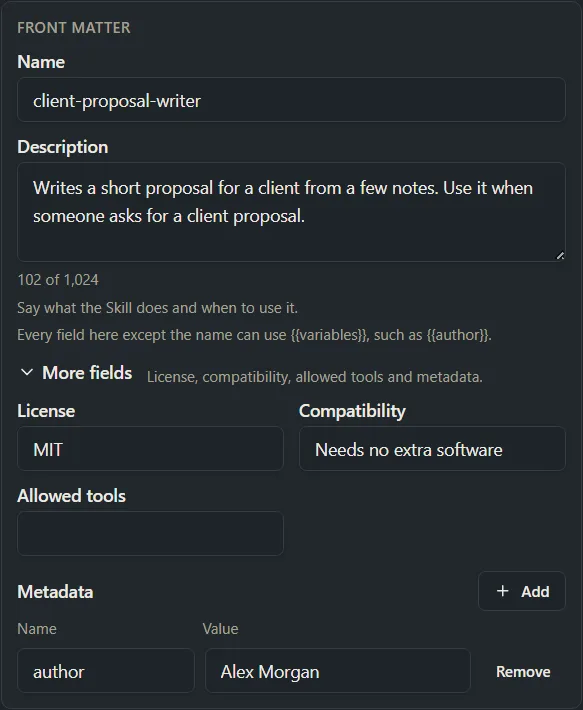
The Front matter card holds what an AI app reads first. It is pinned above the blocks on Build and above the instructions on the editor screen. Name and Description are always shown. The rest are under More fields, which opens by itself when one of them has something in it.
| Field | What it is for |
|---|---|
| Name | Required. The Skill’s name, which also names the folder. |
| Description | Required. What the Skill does and when to use it. AI apps read this to decide whether to use the Skill, so a vague description means it is not used. It can be up to 1,024 characters. The line under the box counts them. |
| License | Optional, under More fields. A short name for the terms you share the Skill under, such as MIT. |
| Compatibility | Optional, under More fields. What the Skill needs, such as “Needs a web browser”. Up to 500 characters. |
| Allowed tools | Optional, under More fields. The tools the Skill may use, separated by spaces. Some AI apps ignore it. |
| Metadata | Optional, under More fields. Extra pairs of a name and a value, such as author and Alex Morgan. Click Add for each pair and Remove to take one away. Up to 20 pairs. |
The description is also the item’s own Description, so you don’t fill it in twice.
If an AI app saved the Skill and wrote a field the card doesn’t have, the card says, for example, 1 other field kept from the saved file, with a Remove button. The field is kept and written back when you download, until you remove it.
How the name is checked
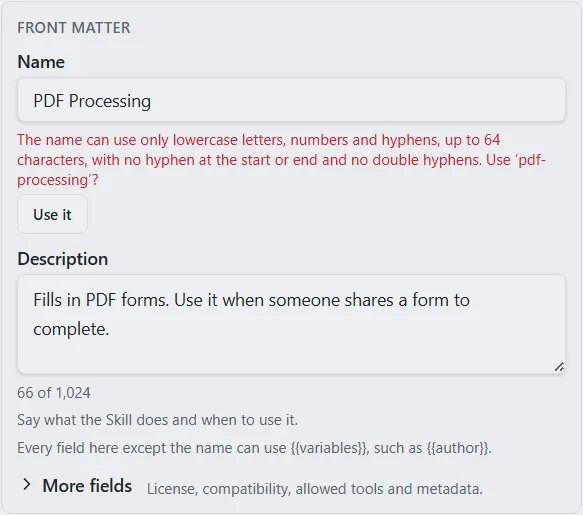
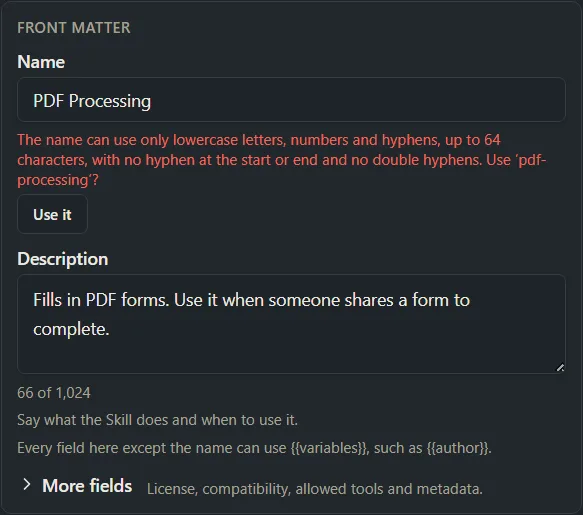
A Skill’s name can use only lowercase letters, numbers and hyphens, up to 64 characters, with no hyphen at the start or end and no double hyphens. AI apps require this, so PromptMason checks it as you type and never changes what you typed.
- With the name box empty, the card says A Skill needs a name. Suggested: ‘pdf-processing’. (made from your title) with a Use it button.
- With a name that breaks the rules, such as
PDF Processing, the card explains the rule and offers the fixed name. Click Use it to take it. - A variable can’t be the name: The name can’t use a variable.
Claude may refuse a Skill whose name contains the word “claude” or “anthropic”. PromptMason lists this as a note, not a stop.
The description limit
Enforce a character limit, under Properties, normally limits a whole prompt. On a Skill it limits the description. Use it if a tool you upload to accepts shorter descriptions. The line under Properties says Applies to the description of this Skill.
Use variables for shared values
Values you reuse, such as your company name or the author, can be variables written as {{author}}. They work in the description, the license, the compatibility, the allowed tools, each metadata value and the instructions. The card says so once, under the description: Every field here except the name can use {{variables}}, such as {{author}}. They can’t be used in the name.
Variables are filled in when you download or copy the Skill, not when you save it, so changing a variable changes every Skill that uses it. A variable that asks each time is asked for then, in the Fill in your values window. A variable with no value is kept as written, such as {{client}}, and listed as a note. Hidden notes written as {{! … }} are left out of the finished file.
The counters and notes
Under the preview of the finished SKILL.md, a line counts its characters and lines, for example SKILL.md: 396 characters · 12 lines. A Skill over 500 lines shows a note that shorter Skills are followed more reliably, and suggests moving detail into a file. It is advice, not a rule.
Add files to a Skill
A Skill can carry extra files, such as a reference page the instructions point to, or a script. Under Files, click Add file:
- New file keeps a file inside this Skill. Type its File path, for example
references/pricing.md, then its text, and click Done. - Link a document uses one of your Markdown documents from the same library as a file. Choose the document, then type its File path. The document stays where it is and can be used by several Skills. Its text is read when you download.
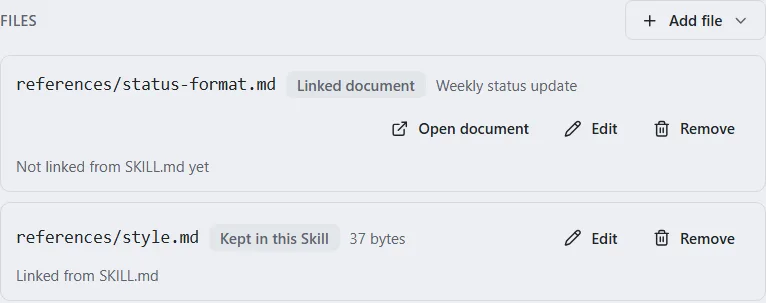
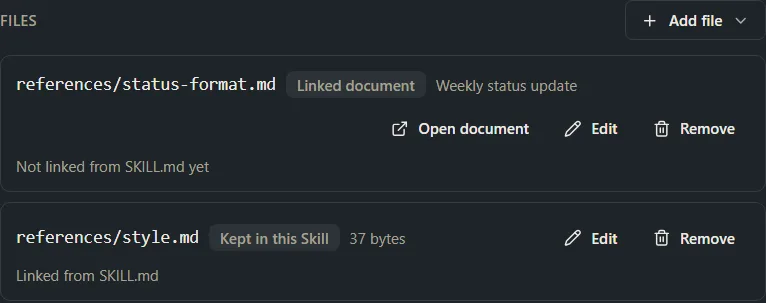
Each file shows its size, whether it is Kept in this Skill or a Linked document, and whether the instructions mention it: Linked from SKILL.md or Not linked from SKILL.md yet. An AI app finds a file by the path written in the instructions, so mention each one, for example in a Markdown link such as [prices](references/pricing.md).
A file’s path uses / between folders, can’t start with /, can’t contain .., and can’t be SKILL.md. It can be up to 200 characters and 5 folders deep. Files are text only. A Skill can have up to 50 files, each up to 1 MB, and 10 MB in all. They don’t count toward the Free plan’s 15 prompts.
If you delete a linked document, the Skill’s download stops until you fix it: ‘references/pricing.md’ points to a document that is no longer in your library. If you archive it, its text is still used and a note says so.
Each time you change a file’s text, PromptMason records a version. Restoring an earlier version of the Skill from History brings back the files as they were. See Version history.
Download Skill
- Save the Skill first. The buttons are grayed out with Save your changes first. while there is anything unsaved.
- Click Download Skill. You find it in the pane on the Prompts screen, under the preview on Build, beside Edit and File on a Static Skill’s editor screen, and in a Skill’s right-click menu.
- If a variable asks each time, type its value in the Fill in your values window and click Download Skill.
- Choose where to save the file.
You get <name>.zip, named after the Skill’s name. Inside is one folder with the same name, holding SKILL.md and your files at their paths:
quarterly-report-writer/
  SKILL.md
  references/pricing.md
SKILL.md is plain text. Hidden notes are gone and variables are filled in.
When the download stops
If something is wrong, PromptMason doesn’t write anything. A window titled This Skill can’t be downloaded yet lists what to fix, and Copy SKILL.md and the chat picker stop for the same reasons. The messages are:
| Message | What to do |
|---|---|
| A Skill needs a name. | Fill in Name, or click Use it. |
| The name can use only lowercase letters, numbers and hyphens, up to 64 characters, with no hyphen at the start or end and no double hyphens. | Take the suggestion with Use it, or fix the name. |
| The name can’t use a variable. | Type a plain name. |
| A Skill needs a description: what it does and when to use it. | Fill in Description. A description made only of variables with no value counts as empty. |
| The description is … characters. Skills can use up to 1,024. | Shorten it. If you set Enforce a character limit, the message names your own limit. |
| Compatibility can be up to 500 characters. | Shorten it. |
| License is too long., Allowed tools is too long., A Skill can have up to 20 metadata entries. | Shorten the field, or take out a pair. |
| The instructions start with their own front matter, the block between two — lines. Move its values into the Front matter fields above. | Delete that block from the instructions and put its values into the card instead. |
| ‘…’ can’t be used as a file path. | Fix the path. The message says why. |
| Files can be up to 1 MB each, 50 files and 10 MB in all. | Remove or shorten files. |
| ‘…’ points to a document that is no longer in your library. | Restore the document from Recently deleted, or remove the file. |
Notes before it downloads
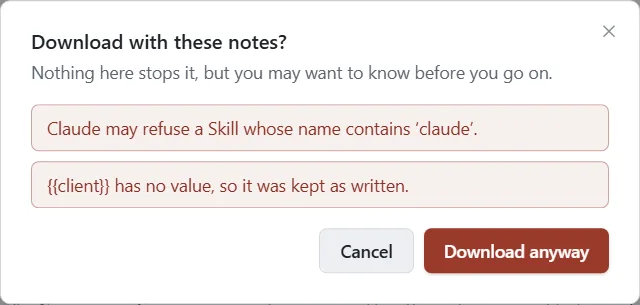
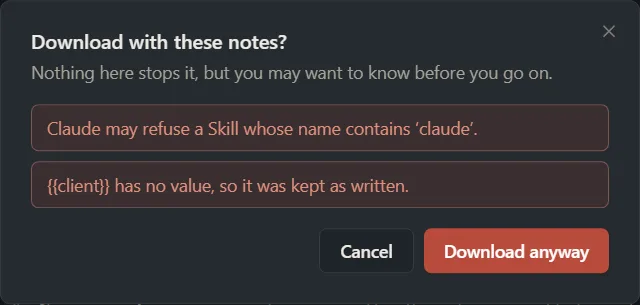
A note doesn’t stop the download. A window titled Download with these notes? lists them, with Cancel and Download anyway.
| Note | What it means |
|---|---|
| {{client}} has no value, so it was kept as written. | A variable has no value, so its {{name}} is in the file. Give the variable a value, or click Download anyway. |
| Claude may refuse a Skill whose name contains ‘claude’. | Rename it if you want to upload it to Claude. |
| Claude may refuse a description with a tag in it. | The description has something like <name> in it. |
| This Skill has no instructions yet. | The file will have only the fields. |
| SKILL.md is over 500 lines. … | Advice to move detail into a file. |
| A linked document is archived, or a block is removed or unavailable | The note says what was used instead. |
Import a Skill
Import brings a Skill that is already a .zip file into PromptMason. Use it for a Skill you downloaded from PromptMason on another computer, one you exported from Claude or another AI app, or one someone sent you.
- Click Prompts, then New, then Import a Skill….
- Choose the
.zipfile. A file that ends in.skillworks too.
The Skill is added to your list and opens on the right. Its name, description and other fields are filled in from the top of its SKILL.md, and its files are kept at their paths. SKILL.md can be at the top of the zip or inside one folder, and the files can sit in that folder too.
A Skill always comes in as a Static Skill, because a zip holds the finished text, not the blocks it was made from. It counts as one prompt on the Free plan, and its files don’t count. Importing the same file twice gives you two Skills.
The Skill is checked the same way as one saved from a connected AI app (see Save a Skill from a connected AI app). A name that breaks the rules is fixed and reported, and a missing description is refused.
When something was changed or left out, a window called Skill imported tells you. It can have up to three lists:
- Changed to fit: what PromptMason fixed, for example a name made lowercase.
- Not brought in: files that couldn’t come in. A Skill’s files are text only, so a picture or any other file that isn’t text is left out, and so is a file over 1 MB. Each is listed by name, for example ‘logo.png’ isn’t a text file. The rest of the Skill is saved.
- Worth knowing: notes about the Skill, such as a name that uses a reserved word.
If the Skill can’t be imported, a window called This Skill can’t be imported says why, and nothing is added to your library:
- This .zip has no SKILL.md in it, so it isn’t a Skill. The file must be called
SKILL.md, in capital letters. - This .zip holds more than one Skill. Zip each Skill on its own and import them one at a time.
- The zip is password protected, or damaged.
- The
SKILL.mdhas no description, or its fields can’t be read. The message says what to fix.
Copy SKILL.md
Copy SKILL.md puts the finished file on the clipboard as plain text, filled in and checked the same way as the download. Use it to paste a Skill into an AI app that takes text. The pane in the Chrome extension has the same button, but no download (The Chrome extension).
Save a Skill from a connected AI app
An AI app that is connected to PromptMason can save a Skill straight to your library. Ask it, for example: Save this Skill to PromptMason. It sends the whole SKILL.md, with the fields at the top, using the save_skill tool. See Connect an AI agent through MCP.
PromptMason reads the fields, saves the name and description into the card, and saves the instructions exactly as sent. It tells the AI app what it changed:
- A name that breaks the rules is fixed and reported, for example The name ‘PDF Processing’ was changed to ‘pdf-processing’.
- A list of allowed tools is joined with spaces.
- A name that is missing is taken from the first heading of the instructions.
Only what can’t be fixed is refused, and the AI app is told why in plain words. A missing description is refused: A Skill needs a description: what it does and when to use it. So is a description over the limit, or front matter that can’t be read.
The saved Skill is a Static Skill. It has its own files if the AI app sent some. To change its text later, ask the AI app to update it (update_skill), which records a new version. A Skill built from blocks is changed with its blocks instead, and an AI app can read it with get_skill. See MCP tools.
Get a Skill as a zip file from a connected AI app
An AI app that is connected to PromptMason can also get a Skill as a zip file, the same file Download Skill saves, with the get_skill_zip tool. Ask it, for example: Get my quarterly report Skill from PromptMason as a zip file. It gets the file, its name and a checksum, so it can check that nothing changed on the way. A Skill you haven’t changed gives the same file every time. It works in Read-only mode too. See MCP tools.
Use a Skill in Chat
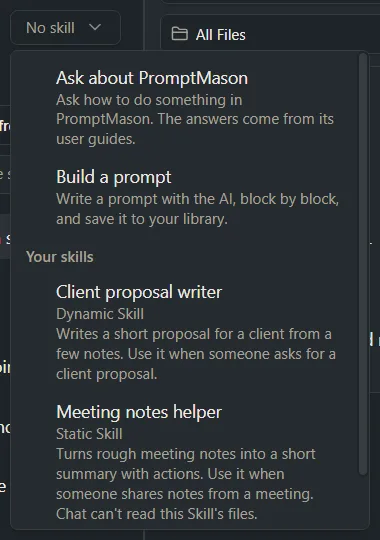
Every Skill you have is in the Skill picker in a chat’s header, under Your skills, marked Static Skill or Dynamic Skill. Choose one and the chat follows it from its next message on. You can also type / at the start of the message box and pick a Skill from the list: the box then starts with the Skill’s name, such as /meeting-notes-helper, and you type your message after it.
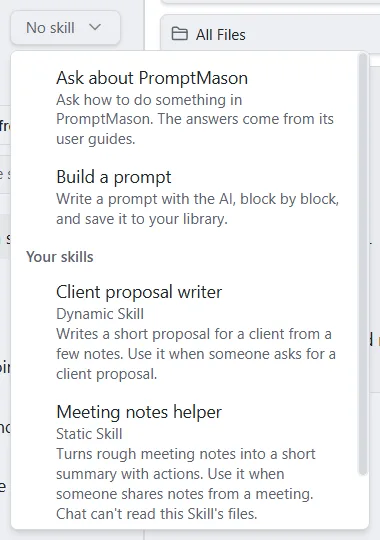
The chat is sent the finished SKILL.md, up to 20,000 characters. A chat can’t read a Skill’s files, and a Skill that has some says so under its name. A Skill with a problem shows This Skill can’t be used yet: and the first problem. See Run prompts in Chat.
Add a Skill to Claude or ChatGPT
Download the Skill first. Then:
In Claude (claude.ai):
- Click your name at the bottom left, then Settings, then Capabilities, and make sure Code execution and file creation is on.
- In the left sidebar click Customize, then Skills.
- Click +, then + Create skill, then Upload a skill.
- Choose the
.zipfile you downloaded. - Make sure the switch next to the Skill is on. Start a new chat and ask for something the description says it is for.
In ChatGPT:
- Open Skills. It is in the sidebar, or under your name or picture. Where it sits can differ by plan.
- Click Create, then Upload from your computer.
- Choose the
.zipfile. ChatGPT checks it first and tells you if something is wrong.
Other AI apps that support Skills, such as Cursor, GitHub Copilot or Gemini CLI, take the same folder: unzip it where that app keeps its Skills. The app’s own help says where.
An AI app has its own rules, which can change. If one refuses a Skill, it names the reason. Fix that in PromptMason and download again.
Skills and the Markdown documents switch
A Skill isn’t a Markdown document. A document stays a plain document: no fields, no checks and no download. See Markdown documents. Settings → Features → Markdown documents hides the Document entry, never Skill.