Team libraries
Create a team library, choose its shared folder, invite people, and understand the roles.
Want a hand?
Copy this prompt into Claude, ChatGPT or another AI assistant, and it walks you through it step by step.
Help me set up a team library for my team of 5 in PromptMason. We use OneDrive. Walk me through creating it, sharing the folder, inviting each person and approving them.
Copy adds a short note about PromptMason and this guide's steps, so the assistant has what it needs.
Help me set up a team library for my team of 5 in PromptMason. We use OneDrive. Walk me through creating it, sharing the folder, inviting each person and approving them. About PromptMason: a desktop app for Windows and Mac for building AI prompts from reusable blocks. A person writes blocks (reusable pieces of prompt text), builds prompts from them on the Build screen (or writes a Skill for an AI app, or keeps a Markdown document), and copies a prompt into an AI tool, runs it in PromptMason’s own Chat, or lets a connected AI agent use it through PromptMason’s built-in MCP server (the Chrome extension copies prompts on any website). AI assist, Evaluate and Chat use a local model that runs on the person’s computer, or their own AI provider. The guides are also on PromptMason’s Help screen, and Chat can answer “how do I” questions from them. Libraries hold the blocks and prompts; a person can sync their personal library to their other computers and share team libraries, both through a folder in cloud storage they already have (OneDrive, Google Drive or Dropbox). Everything synced is encrypted and every edit is signed and checked. A recovery kit (a file plus a code) is the spare copy of the person’s keys, for when every computer is lost. The official guide for this is "Team libraries": https://promptmason.ai/docs/team-libraries Its full text follows, between the lines. Use it as the source of truth, and if anything I see differs from it, tell me rather than guessing. --- A team library is a set of blocks and prompts your team shares. It syncs through a folder in the cloud storage your team already uses: OneDrive, SharePoint, Google Drive, Dropbox, or a network drive. No PromptMason server holds your libraries, and there's no PromptMason account. Only your library's members can read it, every edit is signed and checked, and you approve every computer that joins. Team libraries are made for small teams, up to about 25 people. On the Free plan, every library counts toward your limits, team libraries included. If a team library takes you over 25 blocks or 15 prompts, your library is paused: you can still see, search and export everything, but you can't add, edit or copy, or ask to join another library, until you're back within the limits or on Pro. See [When your library is paused](https://promptmason.ai/docs/paused-library). Looking for a notification? **You no longer have access to this library** and **A change wasn’t applied** are under [Notices about a team library](#notices-about-a-team-library). **[name] deleted [library]** is under [Delete a library for everyone](#delete-a-library-for-everyone). ## Create a team library 1. Click **Settings** in the sidebar, then **Libraries & sharing**. 2. Under **Libraries**, click **Create a team library**. 3. Type a **Name** and click **Create**. 4. If this is the first time PromptMason needs your keys, save your recovery kit and click **I’ve saved my kit** ([how](https://promptmason.ai/docs/recovery-kit#save-your-kit)). 5. Click **Choose where…** and pick where in your cloud storage the library should go, for example the top of your OneDrive or Dropbox. In Google Drive, open the Google Drive drive (usually G: on Windows, or **Google Drive** under **Locations** in a Mac's Finder) and pick **My Drive**: Google Drive doesn't allow new folders at the top of the drive itself. PromptMason makes a folder there called **PromptMason - [library name]**, for example **PromptMason - Acme Corp**. This is the folder you'll share with your team. 6. Make sure your cloud storage keeps the whole folder on this computer. See [Keep the whole folder on every computer](#keep-the-whole-folder-on-every-computer). 7. Click **Share through this folder**. If you click **Not now** instead, the library stays only on this computer. To share it later, open its **Manage** window and use **Share through this folder**. ## Invite people The **Invite people to …** window opens after you share. For each person: 1. Share the library's folder (**PromptMason - [library name]**) with them in your cloud storage, and let them make changes (edit access). 2. Click **Copy** next to the invite and send it to them, by email or chat. The invite holds no secret; it lets their computer check it's joining the right library. 3. When they ask to join, you'll see it in Notifications. Call them, compare the approval code, and approve them. See [Approve a computer](https://promptmason.ai/docs/approve-device) for the steps. Click **Done** when you're finished. To invite someone later, open **Settings → Libraries & sharing** and click **Manage** next to the library. The **Invite people** section has the invite and its **Copy** button. Only the [primary owner](https://promptmason.ai/docs/primary-owner) sees it, and only once the library syncs through its folder. ## Join a team library If someone invited you: 1. Accept the folder your teammate shared with you in your cloud storage, so it shows in File Explorer (or Finder on a Mac) on this computer, and keep it on this computer (see [below](#keep-the-whole-folder-on-every-computer)). 2. Click **Settings** in the sidebar, then **Libraries & sharing**. 3. Under **Libraries**, click **Join a team library**. 4. Paste the invite under **Invite** and click **Next**. 5. Click **Choose folder…**, pick the library's folder (**PromptMason - [library name]**) as it appears on your computer, and click **Next**. 6. Choose **No, I’m new here** and click **Ask to join**. 7. If this is the first time PromptMason needs your keys, save your recovery kit and click **I’ve saved my kit**. 8. **Your approval code** appears. The primary owner calls you to check it matches the code on their screen. 9. Click **Close**. You don't need to write the code down: it stays in **Settings → Libraries & sharing** until you're approved. Then the library appears in the sidebar and starts syncing. If PromptMason says it can't join or share, see [Sync problems](https://promptmason.ai/docs/sync-problems#library-folders-and-invites). Already in the library on another computer? Choose **Yes, this is another of my computers** instead and see [Use your library on a second computer](https://promptmason.ai/docs/second-pc#a-team-library). ## Roles | Role | What they can do | |---|---| | **Reader** | Uses what's in it. Can rate and favorite. | | **Editor** | Uses and changes what's in it. | | **Owner** | Also exports the library, imports bundles into it, backs it up and restores deleted items. | | **Primary owner** | One owner, who also approves computers, removes people and computers, changes roles, and changes the library's name and settings. See [The primary owner](https://promptmason.ai/docs/primary-owner). | New members are editors unless the primary owner picks another role when approving them. To change someone's role, the primary owner opens **Settings → Libraries & sharing**, clicks **Manage** next to the library, and picks the role next to the person's name under **Members**, on their approving computer. ## Working together - **Edits arrive on everyone's computers** as their cloud storage syncs. Each item shows who created it and who edited it last, and each version in History shows who made it. A ✓ next to the name means the edit came from a computer proven to be theirs; "via AI app" means an AI app made it. See [Personal and team libraries](https://promptmason.ai/docs/libraries#who-made-what-in-a-team-library). - **Ratings** show the team's average next to your own stars ([more](https://promptmason.ai/docs/libraries#team-ratings)). - **If two people edit the same item at once**, the later save shows, and both versions are kept in History. Notifications says **Edited at the same time**; click **Open** to see the item. - **Archiving and deleting are for everyone.** An archived item is out of the way for everyone, and anyone who can make changes can bring it back. A deleted item goes to **Recently deleted** in **Archive** for 30 days, and only an owner can restore it. See [Archive and delete in a team library](https://promptmason.ai/docs/libraries#archive-and-delete-in-a-team-library). - **Not everyone has to update at once.** Each computer tells the others which version of PromptMason it runs. Under **Members** in **Manage**, a computer on an older version than yours shows **Older PromptMason**. Until it updates, that computer shows some newer things only partly, for example a Skill without its files. Nothing is lost, and it shows everything once it updates. Notifications tell you while a computer in use is behind ([more](https://promptmason.ai/docs/sync-problems#a-computer-is-on-an-older-promptmason)), or when yours is ([more](https://promptmason.ai/docs/sync-problems#a-newer-promptmason-is-in-use)). - **Attachments** on expected outputs can be up to 25 MB. - **AI apps** (connected apps) can only read a team library unless the primary owner changes it. On their approving computer, under **Name and AI apps** in **Manage**, they pick **What AI apps can do in …**: **Read only (recommended)**, **Read and change**, or **Nothing: AI apps can’t see it**. It applies as soon as they pick it. To change the **Most changes an AI app can make per hour** (1000 to start with), they type a number and click **Save**. Both settings apply on every member's computer. Each person's own Connected apps setting applies too, and the stricter of the two wins ([Control what connected apps can do](https://promptmason.ai/docs/agent-access)). Everyone else sees the library's setting under **Name and AI apps**. To put an item from your personal library into a team library, move it: see [Move items to another library](https://promptmason.ai/docs/libraries#move-items-to-another-library). ## Rename a library The primary owner renames a team library from their approving computer: 1. Click **Settings** in the sidebar, then **Libraries & sharing**. 2. Under **Libraries**, click **Manage** next to the library. 3. Under **Name and AI apps**, type the new **Name** and click **Rename**. The new name reaches everyone's computers as they sync. ## Export or import a library Owners can export a team library to a file, or import a bundle into it. A bundle holds blocks and prompts, never members or keys. 1. Click **Settings** in the sidebar, then **Libraries & sharing**. 2. Under **Libraries**, click **Manage** next to the library. 3. Under **Import and export**: - To export, click **Export [library]**. PromptMason saves a file with the library's blocks and prompts. - To import, click **Import a bundle into [library]** and pick the file. Then click **Add to what’s there** to add it to the library, or **Replace everything** and **OK** to replace the library's contents with the bundle. Click **Cancel** to stop. Everyone in the library gets what you import, and **Replace everything** changes the library for everyone. Export first if you might want the old contents back. More about bundles: [Export and import](https://promptmason.ai/docs/export-import). ## Notices about a team library **A change wasn’t applied.** One of these: - "A change from [name] wasn’t applied because their role doesn’t allow it." Someone made a change their role doesn't allow, for example a reader's computer trying to edit. Nothing to do. If they should be able to make changes, the primary owner gives them a role that allows it. - "A change from [name] was about an item this computer keeps in another library, so it wasn’t applied." The item stays where this computer has it. When someone moves an item between two libraries this computer syncs, it moves here too on its own, so you see this only when it couldn't: the item is in a library this computer doesn't sync, or it has waited a day for the other library. Check that both libraries are syncing on this computer; the item moves once they have. If nobody moved it, tell the primary owner. **You no longer have access to this library.** The message says "You have been removed from [library]" (or "This computer was removed from [library]"). Your copy stays on this computer, read-only. Click **Take it off this computer** when you no longer need it, or ask the primary owner if it's a mistake. ## Leave a library Only the primary owner removes people, so ask them to remove you. To take a library off one computer only: 1. Click **Settings** in the sidebar, then **Libraries & sharing**. 2. Under **Libraries**, click **Manage** next to the library. 3. Under **Take it off this computer**, click **Take off this computer**. 4. PromptMason asks "Take [library] off this computer?" Click **OK**. The library and everything in it is removed from this computer. Everyone else keeps it. ## Delete a library for everyone The primary owner can delete a team library for every member, once it syncs through its folder. Do it from your approving computer: 1. Click **Settings** in the sidebar, then **Libraries & sharing**. 2. Under **Libraries**, click **Manage** next to the library. 3. Under **Delete for everyone**, click **Delete for everyone**. 4. Read the warning and click **OK**. What happens: - The library comes off your computer straight away, and PromptMason clears the library folder. It keeps two small things: a `library.json` file and a `record` folder. They tell computers that come back later that the library was deleted. Any other files you keep in that folder stay. Your Notifications shows **You deleted [library]**: "Every member’s computer takes it off the next time it syncs. Copies made outside PromptMason can’t be recalled." - Every member's computer takes it off the next time it syncs, including computers that come back after weeks away. Each member sees **[your name] deleted [library]** under **Earlier** in Notifications: "It was taken off this computer." - Once every member's computer has synced, you can delete the folder yourself. - It can't be undone. Copies people made outside PromptMason, such as exported bundles or copied text, can't be recalled. - If you only want it gone from one computer, use **Take off this computer** instead. ## If the library folder is found empty If someone empties the library folder (deletes or moves the files inside it), PromptMason doesn't treat that as a deletion. Your library stays on your computer, PromptMason puts its files back into the folder, and Notifications says **The library folder was empty**. If you moved the folder on purpose, choose it again (below). Only the primary owner's **Delete for everyone** deletes a library. ## If the library folder was moved or is gone If the folder was moved, renamed or reconnected, Notifications says **Can’t reach the library folder**. Anyone in the library can fix it on their computer: 1. In Notifications, click **Choose the folder again**. (Or open **Settings → Libraries & sharing** and click **Manage** next to the library.) 2. Click **Choose the folder again…** and pick the library's folder where it is now. PromptMason checks it's the same library and carries on. If you pick a different library's folder, it says "This folder isn’t the library you joined". If the folder is gone for good, the primary owner puts the library in a new folder, from their approving computer: 1. Open **Settings → Libraries & sharing** and click **Manage** next to the library. 2. Under **Sync**, click **Put [library] in a new folder…**. (This button shows only while PromptMason can't reach the folder or found it empty.) 3. Pick where the new folder should go. 4. Click **OK**. PromptMason makes a new **PromptMason - [library name]** folder there and copies the library into it from your computer. 5. Share the new folder with everyone in the library, as when you [invited them](#invite-people). No one needs to be approved again. 6. Each person, on each of their computers, clicks **Choose the folder again** in Notifications, then **Choose the folder again…**, and picks the new folder. As each computer does, it puts back what it wrote, so everyone catches up. ## Keep the whole folder on every computer Your cloud storage must keep a copy of every file in the library's folder on each computer, not only online. Otherwise PromptMason waits for the cloud each time. Everyone in the team does this on every computer: - **OneDrive or SharePoint:** in File Explorer (Finder on a Mac), right-click the folder and choose **Always keep on this device**. - **Google Drive:** in File Explorer (Finder on a Mac), right-click the folder, choose **Offline access**, then **Available offline**. (If Google Drive is set to mirror your files, they're already on the computer.) - **Dropbox:** right-click the folder and choose **Make available offline**. - **A network drive:** nothing to do, as long as every computer can reach it. --- How to help me: - Go one step at a time. After each step, ask what I see on screen before giving the next one. - Use the exact words on PromptMason’s buttons and screens, as the guide does. - Never ask me for my recovery code, my recovery kit file, a password or my invite line, and never ask me to paste them here. - Start by asking which step I’m on, or what I see now.A team library is a set of blocks and prompts your team shares. It syncs through a folder in the cloud storage your team already uses: OneDrive, SharePoint, Google Drive, Dropbox, or a network drive. No PromptMason server holds your libraries, and there’s no PromptMason account. Only your library’s members can read it, every edit is signed and checked, and you approve every computer that joins.
Team libraries are made for small teams, up to about 25 people.
On the Free plan, every library counts toward your limits, team libraries included. If a team library takes you over 25 blocks or 15 prompts, your library is paused: you can still see, search and export everything, but you can’t add, edit or copy, or ask to join another library, until you’re back within the limits or on Pro. See When your library is paused.
Looking for a notification? You no longer have access to this library and A change wasn’t applied are under Notices about a team library. [name] deleted [library] is under Delete a library for everyone.
Create a team library
-
Click Settings in the sidebar, then Libraries & sharing.
-
Under Libraries, click Create a team library.
-
Type a Name and click Create.
-
If this is the first time PromptMason needs your keys, save your recovery kit and click I’ve saved my kit (how).
-
Click Choose where… and pick where in your cloud storage the library should go, for example the top of your OneDrive or Dropbox. In Google Drive, open the Google Drive drive (usually G: on Windows, or Google Drive under Locations in a Mac’s Finder) and pick My Drive: Google Drive doesn’t allow new folders at the top of the drive itself. PromptMason makes a folder there called PromptMason - [library name], for example PromptMason - Acme Corp. This is the folder you’ll share with your team.


-
Make sure your cloud storage keeps the whole folder on this computer. See Keep the whole folder on every computer.
-
Click Share through this folder.
If you click Not now instead, the library stays only on this computer. To share it later, open its Manage window and use Share through this folder.
Invite people
The Invite people to … window opens after you share. For each person:
- Share the library’s folder (PromptMason - [library name]) with them in your cloud storage, and let them make changes (edit access).
- Click Copy next to the invite and send it to them, by email or chat. The invite holds no secret; it lets their computer check it’s joining the right library.
- When they ask to join, you’ll see it in Notifications. Call them, compare the approval code, and approve them. See Approve a computer for the steps.
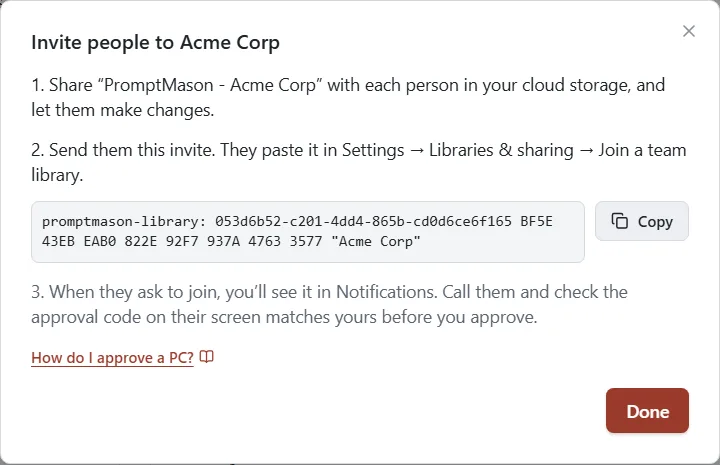
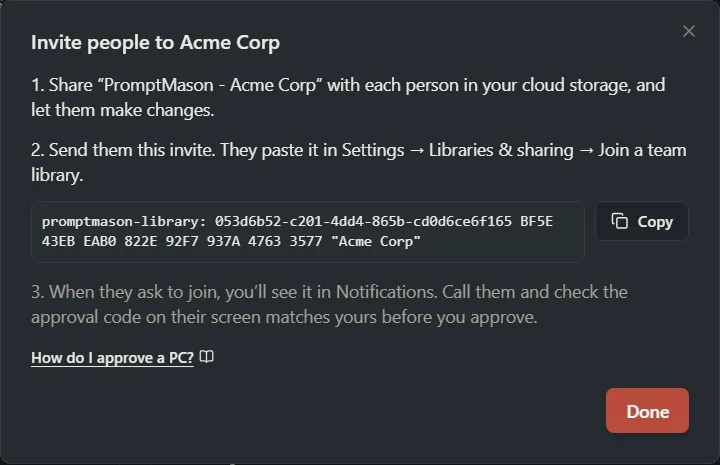
Click Done when you’re finished. To invite someone later, open Settings → Libraries & sharing and click Manage next to the library. The Invite people section has the invite and its Copy button. Only the primary owner sees it, and only once the library syncs through its folder.
Join a team library
If someone invited you:
-
Accept the folder your teammate shared with you in your cloud storage, so it shows in File Explorer (or Finder on a Mac) on this computer, and keep it on this computer (see below).
-
Click Settings in the sidebar, then Libraries & sharing.
-
Under Libraries, click Join a team library.
-
Paste the invite under Invite and click Next.
-
Click Choose folder…, pick the library’s folder (PromptMason - [library name]) as it appears on your computer, and click Next.
-
Choose No, I’m new here and click Ask to join.


-
If this is the first time PromptMason needs your keys, save your recovery kit and click I’ve saved my kit.
-
Your approval code appears. The primary owner calls you to check it matches the code on their screen.


-
Click Close. You don’t need to write the code down: it stays in Settings → Libraries & sharing until you’re approved. Then the library appears in the sidebar and starts syncing.
If PromptMason says it can’t join or share, see Sync problems.
Already in the library on another computer? Choose Yes, this is another of my computers instead and see Use your library on a second computer.
Roles
| Role | What they can do |
|---|---|
| Reader | Uses what’s in it. Can rate and favorite. |
| Editor | Uses and changes what’s in it. |
| Owner | Also exports the library, imports bundles into it, backs it up and restores deleted items. |
| Primary owner | One owner, who also approves computers, removes people and computers, changes roles, and changes the library’s name and settings. See The primary owner. |
New members are editors unless the primary owner picks another role when approving them.
To change someone’s role, the primary owner opens Settings → Libraries & sharing, clicks Manage next to the library, and picks the role next to the person’s name under Members, on their approving computer.


Working together
- Edits arrive on everyone’s computers as their cloud storage syncs. Each item shows who created it and who edited it last, and each version in History shows who made it. A ✓ next to the name means the edit came from a computer proven to be theirs; “via AI app” means an AI app made it. See Personal and team libraries.
- Ratings show the team’s average next to your own stars (more).
- If two people edit the same item at once, the later save shows, and both versions are kept in History. Notifications says Edited at the same time; click Open to see the item.
- Archiving and deleting are for everyone. An archived item is out of the way for everyone, and anyone who can make changes can bring it back. A deleted item goes to Recently deleted in Archive for 30 days, and only an owner can restore it. See Archive and delete in a team library.
- Not everyone has to update at once. Each computer tells the others which version of PromptMason it runs. Under Members in Manage, a computer on an older version than yours shows Older PromptMason. Until it updates, that computer shows some newer things only partly, for example a Skill without its files. Nothing is lost, and it shows everything once it updates. Notifications tell you while a computer in use is behind (more), or when yours is (more).
- Attachments on expected outputs can be up to 25 MB.
- AI apps (connected apps) can only read a team library unless the primary owner changes it. On their approving computer, under Name and AI apps in Manage, they pick What AI apps can do in …: Read only (recommended), Read and change, or Nothing: AI apps can’t see it. It applies as soon as they pick it. To change the Most changes an AI app can make per hour (1000 to start with), they type a number and click Save. Both settings apply on every member’s computer. Each person’s own Connected apps setting applies too, and the stricter of the two wins (Control what connected apps can do). Everyone else sees the library’s setting under Name and AI apps.
To put an item from your personal library into a team library, move it: see Move items to another library.
Rename a library
The primary owner renames a team library from their approving computer:
- Click Settings in the sidebar, then Libraries & sharing.
- Under Libraries, click Manage next to the library.
- Under Name and AI apps, type the new Name and click Rename.
The new name reaches everyone’s computers as they sync.
Export or import a library
Owners can export a team library to a file, or import a bundle into it. A bundle holds blocks and prompts, never members or keys.
- Click Settings in the sidebar, then Libraries & sharing.
- Under Libraries, click Manage next to the library.
- Under Import and export:
- To export, click Export [library]. PromptMason saves a file with the library’s blocks and prompts.
- To import, click Import a bundle into [library] and pick the file. Then click Add to what’s there to add it to the library, or Replace everything and OK to replace the library’s contents with the bundle. Click Cancel to stop.
Everyone in the library gets what you import, and Replace everything changes the library for everyone. Export first if you might want the old contents back. More about bundles: Export and import.
Notices about a team library
A change wasn’t applied. One of these:
- “A change from [name] wasn’t applied because their role doesn’t allow it.” Someone made a change their role doesn’t allow, for example a reader’s computer trying to edit. Nothing to do. If they should be able to make changes, the primary owner gives them a role that allows it.
- “A change from [name] was about an item this computer keeps in another library, so it wasn’t applied.” The item stays where this computer has it. When someone moves an item between two libraries this computer syncs, it moves here too on its own, so you see this only when it couldn’t: the item is in a library this computer doesn’t sync, or it has waited a day for the other library. Check that both libraries are syncing on this computer; the item moves once they have. If nobody moved it, tell the primary owner.
You no longer have access to this library. The message says “You have been removed from [library]” (or “This computer was removed from [library]”). Your copy stays on this computer, read-only. Click Take it off this computer when you no longer need it, or ask the primary owner if it’s a mistake.
Leave a library
Only the primary owner removes people, so ask them to remove you.
To take a library off one computer only:
- Click Settings in the sidebar, then Libraries & sharing.
- Under Libraries, click Manage next to the library.
- Under Take it off this computer, click Take off this computer.
- PromptMason asks “Take [library] off this computer?” Click OK.
The library and everything in it is removed from this computer. Everyone else keeps it.
Delete a library for everyone
The primary owner can delete a team library for every member, once it syncs through its folder. Do it from your approving computer:
- Click Settings in the sidebar, then Libraries & sharing.
- Under Libraries, click Manage next to the library.
- Under Delete for everyone, click Delete for everyone.
- Read the warning and click OK.
What happens:
- The library comes off your computer straight away, and PromptMason clears the library folder. It keeps two small things: a
library.jsonfile and arecordfolder. They tell computers that come back later that the library was deleted. Any other files you keep in that folder stay. Your Notifications shows You deleted [library]: “Every member’s computer takes it off the next time it syncs. Copies made outside PromptMason can’t be recalled.” - Every member’s computer takes it off the next time it syncs, including computers that come back after weeks away. Each member sees [your name] deleted [library] under Earlier in Notifications: “It was taken off this computer.”
- Once every member’s computer has synced, you can delete the folder yourself.
- It can’t be undone. Copies people made outside PromptMason, such as exported bundles or copied text, can’t be recalled.
- If you only want it gone from one computer, use Take off this computer instead.
If the library folder is found empty
If someone empties the library folder (deletes or moves the files inside it), PromptMason doesn’t treat that as a deletion. Your library stays on your computer, PromptMason puts its files back into the folder, and Notifications says The library folder was empty. If you moved the folder on purpose, choose it again (below). Only the primary owner’s Delete for everyone deletes a library.
If the library folder was moved or is gone
If the folder was moved, renamed or reconnected, Notifications says Can’t reach the library folder. Anyone in the library can fix it on their computer:
- In Notifications, click Choose the folder again. (Or open Settings → Libraries & sharing and click Manage next to the library.)
- Click Choose the folder again… and pick the library’s folder where it is now.
PromptMason checks it’s the same library and carries on. If you pick a different library’s folder, it says “This folder isn’t the library you joined”.
If the folder is gone for good, the primary owner puts the library in a new folder, from their approving computer:
- Open Settings → Libraries & sharing and click Manage next to the library.
- Under Sync, click Put [library] in a new folder…. (This button shows only while PromptMason can’t reach the folder or found it empty.)
- Pick where the new folder should go.
- Click OK. PromptMason makes a new PromptMason - [library name] folder there and copies the library into it from your computer.
- Share the new folder with everyone in the library, as when you invited them. No one needs to be approved again.
- Each person, on each of their computers, clicks Choose the folder again in Notifications, then Choose the folder again…, and picks the new folder. As each computer does, it puts back what it wrote, so everyone catches up.
Keep the whole folder on every computer
Your cloud storage must keep a copy of every file in the library’s folder on each computer, not only online. Otherwise PromptMason waits for the cloud each time. Everyone in the team does this on every computer:
- OneDrive or SharePoint: in File Explorer (Finder on a Mac), right-click the folder and choose Always keep on this device.
- Google Drive: in File Explorer (Finder on a Mac), right-click the folder, choose Offline access, then Available offline. (If Google Drive is set to mirror your files, they’re already on the computer.)
- Dropbox: right-click the folder and choose Make available offline.
- A network drive: nothing to do, as long as every computer can reach it.